Balancing maintaining strict device-verification policies with keeping operational workflows efficient is a common challenge for security teams operating in regulated, air-gapped environments.
MetaDefender Drive v4.4.5 includes features and enhancements that accelerate device verification, simplify sharing scan results, improve centralized visibility, and strengthen automated security response workflows without compromising security validation requirements.
Accelerated Device Verification for Returning Devices
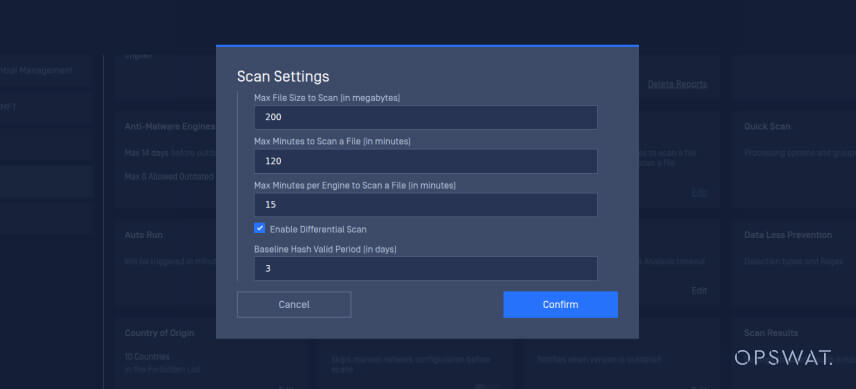
MetaDefender Drive v4.4.5 accelerates device verification by skipping rescans for unchanged files based on defined security policies. Instead of reassessing every file during repeat visits, MetaDefender Drive compares returning devices against previously verified file information and scans only the new and changed files.
In addition, MetaDefender Drive administrators can configure how long previously verified file information remains valid through policy settings in MetaDefender Drive preferences. After this validity period, MetaDefender Drive performs a full scan to verify that the device is aligned with an updated baseline.
To enable this feature:
- Open Preferences on MetaDefender Drive
- Navigate to Scan Settings.
- Enable Differential Scan.
- Configure the preferred verification policy and baseline behavior.
Generate and Email Scan Session Summaries Through MetaDefender Kiosk™
This release provides a convenient way to share scan results through MetaDefender Kiosk. MetaDefender Drive users can now generate and email scan session summaries through MetaDefender Kiosk for simplified compliance reviews. This enables security and operations teams to quickly share scan evidence for review, approval, or audit workflows.
Configure Scan Session Summary Delivery in MetaDefender Kiosk
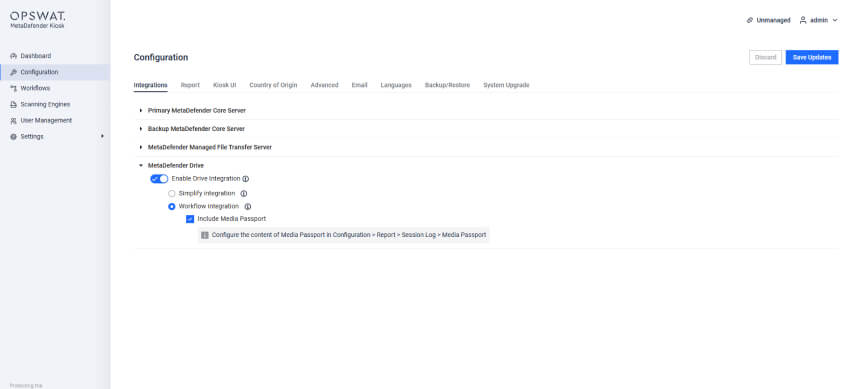
1. Navigate to Kiosk Configuration. Under Integrations, choose Enable Drive Integration
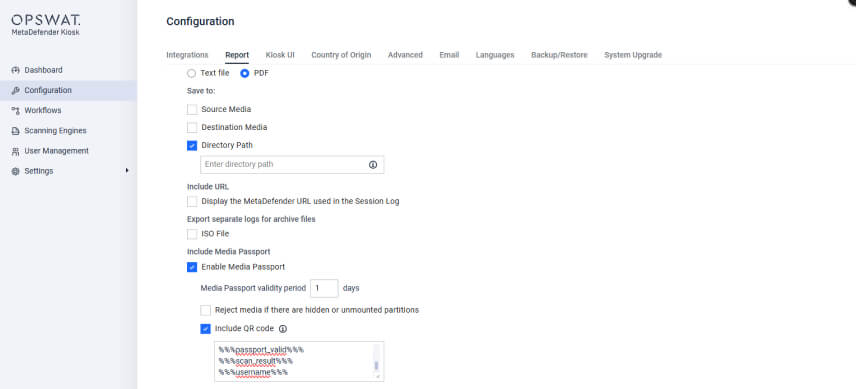
2. Navigate to Configuration > Reports and select PDF as the report format. Configure the report storage location. Under Media Passport, enable Enable Media Passport, define the validity period, and enable Include QR Code with the desired placeholders. location.
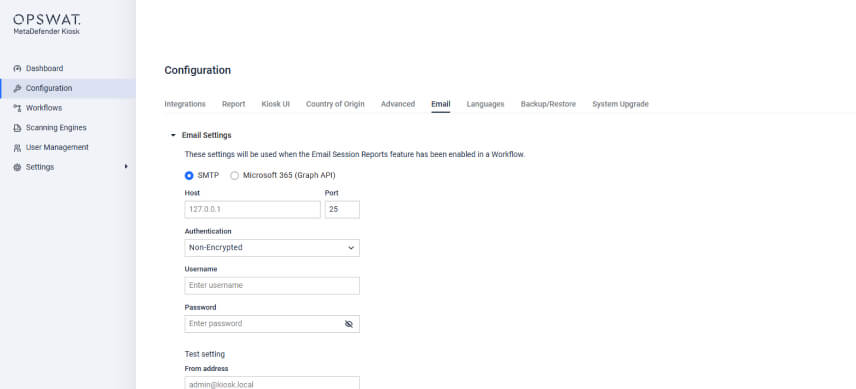
3. Navigate to Configuration > Email > Email Settings. Select either SMTP or Microsoft 365 (Graph API), then configure the required server, authentication, and connection settings. Use Test Settings to validate the configuration before deployment.
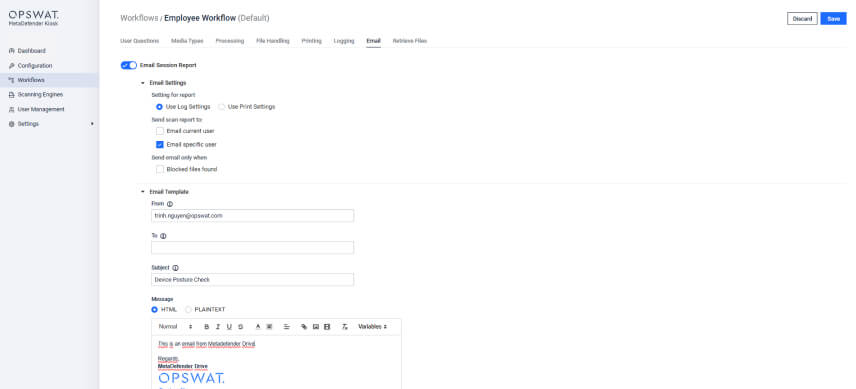
4. Navigate to Email, enable Email Session Report , and adjust the recipient and template settings.
Generate and Email Scan Session Summaries Through MetaDefender Kiosk
Once Scan Session Summary delivery is configured, operators can generate and email the latest scan results directly through MetaDefender Kiosk.
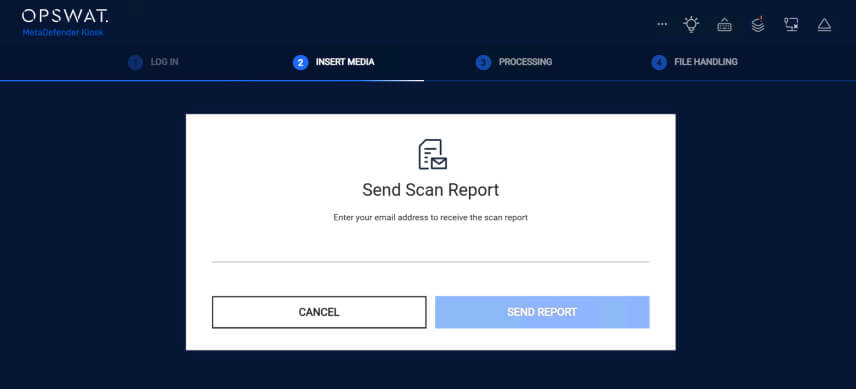
1. Insert MetaDefender Drive into MetaDefender Kiosk and enter the recipient email address to receive the Scan Session Summary.
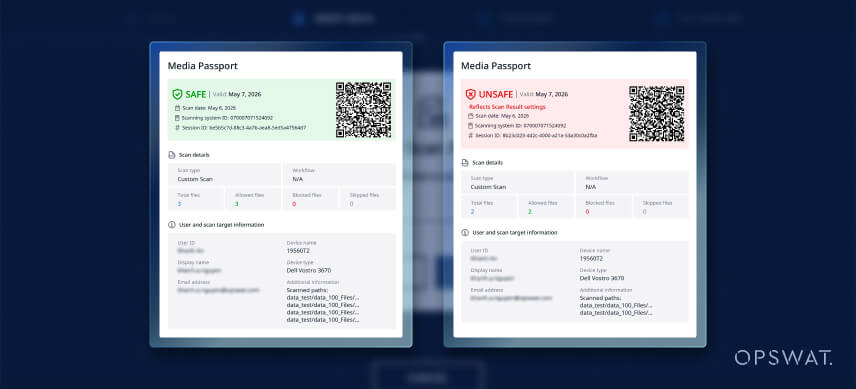
2. The designated recipient receives a Scan Session Summary containing key scan results, device status, and verification details from the latest scan session. This enables security teams and operators to review compliance results and make faster device access decisions.
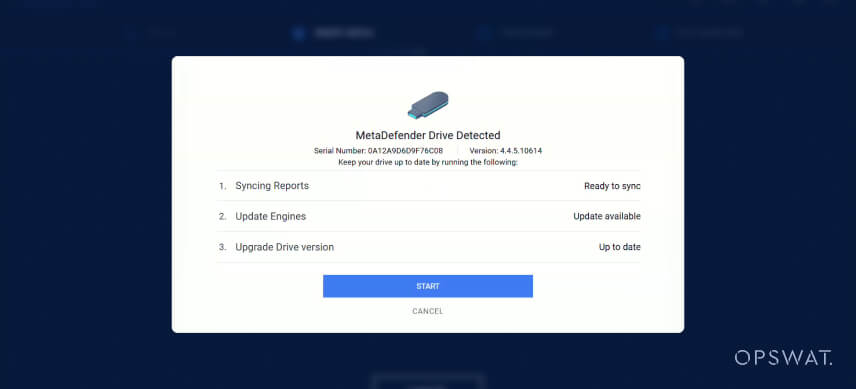
3. After the Scan Session Summary is delivered, MetaDefender Drive continues its updating workflow. The device can receive engine updates, image updates, and synchronize scan reports to My OPSWAT Central Management when connectivity becomes available.
Automated Unsafe Device Notifications Through My OPSWAT™ Central Management
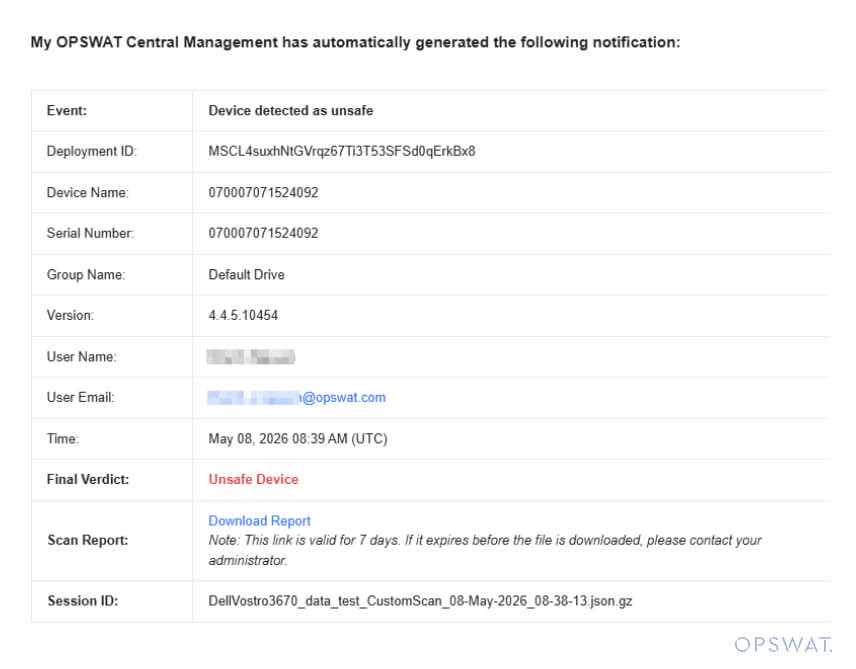
MetaDefender Drive v4.4.5 improves the response workflows by alerting security teams via email notifications through My OPSWAT Central Management when unsafe devices are detected. The automated notifications feature also supports integration with existing incident response workflows, including platforms such as ServiceNow
This enhancement enables:
- Faster awareness of unsafe device events
- Reduced manual escalation steps
- Better coordination between operators and security teams
- Faster decisions on whether a device should be allowed access
Release Details
Product: MetaDefender Drive
Release Date: May 13, 2026
Release Notes: Learn more here
To update MetaDefender Drive, download the latest version of MetaDefender Drive Toolkit and follow the installation instructions..