MetaDefender ICAP Server v5.16.0 is available now, with more control over which files are scanned, visibility into each request while it's processed, and a way to troubleshoot ICAP integrations from the Web UI.
What's new in 5.16.0
- Scan Scope by File Type: scan all file types, all except selected types, or only selected types.
- Processing History stages: each request is logged on arrival and shows its current stage until the verdict is returned.
- Built-in traffic capture: record ICAP and HTTP traffic from the Web UI and download it as readable transactions or .pcap files.
- File Security dashboard: request outcomes, allow and block reasons, and system performance in one view.
- Remote upgrades and instance-specific Server Profiles: upgrade from My OPSWAT Central Management, and keep each instance's Server Profiles when a group policy is applied.
- FIPS 140-3 mode: enforce it from the Web UI, with a readiness check for legacy TLS.
Use Cases
Organizations that:
- Inspect files from web proxies, managed file transfer (MFT) servers, and other ICAP-enabled devices.
- Only need to scan a few high-risk file types in some workflows.
- Manage several MetaDefender ICAP Server instances through My OPSWAT Central Management.
- Operate in environments that require FIPS 140-3.
Scan Scope by File Type: Send Only the Files That Need Scanning
File type control used to work only as an allowlist. Selected types skipped scanning and everything else was scanned, so scanning just a few types meant selecting almost every other type.
Version 5.16.0 replaces the allowlist with Scan Scope by File Type, which has three scan modes:
- Scan all file types (default).
- Scan all except selected file types.
- Scan only selected file types.
Choose a scan mode per workflow under File Scanning > Scan Scope by File Type.
Benefits: Workflows that only need to inspect a few high-risk file types can select just those types, instead of excluding every other type, and send only those to MetaDefender Core™.
Processing History Stages: See Where Each Request Is
Previously, a request appeared in Processing History only after its scan finished. A file still being analyzed looked the same as one that never arrived, and confirming it meant opening the MetaDefender Core console.
A record is now created as soon as the ICAP request is received. It moves through five stages:
- Receiving: the file is arriving from the ICAP client.
- Submitting: the file is being sent to MetaDefender Core.
- Scanning: MetaDefender Core is analyzing the file.
- Retrieving: the result is being collected, along with the sanitized or redacted file if Deep CDR™ Technology or Proactive DLP™ produced one.
- Responding: the final file is being returned to the ICAP client.
Each request shows its current stage until the verdict is returned.
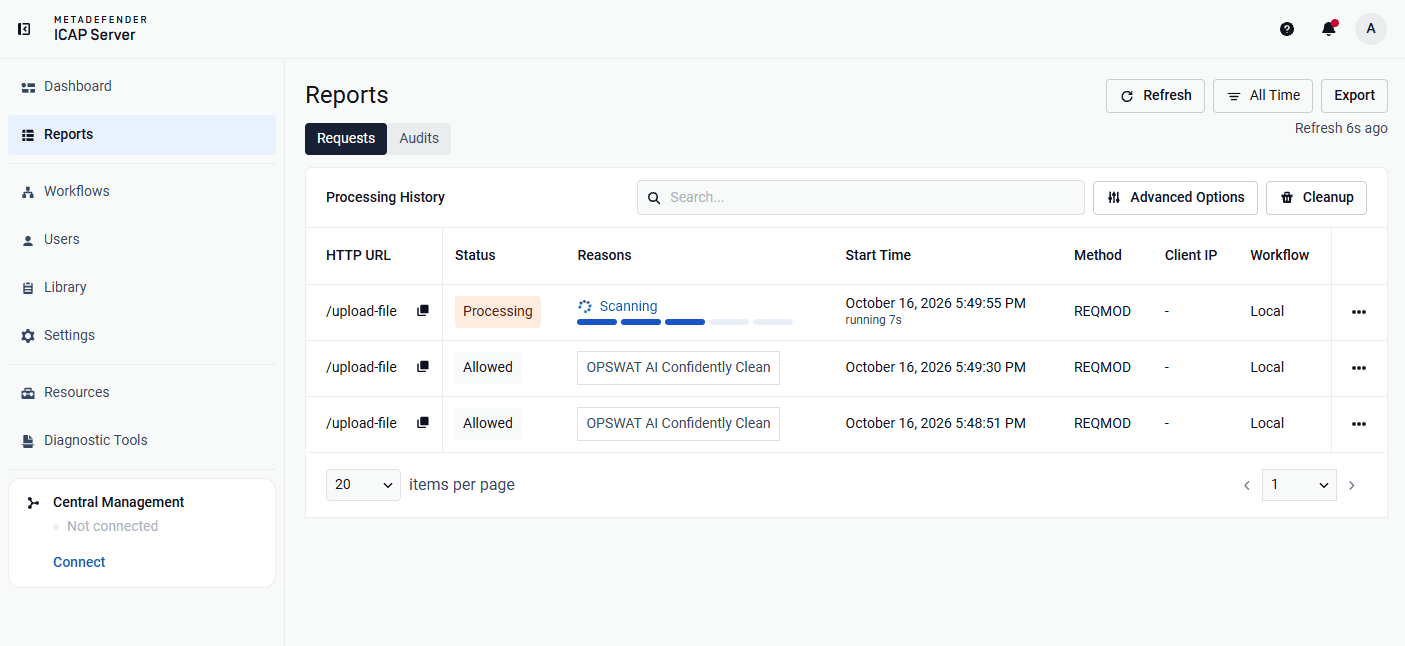
Benefits: Administrators can tell a slow scan from a request that never arrived without opening the MetaDefender Core console. Large files that stay in Responding show as in progress rather than missing.
Built-In Traffic Capture: Troubleshoot ICAP Integrations from the Web UI
When an ICAP client such as proxy or, MFT server, or other ICAP client can't connect, gets unexpected responses, or times out, administrators can now capture the traffic from the Web UI.
How It Works: Start a capture, reproduce the problem, and download the result. Each capture records the same traffic two ways:
- Transactions: every ICAP and HTTP request and response, recorded after TLS termination so ICAPS traffic is readable. These show what was sent and why it was rejected.
- Packets: raw traffic saved as standard .pcap files, showing connection setup, resets, retransmissions, and timing. MetaDefender ICAP Server includes a capture tool on Linux and uses the built-in Packet Monitor (pktmon) on Windows.
Captures can be filtered by traffic source, network interface, and client IP, and named so downloaded files are easy to find later. They can contain file contents and other sensitive data, so the feature is disabled by default. Enabling it is a one-time change in the configuration file, followed by a restart.
Start, filter, and download captures under Diagnostics > Traffic Capture.
Benefits: Each capture records both what was exchanged and how the connection behaved, without a separate capture tool on the server.
New File Security Dashboard: Single-Pane-of-Glass Visibility
The redesigned Dashboard shows how much traffic was processed, what happened to it, and why.
The Security tab opens with a Requests Summary. It breaks down why requests were allowed (by scan result, by configuration without scanning, or by override settings) and why they were blocked. Requests the client closed before completion appear separately as Aborted by client, so totals add up. Trend charts and summary cards show outcomes over time and by file type.
The System tab shows system performance alongside security activity.
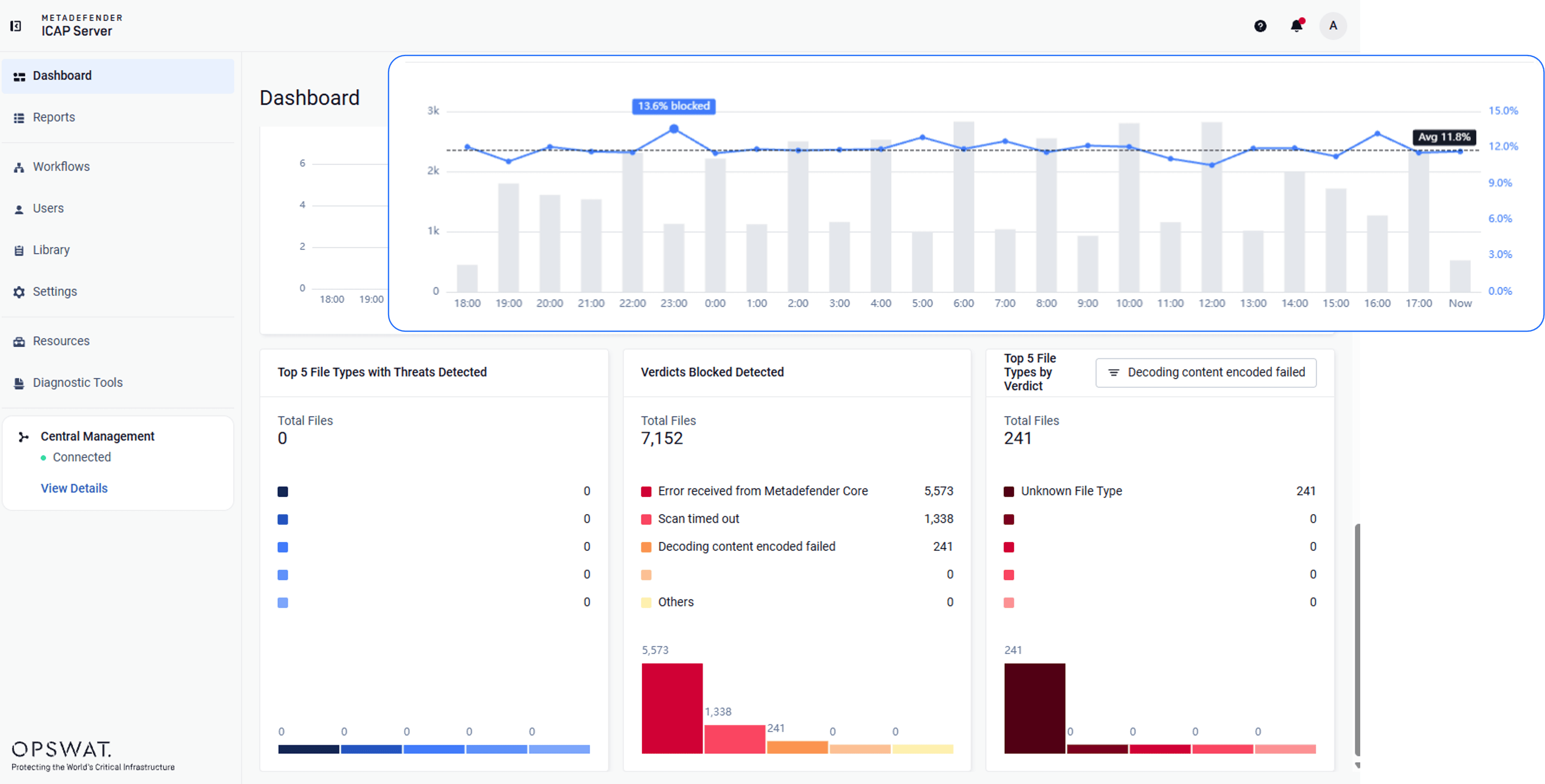
Benefits: Teams can see allow and block reasons in one place, including files allowed by configuration without scanning. That breakdown matters more now that Scan Scope lets workflows skip file types on purpose.
My OPSWAT Central Management: Remote Upgrades and Instance-Specific Server Profiles
Remote upgrades. Enrolled instances can be upgraded from the Central Management console on Windows and Linux. The installer's checksum is verified before staging, and the instance must pass a health and license check afterward.
Instances on v5.15.0 or earlier need one manual upgrade to v5.16.0 first.
Granular group policies: shared settings follow the group policy, and each instance keeps its own Server Profiles.
Benefits: Administrators running multiple instances can upgrade multiple instances and apply a shared policy without logging in to each server or rebuilding MetaDefender Core connections.
FIPS 140-3 Mode: Enforce from the Web UI with a Readiness Check
- One-switch enforcement: a single switch enforces FIPS mode, and the web server restarts to apply it.
- Readiness check: connections that still allow TLS 1.1, TLS 1.0, or SSL 3.0 block enforcement and are listed with a link to fix each one.
- Protected configuration: legacy protocols can't be selected while FIPS mode is on.
Enforce FIPS 140-3 under Settings > Security > FIPS 140-3 Mode.
Benefits: Administrators can see which TLS connections block FIPS enforcement and fix them before switching it on.
Also in This Release
- Clearer Central Management sync messages: if the instance can't reach Central Management during a save, the change is reported as saved, with a separate notice that it hasn't synced yet.
- Log rotation on Linux: the Central Management transporter log is now rotated daily, compressed, and capped at 30 files, matching Windows.
- Library upgrades: OpenSSL, NGINX, curl, PostgreSQL, libxml2, and c-ares were upgraded to address known vulnerabilities.
MetaDefender ICAP Server: Built to Protect What Enters Your Network Environment
MetaDefender ICAP Server secures files at the network perimeter, before they enter your organization and reach users, applications, or storage. That is where threats are most efficiently intercepted, and where gaps in reliability or compliance have the most impact.
ICAP (Internet Content Adaptation Protocol) is an open standard that allows security services to be offloaded to specialized servers, increasing network throughput while maintaining deep inspection capabilities.
All suspicious files traveling through your network traffic are blocked or sanitized before they are accessible to end users. Sensitive data is redacted, removed, or blocked to help organizations meet security compliance standards. The core protection capabilities: Metascan™ Multiscanning powered by multiple anti-malware engines and AI, Deep CDR™ Technology, Proactive DLP™, Adaptive Sandbox, File-Based Vulnerability Assessment, and other technologies—remain unchanged in this release.
Next Steps
MetaDefender ICAP Server 5.16.0 is available now. Existing customers can download the latest release from the My OPSWAT™ Portal. For full release notes and upgrade instructions, visit the OPSWAT Documentation.
Interested in securing network traffic with ICAP-enabled solutions? Contact our team to learn how MetaDefender ICAP Server protects your file traffic at the perimeter.