MetaDefender Drive v4.4.7 introduces Smart Scan, a new feature that enables organizations to configure a policy-driven scanning workflow tailored to their operational requirements.. Configuring a Smart Scan helps MetaDefender Drive administrators standardize device verification, improve operator consistency, and optimize scan performance.
What is a Smart Scan?
A Smart Scan is a configurable, one-click scan that enables MetaDefender Drive administrators to define exactly how devices are scanned by selecting anti-malware engines, security technologies, target directories, and operator guidance.
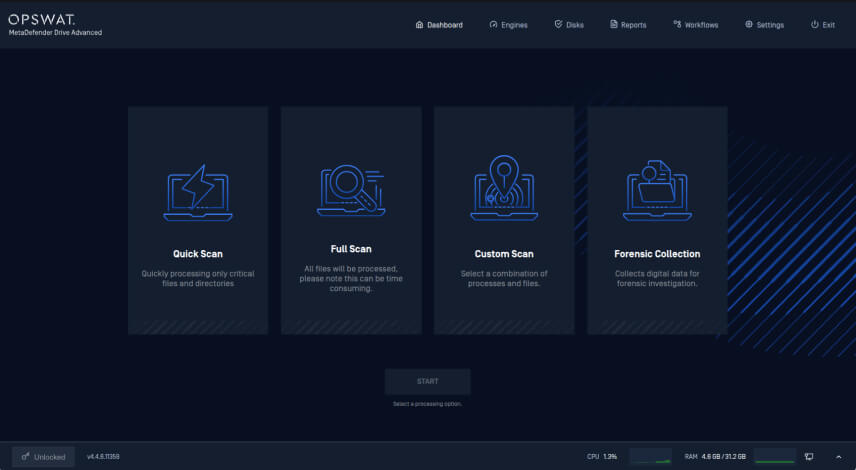
Administrators can customize how Smart Scan appears on the Dashboard by configuring the scan button name and operator instructions. The Smart Scan can be tailored for a specific operational workflow while presenting operators with a simple, purpose-built scan experience.
A Configurable Alternative to Quick Scan
Smart Scan is the configurable successor to the former Quick Scan. For backward compatibility, the Dashboard button continues to display the default name, Quick Scan, until an administrator renames it.
Smart Scan enables organizations to:
- Create policy-driven scan workflows for specific operational scenarios
- Select scan engines, security technologies, and target directories
- Customize the scan naming through configurable button names and instructions
- Standardize scanning policies across teams and locations
- Reduce scan times by scanning only the required engines, technologies, and directories
- Perform scans with protected, administrator-defined scan configurations through Centralized Scanning Profile
Smart Scan Use Cases
Different organizations have different security and operational requirements. While the default scan options cover common scenarios, Smart Scan enables administrators to configure a single policy-driven scan tailored to their organization's requirements.
Depending on how it is configured, Smart Scan can be tailored for use cases such as:
- Vendor laptop verification before network access
- Production maintenance workflows
- Routine device verification using only the required scan technologies
- Department or site-specific scanning policies
How to Configure a Smart Scan
Administrators can configure a Smart Scan directly within MetaDefender Drive.
1. Open Smart Scan Settings
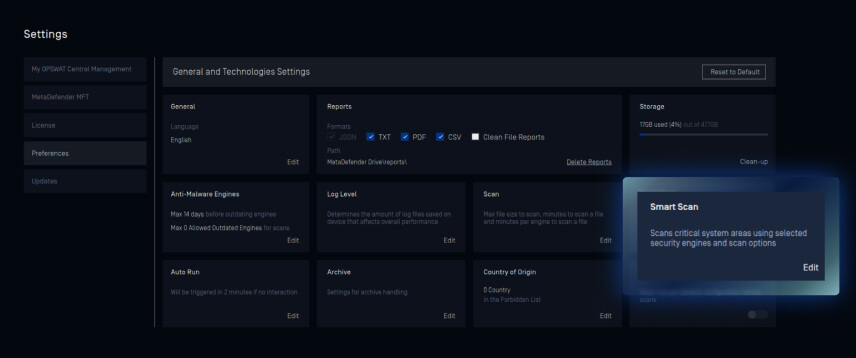
Navigate to Preferences, then Smart Scan, under the Settings tab, to access the Smart Scan configuration page.
2. Configure the Smart Scan Policy
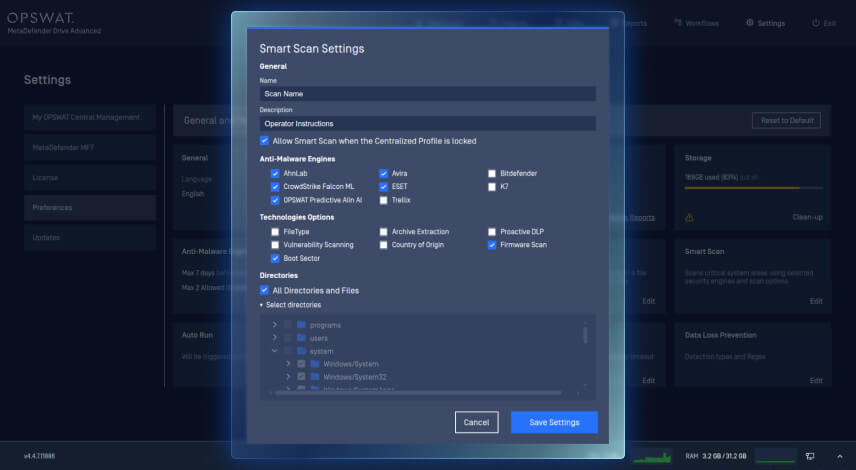
You can customize Smart Scan by configuring:
- Smart Scan button name
- Smart Scan description displayed on the Dashboard
- Anti-malware engines
- Security technologies, including data loss prevention with the Proactive DLP™ technology, Boot Sector Scanning, Vulnerability Scanning, Archive Extraction, Firmware Scan, and Country of Origin detection
- Windows directory scope, including all directories or selected directories
3. Save the Configuration
Once configured, click Save Settings to save the Smart Scan policy. The new policy becomes available on the Dashboard using the defined button name and description.
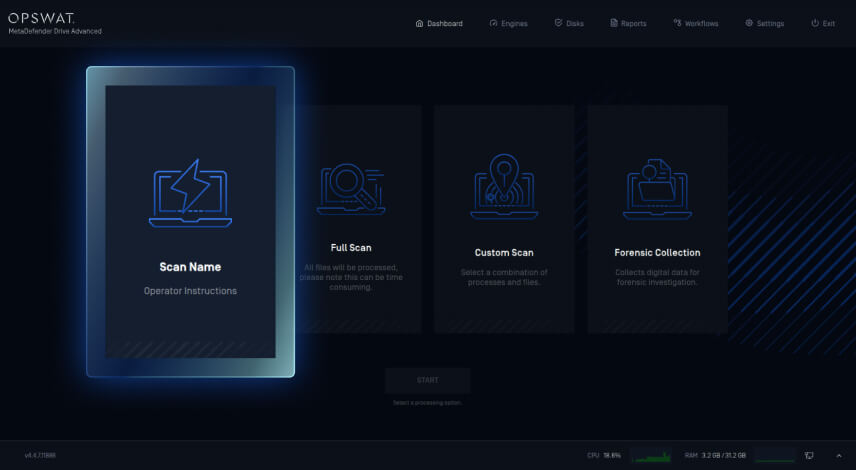
Run Smart Scan on Centralized Scanning Profile Locked Devices
Smart Scan integrates with Centralized Scanning Profile to balance access control with operator productivity, enabling consistent scanning policies across multiple operators while preventing unauthorized configuration changes.
When MetaDefender Drive is locked by Centralized Scanning Profile, operators can continue running the predefined Smart Scan. The administrator-configured scan engines, security technologies, target directories, button names, and operator instructions remain protected and cannot be modified.
Release Details
Product: MetaDefender Drive
Release Date: July 9, 2026
Release Notes: Learn more here
To update MetaDefender Drive, download the latest version of MetaDefender Drive Toolkit and follow the installation instructions.