The v1.9.0 release of MetaDefender Drive with Smart Touch introduces Centralized Scanning Profile enrollment setup directly from the device interface and guided Secure File Storage workflows to help operators securely manage file transfer and scanning operations with greater clarity and control.
Direct Centralized Scanning Profile Enrollment from Smart Touch
MetaDefender Drive with Smart Touch v1.9.0 simplifies the Centralized Scanning Profile setup by enabling enrollment directly from the Smart Touch interface. Administrators can now configure approval-based device protection workflows without requiring separate setup steps on external systems.
Once a device is enrolled, protected settings and scan modes, other than Full Scan, require approval from authorized users via an authenticator app. This helps organizations strengthen operational access controls across all MetaDefender with Smart Touch deployments and enforce consistent security policies, even in regulated and restricted environments.
The following steps walk you through the Centralized Scanning Profile enrollment, as an administrator:
1. Navigate to Settings from the side menu, then tap Centralized Scanning Profile.
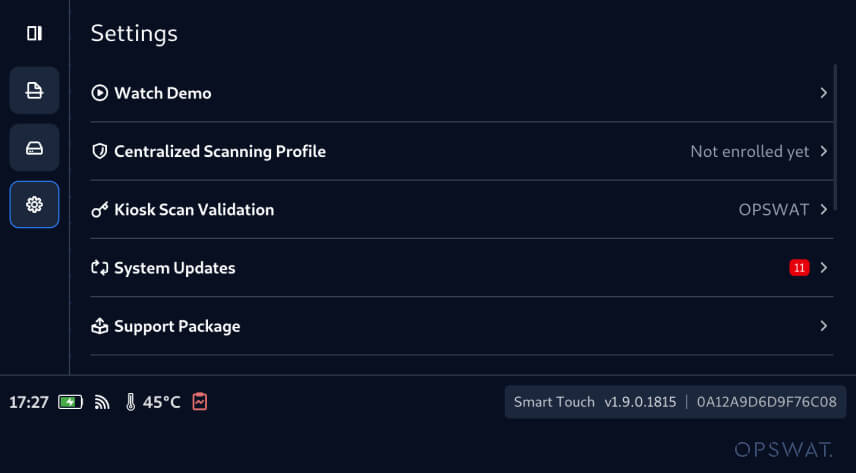
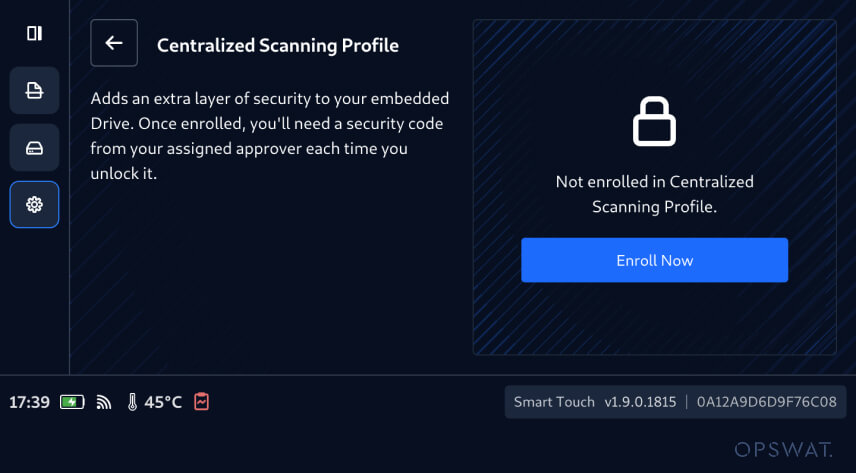
2. Initiate enrollment by tapping Enroll Now.
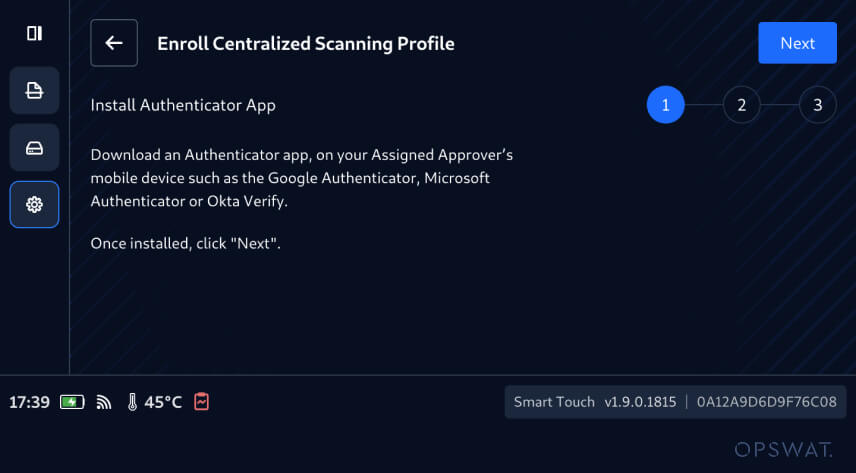
3. Install an authenticator application, such as Google Authenticator or Microsoft Authenticator, then tap Next.
4. Enter the name or an alias for the authorized approver, who will be responsible for approving all protected operations on the enrolled device, then tap Next.
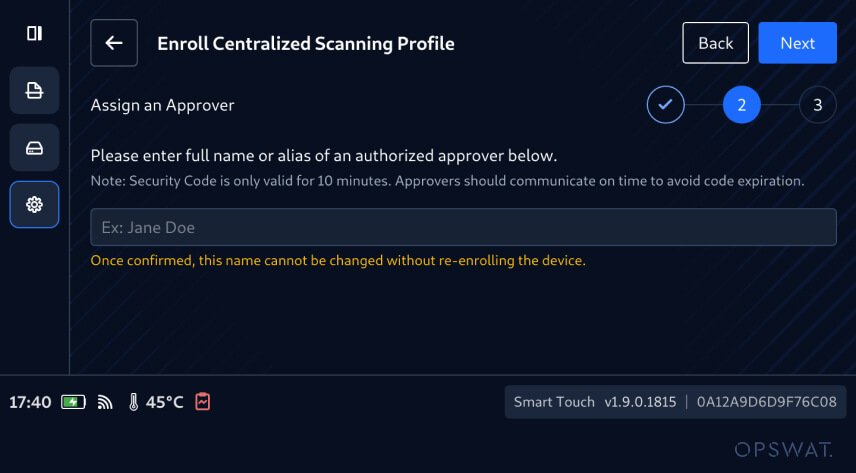
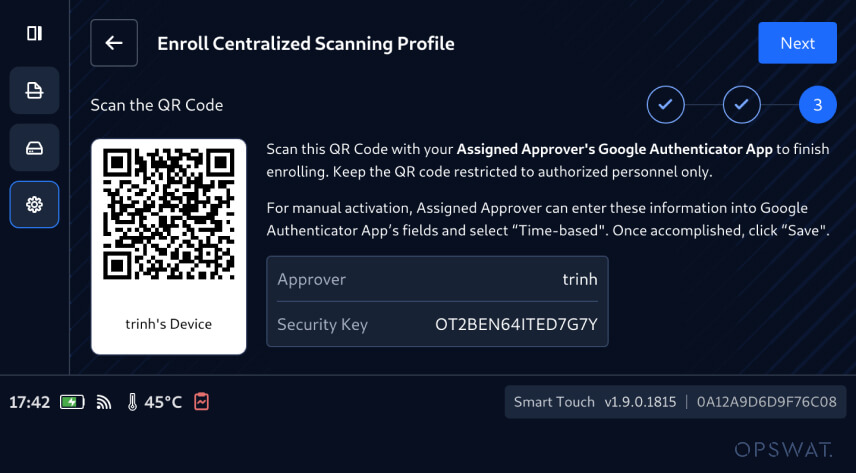
5. Ask the assigned approver to scan the enrollment QR code using their authenticator application to establish the secure verification.
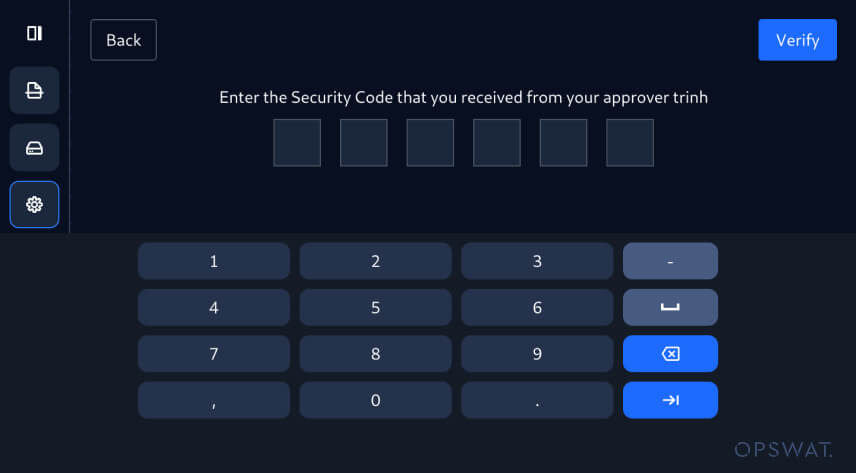
6. The approver enters the generated verification code, obtained via the authenticator app, to complete enrollment and activate the approval-based protection.
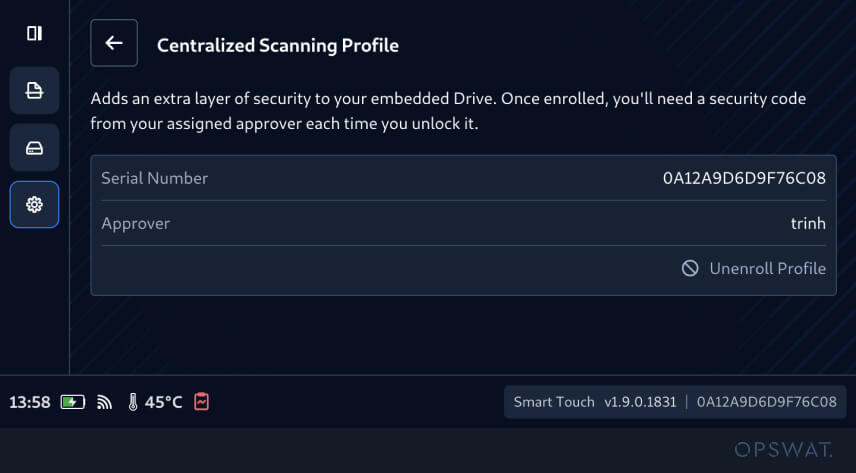
7. Once the profile enrollment is successfully completed, all protected workflows will be required to be approved by the assigned approver.
Guided Secure File Storage Workflows on Smart Touch
This new release enhances the Secure File Storage feature with guided workflows that provide operators with clearer control over file scanning and transfer operations. This enhancement enables operators to clearly see when files are securely locked, ready for scanning via a MetaDefender Kiosk™, and when clean files are available for transfer to host systems.
This enhancement improves visibility into file scanning and transfer states, helping prevent exposure of unscanned files and reducing the risk of accessing them prematurely.
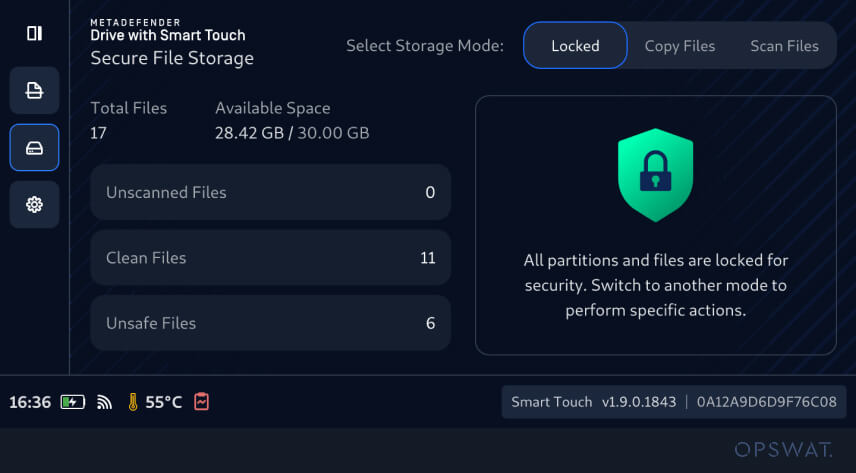
Locked Mode
Locked mode protects all files and partitions until operators intentionally select another workflow state.
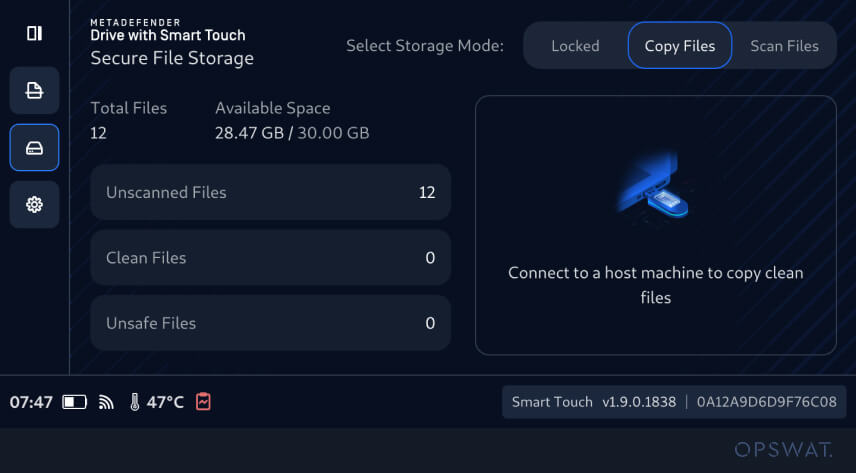
Copy Files Mode
Copy Files mode is activated to clearly indicate when a MetaDefender Drive with Smart Touch is connected to a host machine and when clean files are available for transfer.
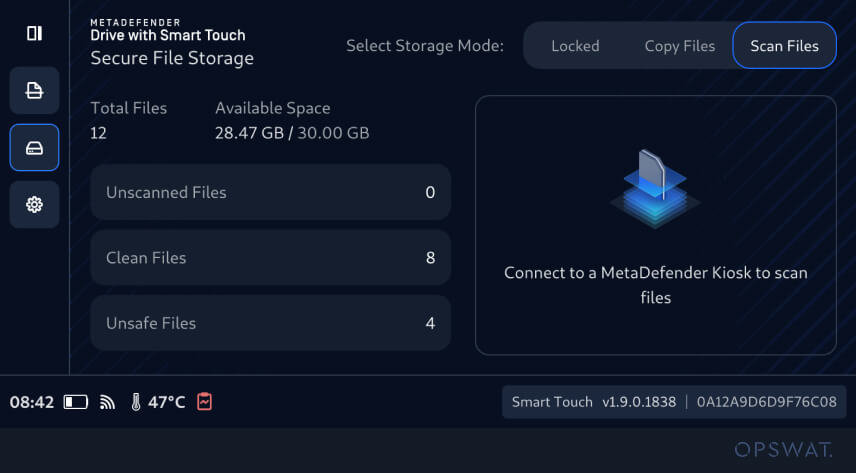
Scan Files Mode
Scan Files mode guides operators in connecting their MetaDefender Drive with Smart Touch to MetaDefender Kiosk for threat-scanning and file-verification workflows.
Release Details
Product: MetaDefender Drive with Smart Touch
Release Date: June 2, 2026
Release Notes: Learn more here
To update MetaDefender Drive with Smart Touch, tap System Update on the home screen to access the centralized update view.