
This KB explains how to configure MetaDefender Core’s Archive Extraction engine with the CLI Extraction feature to decrypt OpenSSL-encrypted files automatically during scanning. It was created from a real customer case and includes working JSON examples, troubleshooting tips, and validation steps.
This article applies to all MetaDefender Core v5 releases deployed on Windows.
Applies to
Archive Extraction engine enabled.
CLI Extraction feature is available in your build.
What you will achieve
Automatically decrypt OpenSSL password-protected files during scans so that child files are inspected by all enabled engines and modules (e.g., Multiscanning, CDR, DLP).
Map the correct Core file type to OpenSSL via a CLI rule.
Background and key concepts
MetaDefender Core supports an external CLI Extraction capability. You provide a JSON list of tools to run for specific file types. For OpenSSL-encrypted content, Core identifies files by internal file type. For legacy “.des” payloads created via OpenSSL enc, Core’s internal file type is OPENSSL-SALT. Therefore, your CLI JSON must target file_type_id: OPENSSL-SALT instead of a generic or extension-based value like “des.”
Prerequisites
MetaDefender Core v5 is installed and licensed with the Archive Extraction engine active.
Administrative access to Core UI to upload/assign the CLI JSON and to toggle the Archive Extraction engine.
OpenSSL installed on the Core host (Windows example path below; Linux path may be /usr/bin/openssl).
Step-by-step configuration
1) Create or update the CLI Extraction JSON
Prepare a JSON file (root is an array) defining OpenSSL as the decryptor for OPENSSL-SALT. Ensure that both $input and $output placeholders exist; $password is optional but required for password-based decryption.
Notes:
file_type_id must match Core’s internal file type detection. For OpenSSL enc (salted), use OPENSSL-SALT.
executable_path must be absolute. On Windows JSON, escape backslashes.
Arguments order mirrors a working OpenSSL decrypt command. Adjust cypher/iterations to your environment if files were encrypted differently.
2) Upload JSON and enable CLI Extraction in Core
Open Core UI and navigate to Inventory → Modules → Utilities → Archive Extraction.
Enable Enable CLI Processing >>Edit Definition File Path >> and provide the fully qualified path to the CLI definition JSON file
Save changes. Then disable and re-enable the Archive Extraction engine to load the new rules.
3) Test the integration
Encrypt a known benign file with OpenSSL on the Core server using the same parameters as your JSON (cipher, pbkdf2, iter).
Submit the encrypted file to Core. In Processing History, verify that:
The parent file type shows as an archive-like container with internal type OPENSSL-SALT.
Archive Extraction runs the CLI and produces decrypted child files under the parent, which then get scanned by engines/CDR/DLP as configured.
Operational guidance and best practices
Iter count and cipher must match the way files were encrypted. If encryption used a different cipher (e.g., -des3 or -aes-128-cbc) or a different iteration count, mirror those values in the JSON arguments.
Always re-enable the Archive Extraction engine after editing the CLI JSON so Core loads the new mapping.
Store known passwords securely in Core’s password mechanisms when possible. Avoid embedding secrets directly in JSON.
Troubleshooting
Wrong file_type_id: If you configured “des,” Core won’t trigger the CLI. Use OPENSSL-SALT for OpenSSL salted enc files.
Path escaping on Windows: In JSON, use double backslashes for paths (e.g., O:\OpenSSL\bin\openssl.exe). Single backslashes or unescaped sequences can fail resolution.
Engine not refreshed: After updating the JSON, disable and re-enable the Archive Extraction engine to apply changes.
Command alignment: Ensure the decrypt command in JSON exactly matches a known-good manual command tested on the same host with the same OpenSSL build.
Validation checklist
Scan shows FileTypeID for the scanned file as OPENSSL-SALT
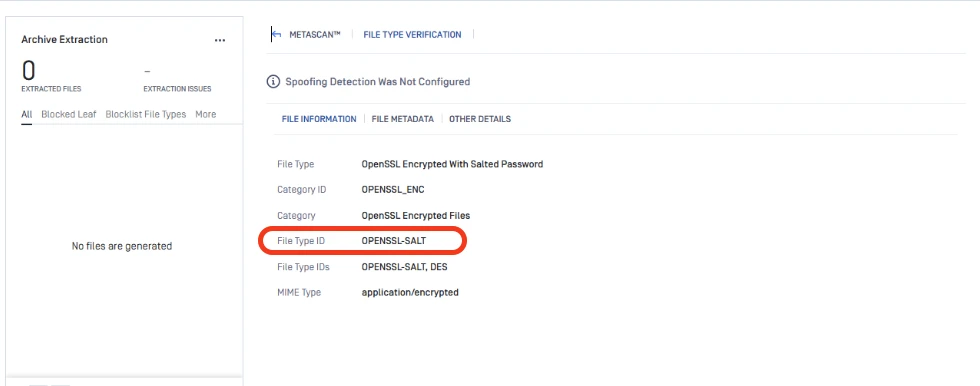
AV engines, CDR, and DLP process the child files as per the active workflow post its successful decryption
If Further Assistance is required, please proceed to log a support case or chatting with our support engineer.
FAQ
Do I need to restart the whole Core service after updating the JSON?
No. Disabling and re-enabling the Archive Extraction engine is sufficient to reload the CLI mapping.
How do I pass the password to the CLI rule?
Include the $password placeholder in arguments and configure a password source (e.g., Password Storage or submission metadata). Core will substitute the runtime value.
Can I use other ciphers or parameters?
Yes. Adjust the arguments to match your actual encryption method (e.g., -des3, -aes-128-cbc, custom -iter). Ensure your test encrypt/decrypt commands succeed manually before updating the JSON.