
Label printer SNBC BTP-S80 on the Kiosk Tower not printing
The issue and solution are only applied to SNBC BTP-S80 label printer on the Kiosk Tower
Issue
When attempting to print the scan session from the Kiosk Tower, it doesn't print. Checking further, no printer profile is listed under Printers & Scanners
Possible Cause
The driver for the SNBC BTP-S80 label printer is not installed in the old Kiosk Hardened Image. Without the driver, Windows cannot recognize or use the printer.
Solution
The installation instruction is for SNBC BTP-S80 USB-mode driver only
To resolve this issue, download and install the SNBC BTP-S80 printer driver
Step 1. Open a web browser and go to the official SNBC download page - https://www.snbc.com.cn/qdcx
Search with Keywork S80 (Stands for BTP-S80 devices). Remember to hit enter, the site does not have automatic filter functionality
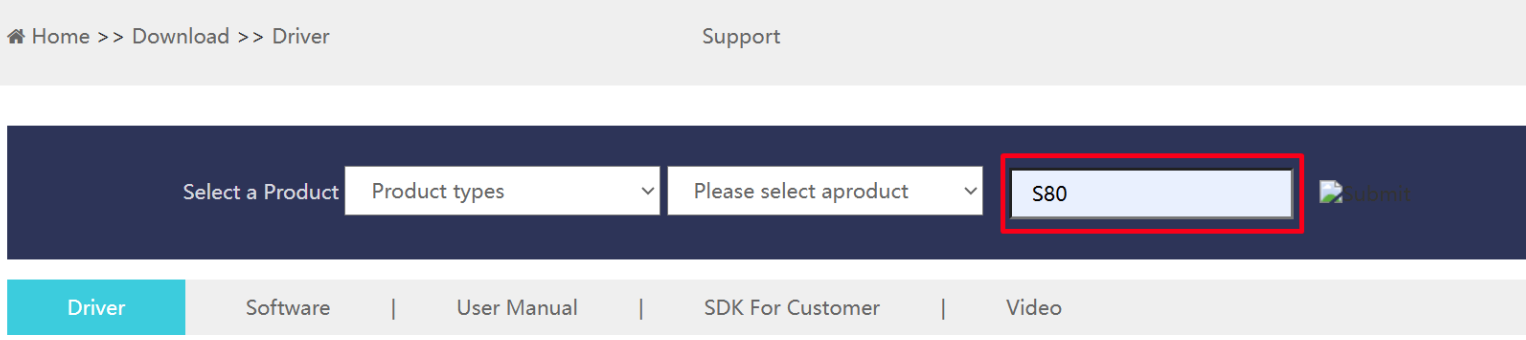
- Download below driver package (BTP-S80 driver for Windows environment)

Step 2. Install the printer driver $plugin[mrrgqxr4j4]
Ensure device is plugin and turn on (optional for normal installation, but I think this is a good practice to follow)
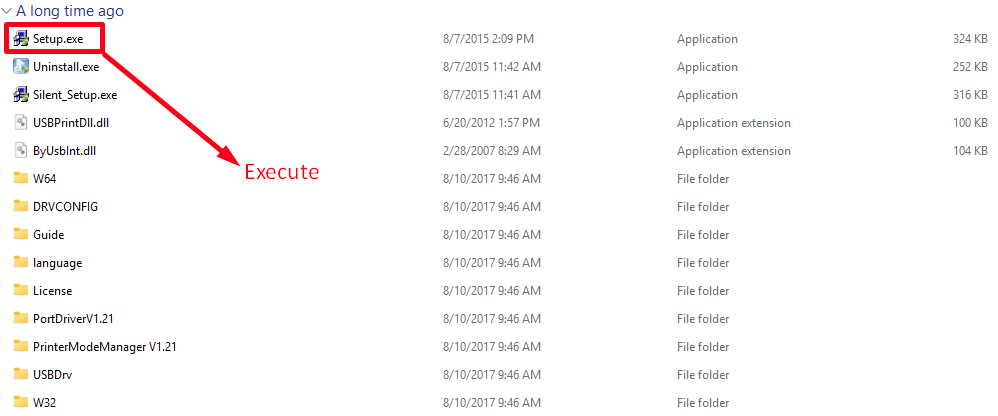
Extract the downloaded driver package
Locate and double-click Setup.exe to start installation.
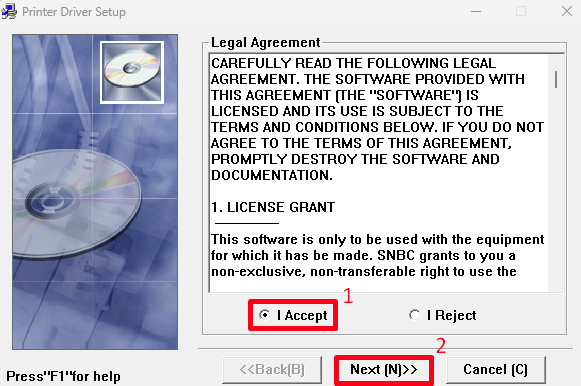
- Accept the agreements
- Select 180 model, set as default printer
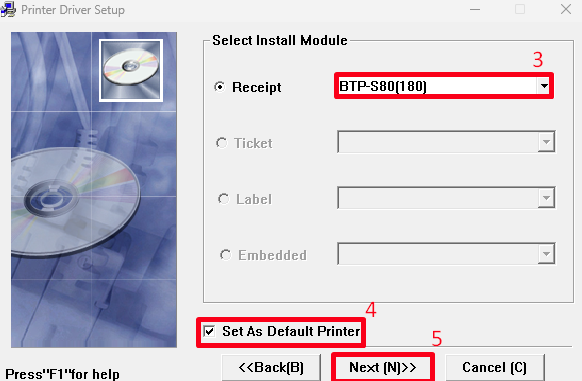
- Next
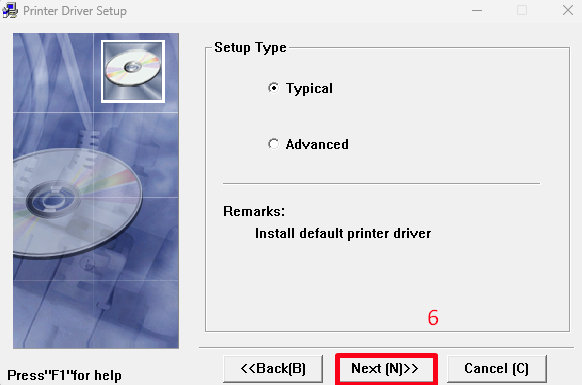
- Install
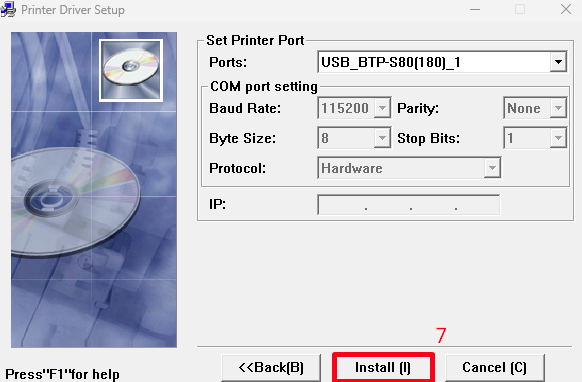
- Wait for installation to completed.