
How to temporarily exit the black screen issue for troubleshooting.
This article applies to the MetaDefender Kiosk Hardened Image 24.06 or above
When this issue occurs on the MetaDefender Kiosk Hardened Image, the screen remains completely black, and no user actions are possible. This knowledge base article explains how to exit the black-screen state and regain access to the Kiosk’s Windows desktop so that troubleshooting can be performed.
Method 1: If you have access to the Kiosk Console from another computer:
Open the Kiosk console from the web browser.
Go to Settings > System Hardening > Disable the option "Boot Hardening".
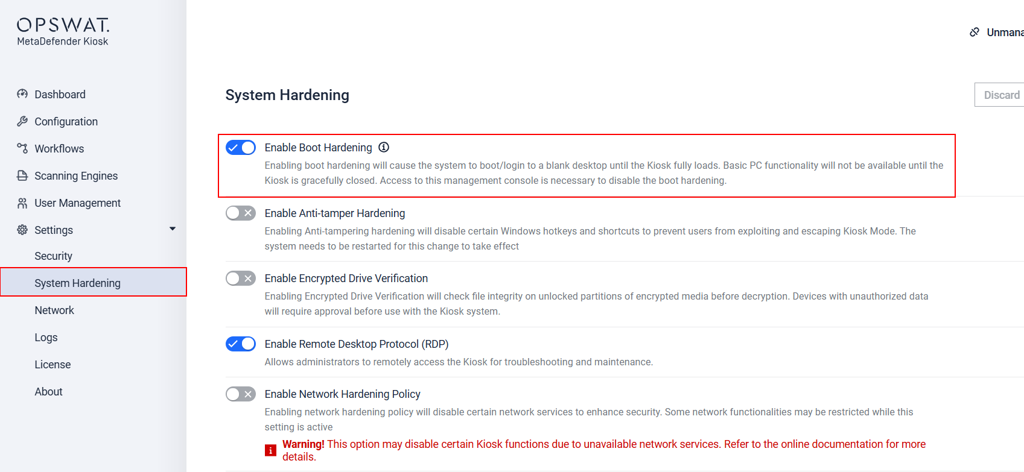
Restart the Kiosk computer.
Method 2: If you cannot access the Kiosk’s Console from another computer:
On the black screen, press Ctrl + Shift + Esc, and the Task Manager will open.
On Task Manager > File > Run New Task > type "microsoft-edge:about:blank" > Enter to open MS Edge.
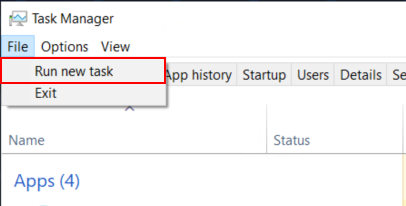
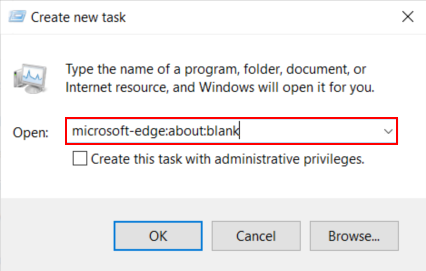
Access the Kiosk console, then go to Kiosk WebMC > Settings > System Hardening > Disable the option "Boot Hardening" (Method 1)
Restart the Kiosk computer.
After troubleshooting, remember to turn on the Boot Hardening option back for security.
If Further Assistance is required, please proceed to log a support case or chat with our support engineer.