
What do I do when licensed engines are not detected despite active licenses?
This article applies to all MetaDefender Core V4 and V5 releases deployed on Windows and Linux systems
If you're seeing the error message "No active licensed engines found" in MetaDefender Core, follow the steps below to identify and resolve the issue:
1. Check License Configuration
Confirm that the activated license key includes the necessary scanning engines.
MetaDefender Core downloads and enables engines based on your license key.
If the required engines are not included, you may need a different license key.
Contact the OPSWAT support team for help with licensing validation or replacement.
2. Verify Engine Activation in the Console
Open the MetaDefender Core console.
Navigate to: Inventory > Modules > Metascan.
Look for any activation or installation errors related to the engines.
If you see issues, check the logs in the MetaDefender Core pod for more detail.
3. Ensure Sufficient System Resources
Verify that your system meets the minimum resource requirements:
CPU: Sufficient cores for all licensed engines.
Memory: At least 3 GB available.
Disk Space: At least 5 GB available.
Inadequate resources can prevent engines from initializing properly.
4. Check Internet Connection (if using online updates)
A stable internet connection is required to download engine packages.
Network interruptions or timeouts can result in incomplete or corrupted downloads.
5. Re-enable or Reinstall Engines
Try disabling and then re-enabling the affected engines.
If the issue persists, try the following steps:
Remove the engine and its associated database.
Deactivate the license, then reactivate it.
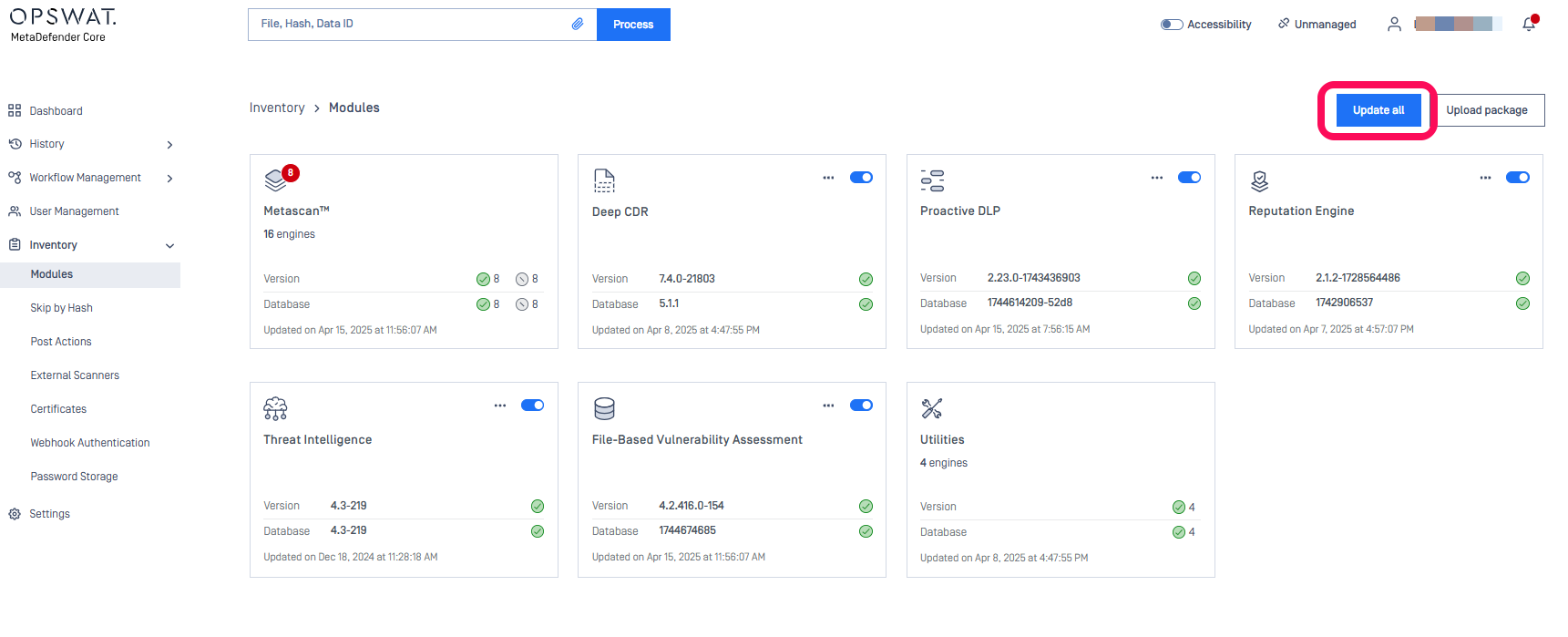
Navigate to the Inventory tab > Modules, and click the Update All button.
6. IKARUS Engine Specific Configuration
If using the IKARUS engine, it requires shared memory configuration to function properly.
For Docker, add the following flag:
For Kubernetes (K8s) deployments, include this in your YAML:
If Further Assistance is required, please proceed to log a support case or chatting with our support engineer.