
This guide provides step-by-step instructions for enabling Autodiscovery for Google Cloud storage in MetaDefender Storage Security.
Autodiscovery automatically detects and adds GCP buckets as storage units, saving time and reducing configuration errors.
Prerequisites
Before enabling Autodiscovery, ensure you have:
Valid GCP credentials file with sufficient permissions
Permissions as stated in Add a Google Cloud Storage
Method 1: Enable Autodiscovery During Storage Unit Addition
Navigate to Storage Units page
Click Add Storage Unit button
Select Google Cloud Storage Type
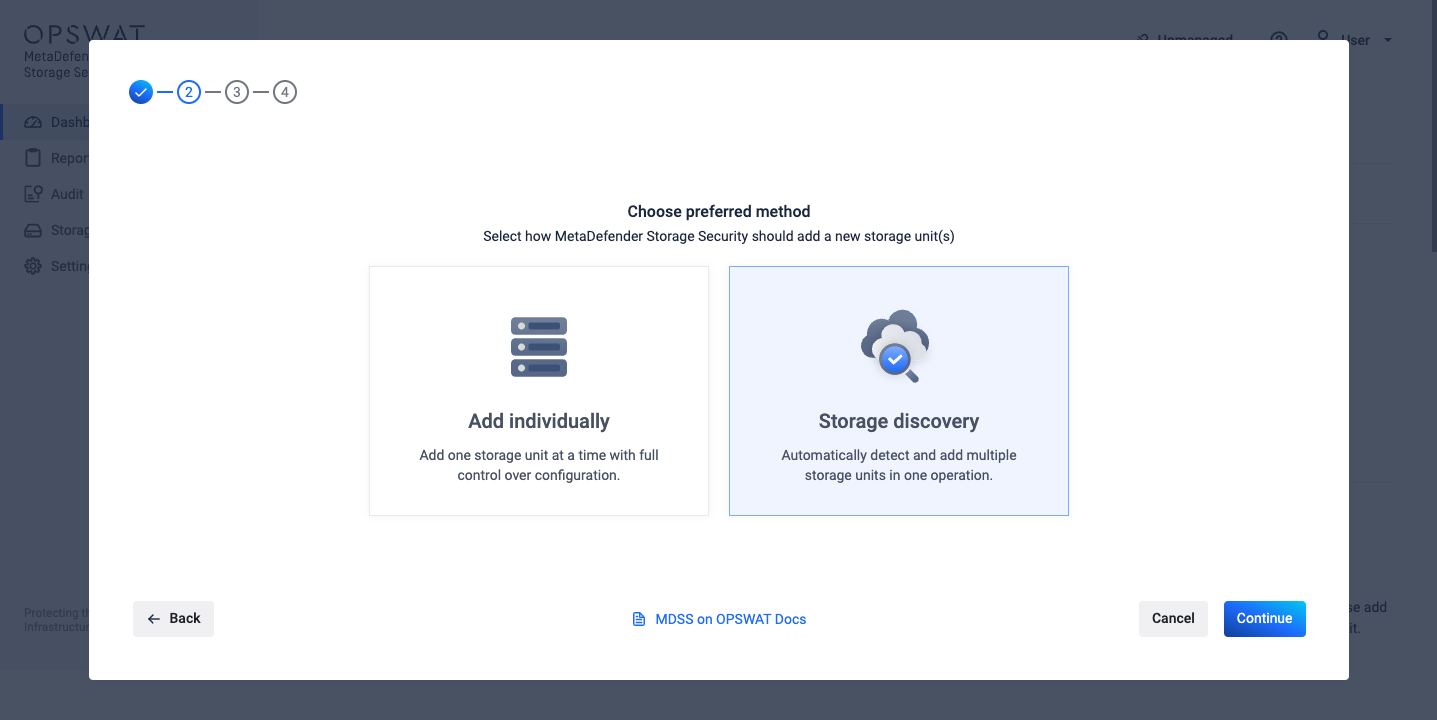
Select Storage Discovery and click Continue
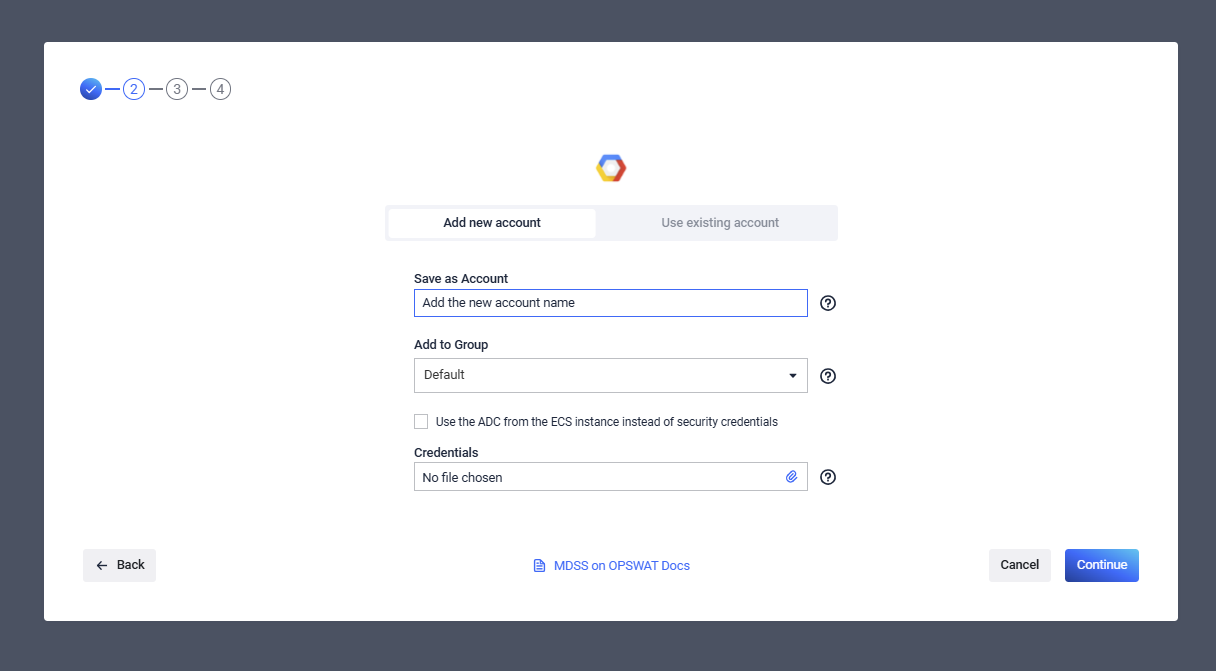
Fill out the form with valid GCP credentials and click Continue
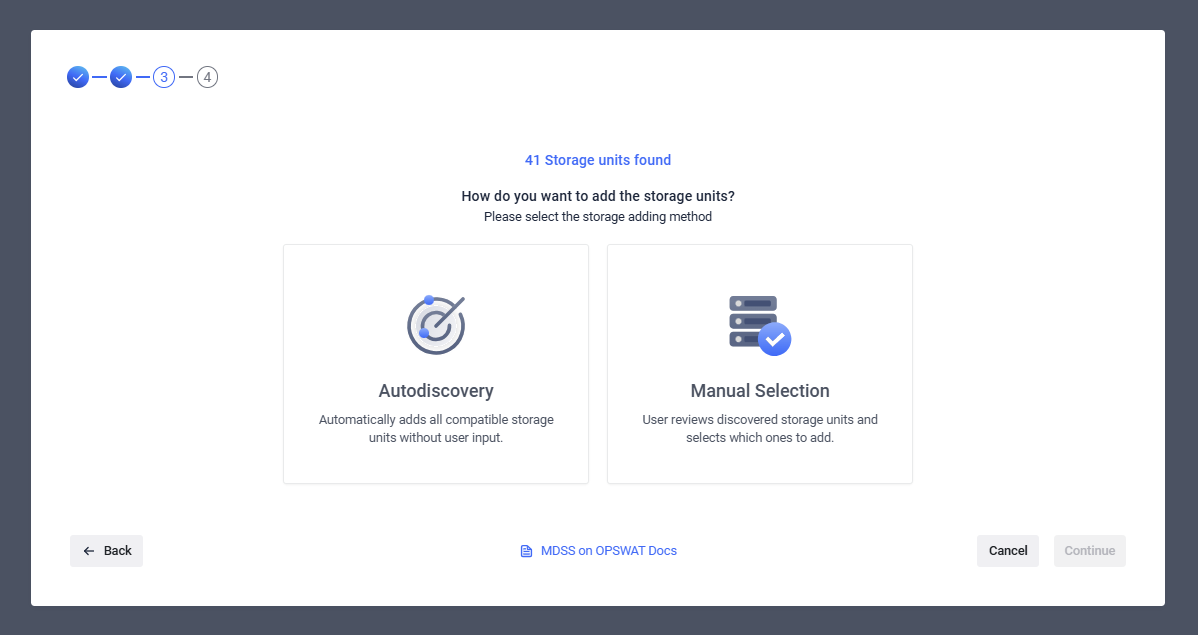
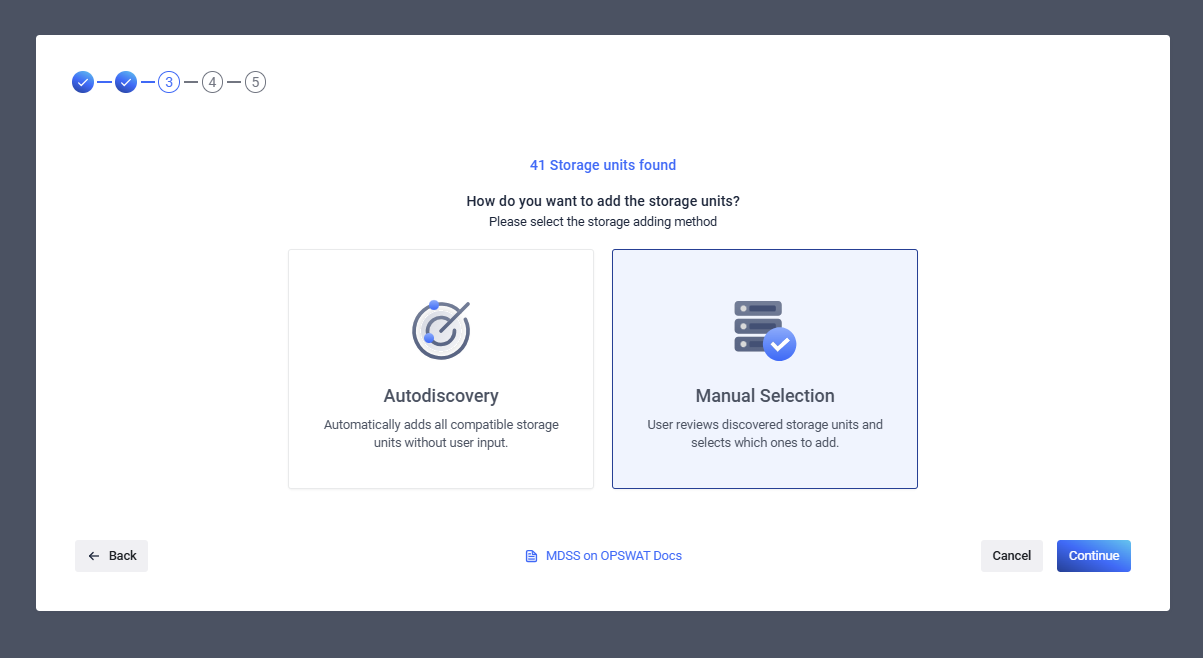
In the next step, select your integration method. You have two choices: Autodiscovery and Manual Selection.
Autodiscovery for convenience, this option automatically adds all the buckets MDSS finds
Manual Selection for precise control, this option lets users choose specific buckets from the discovered list to integrate.
To learn more about each integration type, please consult the Autodiscovery documentation.
If there were no buckets found, you will be presented with a third option - Add Individually - which will reveal the credentials form to manually add the storage by using the bucket name.
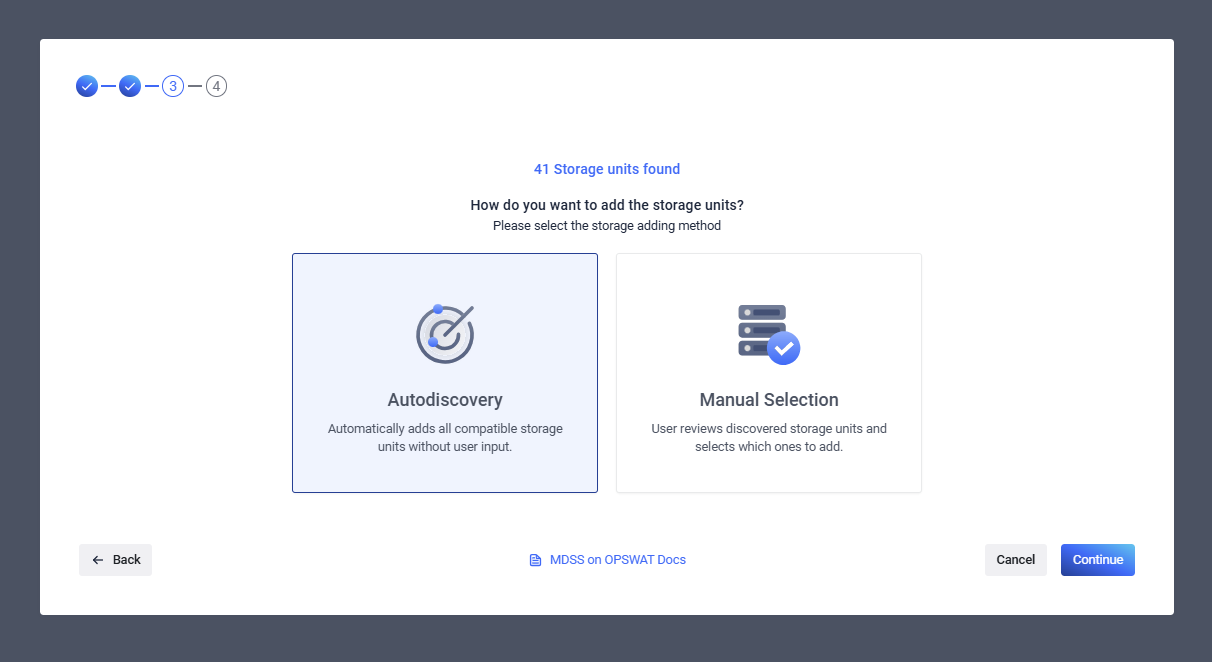
If selecting Autodiscovery option:
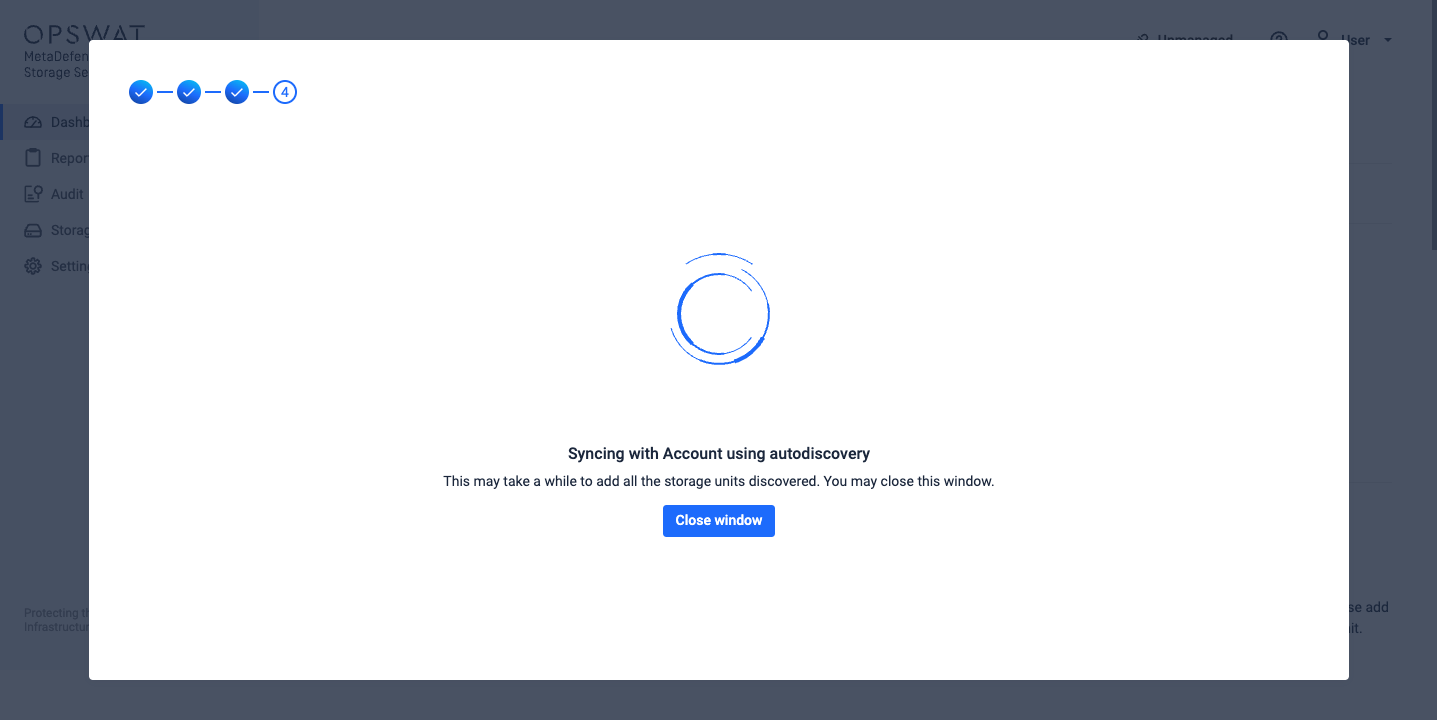
Click Continue and an informative message will be displayed that the autodiscovery process has started in the background. You can safely close the modal and the storages will be added in background to the Storage Units page
If selecting Manual Selection option:
Click Continue
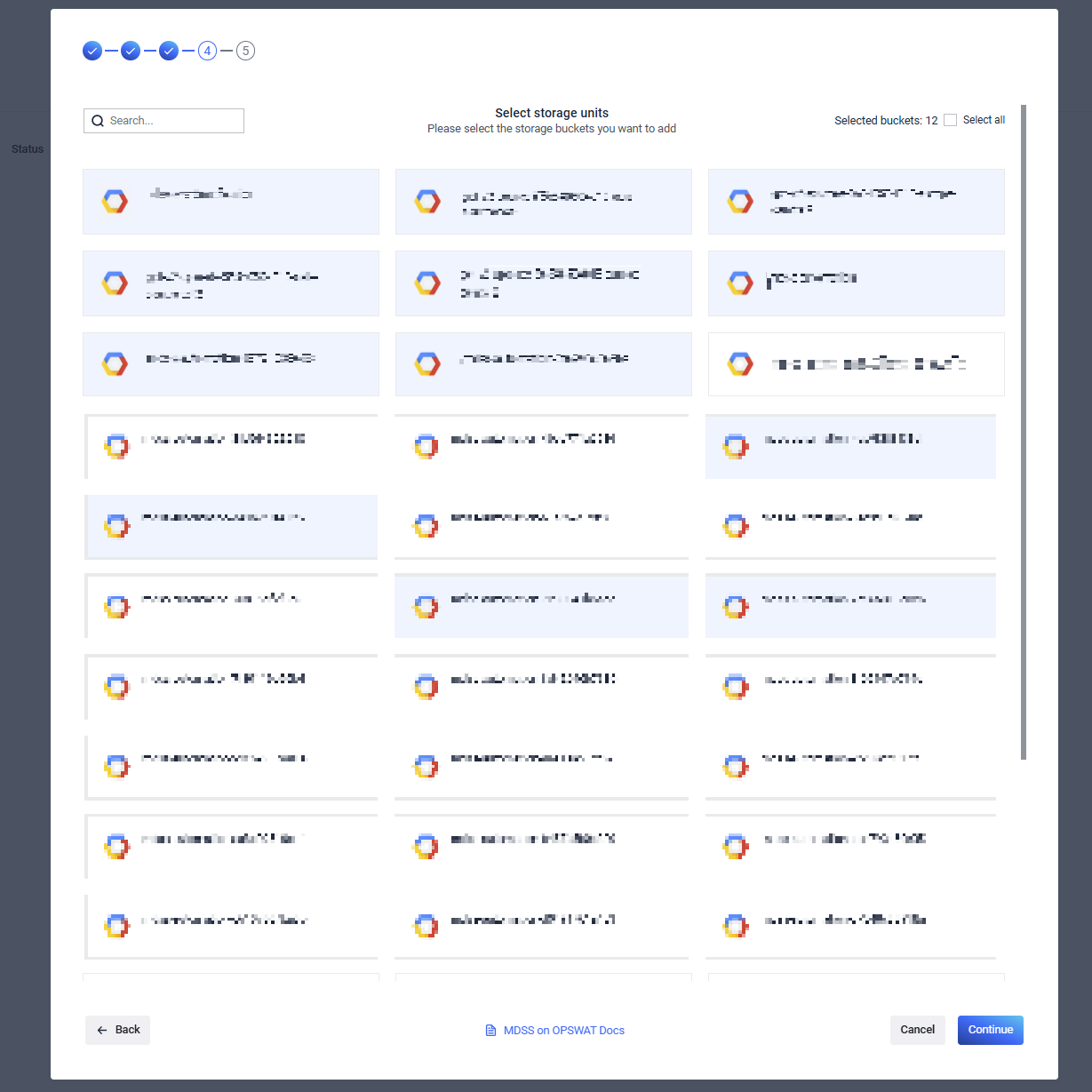
Select the buckets you want to add from the discovered list
Click Continue
The system will show a syncing message indicating buckets are being added; You can choose to stay on this page in order to see the storages that were successfully added and also to see if there were any errors while trying to add specific storages.
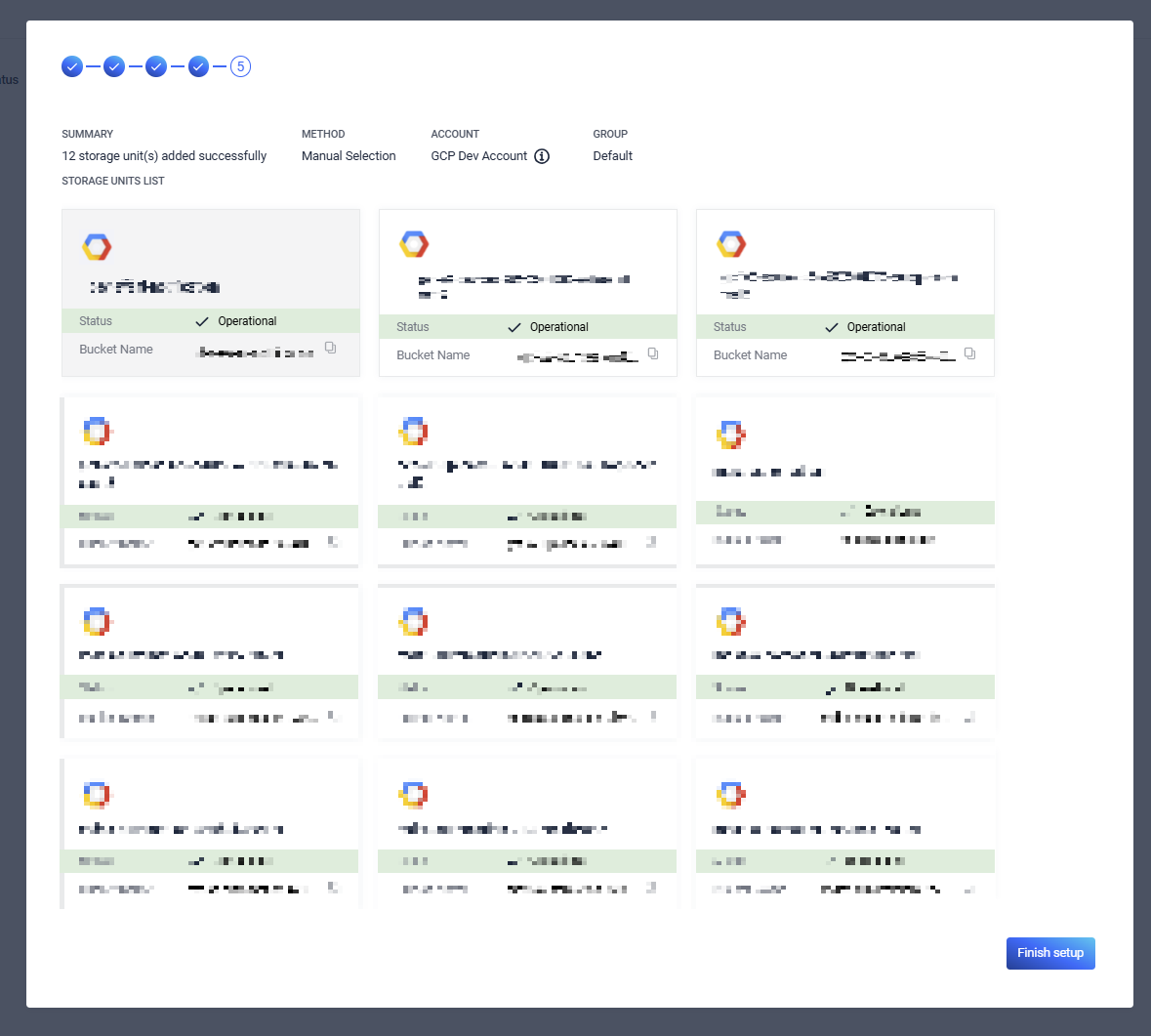
In case there was an error while trying to add your storage, you will see the error message in the Storage card while hovering over the (i) icon.
Method 2: Enable Autodiscovery for an Existing Account
Navigate to Storage Units page
Identify a storage that's using the account you want to start autodiscovery for
Click on the 3-dots button from the storage's card and select Manage Storage Unit
From the top toggle, select Change account info
Turn on autodiscovery by toggling the Enable storage autodiscovery switch
