Product Specification Requirements | Version |
|---|---|
Secure File Transfer Protocol (SFTP) | OpenSSH__for Windows_8.1p1 OpenSSH_7.9p1 Debian-10+deb10u2 OpenSSL 1.1.1(for Linux) |
Integration with SFTP storage is achieved through the SSH File Transfer Protocol (SFTP). Before proceeding, please ensure that this protocol is enabled on your system. Our application is compatible with SFTP servers that adhere to the standard SSH File Transfer Protocol, including Cerberus SFTP for Windows and the OpenSSH SFTP subsystem, which is typically included with Linux and Unix SSH servers.
We recommend increasing the maximum number of concurrent connections allowed by your SFTP server from its default setting. This helps improve performance and prevent connection bottlenecks during high-load operations. After that, make sure to set the SFTP_CONNECTION_POOL_MAX environment variable in MDSS, which is at 100 by default.
In order to integrate SFTP with MetaDefender Storage Security please follow these steps:
From the left side menu, navigate to Inventory, click Add New > Account, choose SFTP (SSH File Transfer Protocol) and click Next
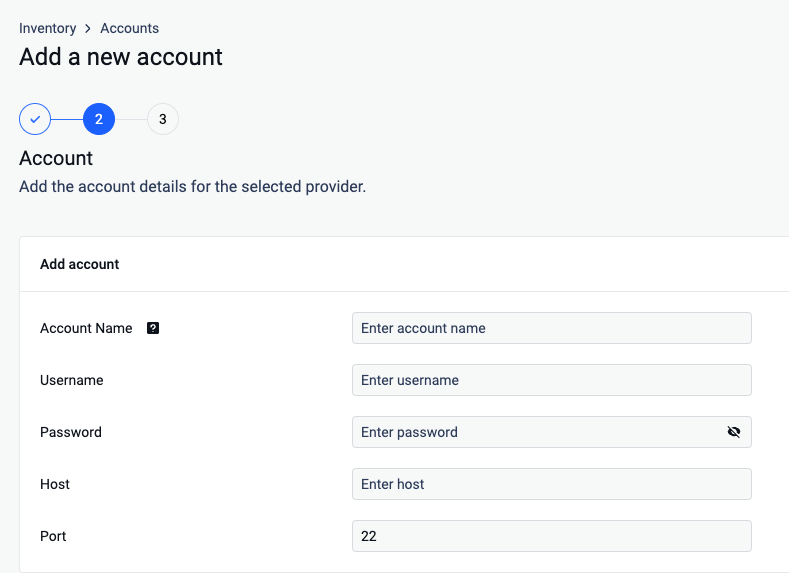
Give your account a name so you can easily identify it later
Input the Username required to authenticate your access to the SFTP server. (The user should have at least read and write security permissions)
Provide the Password associated with the username provided at step 3.
Host: Enter the IP address of the SFTP server you wish to connect to.
Port: Specify the port number used for the SFTP connection, typically 22 for standard SFTP
Click Next in order to finish the process of adding the account
From the left side menu, navigate to Inventory, click Add New > Unit, choose the previously created account and click Next
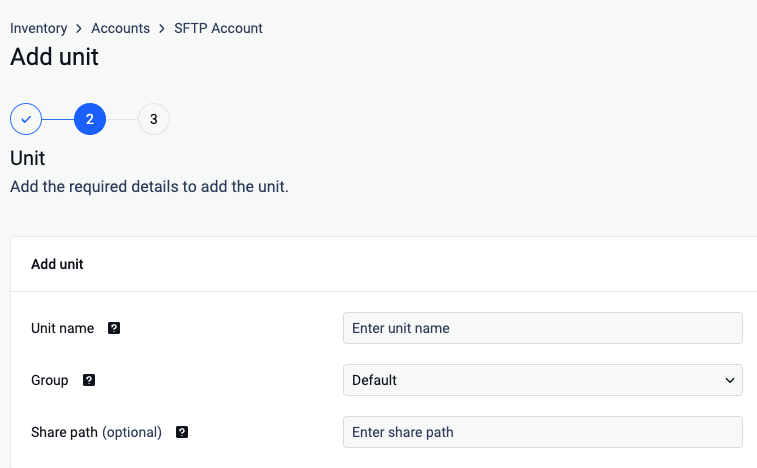
Give your unit an unique name so you can easily identify it later.
Assign your unit to a Group
(Optional) Indicate the specific directory path on the SFTP server from which you want to access files.
The folder path should start from the root of the shared directory, not the absolute path of the server. For example, if the shared directory is /shared_files and you want to access a folder named documents within it, you would enter documents as the folder path, rather than the full path like /home/user/shared_files/documents
Click Next in order to finish the process.
A SSH connection is required to be enabled in order to connect to a Unix-based system SharePath. If the SSH is not installed please run the following commands:
sudo apt-get update
sudo apt-get upgrade
sudo apt-get install openssh-client
If you use a hostname in the host portion of IPv4/v6 socket address, the program may show a non-deterministic behavior. The socket address will be resolved differently into an actual IPv4/v6 address, depending on the results from DNS resolution and/or the host configuration. For deterministic behavior use a numeric address in host portion.
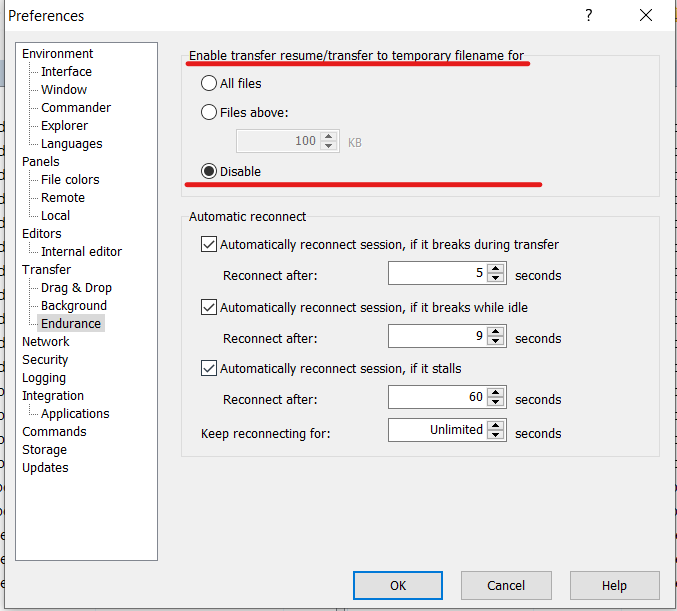
Please make sure that Enable transfer resume/transfer to temporary filename option is set on Disable if using 3rd party SFTP clients (if it allows this feature).
See the image below for WinSCP client.