
In order to integrate Azure Blob with MetaDefender Storage Security you will be required to create an application registration, assign the necessary permissions and roles, and then generate a secret key. Please follow these steps:
From the left side menu, navigate to Inventory, click Add New > Account, choose Azure Blob and click Next
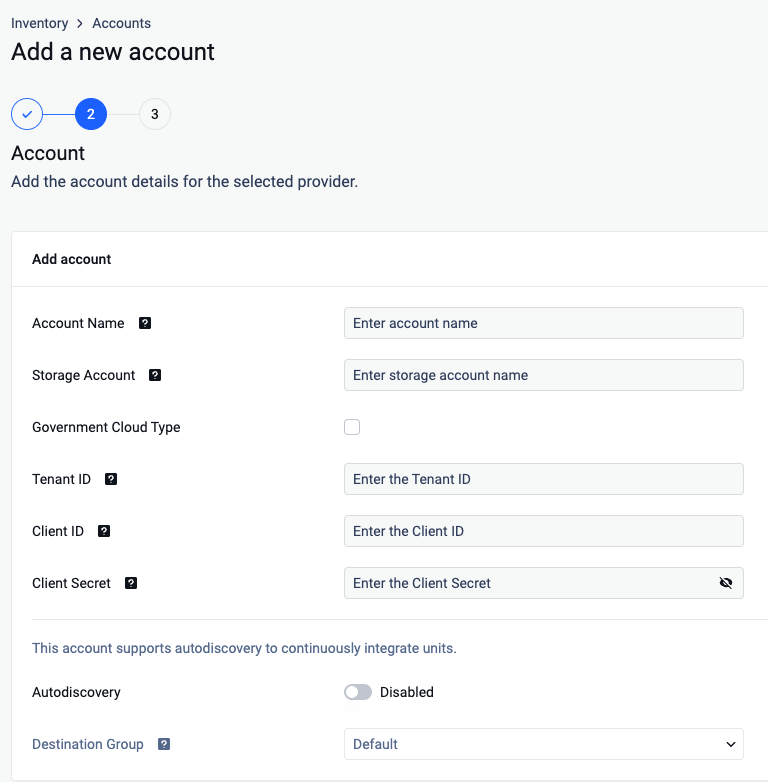
Give your account a name so you can easily identify it later
Enter the Azure Storage Account name.
Select Government Cloud type if the storage belongs to Azure US Government Cloud.
Enter your Tenant ID. Scroll to the end of this page for more details.
Enter your Client ID. Scroll to the end of this page for more details.
Enter your Client Secret. Scroll to the end of this page for more details.
Click Next to finish the process.
Add a new unit for the created account
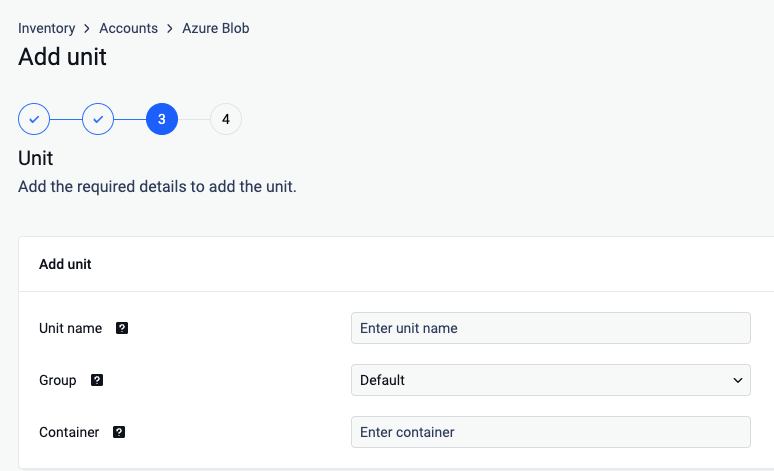
Enter an unique name for your unit.
Assing your unit to a Group
Enter the name of a container to process objects from a particular container.
Select Next in order to finish the process.
How to create an Azure Blob application?
In order to process your Azure Blob objects with MetaDefender Storage Security you will be required to add a new app registration in your Microsoft Entra ID Azure Portal.
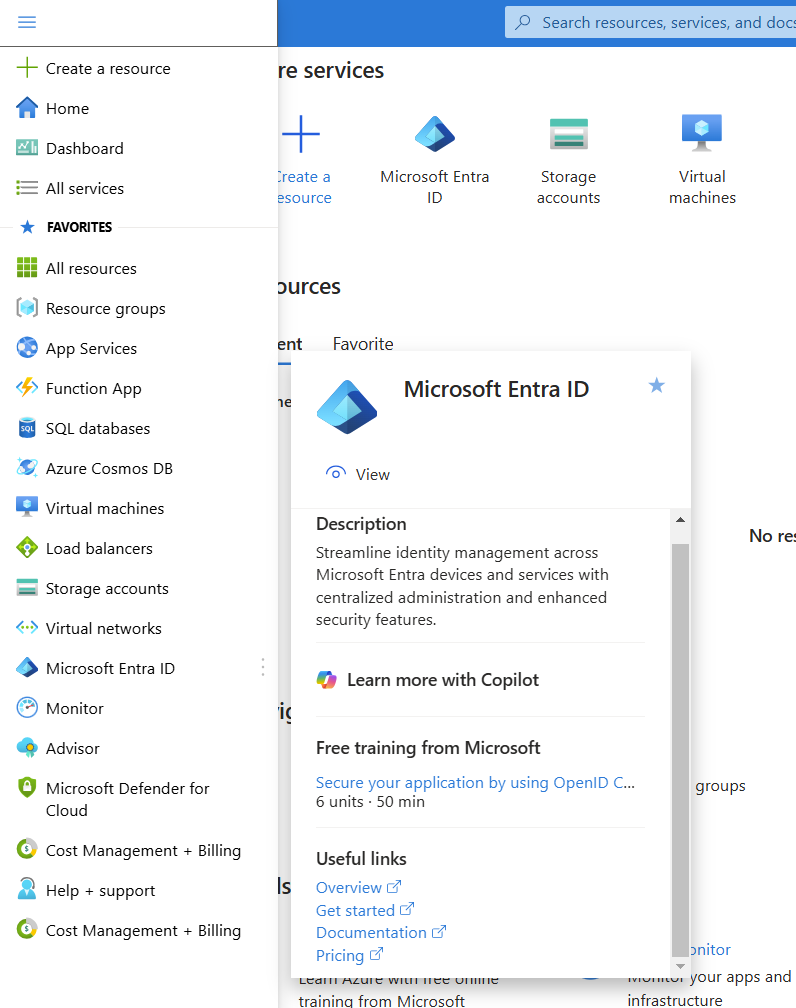
Log in to Azure Portal and from the left navigation menu choose Microsoft Entra ID
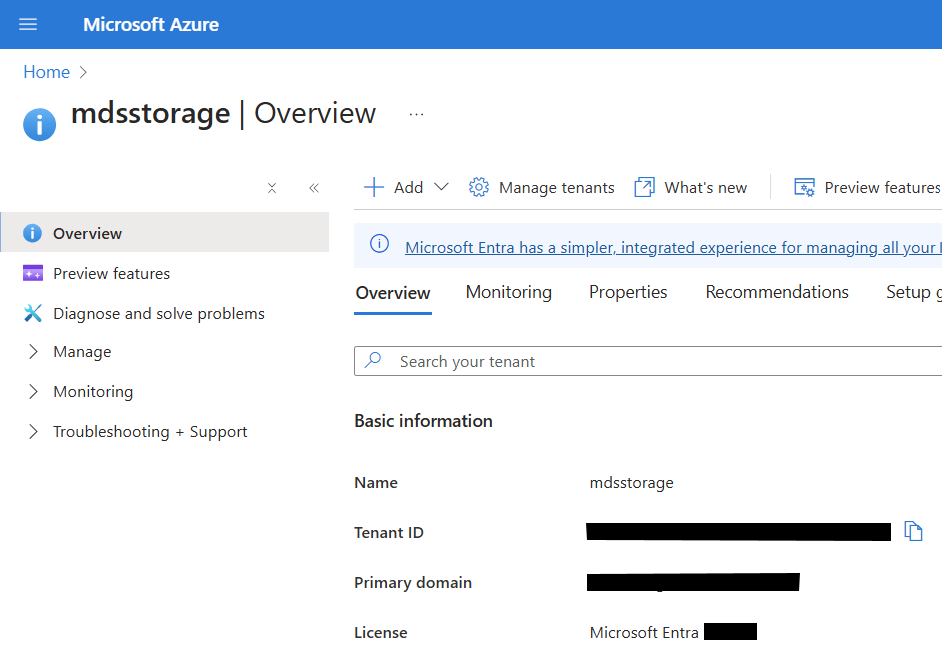
Make a copy of the Tenant ID from the overview page
From the left side menu, choose App registrations
Click New registration
Give your app a name so you can easily identify it
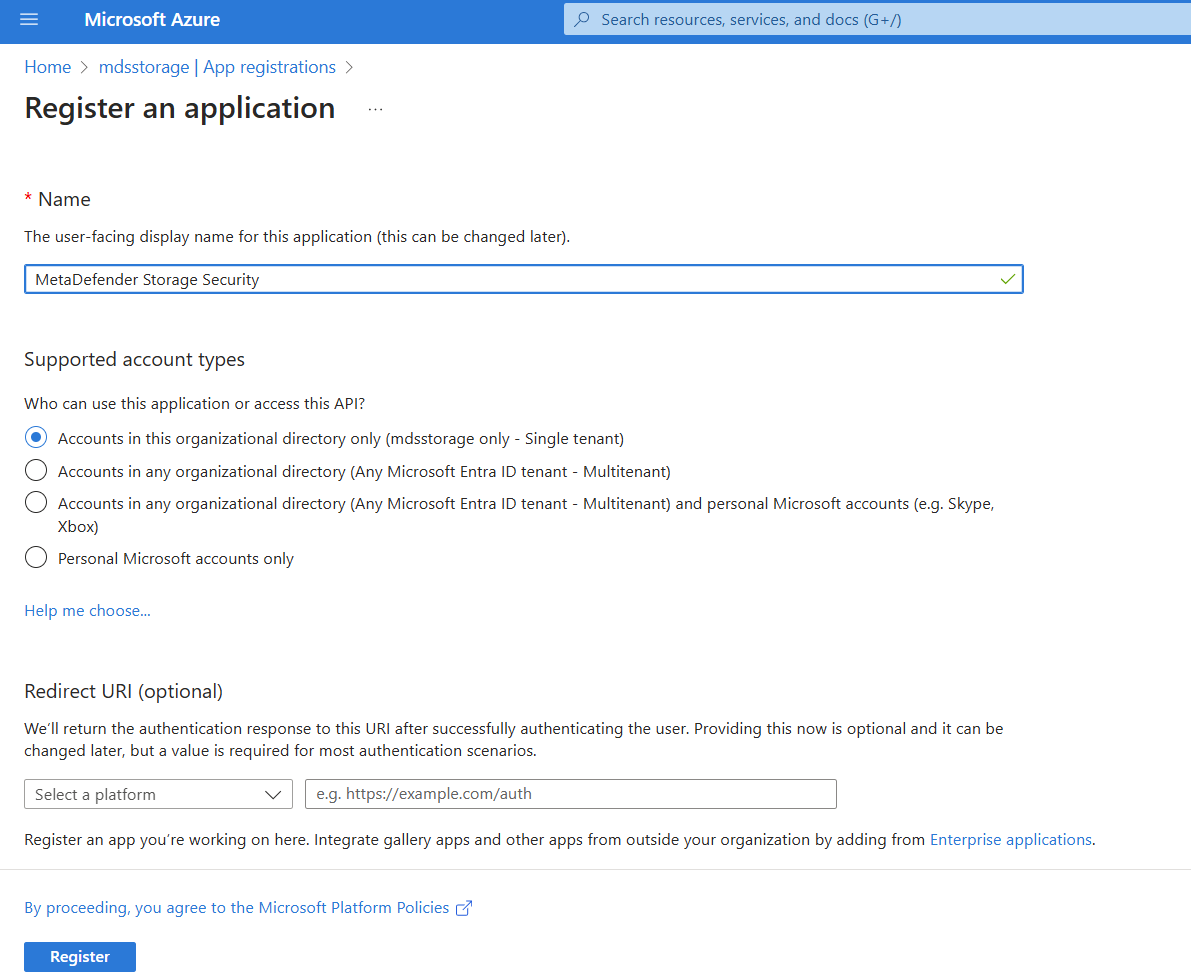
There is no need to modify the other properties. When ready, please click Register
From the Overview page of your newly created application, make a copy of Application (client) ID
Navigate to Certificates & Secrets from the left-side menu
Click New client secret and choose Expires in 24 months
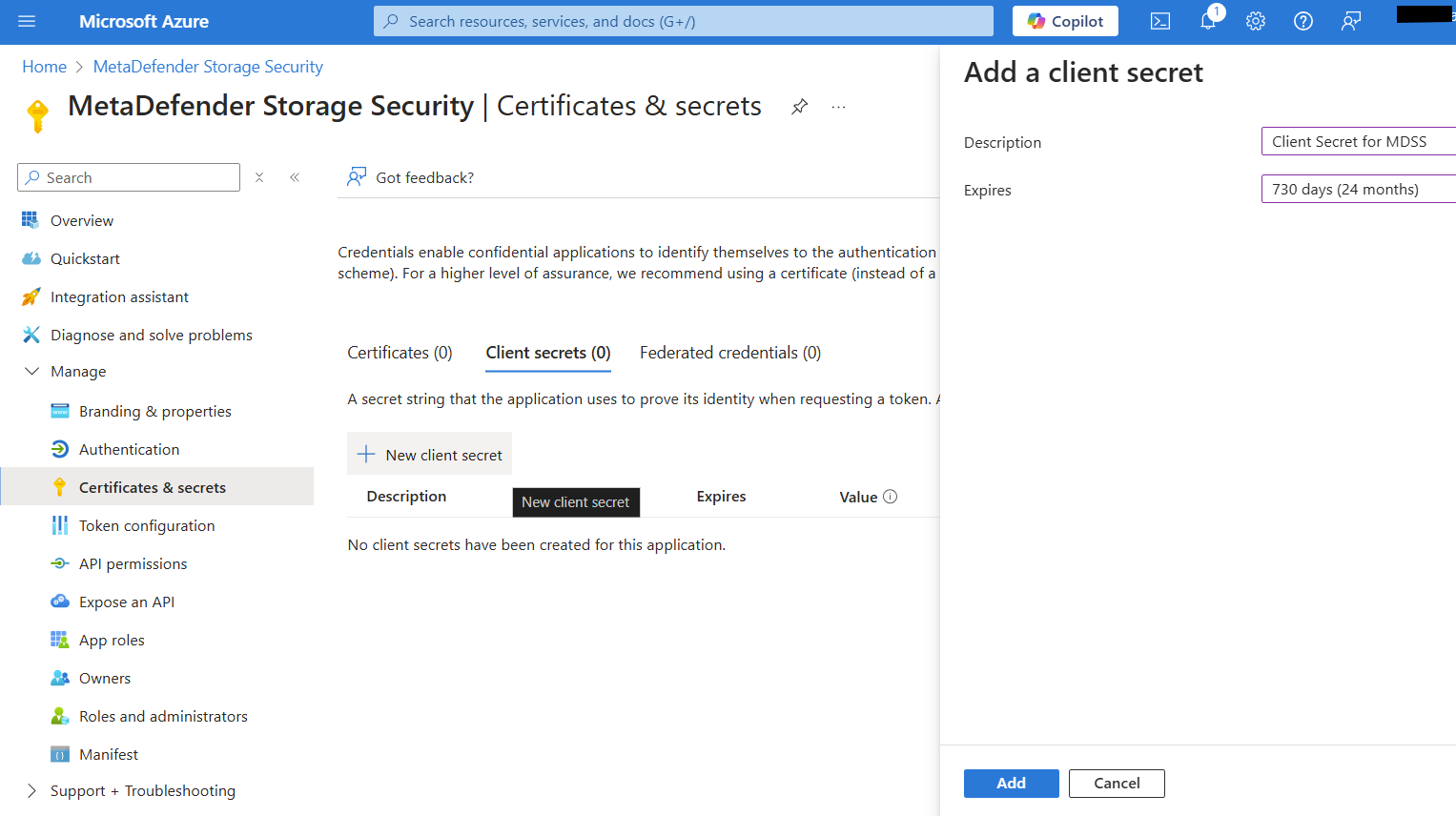
Click Add and then you will need to make a copy of the generated secret key because it will not be available later
Navigate to your Storage Account and select the Access Control (IAM) menu
Select the Role assignments tab, then select the Add role assignment option from the Add dropdown.
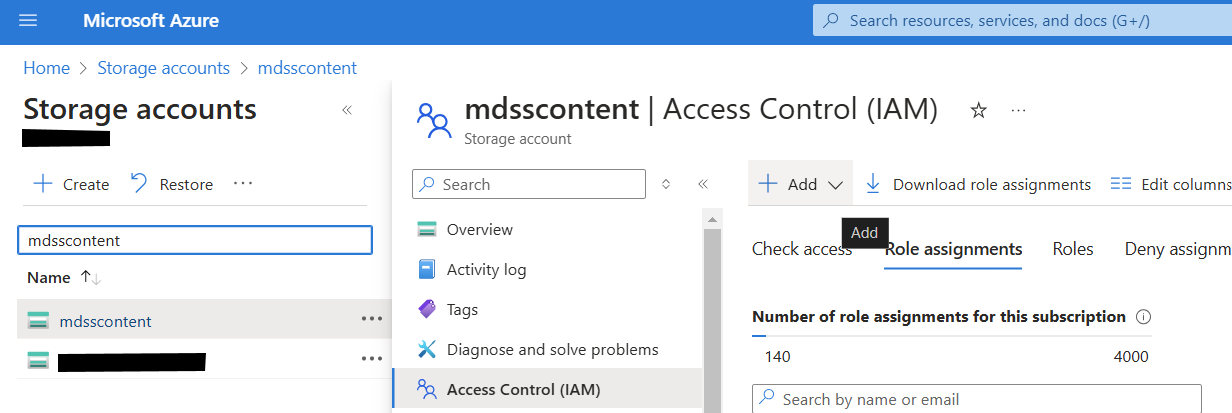
Assign the following roles to the Client Application you previously registered:
Storage Blob Data Contributor
Reader
Navigate back to your Storage Account and from Security + networking menu, select Networking
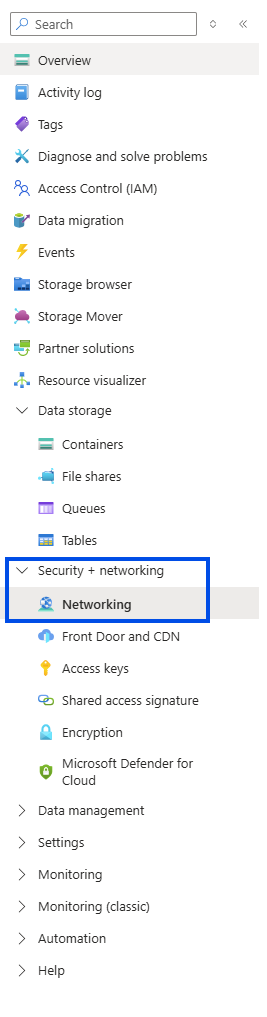
Navigate to Public access tab (the first and default one)
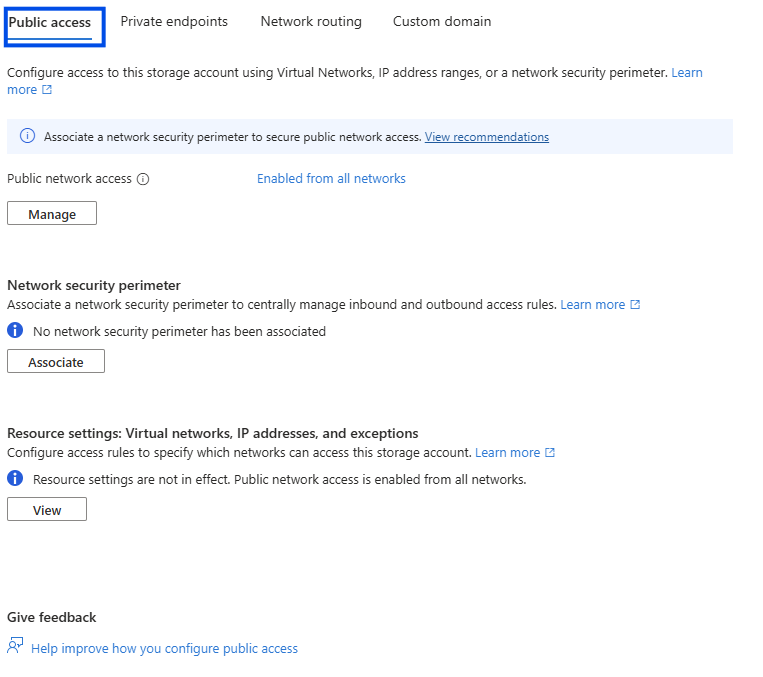
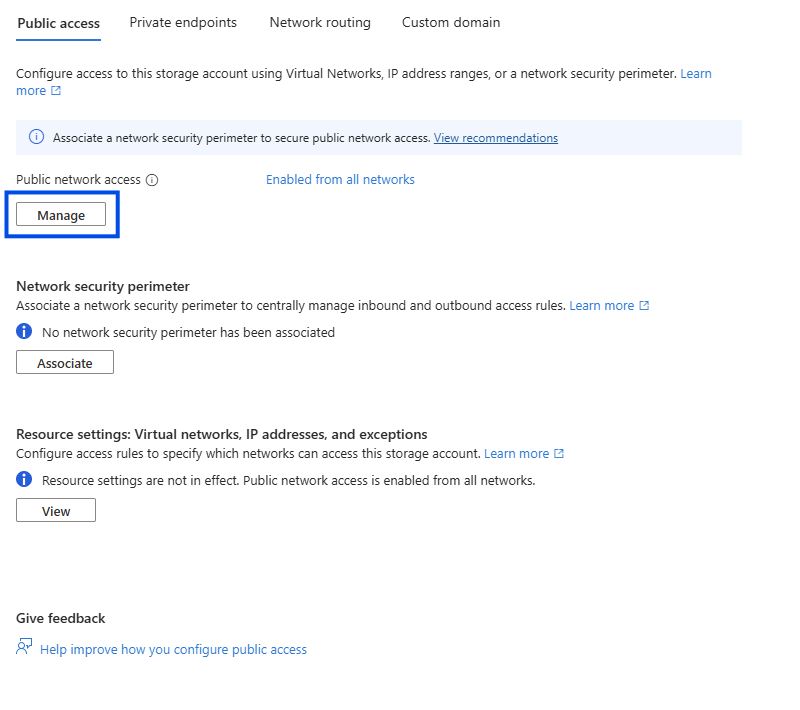
Click Manage on the Public network access section
Enable Public network access
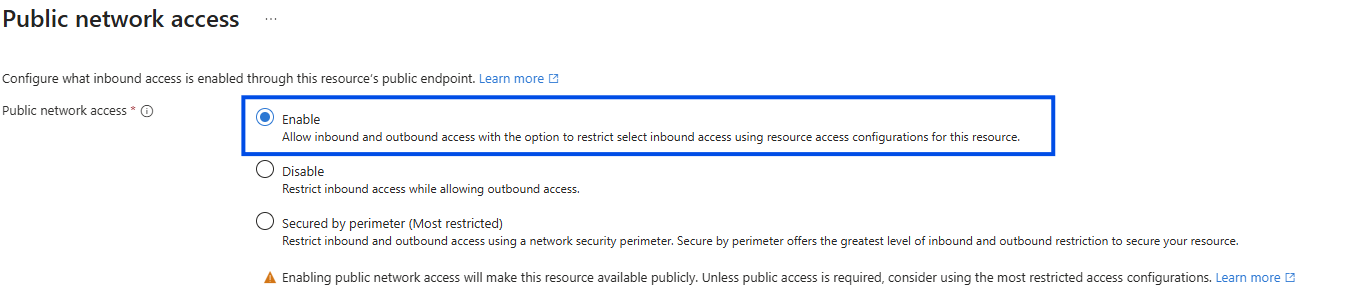
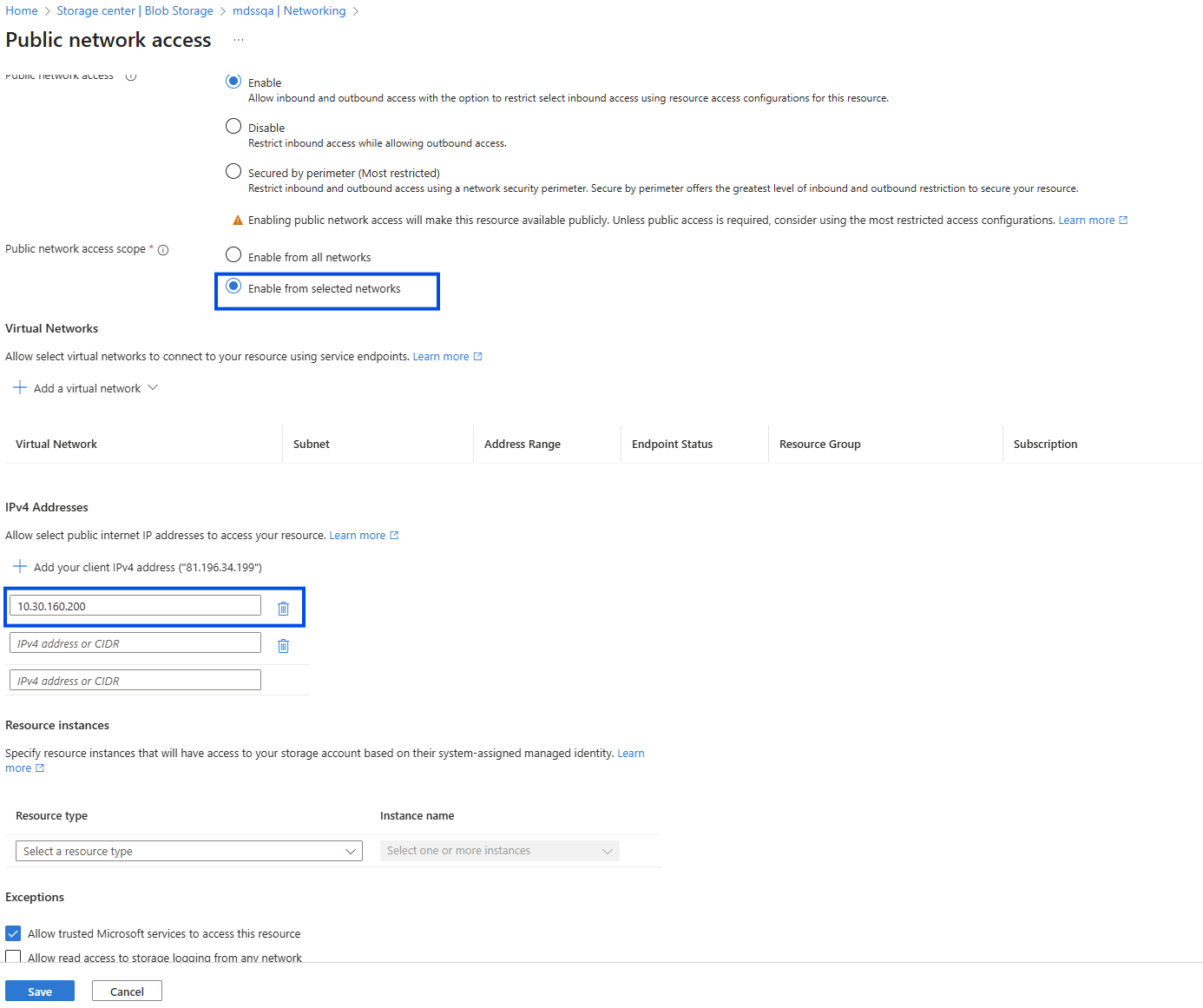
From the Public network access scope, you have two options:
Enable from all networks: this is less restrictive and will allow any applications to try to establish a successful connection to your storage account.
Enable from selected networks: this will restrict access only to specific IPv4 addresses. If you enable this option, add the public IP address from which MetaDefender Storage Security reaches Azure. For a Docker or Windows deployment this is the public address the host machine uses for outbound traffic: its own IP, or the address of the NAT or firewall in front of it. For a Kubernetes deployment it is the public address the cluster uses for outbound traffic, such as a NAT gateway or load balancer; if the nodes reach the internet through their own public IPs, add the address of every node that runs MDSS services. The Storages, Discovery, Remediations and Scanning services all connect to the storage account from that address, including when a file is moved from Azure Blob to another type of storage unit.
Now that you have the Tenant ID, Client ID and the Client Secret Key, you can go back in MetaDefender Storage Security and finish the Azure Blob integration. Congratulations!
For additional configuration of how MetaDefender Storage Security handles blobs please check custom configuration.