The document provides an overview plan for all customers who are using My OPSWAT On-premise version 202x (also known as Central Management v8) to upgrade to My OPSWAT Central Management v10.
Depending on your data and current infrastructure, the migration time can be a day or several weeks.
Prerequisites
Minimum Central Management v8 version: 2025.4.1
Minimum My OPSWAT Central Management v10 version: 10.3.2511
If you are using the older version, you need to upgrade to the minimum version to support the migration plan. For upgrade instructions, see:
Upgrade My OPSWAT for Central Management v8
Upgrading My OPSWAT Central Management for My OPSWAT Central Management v10
Plan Overview
Central Management v8 is deployed using an OVA-based appliance, whereas My OPSWAT Central Management v10 introduces support for MSI-based installation. Directly upgrading the OVA will not retain existing data. Therefore, a structured migration process is required to ensure data continuity and system integrity. Basically, you will need to install v10 on a separate server and migrate data from the v8 server to the v10 server.
There are 6 steps to migrate from v8 On-Prem to v10 On-Prem:
Step 1: Identify the use case and required features
Step 2: Determine the necessary data for migration
Step 3: Assess network requirements and prepare the environment
Step 4: Migrate the configuration settings and inventory data
Step 5: Migrate OPSWAT products
Step 6: Migrate historical data
The migration time can be an hour or several weeks, depending on the customer's use case and expectations.
Plan Detail
Step 1: Identify the use case and required features
Review the products currently in use and their usage.
Using _____ MetaDefender Endpoint
Using _____ MetaDefender Kiosk (Hardware / Software)
Using _____ MetaDefender Core
Using _____ MetaDefende ICAP
Using _____ MetaDefende MFT
Using _____ MetaDefende Drive
Using _____ MetaDefende Sandbox
Using _____ MetaDefende Media Firewall
Using other products ___
If you're using products that are not listed above, it means My OPSWAT Central Management 10 does not support integration with those products.
Step 2: Determine the necessary data for migration
Review the required features.
Using Proxy
Using AD integration
Using SSO
Using HTTPS
Using SMTP
Using features in CM8 but not available in CM10:___
Auto-reconnect MetaDefender Endpoints
Able to re-deploy all MetaDefender Endpoints
Keep all groups & Configuration
Keep all Policy & Configuration
Auto reconnect MetaDefende Core/Kiosk
Keep Processing History in ____ days
Keep Event Log in ____ days
Notice for License Migration
Your existing Central Management v8 licensing entitlement remains valid after migrating to My OPSWAT Central Management v10. No additional license purchase is required as part of the migration process.
Please note that product license is not migrated automatically. After migration, you must re-add your existing product licenses to My OPSWAT Central Management v10.
If you encounter any license-related issues, please contact OPSWAT Support for assistance.
Step 3: Assess network requirements and prepare the environment
It's important to assess network requirements and prepare the switching plan. Here are 3 common deployments. If you are not using one of them, please contact OPSWAT Support.
Do NOT switch at this step. Use the info on this step to prepare the environment only.
Deployment A: OPSWAT MetaDefender Products are connecting to CM8 FQDN.
If you are using an FQDN for v8. You can plan to update your local DNS to switch to the new IP of the v10 server. In this example:
Before switching:
CNAME: localdomain.opswat.com
IP: 192.168.200.10 (current v8 IP)
After switching
CNAME: localdomain.opswat.com
IP: 192.168.200.20 (new v10 IP)
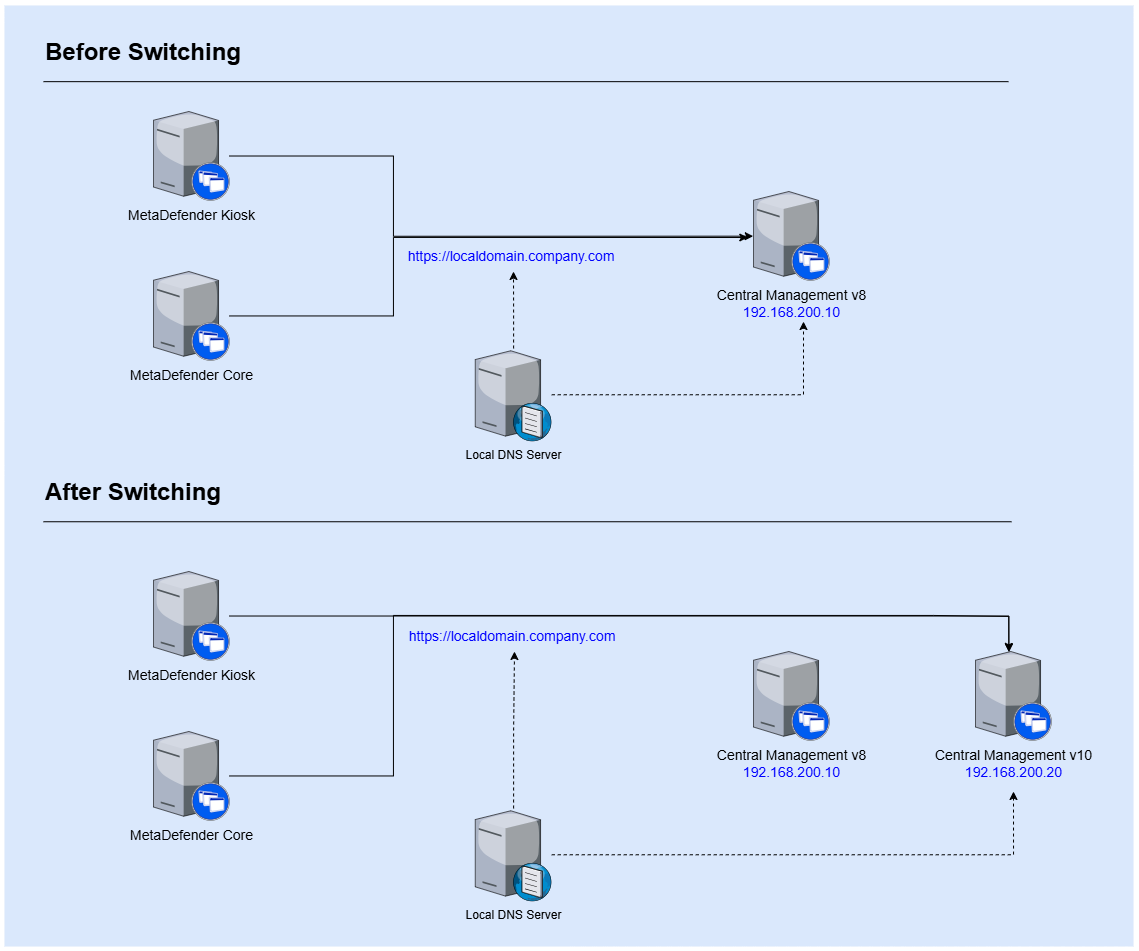
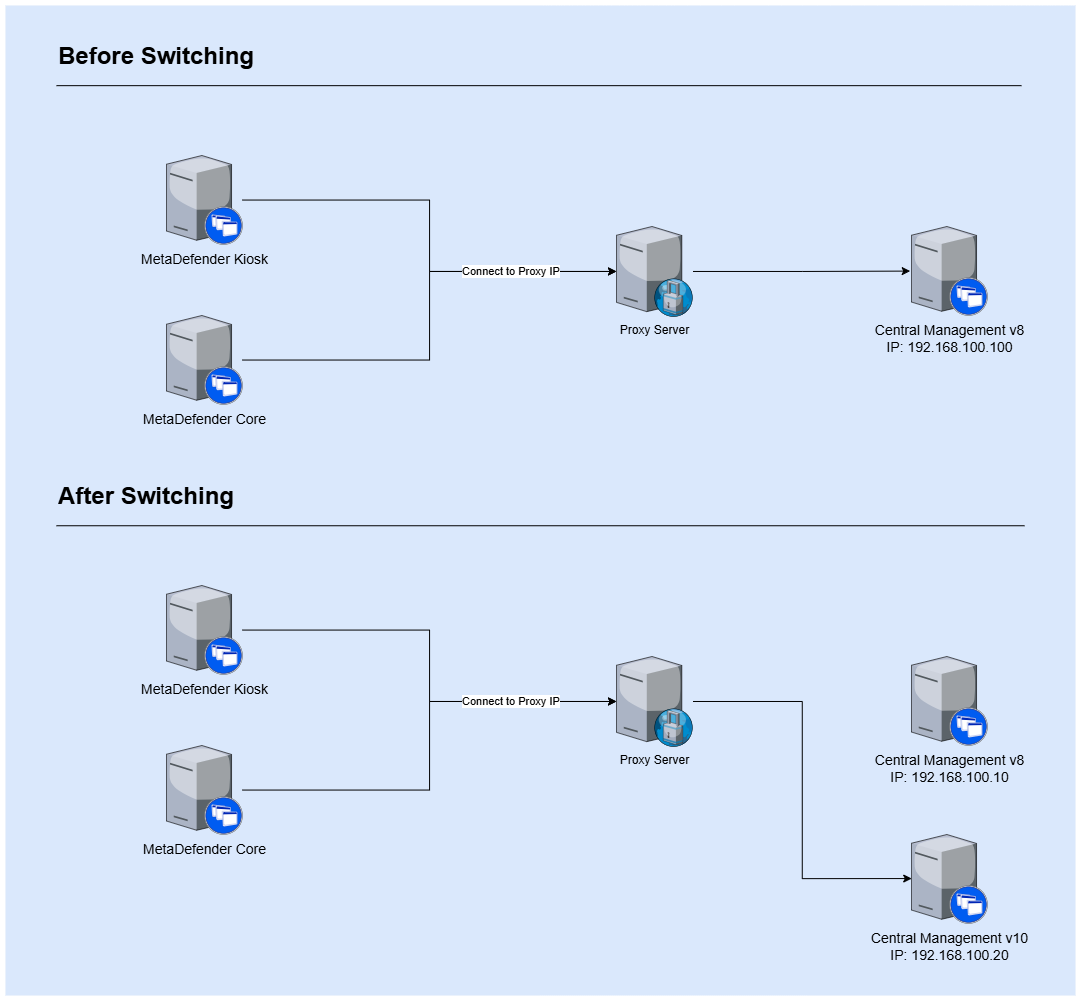
Deployment B: OPSWAT MetaDefender Products connect to a reverse proxy. Redirect traffic from proxy to Central Management.
If you are using a reverse proxy. You can plan to update the rule to redirect from v8 IP to v10 IP:
Deployment C: OPSWAT MetaDefender Products connect directly to the Central Management IP Address
This deployment might have downtime since you need a plan to re-assign IP from the current v8 deployment to v10 server.
If it is not possible to retain the same network interface for all OPSWAT products when connecting to the new My OPSWAT Central Management v10, you will need to re-enroll those products into the new My OPSWAT Central Management IP.
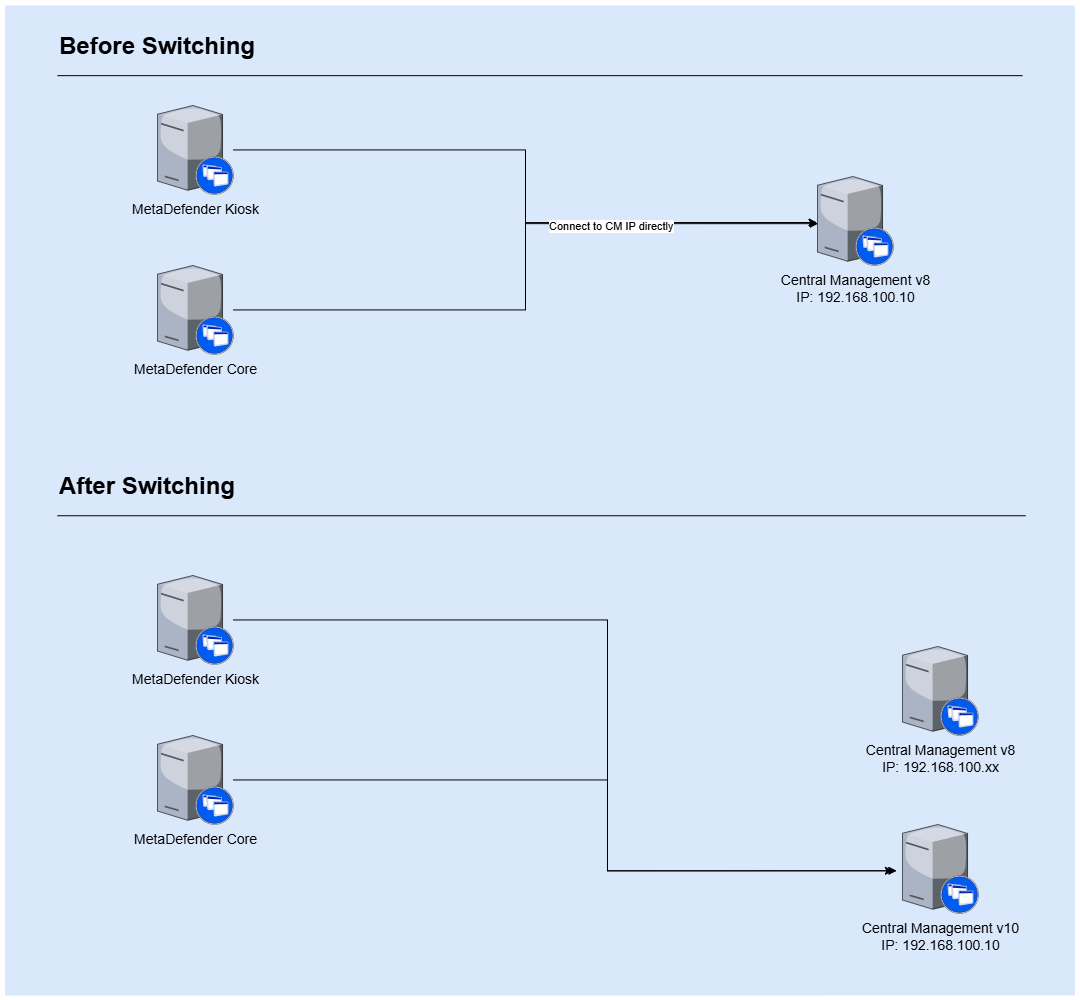
If your current deployment matches one of these deployments. It's time to prepare the environment. Let's install CM10 on a separate server.
Follow the Pre-Onboarding Setup to install My OPSWAT Central Management v10. Don't forget to install the required software and prepare enough disk space based on the System Requirement document. Some common questions for your reference:
Ensure that the same Recovery Key and Registration Code are used for both Central Management v8 and v10. Using different credentials will result in the need to re-enroll all connected MetaDefender products.
Additionally, verify that both v8 and v10 are operating within the same network environment. Update firewall rules as needed to allow MetaDefender products to communicate with v10 over ports 9000 and 443. Note that the required ports may vary depending on your specific deployment configuration.
Step 4: Migrate the configuration and inventory data
The configuration and inventory data include system configuration, user info, a list of enrolled products & configuration. You need to run the following steps to migrate data.
Follow steps in Import/Export - My OPSWAT Central Management v8 - Legacy to backup Product Configurations and My OPSWAT Configurations
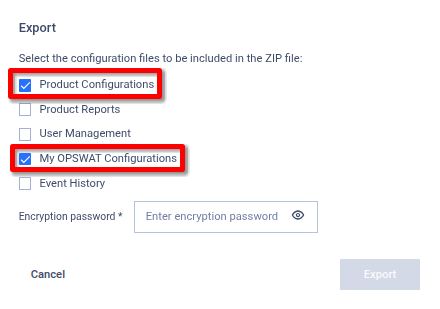
Import Scope
Only Product Configurations and My OPSWAT Configurations are imported into CM10. Nothing outside these areas is modified.
Product Configurations: MetaDefender instances, including their license information, instance configuration, and group configuration (imported into CM10 as policies)
My OPSWAT Configurations: Registration code, SMTP, server URL, and TLS/HTTPS
Other data such as user accounts, logs, proxy settings, and unsupported product types (any product other than MK4, MK5, Core, or ICAP) are not imported. These data can be set up manually in CM10 if needed.
Download and run the CM8Importer on CM10 server to convert data
Download the CM8Importer
Extract the archive and copy the CM8Importer binary for your platform to the CM10 server:
Windows:
cm8importer.exeLinux:
cm8importer
Copy the backup file from step (4.1) into the same folder as the CM8Importer binary
Run the importer using the command for your platform below:
Platform | Command Prompt | ||||||
|---|---|---|---|---|---|---|---|
Setting | The scheme in
| ||||||
Windows (MSI installation) | Working folder: the CM10 installation location, by default cm8importer.exe -baseURL="<CM10-URL + port>" -encryptionPassword="<export file encrypted password>" -inputFile="<export file path>" | ||||||
Linux (RPM installation or Virtual Appliance / OVA) | Working folder depends on how CM10 was deployed:
# Go to the folder holding the importer and the backup file # RPM: /opt | OVA: /var/opt cd /opt ls -l # backup.zip cm8importer # Make the importer executable chmod +x cm8importer # Run the import ./cm8importer \ -baseURL="<CM10-URL + port>" \ -inputFile="<export file path>" \ -encryptionPassword="<export file encrypted password>" Example, run locally on a CM10 server configured for HTTPS: ./cm8importer -baseURL="http://localhost:443" -inputFile="backup.zip" -encryptionPassword="1111" |
Verify the active data
Waiting for the importing process. It's similar to this one
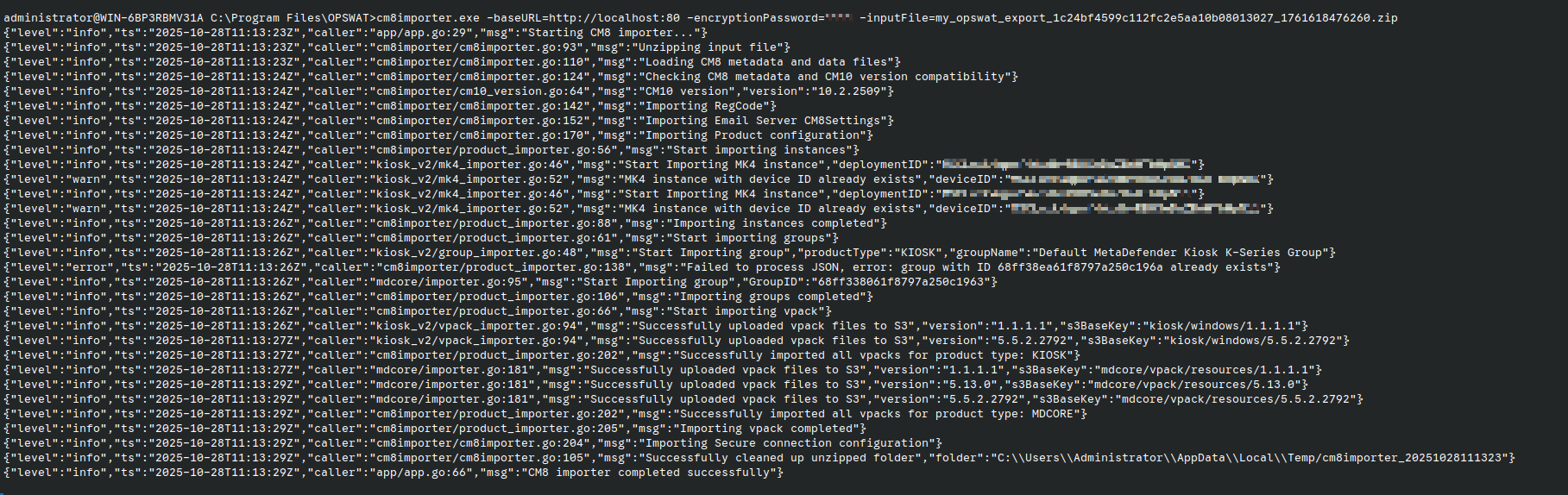
Active data includes system configuration, list of enrolled products & configuration. You would need to verify some important data as below:
3.1. Verify the User Access
Try to access v10 with your credentials. You will need to reset the password and PIN on the first login. The master account is the most important account that you create when setting up the v10. Ensure you can log in as the master account and one imported account from the v8.
If you are using SSO configuration or Active Directory. You can verify the integration after switching to v10. However, ensure that you can use the master account and one imported account from the v8 before going to the next step.
3.2. Verify the system configuration
Compare the configuration between v8 and v10. The UI can be different. For any values that exist in v8, they should be the same in v10. For any new configurations in v10, the default value will be set. You can contact OPSWAT Support if you need to clarify any configuration.
3.3. Verify the Inventory and Product Configurations
Compare the list of product groups between v8 and v10
Compare the list of MetaDefender Products between v8 and v10.
In v8, all similar products belong to different Groups. Each group will have separate settings. The default value is set for any non-existent group settings from v8.
3.4. Verify the Set configuration and Policy Configuration
You can compare the individual product configuration by going to the product detail settings.
The Set setting will be migrated to Policy. You can compare the Set setting to the policy. For example, the Set Name will be converted to Policy Name.
Step 5: Migrate OPSWAT products
To migrate OPSWAT products from CM8 to CM10, you can choose between two primary methods depending on your network architecture and migration strategy:
Methods | Details | Use it when |
|---|---|---|
Network deployment switchover | Reroute product traffic from CM8 to CM10 by updating local DNS (FQDN/CNAME), adjusting reverse proxy upstream rules, or reassigning the server IP. |
|
Manual product enroll | Unenroll each product from CM8 and re-enroll it into CM10 using the CM10 URL and Registration Code. Note Automation scripts are available for MetaDefender Core and Kiosk to automate bulk re-enrollment. Please contact OPSWAT Support for more info on enrollment script. | You want to migrate products in small batches to test first before transitioning your entire production environment. |
Step 6: Migrate the history data
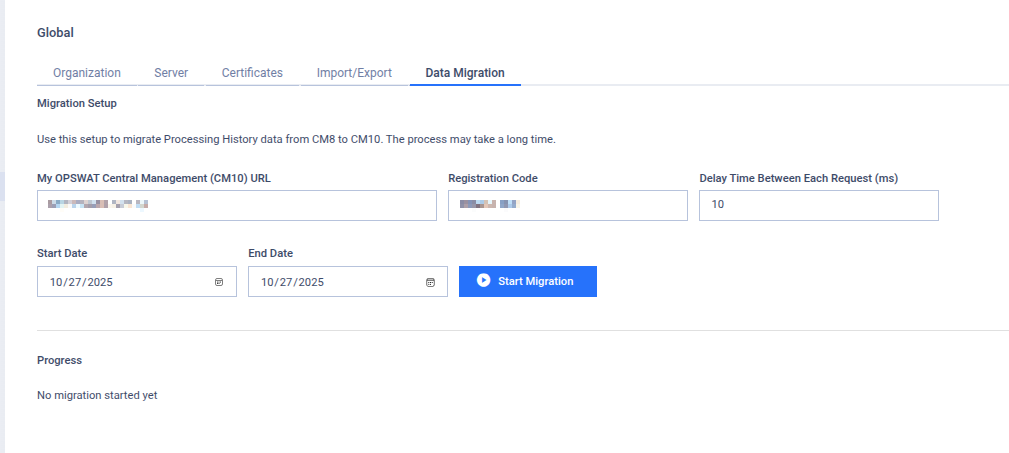
This step will copy all the processing history scan data from v8 to v10.
Migrating historical data involves copying records from v8 to v10. The duration of this process can vary significantly---from about an hour to several days or even weeks---depending on the size of your data. While this step may take time to complete, it does not block your deployment. You can either proceed with the next steps in parallel, wait until the migration finishes, or skip this step entirely by retaining the CM8 instance for historical queries.
Login v8 Console ( version >= 2025.4.1 )
Navigate to Settings > Global > Data Migration
Enter the following info:
My OPSWAT Central Management v10 URL
Registration code
Start Date & End Date
Click "Start Migration"
Then wait for the process