This document is to support organizations in migrating numerous devices to another account (from My OPSWAT Central Management version 7 (formerly known as OPSWAT Central Management) to version 10) with minimal setup and effective results, this documentation provides detailed guidance on how to perform the migration.
Script to move devices to another account
For Windows
$license="<license>" #example: "959aad40ef70276214b2429d391418e9"$sever="<server-address>" #example: "https://gears-staging.opswat.com"$group="<group-id>" #example: "27398e84-829b-444d-b3ae-5d3340e6eef9default"$featureSwitchPath = "$env:PROGRAMDATA\OPSWAT\Gears\features\switch_account"$tempScript = "$env:TEMP\reconfig-agent.ps1"$curLicense = (Get-ItemProperty -Path "HKLM:\SOFTWARE\WOW6432Node\OPSWAT\Gears Client\Config" -ErrorAction SilentlyContinue).RegistrationKeyif ($curLicense -eq $license) { Write-Host "Agent is already registered with correct license. Skip reconfiguration." exit 0}Write-Host "Creating background reconfig script..."@"Start-Sleep -Seconds 15reg add "HKLM\SOFTWARE\WOW6432Node\OPSWAT\Gears Client\Config" /v "RegistrationKey" /t REG_EXPAND_SZ /d "$license" /freg add "HKLM\SOFTWARE\WOW6432Node\OPSWAT\Gears Client\Config" /v "ServerName" /t REG_SZ /d "$sever" /freg add "HKLM\SOFTWARE\WOW6432Node\OPSWAT\Gears Client\Config" /v "GroupId" /t REG_EXPAND_SZ /d "$group" /fif (Test-Path "$featureSwitchPath") { Remove-Item -Recurse -Force "$featureSwitchPath" Write-Host "Removed folder: $featureSwitchPath"}reg add "HKLM\SOFTWARE\WOW6432Node\OPSWAT\Gears Client\Status" /v "RequestRestartService" /t REG_DWORD /d 1 /fRemove-Item -Force "$tempScript""@ | Out-File -Encoding ASCII "$tempScript"Write-Host "Launching background reconfiguration..."Start-Process -WindowStyle Hidden -FilePath "powershell.exe" -ArgumentList "-ExecutionPolicy Bypass -File `"$tempScript`""Write-Host "Script will apply changes in background after 15 seconds. Exiting."Please edit these lines from the script with your information:
$license="<license>" #example: "959aad40ef70276214b2429d391418e9"$sever="<server-address>" #example: "https://gears-staging.opswat.com"$group="<group-id>" #example: "27398e84-829b-444d-b3ae-5d3340e6eef9default"For MacOS
#!/bin/bashPLIST_FILE="/Library/Preferences/SystemConfiguration/com.opswat.gearsagent.plist"NEW_LICENSE_VALUE="959aad40ef70276214b2429d391418e9" #License key : c43f2ba1837b21a1a2c4b695e7dc3daeNEW_SERVER_VALUE="https://gears-staging.opswat.com" #Server_url : https://gears-staging.opswat.comNEW_GROUP_VALUE="1750305671784" #GroupID : 1752744751425if [ ! -f "$PLIST_FILE" ]; then exit 1fivalue=$(/usr/libexec/PlistBuddy -c "Print :AgentConfig:LicenseKey" "$PLIST_FILE" 2>/dev/null)#check value in plist and new valueif [ "$value" == "$NEW_LICENSE_VALUE" ]; then exit 1fi#Unload Servicesudo /bin/launchctl unload -w "/Library/LaunchDaemons/com.opswat.GearsCLI.plist"#Remove cachesudo rm -rf "/usr/local/lib/opswat/cachejson/server_config.json"sudo rm -rf "/usr/local/lib/opswat/cachejson/get_public_ip.json"sudo rm -rf "/usr/local/lib/opswat/cachejson/get_account.json"#Set new valuesudo /usr/libexec/PlistBuddy -c "Set :AgentConfig:LicenseKey $NEW_LICENSE_VALUE" "$PLIST_FILE" 2>/dev/nullsudo /usr/libexec/PlistBuddy -c "Set :AgentConfig:Server $NEW_SERVER_VALUE" "$PLIST_FILE" 2>/dev/nullsudo /usr/libexec/PlistBuddy -c "Set :AgentConfig:GroupID $NEW_GROUP_VALUE" "$PLIST_FILE" 2>/dev/null#Load Servicesudo /bin/launchctl load -w "/Library/LaunchDaemons/com.opswat.GearsCLI.plist"Please edit these lines from the script with your information:
NEW_LICENSE_VALUE="959aad40ef70276214b2429d391418e9" #License key : c43f2ba1837b21a1a2c4b695e7dc3daeNEW_SERVER_VALUE="https://gears-staging.opswat.com" #Server_url : https://gears-staging.opswat.comNEW_GROUP_VALUE="1750305671784" #GroupID : 1752744751425For Linux
#!/bin/bash# Define target service and new environment valuesSERVICE="opswatclient.service" #default serviceLICENSE="<license>" #example: "959aad40ef70276214b2429d391418e9"SERVER="<server-code>" #example: "2134"GROUPID="<group-id>" #example: "27398e84-829b-444d-b3ae-5d3340e6eef9default"# Override config pathOVR_DIR="/etc/systemd/system/${SERVICE}.d"OVR_FILE="${OVR_DIR}/override.conf"# 1. Write override configecho "[+] Writing override config..."sudo mkdir -p "$OVR_DIR"sudo tee "$OVR_FILE" > /dev/null <<EOF[Service]Environment=Environment=LICENSE=${LICENSE}Environment=SERVER=${SERVER}Environment=GROUPID=${GROUPID}EOF# 2. Reload systemdsudo systemctl daemon-reexecsudo systemctl daemon-reload# 3. Schedule service restart after 15 secondsecho "[+] Scheduling service restart in 15 seconds..."sudo systemd-run --on-active=15s --unit=delayed-restart-${SERVICE%.service} \ /bin/bash -c "systemctl restart ${SERVICE}"# 4. Schedule override cleanup after 30 secondsecho "[+] Scheduling override cleanup in 30 seconds..."sudo systemd-run --on-active=30s --unit=cleanup-override-${SERVICE%.service} \ /bin/bash -c "rm -f '${OVR_FILE}' && systemctl daemon-reload"echo "[output]"echo "result=1"echo "msg=[+] ${SERVICE} will restart in 15 seconds, override config will be cleaned up after 30 seconds."Please edit these lines from the script with your information:
LICENSE="<license>" #example: "959aad40ef70276214b2429d391418e9"SERVER="<server-code>" #example: "2134"GROUPID="<group-id>" #example: "27398e84-829b-444d-b3ae-5d3340e6eef9default"Because the Linux script works only with the server code, please ensure you have the correct information before configuring the script. You can obtain this information from the server download page and map it as described below.
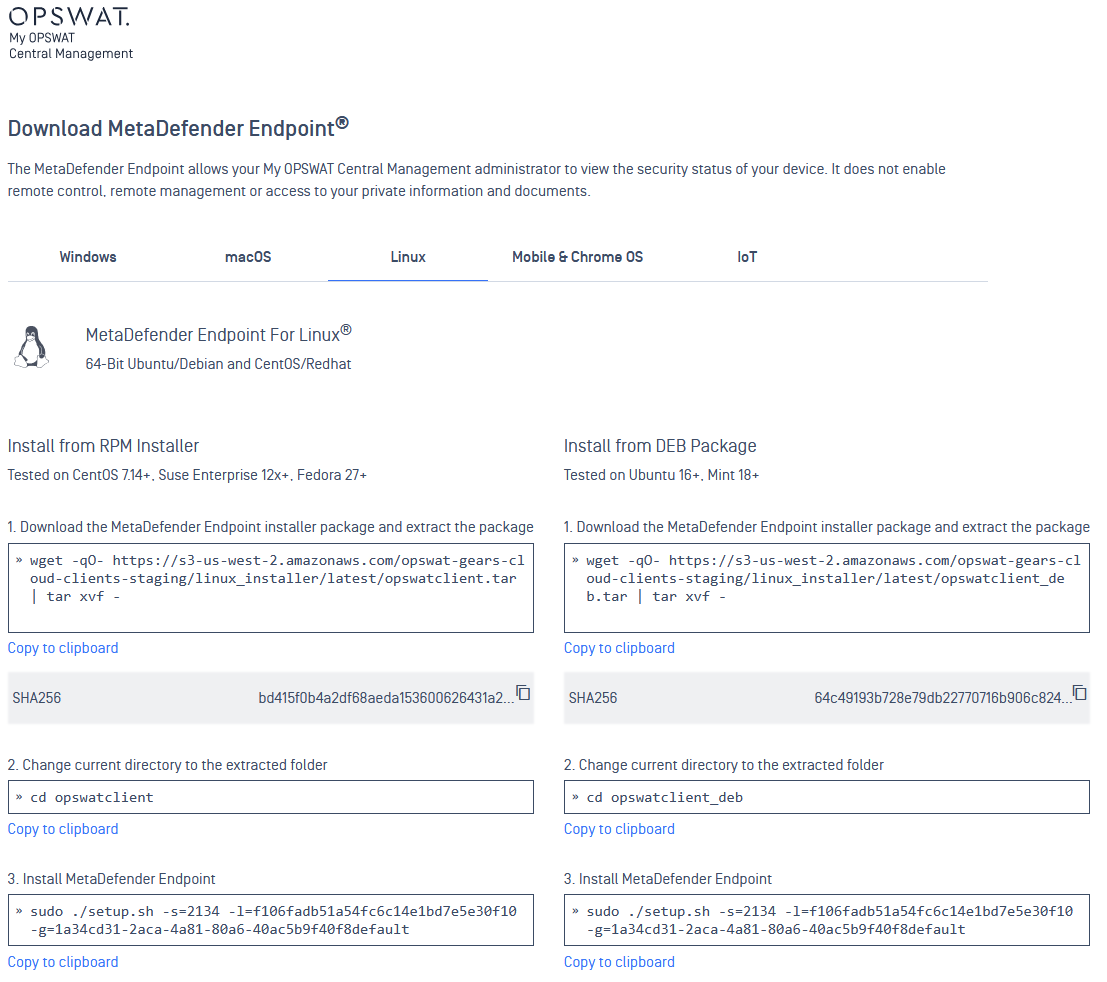
-s → server code
-l → license key
-g → group ID
Configure the server settings
My OPSWAT Central Management version 10 (On-premise/Cloud)
There are 2 ways to set up the script:
Playbook
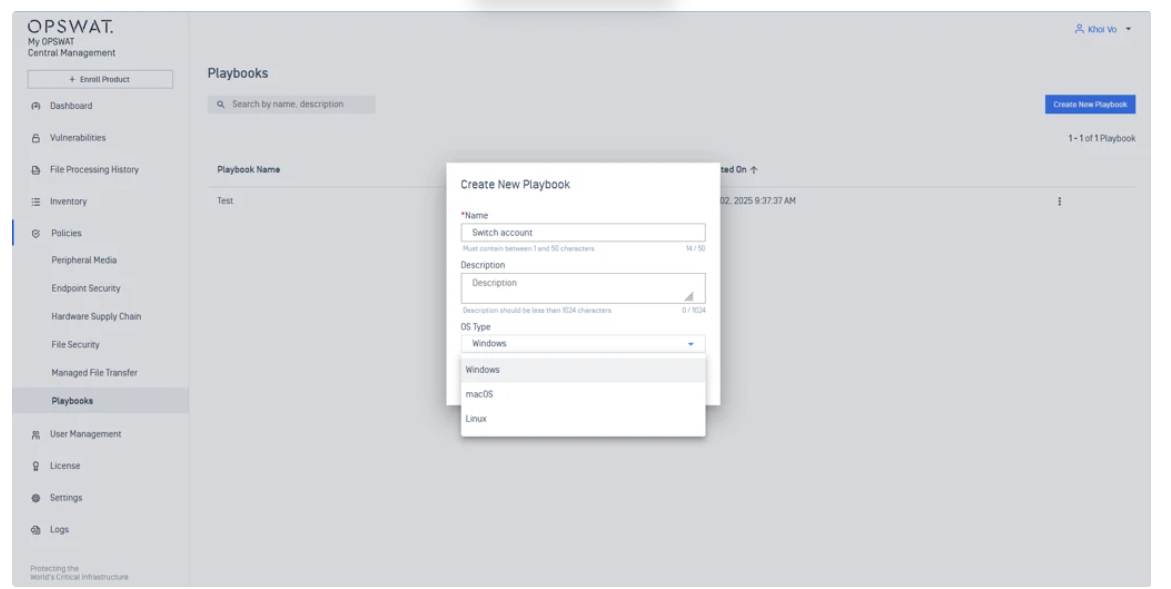
Before making the script available from the Playbook settings, you need to configure it. Go to Policies → Playbook, then select Create New Playbook and choose the platform on which the script will be executed.
Pick and drag the Custom script from the Task list and edit its properties
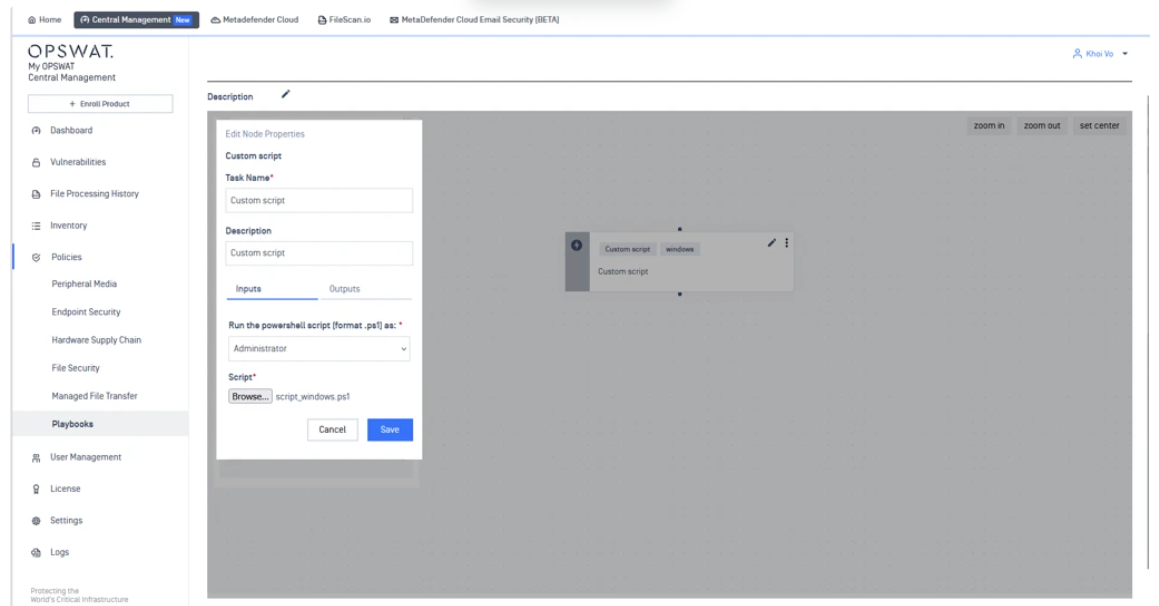
Make sure to select the correct privileges to execute the script:
- Windows: Administrators
- macOS, Linux: Root
Save the playbook, then navigate to Policies → Endpoint Security and select the policy corresponding to the group of devices you want to migrate. Enable the Playbooks setting and assign the configured playbook. Save the policy, and the setup is ready to proceed.
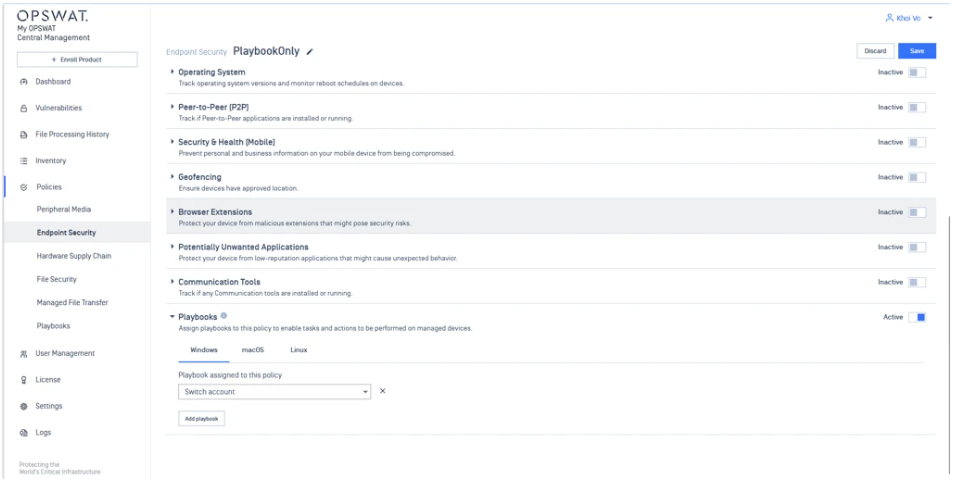
Custom Check
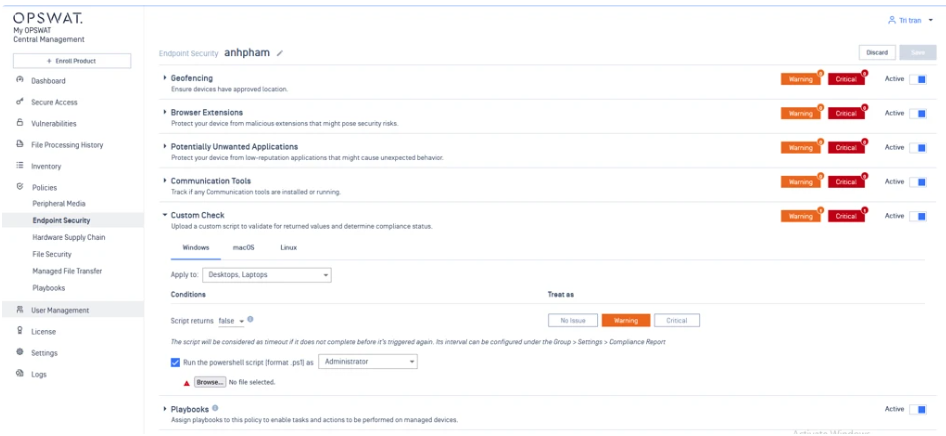
If the server has a Custom Check policy, navigate to Policies → Endpoint Security and select the policy corresponding to the group of devices you want to migrate.
Enable the policy and configure its settings similarly to the Playbook configuration.
My OPSWAT Central Management version 7 (Windows and macOS device only)
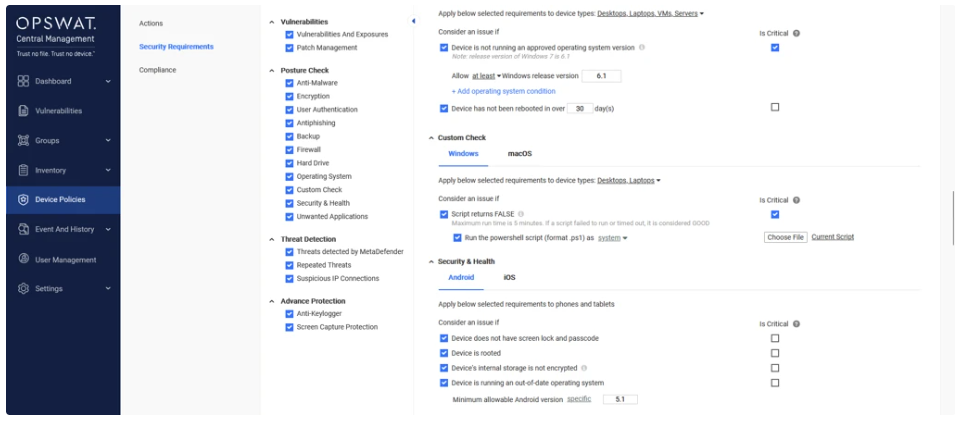
Navigate to Device Policies, select the policy corresponding to the group of devices you want to migrate, then go to Security Requirements → Custom Check.
Configure the policy following the example below

- Do not use this script with an invalid license key or server address. The Agent may stop working after the script is executed.
- Known issue: If the device is switched to a different server, the device information will remain on the previous server.
- The server address should not contain a trailing dash like this https://<server-address>/ → correct server address will be: https://<server-address>
Support troubleshooting
For My OPSWAT Central Management version 7 server, the option Perform compliance check from the picture below MUST BE CHECKED:
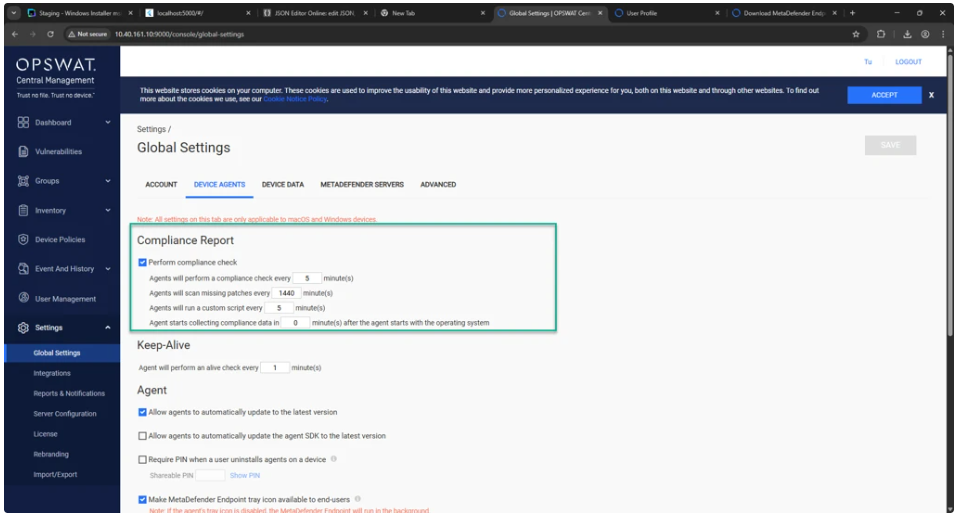
To ensure the script is executed, we can verify through the agent log here:
"C:\ProgramData\OPSWAT\Gears\logs\GEARS-Agent.log"
For CUSTOM CHECK:
[CustomCheck]: Script output: Creating background reconfig script...Launching background reconfiguration...Script will apply changes in background after 15 seconds. Exiting.For PLAYBOOK:
[mawf]: Workflows evaluated: [ec] = 0 [result] = DECRYPTED OUTPUT