
This article applies to all Metadefender Endpoint releases deployed on MacOS systems
Issue:
Users may encounter a "Logon Invalid - Token doesn’t match the expected account" error when attempting to log into MetaDefender Endpoint via the SDP application on a Mac.
Symptoms:
UI Error: When attempting to sign in, the application displays a red error banner at the top of the window stating:
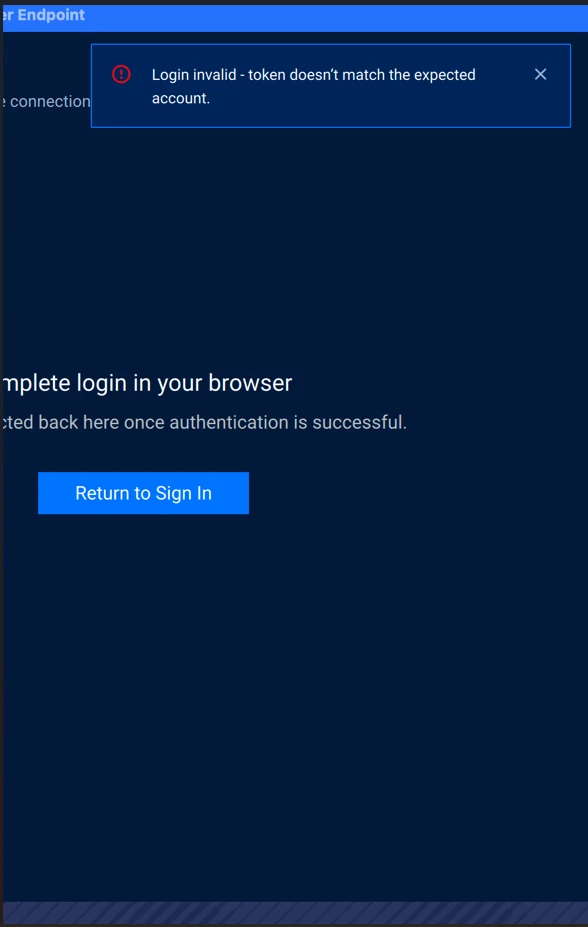
Log Error: The
sdp-daemon.logfile will show an entry similar to the following, indicating the token format is not being recognized correctly:
2026-01-05T17:54:11Z: auth token doesn't look like a JWT, assuming that it's a base64-encoded JSON blob...
Cause
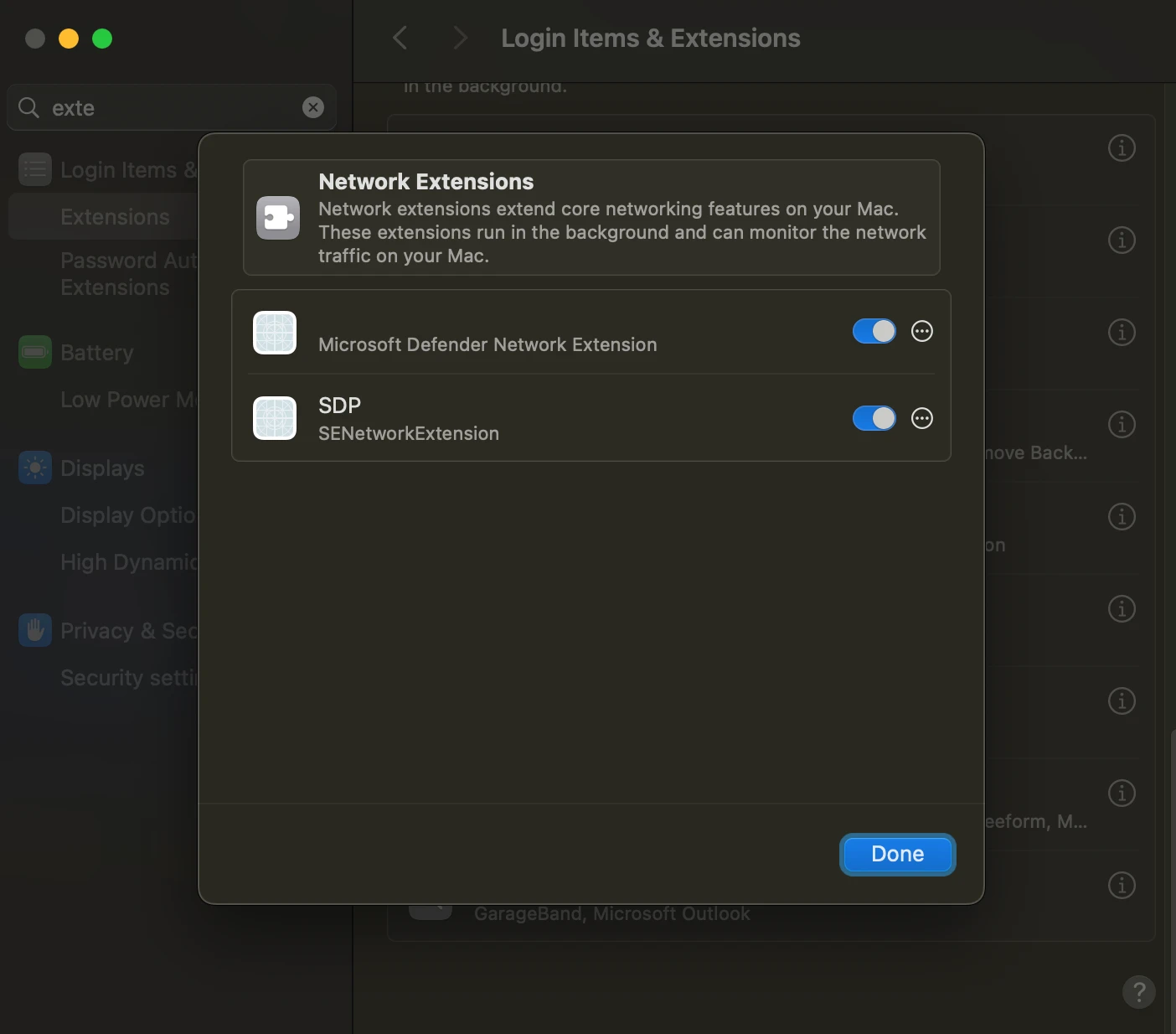
This error typically occurs because the SDP SENetworkExtension is not enabled or was blocked during installation. Without this extension active, the application cannot properly validate the authentication token against the user's account.
Solution
To resolve this issue, you must manually enable the Network Extension in your macOS System Settings:
Open the Apple Menu and select System Settings.
Go to General > Login Items & Extensions.
Scroll down to the Extensions section and click the (i) (Info icon) next to Network Extensions.
Find SDP SENetworkExtension and toggle the switch to ON.
If prompted, enter your administrator password to confirm the change.
Attempt to sign in to the SDP application again on the MetaDefender Endpoint > SDP/VPN > Sign In to the appropriate logon option for your company.
If Further Assistance is required, please proceed to log a support case or chatting with our support engineer.