
1. What the Feature Does
Leveraging OPSWAT MetaScan MultiScanning technology, MetaDefender Endpoint allows users to scan memory, system drive, local drives and files with up to 30 anti-malware engines with detection rates more than 99%.
To use Malware Scan feature on macOS devices to enable protection against peripheral media threats, users must allow the required system extension beforehand.
2. Why Do I Need to Grant The Permission?
macOS protects system resources and user data by restricting applications from accessing certain system-level functions and protected files.
For the protection to work correctly, macOS requires you to approve the system components that provide device-level protection and grant the application the necessary access to files and system resources.
The required permissions allow MetaDefender Endpoint to:
Permission | Why it is required |
|---|---|
Finder Sync extension | Enables scanning files from the contextual menu |
If either permission is missing, some protection capabilities may not work correctly as all peripheral devices will be disconnected/dismounted from the endpoint.
3. How to Enable the Required Permissions
Follow these steps to approve the system extension
There are 2 ways users can navigate to the setting
Through operating system
Open Apple menu > Settings.
Select General > Login items & Extensions
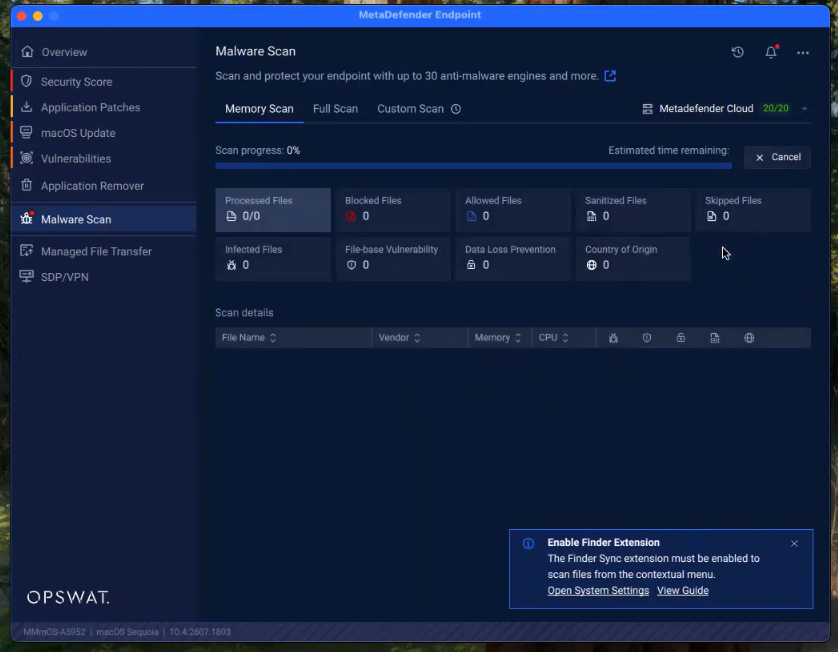
Through the on-screen popup / user interface of MetaDefender Endpoint
Click Open System Settings.
Toggle the button to enable the Finder Sync extension
Troubleshooting
If the protection feature is still unavailable after granting both permissions:
Verify that the system extension is approved
Restart the Mac if the system extension was recently approved
Contact your administrator if the required settings are managed by your organization's Mobile Device Management or security policy