
This document based on PostgreSQL official documents for backup and restore here
Prerequisites
No third‑party application needed
Windows OS
PostgreSQL built-in (Metadefender Core standalone mode)
How to
Backup database
Please note that you need to go to the folder
<installation_folder_MD_Core>/postgres/bin/to execute the command below, you need to run it on CMD (Command Prompt) with Administrator privileges.To back up the database, you need to run the command below.
In order to use
pg_dumpto backup exactly database that you would like to backup, we need the database name. To get database name, you need to connect to PostgreSQL local:
It requires you to input the password for the user
postgres. After you input the password, you will successfully log in to Postgres. For example:
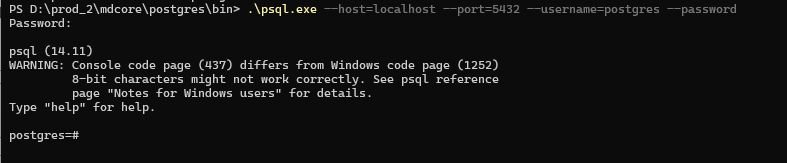
type
\lto show all database instances in PostgreSQL.

To exit PostgreSQL, you can type
exit.When you know your database instance name, you can use
pg_dumpto backup exactly database that you would like to backup.
After finished, you will see the file generated.

Restore database
To backup database, you need to stop Metadefender Core first. Then, please start PostgreSQL service by command below.
For example:

NOTE: If your MD Core is on the C drive (system drive), you'll need to utilize the system user to execute the command above for manually starting PostgreSQL.
To use system user, you need to download the PSTool provided by Microsoft PsTools - Sysinternals | Microsoft Learn
Once you've downloaded PSTool, to utilize it, you must open Command Prompt with Administrator privileges. Next, navigate to the PSTool folder and execute the command
PsExec.exe -i -s cmd.exe. Following this command, a new Command Prompt window will appear, indicating successful execution.
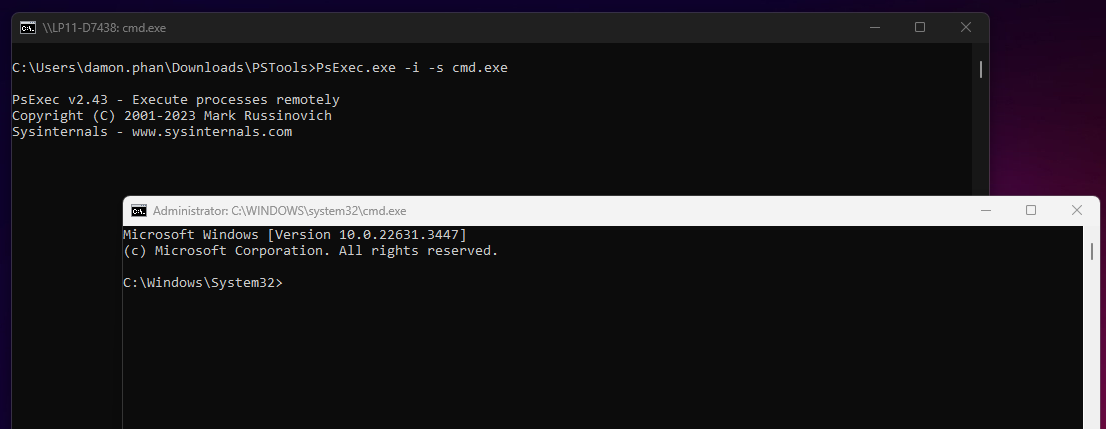
- To determine the user being utilized in the new CMD window, you can execute the command whoami. This will provide you with the user information.
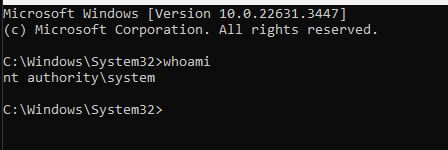
- Then, we will run the command to manually start PostgreSQL. For example: "c:\Program Files\OPSWAT\MetaDefender Core\postgres\bin\pg_ctl.exe" start -D "c:\Program Files\OPSWAT\MetaDefender Core\data\pg_data" -w -o -p5432
- You will see the output below.

Once you've successfully initiated PostgreSQL manually, you'll need to log in to PostgreSQL and delete the current MD Core database. To accomplish this, you can utilize the following command:
Here is example:
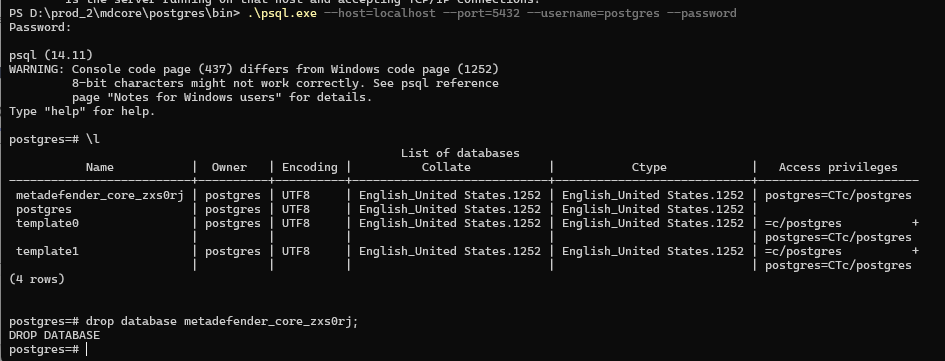
When you dropped the current database of MD Core, you create the new database again with the same instance name.
To create database, you can use the command below. Please note that the name of database should be the same.
You can recheck by command
\lto list all database.

You can see that the new database with name "metadefender_core_zxs0rj" created, and currently, it does not have any access privileges.
Next, exit PostgreSQL and import your data from the the dump file to the new database. You can use command below to import the database.
For example:
You will the output like this
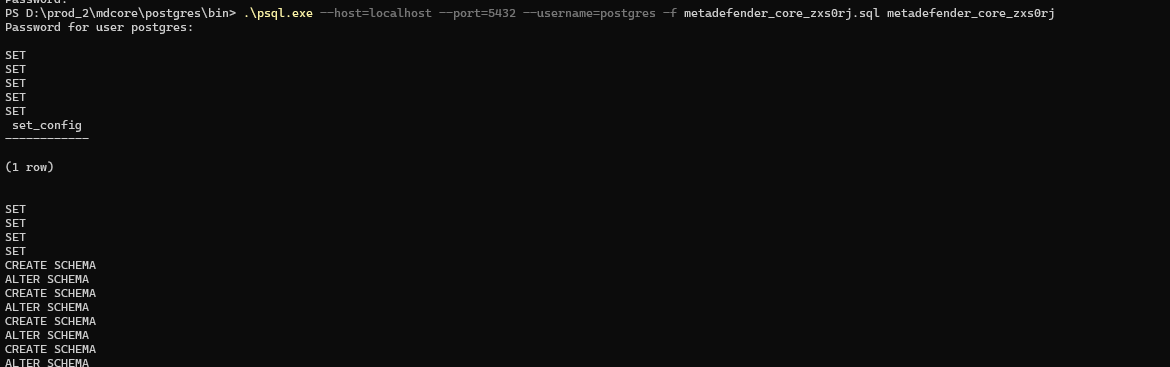
After you finish import database, you need to stop PostgreSQL. You can use command below to stop
For example:

Finally, you start Metadefender Core service. While starting, MD Core will create new internal user and grant access priviledge for the new database.
You can recheck by access to PostgreSQL and show status all database, after MD Core service successfully start and running.
For example:
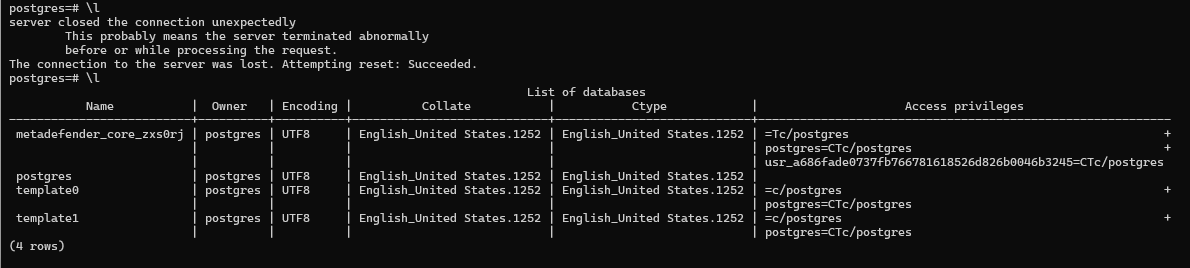
You can see that the new database has new access privileges for
internal_userusr_a686fade0737fb766781618526d826b0046b3245
If you require further assistance, please log a support case or chat with our support engineer.