
Check Your Version:
This article applies to MetaDefender Core All MetaDefender Core releases deployed on Windows and Linux.
Phenomenon
After upgrading MetaDefender Core, users may encounter a completely blank page when accessing the Management Console.
This issue is commonly reported immediately after an upgrade, leading users to believe that the upgrade has failed. However, in many cases, the MetaDefender Core services have started successfully and the issue is limited to the client browser.
Typical symptoms include:
The Management Console displays a completely blank page.
Core services are running normally.
The upgrade completes successfully.
Browser Developer Tools (F12 → Console) may show JavaScript syntax errors similar to:
Main Cause
The Management Console of newer MetaDefender Core versions uses modern JavaScript features that require a supported, up-to-date web browser.
If the browser version does not meet the supported browser requirements, the browser may fail to parse the Management Console JavaScript, preventing the application from loading and resulting in a blank page.
Although the issue is first observed immediately after an upgrade, the upgrade itself is typically successful. The problem is caused by browser compatibility rather than a failure of the MetaDefender Core server.
For the supported browser requirements, please refer to:
Recommended System Configuration - MetaDefender Core
Resolution
Step 1. Verify that MetaDefender Core is running
Confirm that the required MetaDefender Core services have started successfully.
On Windows
Open Services (
services.msc).Verify that the following services are in the Running state:
OPSWAT MetaDefender Core
OPSWAT MetaDefender Core PostgreSQL
On Linux
Run the following commands:
Verify that both services are active (running) before proceeding.
Note: After starting or restarting MetaDefender Core, the services may require approximately 2–3 minutes to fully initialize. If the Management Console is accessed while the services are still starting, a blank page may be displayed temporarily. This is expected behavior.
Please wait a few minutes for the services to fully start, then refresh the Management Console. If the blank page persists, proceed with the browser troubleshooting steps below.
Step 2. Check the browser console
Open the browser Developer Tools by pressing F12 and navigate to the Console tab.
If JavaScript syntax errors similar to the following are displayed:
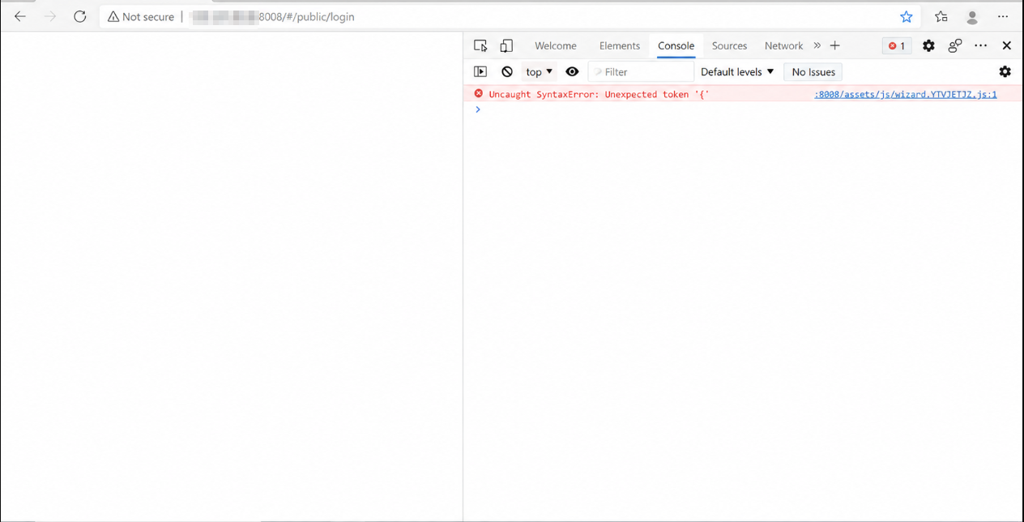
this indicates that the browser may not support the JavaScript features required by the current Management Console.
Step 3. Verify the browser version
Confirm that the browser version satisfies the supported browser requirements documented by OPSWAT.
If the browser is outdated:
Update Microsoft Edge or Google Chrome to the latest supported version.
If the environment is offline, install the latest supported browser version using the vendor's offline installer.
Step 4. Perform a browser refresh
After updating the browser:
Perform a hard refresh (Ctrl + Shift + R).
If necessary, test using an InPrivate/Incognito window.
If available, verify the behavior from another supported browser.
Notes
This issue can easily be mistaken for an upgrade failure because it first appears immediately after upgrading MetaDefender Core.
Browser-related display issues after an upgrade may also be caused by stale browser cache. If the browser version is supported, performing a hard refresh or testing from another supported browser is recommended as part of the initial troubleshooting process.
If Further Assistance is required, please proceed to log a support case or chat with our support engineer.