
Check Your Version:
This article applies to all MetaDefender Core releases deployed on Windows and Linux systems.
Overview
If you have forgotten your MetaDefender Core administrator password, you can use the Forgot password? option when SMTP is configured and the account has a valid, accessible email address.
If SMTP is not configured, but you still have a valid administrator API key, you can create a temporary administrator account through the API. You can then sign in with this account and reset the original administrator’s password.
If you have also forgotten the original administrator username, the procedure below explains how to retrieve it.
Prerequisites
A valid administrator API key with permission to manage users.
Access to the MetaDefender Core API and Web Management Console.
A MetaDefender Core version that provides the Admin direct reset option.
The commands below use the default address http://localhost:8008. Replace the address with your MetaDefender Core endpoint and HTTPS if applicable. Use the Linux/macOS examples in Bash-compatible shells. On Windows, use the separate curl.exe PowerShell examples because PowerShell uses different line continuation and quoting rules.
Procedure
Step 1: Retrieve the original administrator username
If you have forgotten the original administrator username, run the following request to list existing users.
Linux/macOS:
Windows PowerShell:
Replace <ADMIN_API_KEY> with your existing administrator API key.
Locate the original administrator account in the response and record its name value. This is the username used to sign in.
If you still know the password, you can use this username to sign in without completing the remaining recovery steps.
Step 2: Create a temporary administrator account
Run the following request.
Linux/macOS:
Windows PowerShell:
Before running the request:
Replace
<ADMIN_API_KEY>with your existing administrator API key.Replace
<TEMPORARY_ADMIN_PASSWORD>with a unique password that meets the configured password policy.Replace
recovery@example.comwith an appropriate administrator-controlled email address.Use a different temporary username if
recovery_adminalready exists.
Review the API response and confirm that the account was created successfully.
Step 3: Sign in using the temporary administrator
Open the MetaDefender Core Web Management Console.
Sign in using
recovery_adminand the password specified in Step 2.Navigate to User Management > Users and groups.
Step 4: Reset the original administrator’s password
Locate the original administrator account.
Click the three-dot menu next to the account and select Reset password.
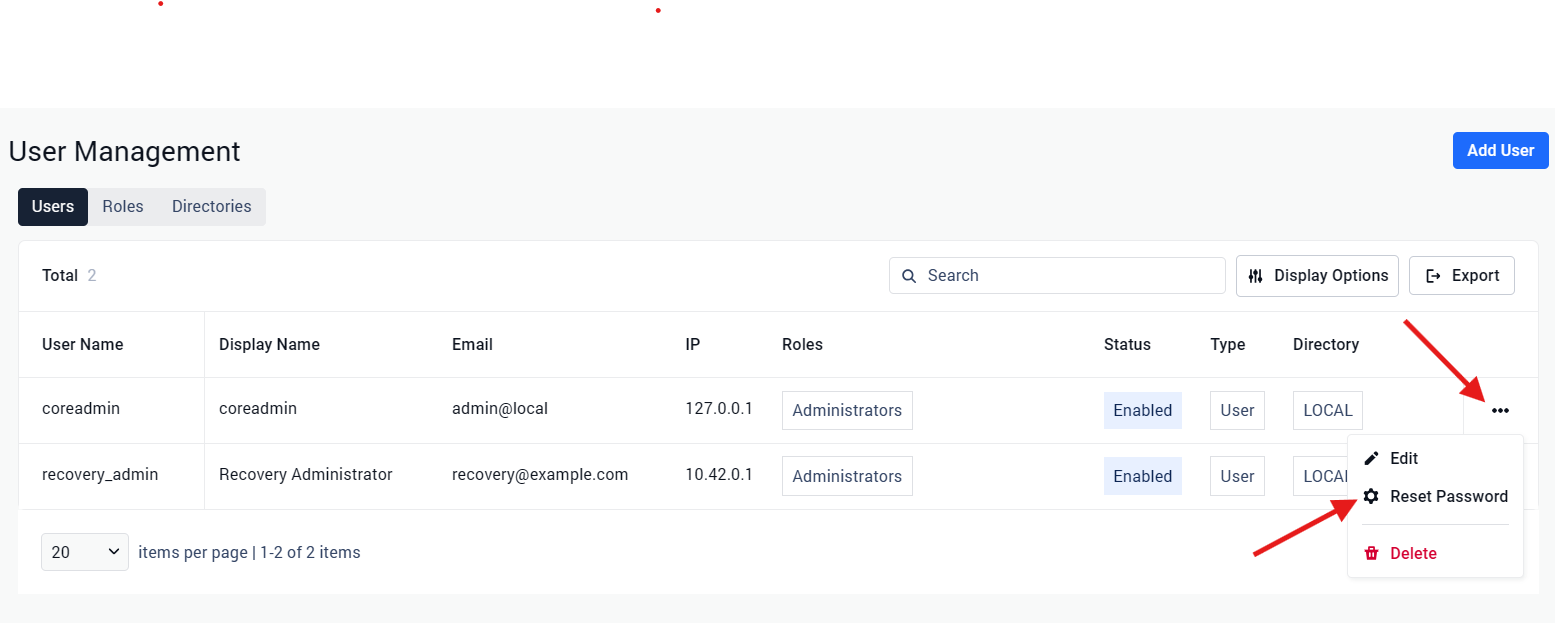
Enter a new temporary password that meets the configured password policy.
Set Reset type to Admin direct reset.
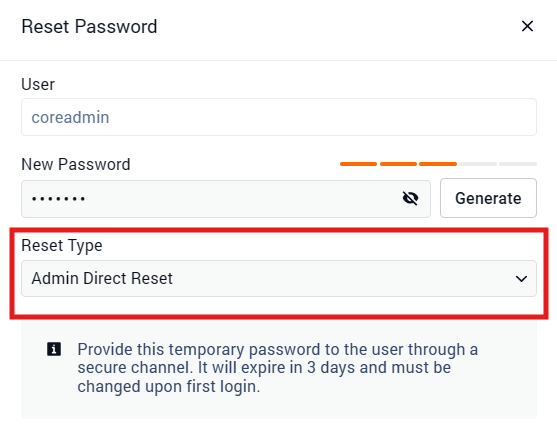
Click Reset to apply the change.
Step 5: Sign in using the original administrator account
Sign out of the temporary administrator account.
Sign in using the original administrator username and the temporary password set in Step 4.
When prompted, change the temporary password to a new password.
Confirm that you can access the Web Management Console and administrator functions.
Step 6: Remove the temporary administrator account
After confirming that access to the original administrator account has been restored, delete recovery_admin from User Management > Users and groups.
Support:
If Further Assistance is required, please proceed to log a support case or chatting with our support engineer.