
Check your version:
This article applies to MetaDefender Core and is applicable to all MetaDefender Core V5 releases deployed on Windows and Linux systems.
Overview
When scanning files encrypted with GPG such as .txt.gpg files, MetaDefender Core may return the status “Document is encrypted with a password”. This can occur even when a password is provided, depending on how the file type is detected and processed.
This behavior is not necessarily a limitation, but it may require a workflow configuration adjustment so the system correctly identifies and handles GPG encrypted files.
Solution
You can configure MetaDefender Core to properly recognize GPG encrypted files by overriding the file type in the workflow settings.
Follow these steps:
Open the MetaDefender Core web UI
Navigate to Workflow Management and then Workflows
Select the workflow you are using for scanning
Go to the File Type tab
Scroll down to the section labeled Overwrite a file type by another file type
Click Add
In the Filetype field, select Encrypted GPG
In the Sub filetype field, select GPG
Save the workflow
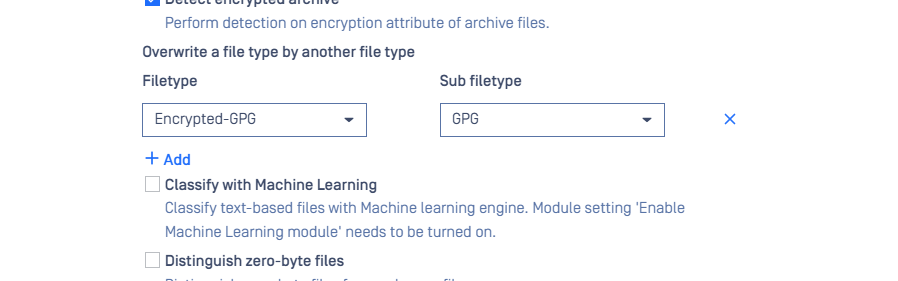
After applying this configuration, MetaDefender Core will properly detect GPG encrypted files.
Support:
If you have questions, concerns or issues regarding MetaDefender Core, please open a Support Case with the OPSWAT team via phone, online chat or form, or feel free to ask the community on our OPSWAT Expert Forum.