
Remote Reboot and Shut Down lets you restart or turn off enrolled devices without going to each machine.
From My OPSWAT Central Management, you can:
Restart or turn off one or multiple devices from device details page.
Track every request: see whether each device carried out the command, and who sent it.
Before You Begin
Requirement | Detail |
|---|---|
Supported products |
|
Permissions | You must be allowed to manage devices. If your role covers only some groups, you can only restart or turn off the devices in those groups. See Role Management |
Reboot or Shut Down One Device
In the left navigation, select Inventory > Devices
Select a Kiosk or Industrial Firewall device to open its details page
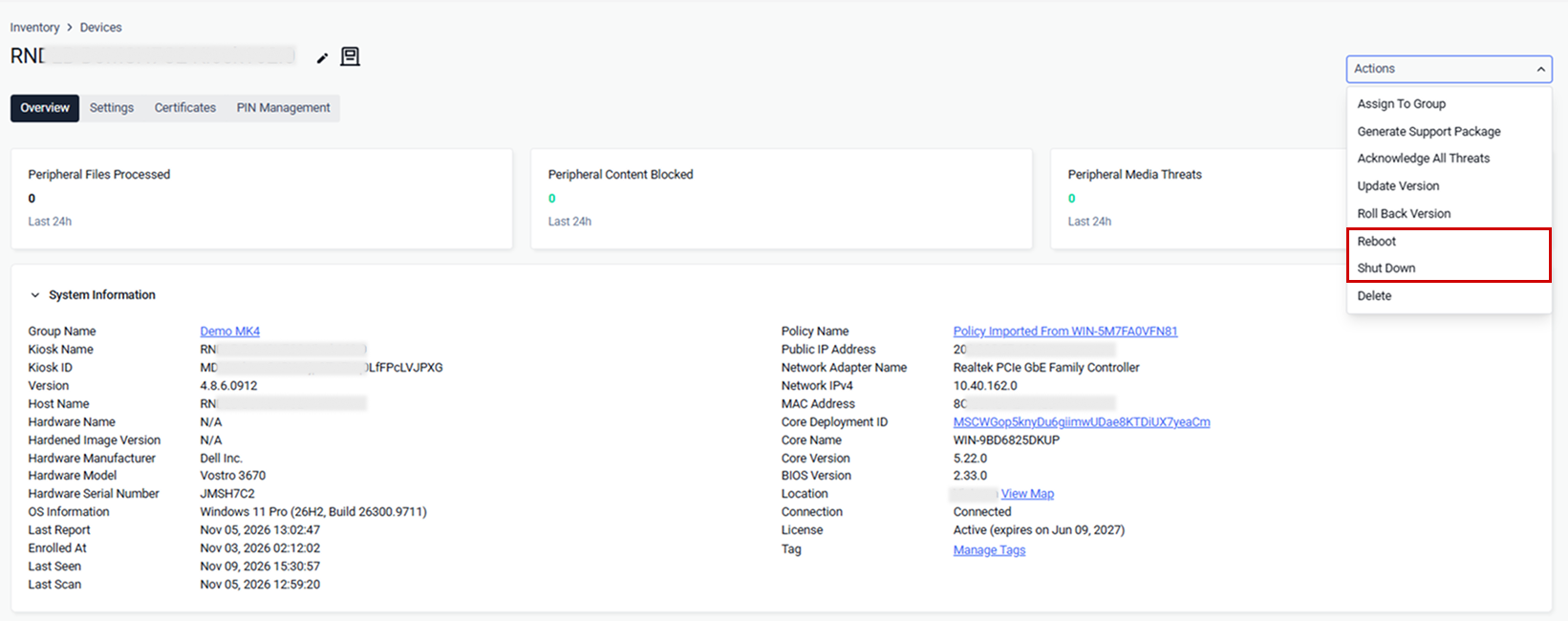
Select Actions, then select Reboot or Shut Down
Reboot or Shut Down Multiple Devices
In the left navigation, select Inventory > Devices, then open the Kiosk Windows or Industrial Firewall tab
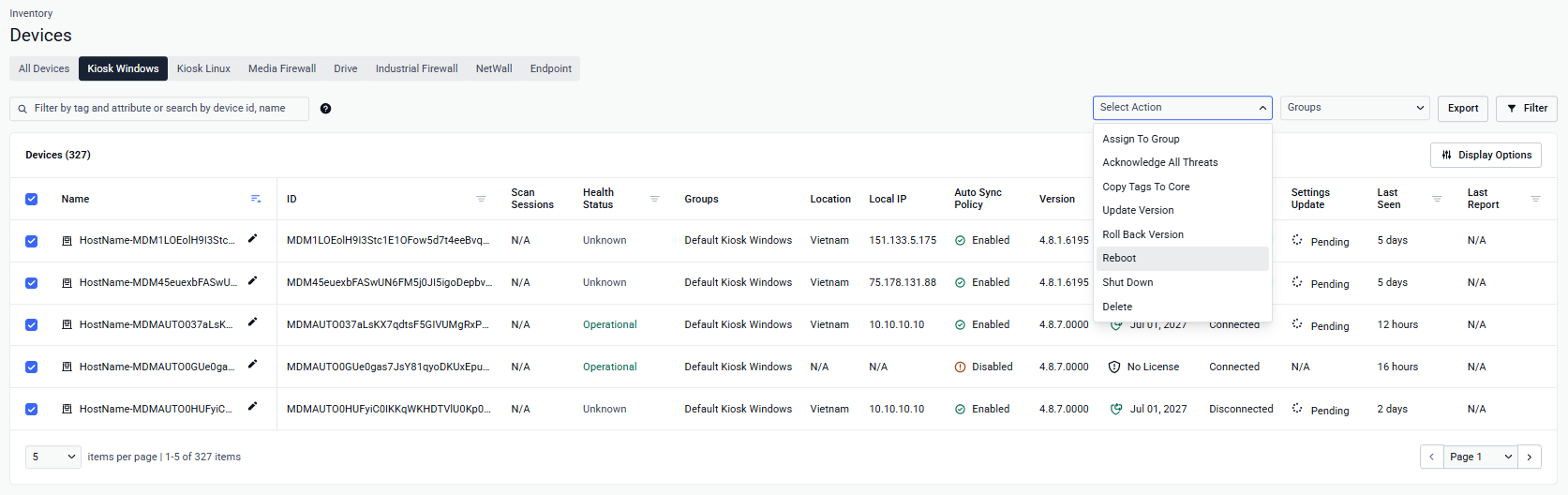
Select the checkbox next to each device. You can select across several pages
Click Select Action, then choose Reboot or Shut Down.
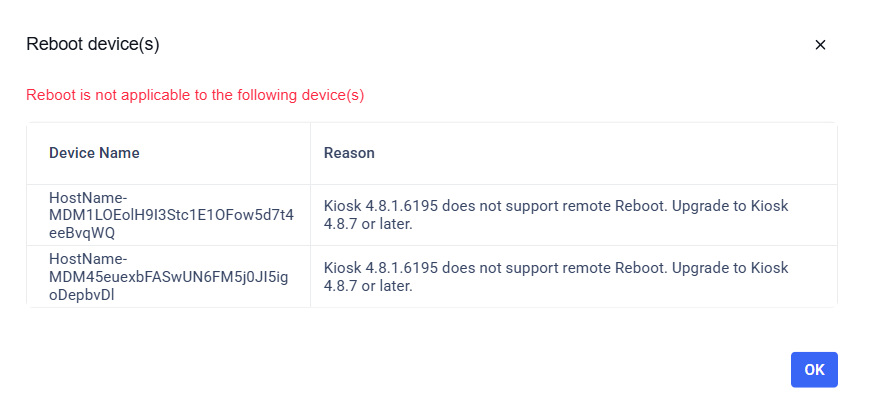
The reboot & shutdown command is sent to all eligible devices. A popup lists the affected devices and explains why the command cannot be applied.
Track Command Status
Open a device details page
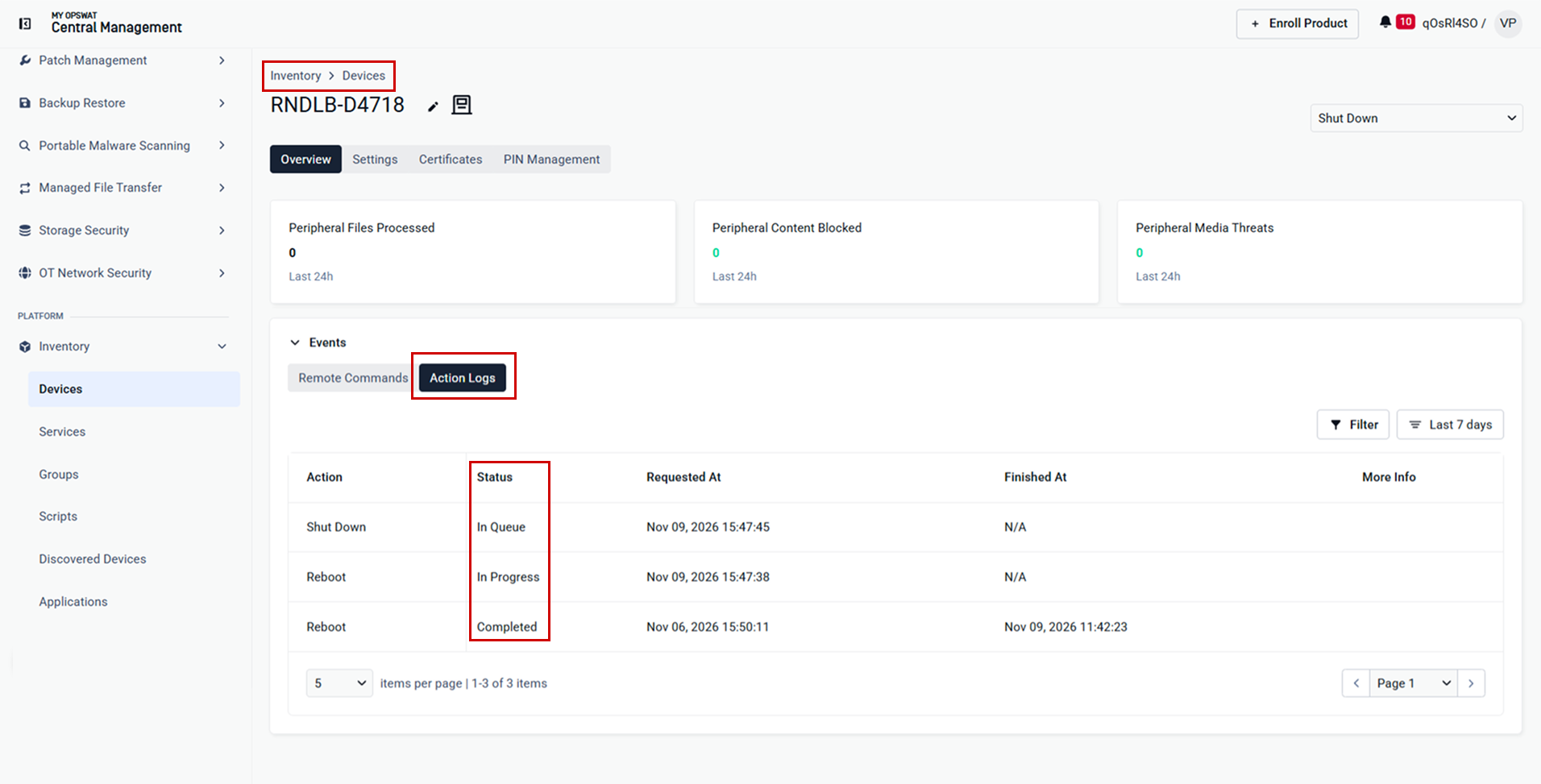
Go to Events > Action Logs
Each row shows the Action, Status, Requested At, Finished At, and More Info, with the newest request first.
Status | What it means |
|---|---|
In Queue | The request is waiting for the device. If the device is turned off or not connected, the request waits until it is back |
In Progress | The device has received the request and is carrying it out |
Completed | The device has restarted or turned off |
Failed | The device could not carry out the request. The reason is shown next to it |
Action Logs shows the last 30 days. You can filter it by status and by date. It also lists the support packages you requested from that Kiosk.
Audit Logs
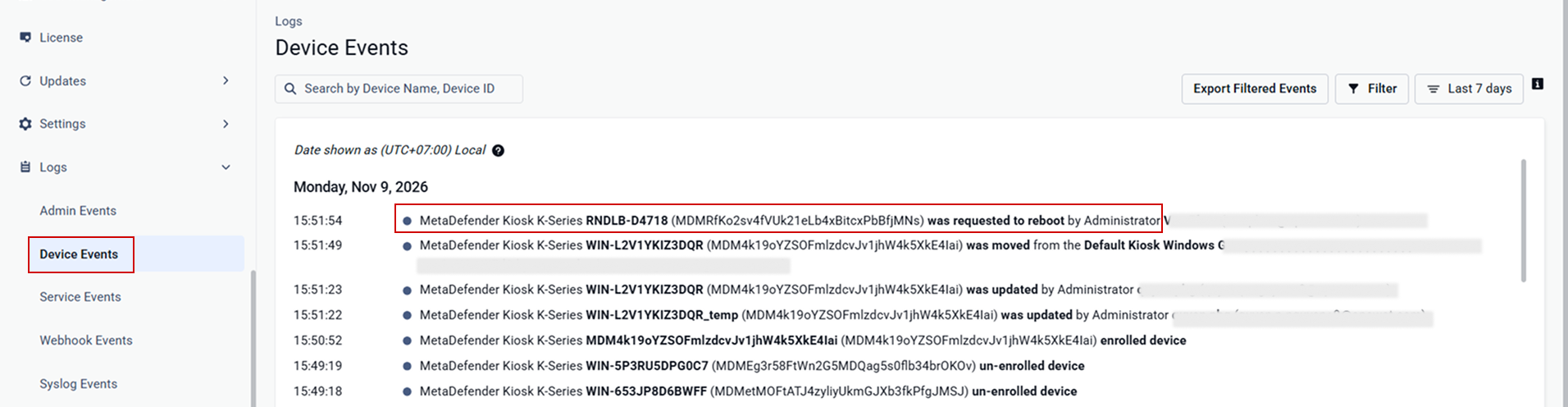
Every Reboot and Shut Down command is recorded in Logs > Device Events, with who sent it and when.
How Commands Are Delivered
Situation | What happens |
|---|---|
The device is offline or turned off | The request waits In Queue and runs as soon as the device reconnects, for up to 30 days. For example, a Kiosk that has been unplugged for a week restarts or turns off as soon as it is plugged back in and connects. |
You send a new command while the previous one is still In Queue | Your latest choice replaces the earlier one. For example, if you select Reboot and then Shut Down before the Kiosk receives the Reboot, the Kiosk only turns off. |
The device has already received the previous command | Both run in order. For example, if the Kiosk already received a Reboot, a Shut Down sent afterwards follows it: the Kiosk restarts, then turns off. |
Note You can't cancel a request after you send it. While it's still In Queue, you can only replace it with the other action (Reboot instead of Shut Down).
Troubleshooting
Issue | Cause | Resolution |
|---|---|---|
A device is listed as "not applicable" | Usually the device runs an unsupported version. It can also be in a group you aren't allowed to manage | Check the reason shown in the dialog. Upgrade the devicer, or ask an administrator for access to its group. |
A request stays In Queue for a long time | The device hasn't connected since you sent the request | Check that the device is turned on and connected to the network |