
Enrolling MetaDefender Kiosk instances into My OPSWAT Central Management centralizes your oversight and standardizes security controls across your infrastructure.
In This Guide
Auto Enroll MetaDefender Kiosk (On-Premise Deployment)
The Auto Enrollment feature allows MetaDefender Kiosk to discover My OPSWAT Central Management On-Premises server on the same local network and submit an enrollment request automatically.
Note This feature requires My OPSWAT Central Management On-Premises version 10.7.26092 or later.
Step-by-step Instructions
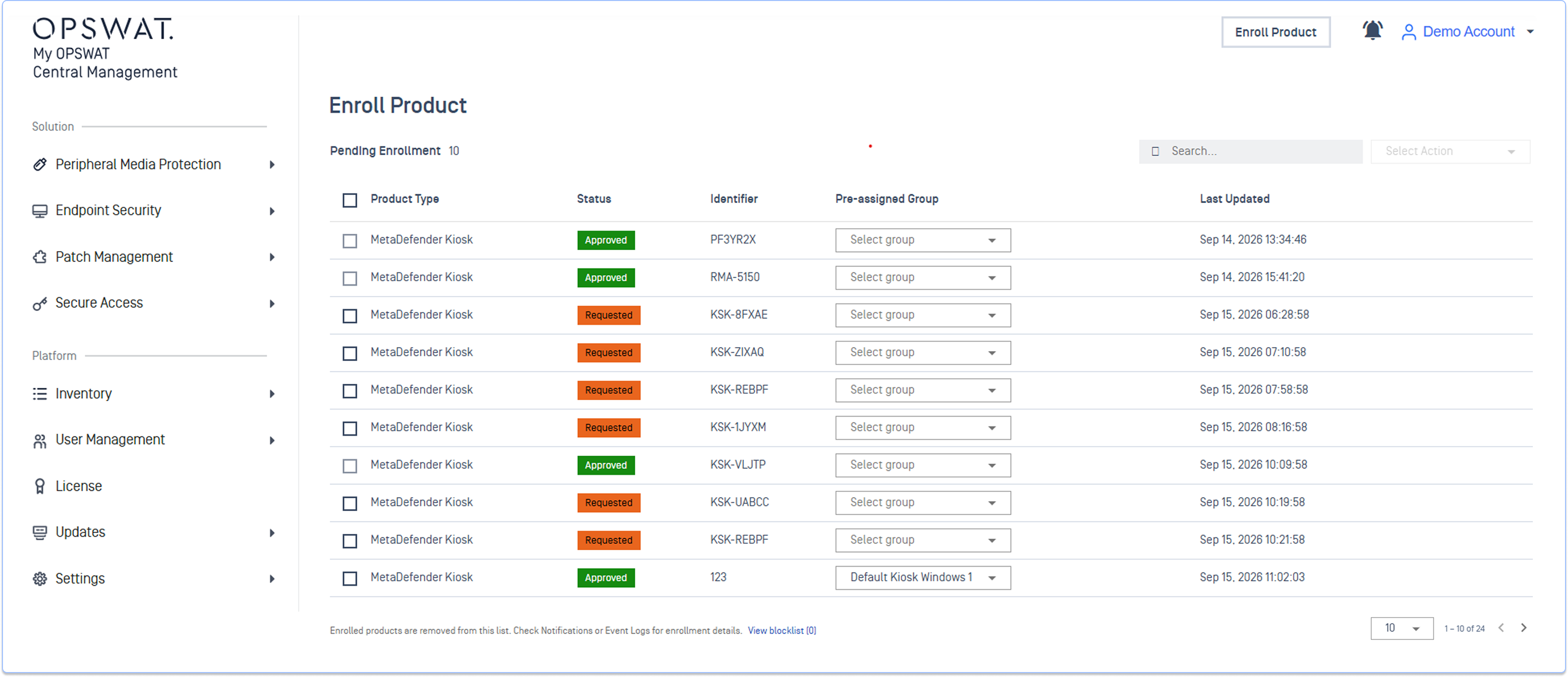
Log in to the My OPSWAT Central Management console.
Click Enroll Product to open the enrollment management interface.
Review the pending Kiosk enrollment requests and take one of the following actions:
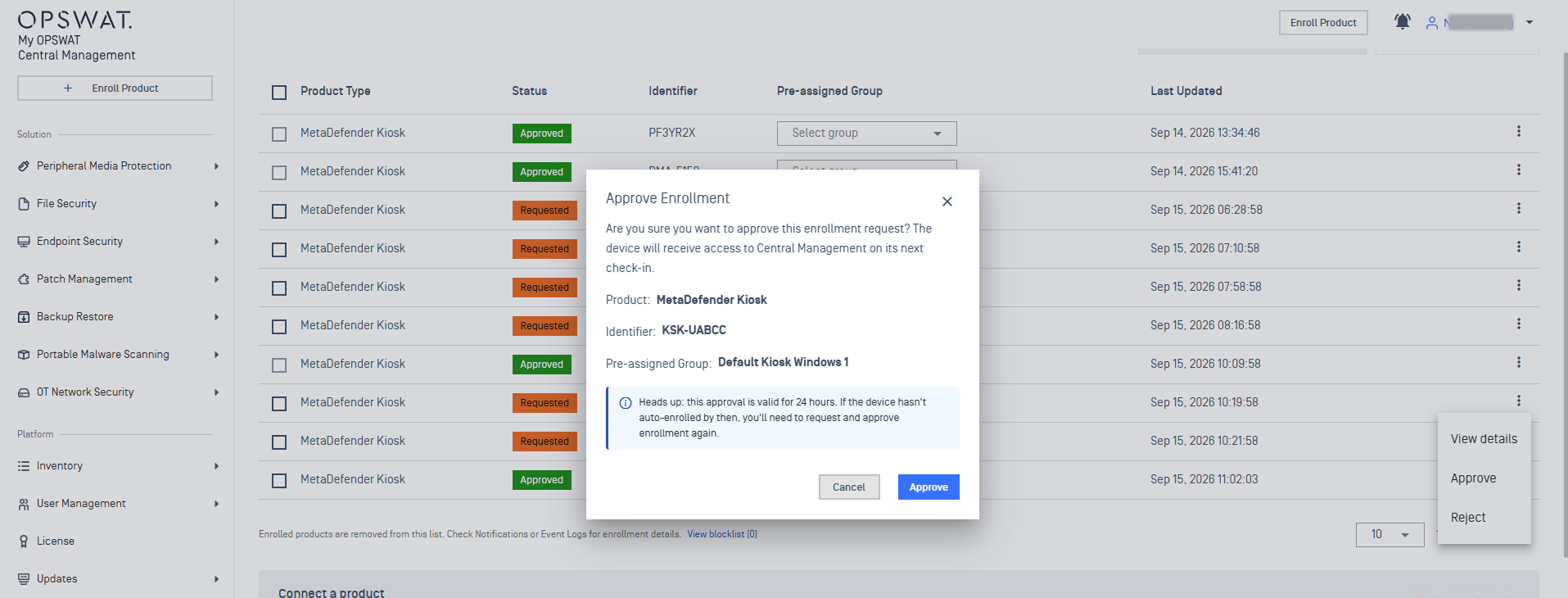
Approve an Enrollment Request: Select the device and click Approve. The Kiosk completes enrollment and connects to My OPSWAT Central Management on its next check-in.
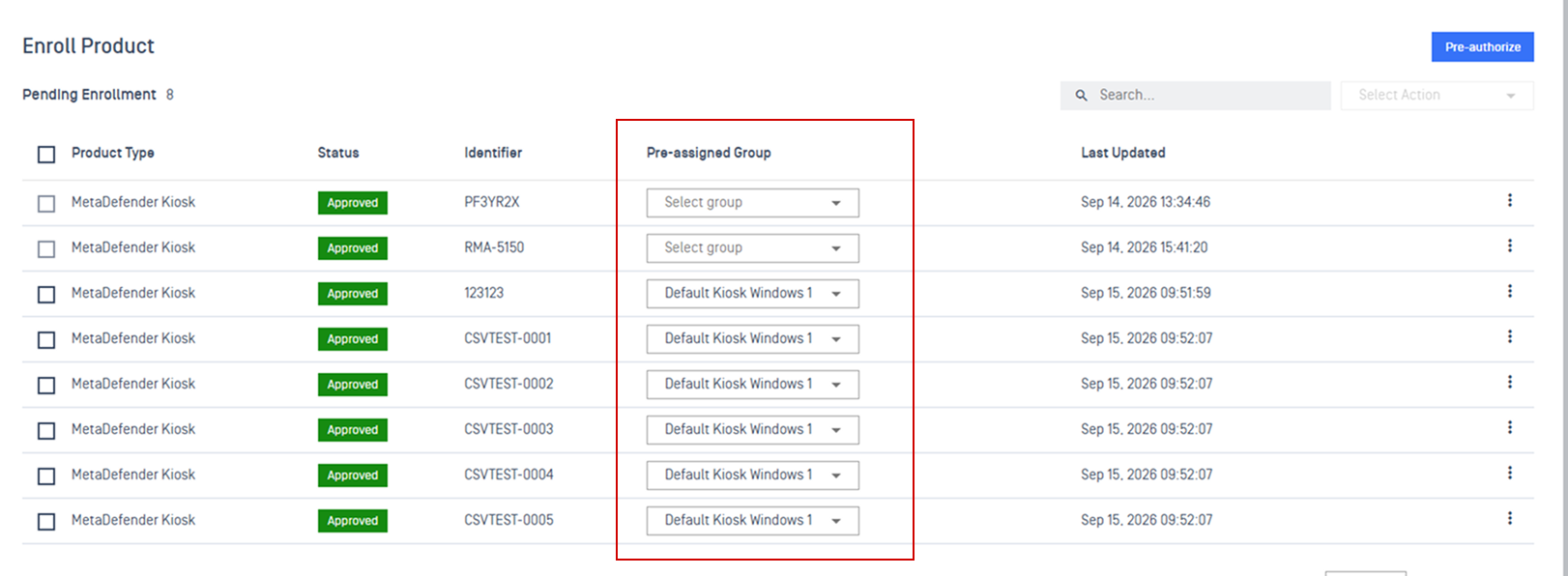
Assign to a Group: Select or assign a Group for the approved Kiosk to apply predefined configuration and policies.
Reject an Enrollment Request: If a request is unexpected, duplicate, or misconfigured, click Reject to dismiss it from the pending list.
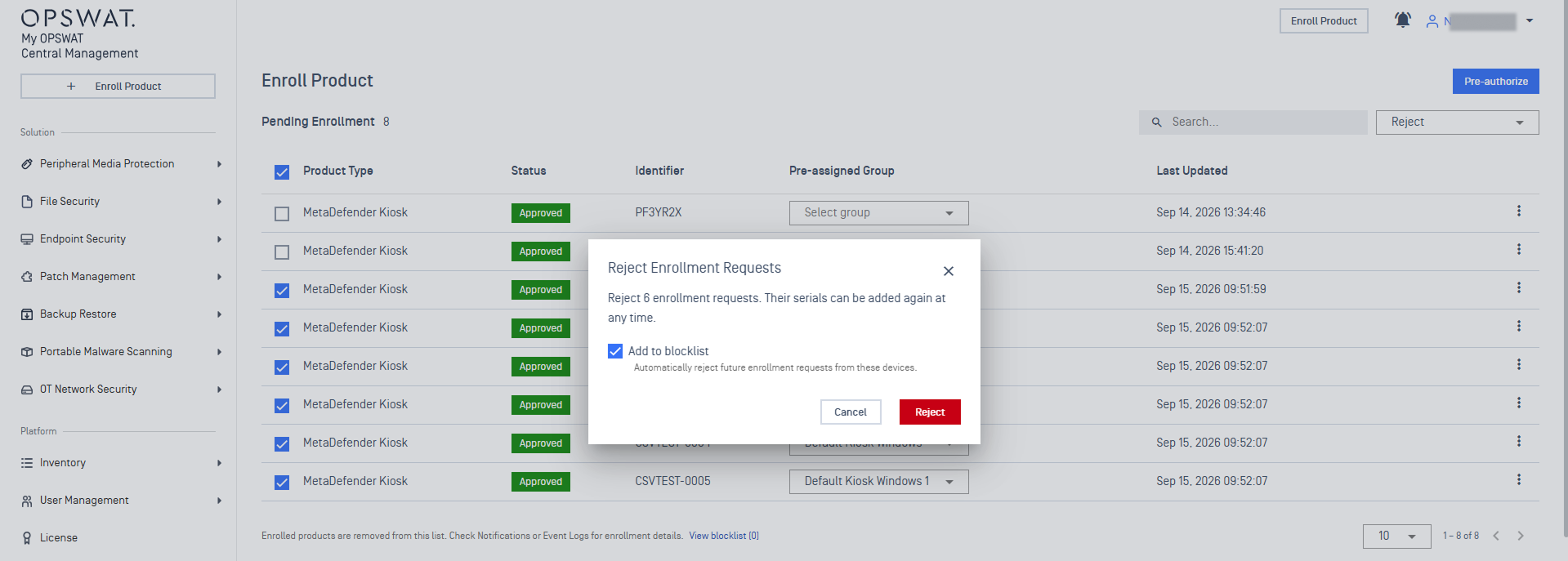
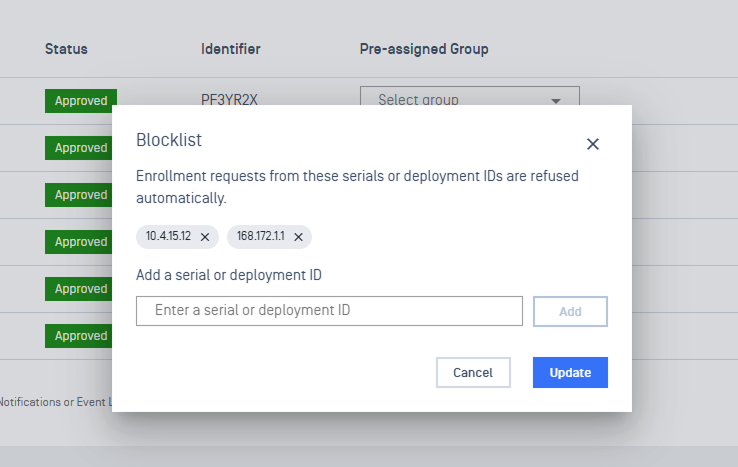
Block a Device: Block device from automatically request enrollment.
Manual Enroll MetaDefender Kiosk (All Deployments)
This method to enroll MetaDefender Kiosk works for both SaaS and On-Premises deployment.
Step-by-step Instructions
Log in to the My OPSWAT Central Management console.
Click Enroll Product to open the enrollment management interface.
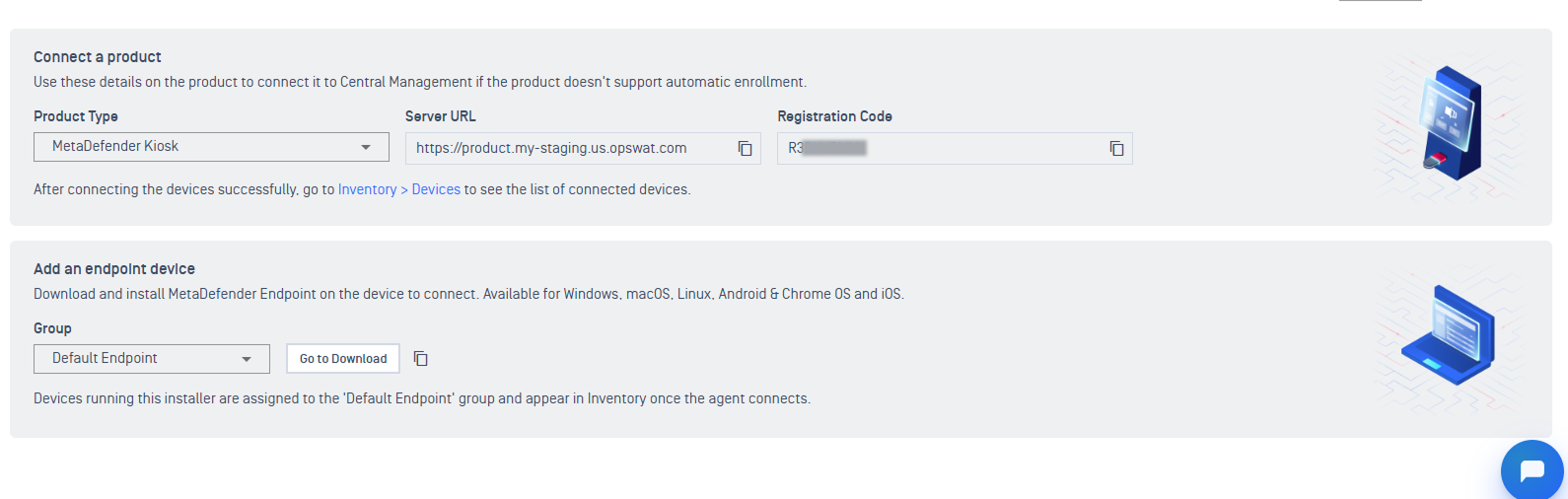
Choose MetaDefender Kiosk from the Product Type drop down list.
Copy the provided Server URL and Registration Code.
Log in to MetaDefender Kiosk Management Console.
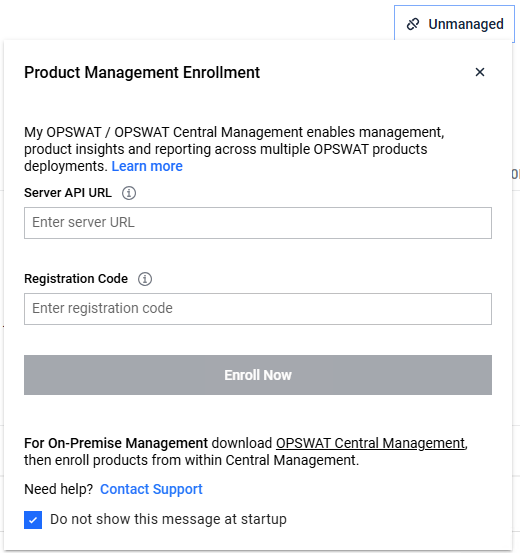
Select the Unmanaged button in the top-right corner.
Enter the Server URL and Registration Code from Step 1.
Select Enroll Now.
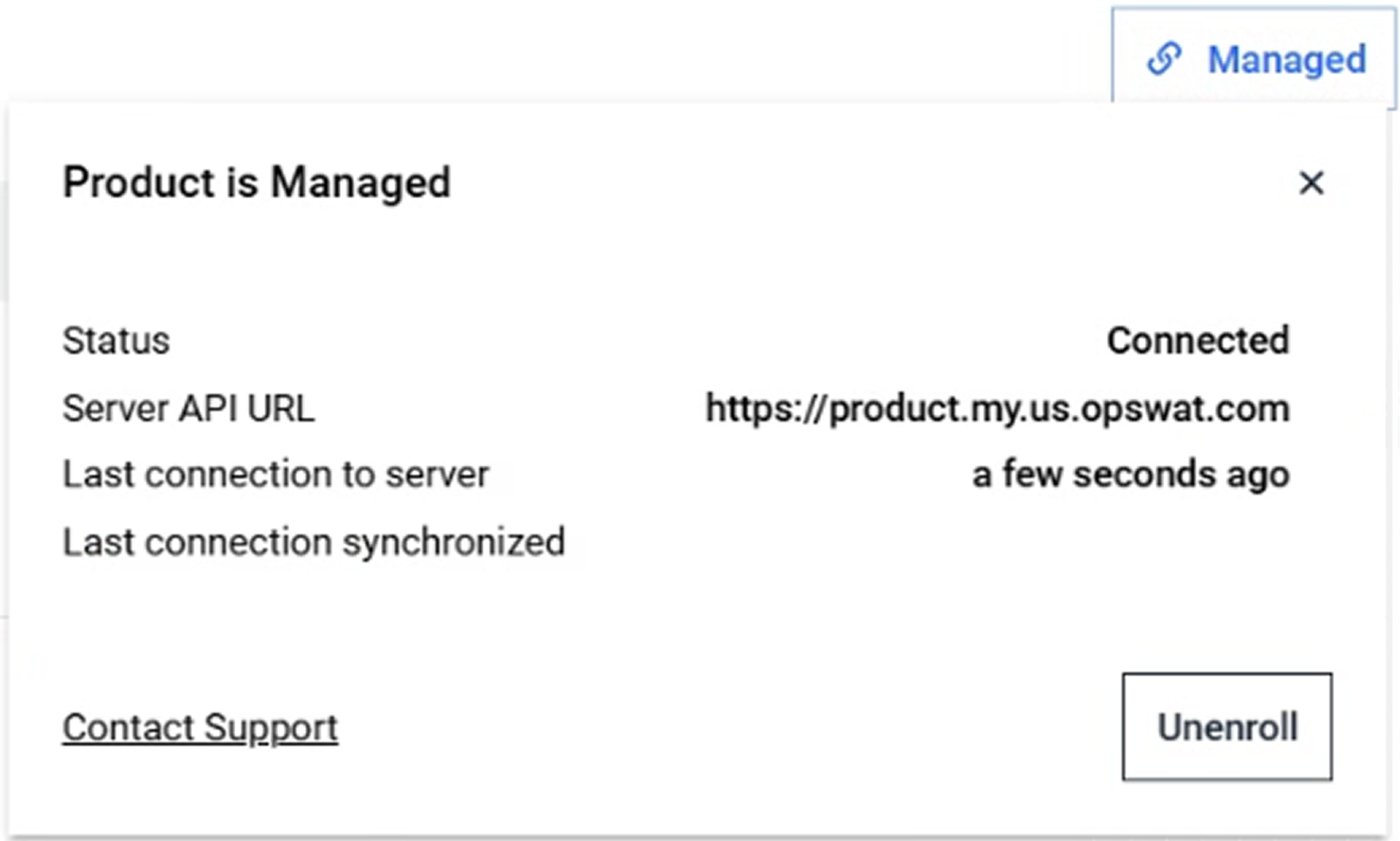
Once connected, the Kiosk status will change to "Product is Managed”.
Once installation is complete, navigate to Inventory > Devices in My OPSWAT Central Management console to verify that the instance is active.
Kiosk OOBE Setup Wizard [During Installation]
The MetaDefender Kiosk Out-of-box Experience (OOBE) Setup Wizard allows for immediate enrollment during initial configuration.
Navigate to the enrollment step within the OOBE Setup Wizard.
Input the Registration Code and Server URL. Refer to Step 1: Retrieve Enrollment Details for guidance.
Select Enroll to finalize the connection.
Once installation is complete, navigate to Inventory > Devices in My OPSWAT Central Management console to verify that the instance is active.
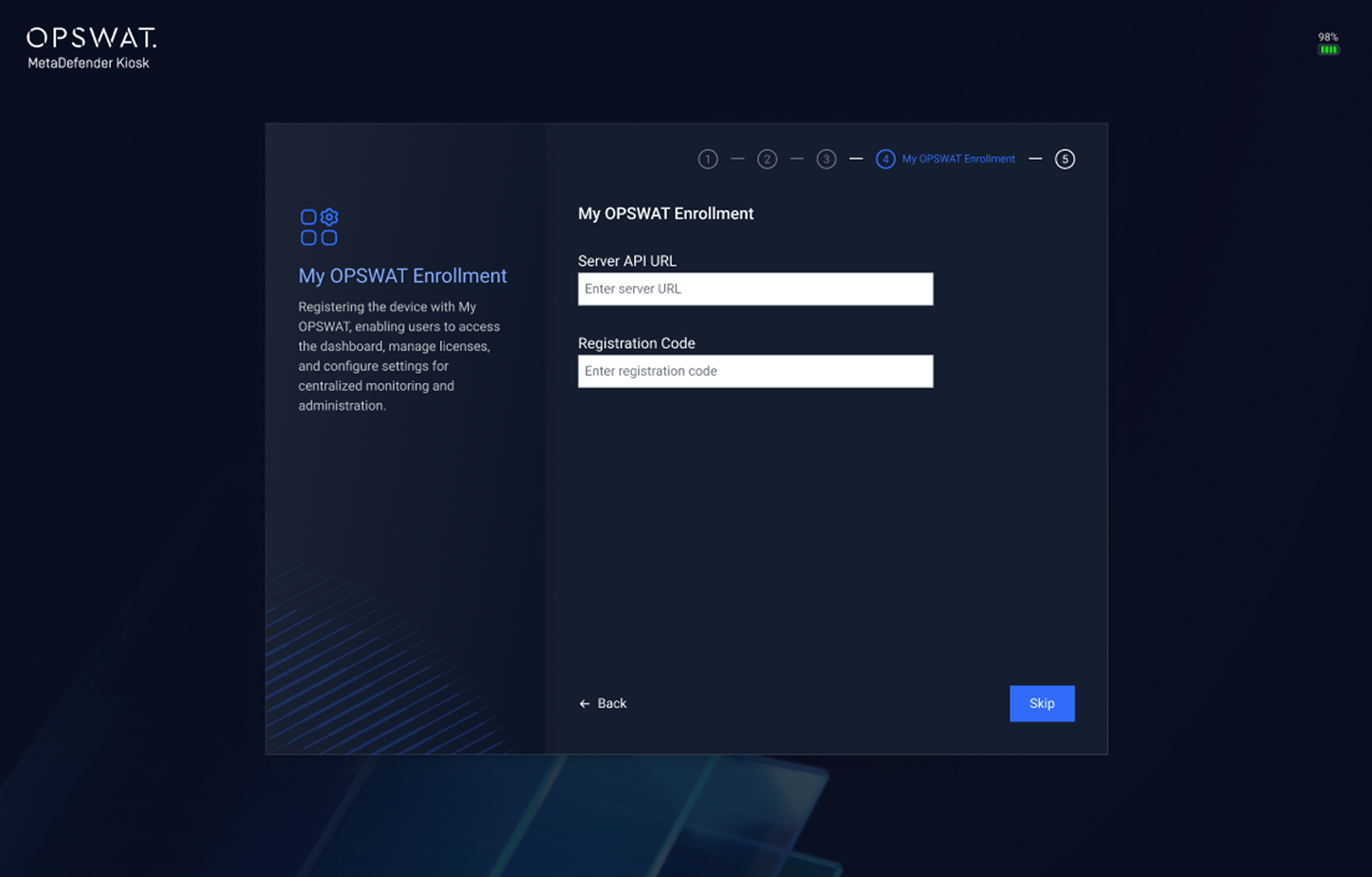
Kiosk Setup Wizard [During Installation]
The MetaDefender Kiosk Setup Wizard offers immediate enrollment into My OPSWAT Central Management during installation.
Navigate to the enrollment step within the Setup Wizard.
Input the Registration Code and Server URL. Refer to Step 1: Retrieve Enrollment Details for guidance.
Select Enroll to finalize.
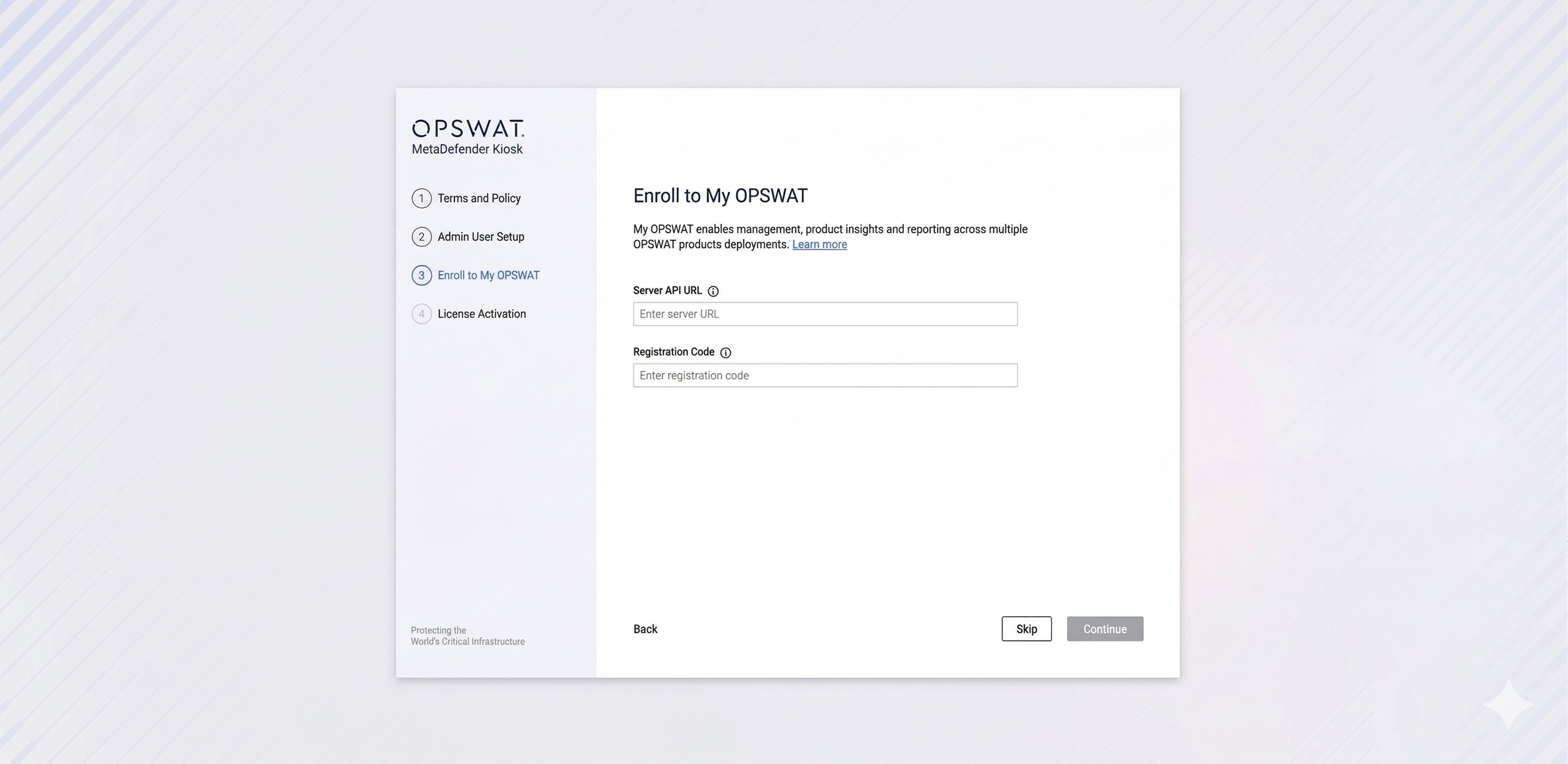
Once installation is complete, navigate to Inventory > Devices in My OPSWAT Central Management console to verify that the instance is active.