
This section explains how to add or remove license keys.
Add License
My OPSWAT Central Management supports two methods to add license key depending on your environment:
Online License
Use this method if your environment has an active internet connection.
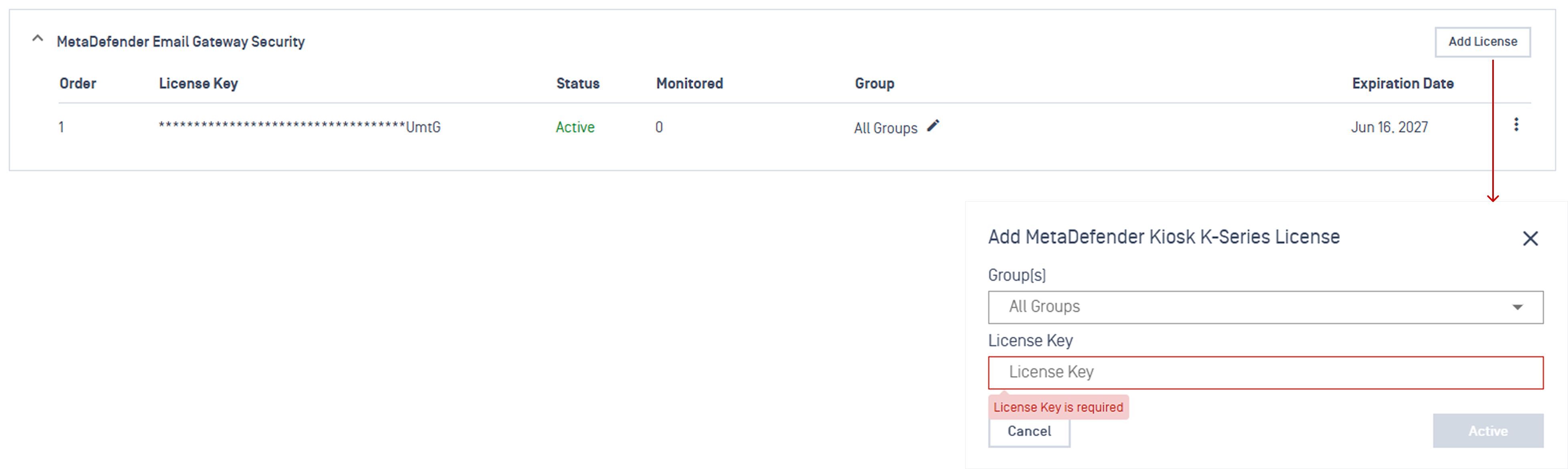
Navigate to the License page and locate your targeted product section, then click Add License.
In the popup dialog, enter your unique license key and select the device group.
Click Active
Any enrolled instance without a license will automatically retrieve available license from My OPSWAT Central Management. No manual step is required.
Instances using standalone licenses will automatically switch to the license managed by My OPSWAT Central Management once that standalone license expires, provided a valid key has been added.
Verify the license status updates to Active.
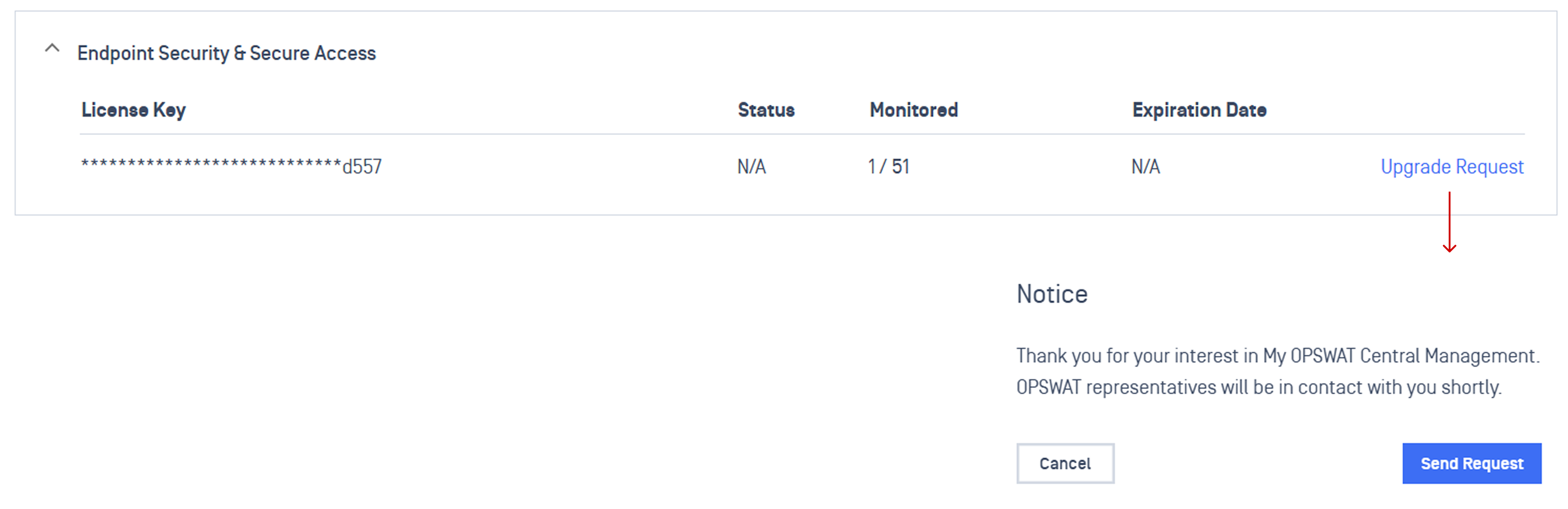
Unlicensed installations of My OPSWAT Central Management include a free tier that supports a limited number of MetaDefender Endpoint instances. Click Upgrade Request to contact OPSWAT and increase your license capacity.
Offline License
If your environment connects to the internet, follow the steps for Online License.
Use the method below if your environment does not have internet access.
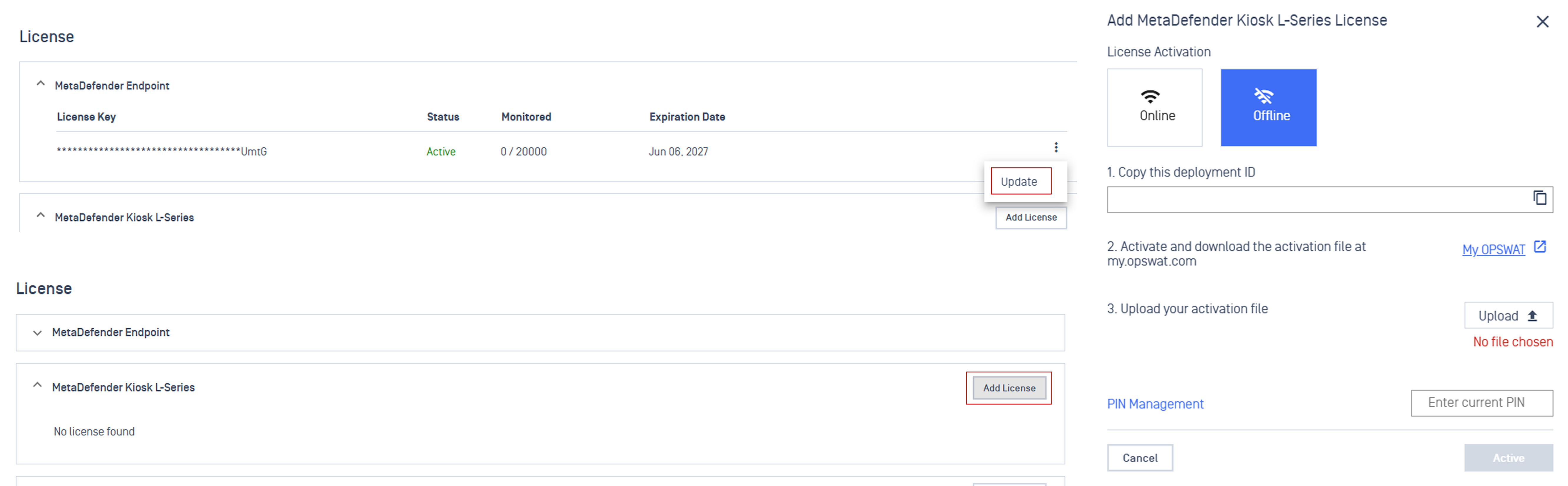
For MetaDefender Endpoint and MetaDefender Kiosk L-Series
Navigate to the License page
MetaDefender Endpoint: Click Update
MetaDefender Kiosk L-Series: Click Add License
Select the Offline activation tab.
Log in to My OPSWAT Portal and download your product activation file using the provided Deployment ID. Refer to the Activate License documentation for detailed retrieval instructions
Upload the downloaded activation file and click Active.
For other supported products
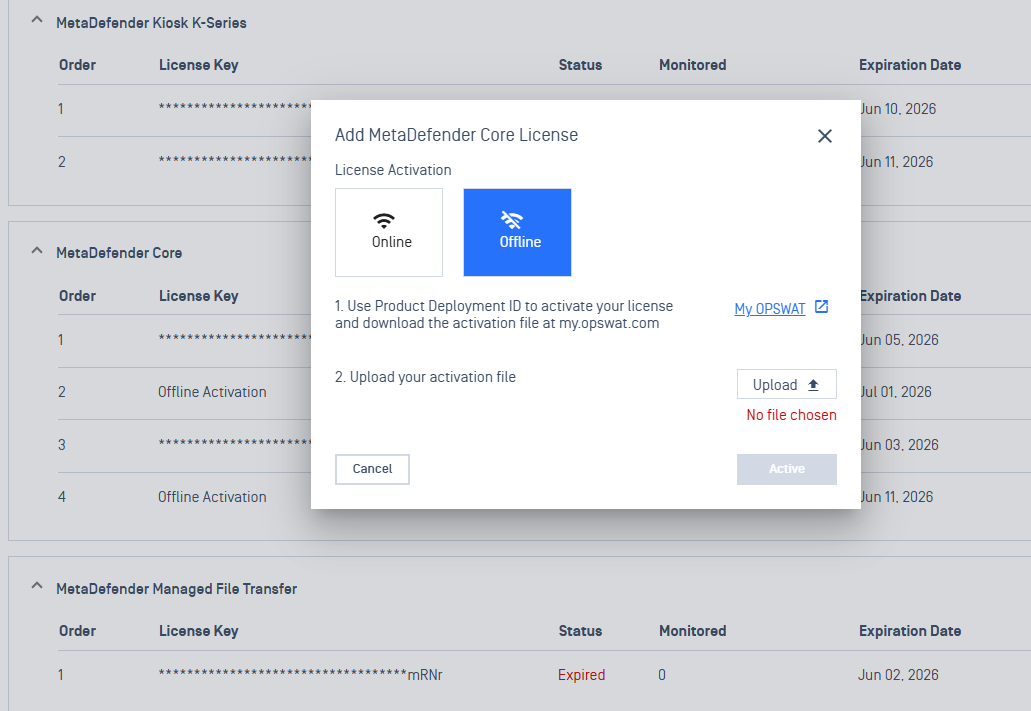
Navigate to the License page and click Add License, then select the Offline activation tab.
Log in to My OPSWAT Portal and download your product activation file using the Product Deployment ID. Refer to the Activate License documentation for detailed retrieval instructions.
Upload the downloaded activation file and click Active.
Remove License
To remove a license key:
Open the License page and find the specific product section you want to modify.
Click Remove.
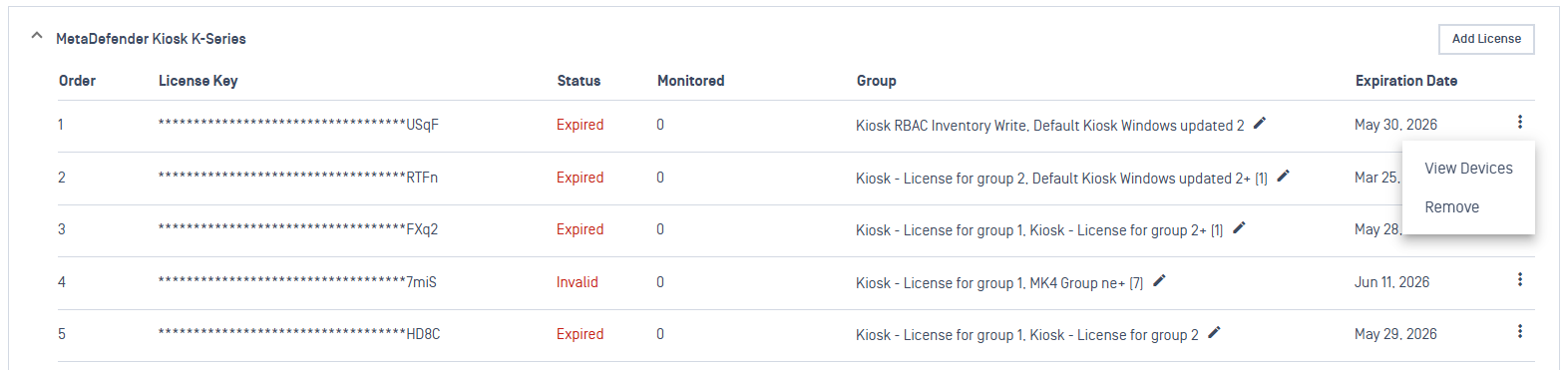
My OPSWAT Central Management processes the removal action differently depending on the product type:
Online License
MetaDefender Endpoint: License removal is not supported.
MetaDefender Kiosk L-Series: Removing an online key deactivates the license instantly and unregisters the instance Deployment ID from the activation server.
Other Products: Removing an online key stops My OPSWAT Central Management from from managing or granting the license.
Offline License
MetaDefender Endpoint: License removal is not supported.
Others Products: Removing an offline key stops My OPSWAT Central Management from from managing or granting the license.
License Expiration
Admins can monitor license expiration status within the License page.
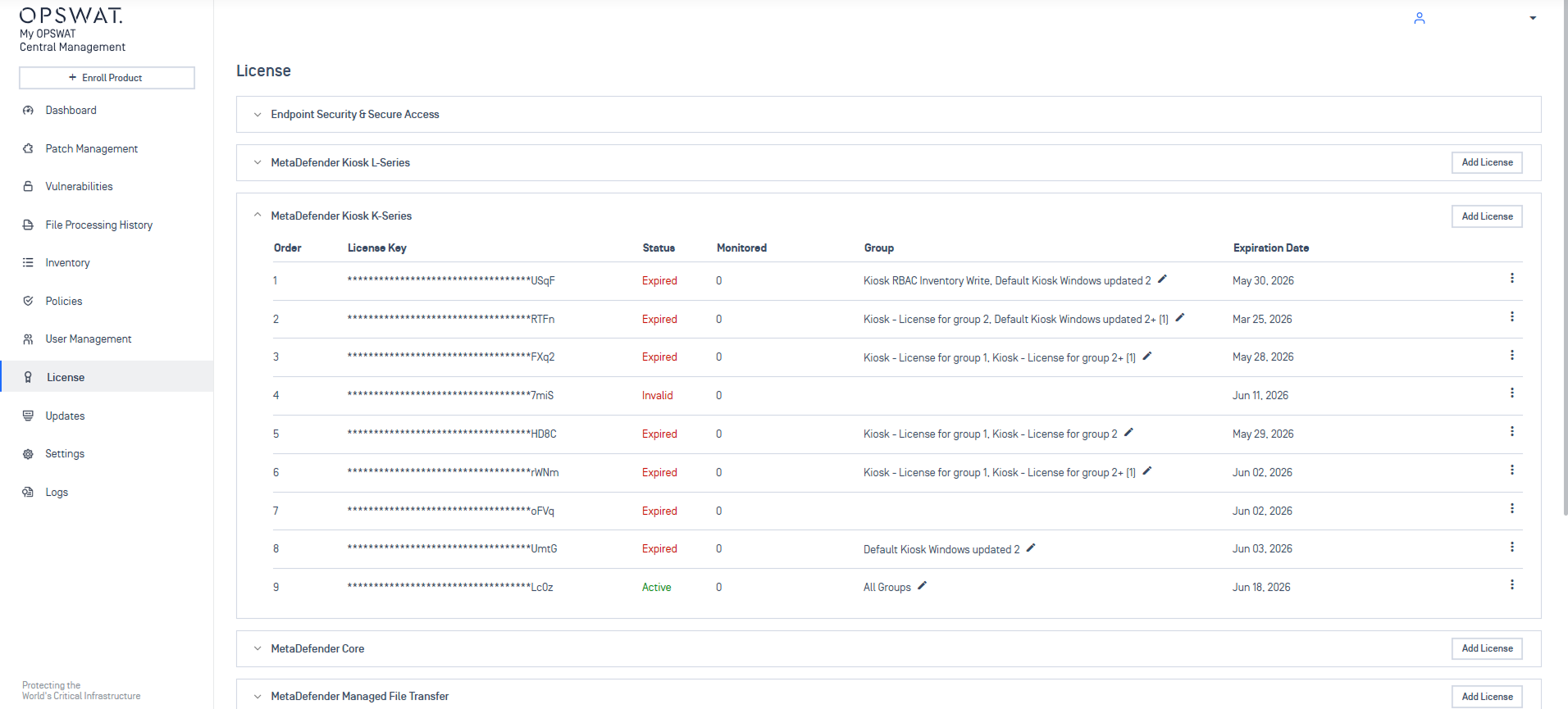
When a license expires, its status changes to Expired.
The instance remains in Expired state until a valid license is added.
If a valid license is added, instances automatically pick up the new license and return to Active status.
Instances using standalone licenses will automatically switch to the license managed by My OPSWAT Central Management once that standalone license expires, provided a valid key has been added.
Refer to Allocate Group License for instructions on assigning licenses to specific groups.