
This comprehensive guide provides step-by-step instructions on how to generate, monitor, and download support packages for product instances from My OPSWAT Central Management.
On This Page
When to use a support package
Create a support package when you are working with OPSWAT Support on issues such as service failures, unexpected behavior, connectivity problems, configuration issues, or product-side errors that require deeper investigation.
For My OPSWAT Central Management on-premises: generate a package from My OPSWAT Central Management server to collect logs and configuration data. Refer to specific guideline.
For supported managed products: generate a package remotely from My OPSWAT Central Management console and then download it after processing completes.
Supported products
MetaDefender Core: version 5.19.0 or later
MetaDefender Kiosk Windows: version 4.8.1.xxxx or later
Remote support package generation
Before you begin
Make sure the target product version supports remote support package generation.
Make sure the target instance is enrolled, active, and connected to My OPSWAT Central Management.
Make sure your user account has access to the relevant product inventory or Help Center workflow.
Step 1: Generate support package
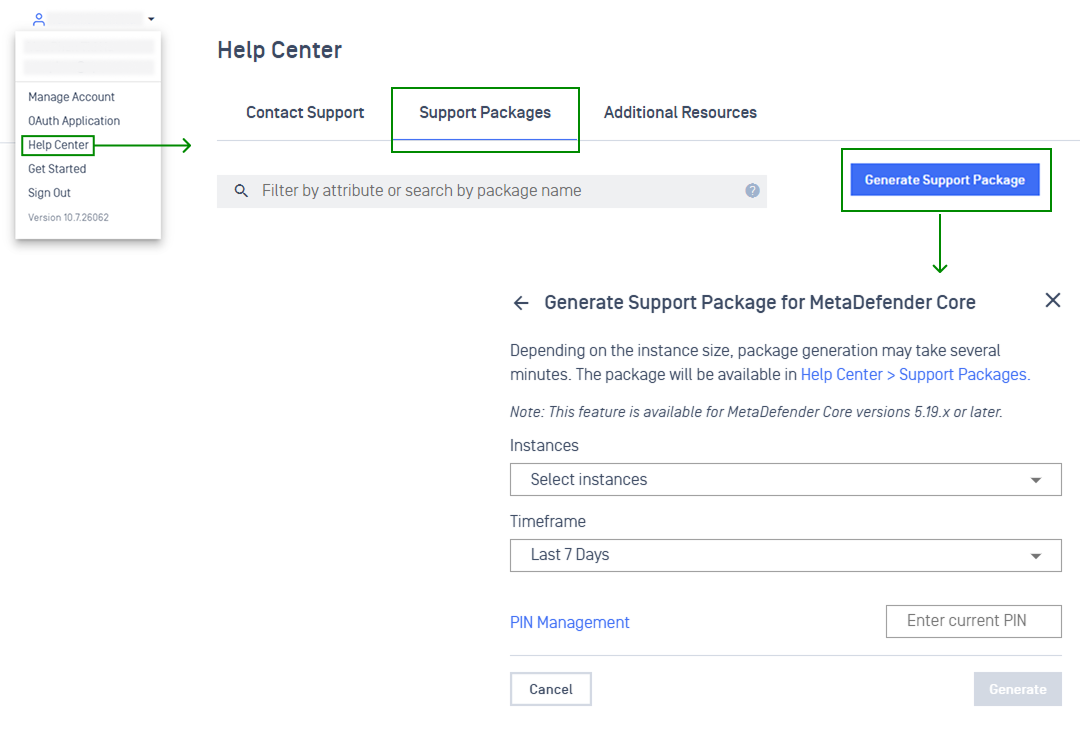
A. From Help Center > Support Package
Navigation: User profile dropdown > Help Center > Support package tab > Generate Support Package
Select the supported product type.
Choose the appropriate product and timeframe, if prompted.
Click Generate.
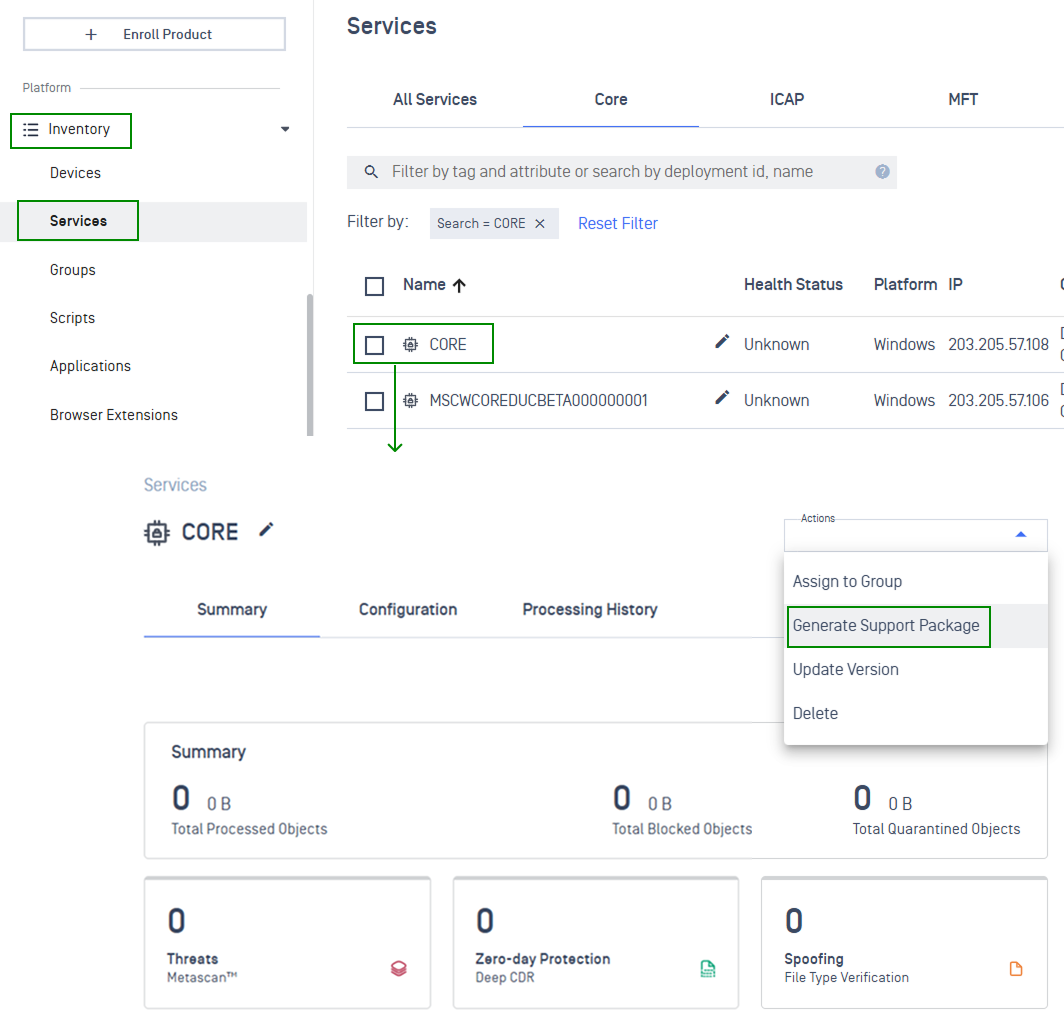
B. From Product Instance Details > Support Package
Navigation: Inventory > Product Instance Details > Action menu > Generate Support Package
Select the supported product type.
Choose the timeframe, if prompted.
Click Generate.
Step 2: Monitor package generation status
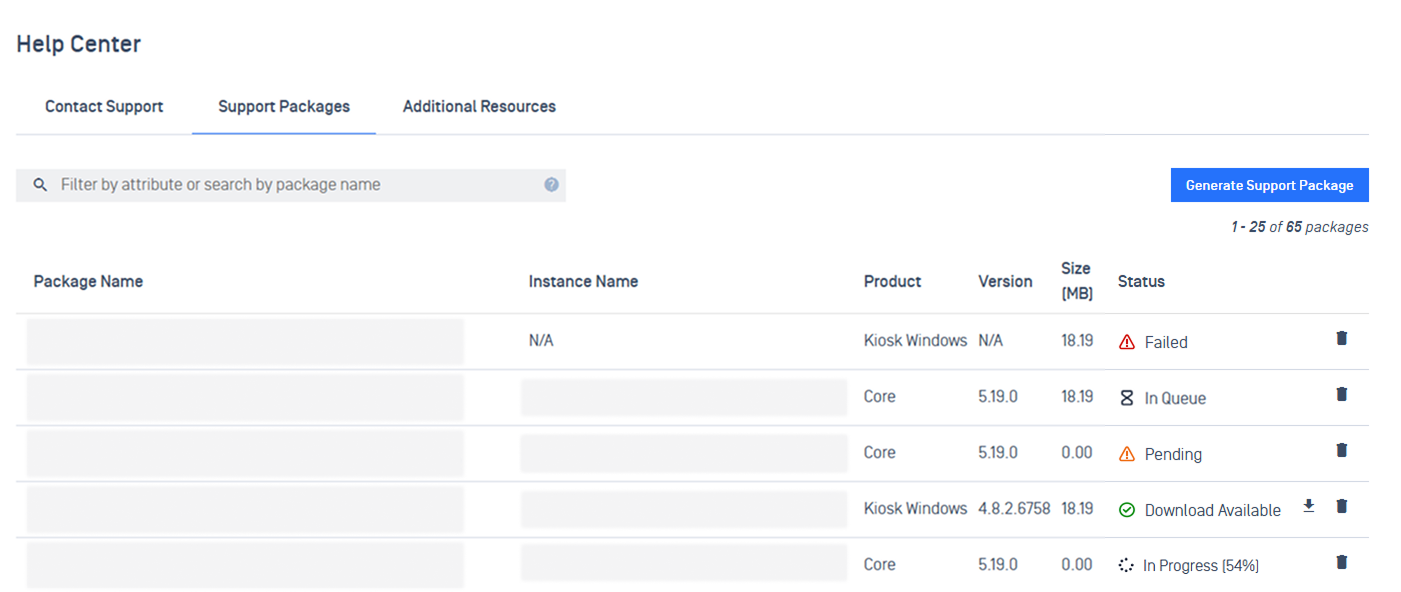
Navigation: User profile dropdown > Help Center > Support package tab
Track the Status until processing completes.
In Queue: Waiting for the instance to pick up request.
Pending: Request has been accepted and is waiting to be processed.
In Progress: The managed instance is generating or uploading the package.
Download Available: The package is ready to download.
Failed: The package could not be generated or uploaded successfully.
Step 3: Download a package
Once generation finishes successfully, the package can be downloaded from My OPSWAT Central Management.
Select the download action.
Save the file locally and confirm that the archive opens correctly.
Step 4: Contact OPSWAT Support
After generating the package, open a support case and attach the support package or requested log archive.
Delete a package
Administrators can delete packages from the interface when they are no longer needed.
Open the support package list in My OPSWAT Central Management.
Locate the package you no longer need.
Select the delete action.
Storage limits and retention
Support package management uses smarter storage controls to keep package history manageable.
A maximum of 2 support packages per instance is retained.
When a new package is created beyond this limit, older packages are automatically cleaned up.
Cleanup behavior follows your configured data retention settings.
Troubleshooting
If generation takes a long time: Large log sets can increase package creation time.
If a package fails: Verify that the instance is online, connected to My OPSWAT Central Management, and running a supported version.
If a device restarts during generation: The request may fail and need to be created again.
If network connectivity is interrupted: My OPSWAT Central Management may retry depending on the product workflow, but you should verify the final status.
If storage is full: Remove older packages you no longer need before creating new ones.