Customer License Management gives Distributors and Resellers a consolidated view of OPSWAT licenses associated with the customers they serve.
Use this page to understand what a customer owns, review license status and usage, identify upcoming expirations, access deployment information, and maintain partner-specific notes.
User type: Organization user
Organization type: Partner Organization having assigned customer’s organizations.
Role: View Only/Full Access on License Management - Customer Organizations
The Customer Licenses tab gives OPSWAT Partners a centralized view of the customers they manage and the OPSWAT licenses associated with those customers.
From this page, you can:
See the customer organizations assigned to your Partner Organization
Review licenses associated with one or multiple customers
Monitor license status, usage, and upcoming expirations
Review contract information associated with licenses
View deployment information
Add partner-specific notes
Download active deployment reports, based on your permissions
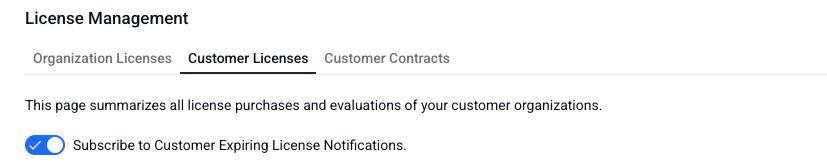
Subscribe to customer license expiration notifications
Access to the page and available actions are controlled by the License Management - Customer Organizations permission. View Only provides access to customer license information, while Full Access adds capabilities such as editing Partner Notes and downloading active deployment reports
How to Access
To access this page, navigate to License Management > Customer Organizations. You can only access this tab if the following conditions are met:
You must belong to a Partner organization with assigned customers.
You must have View Only or Full Access permission on the License Management - Customer Organizations role object. (Refer to Roles for details)
View the Customers You Manage
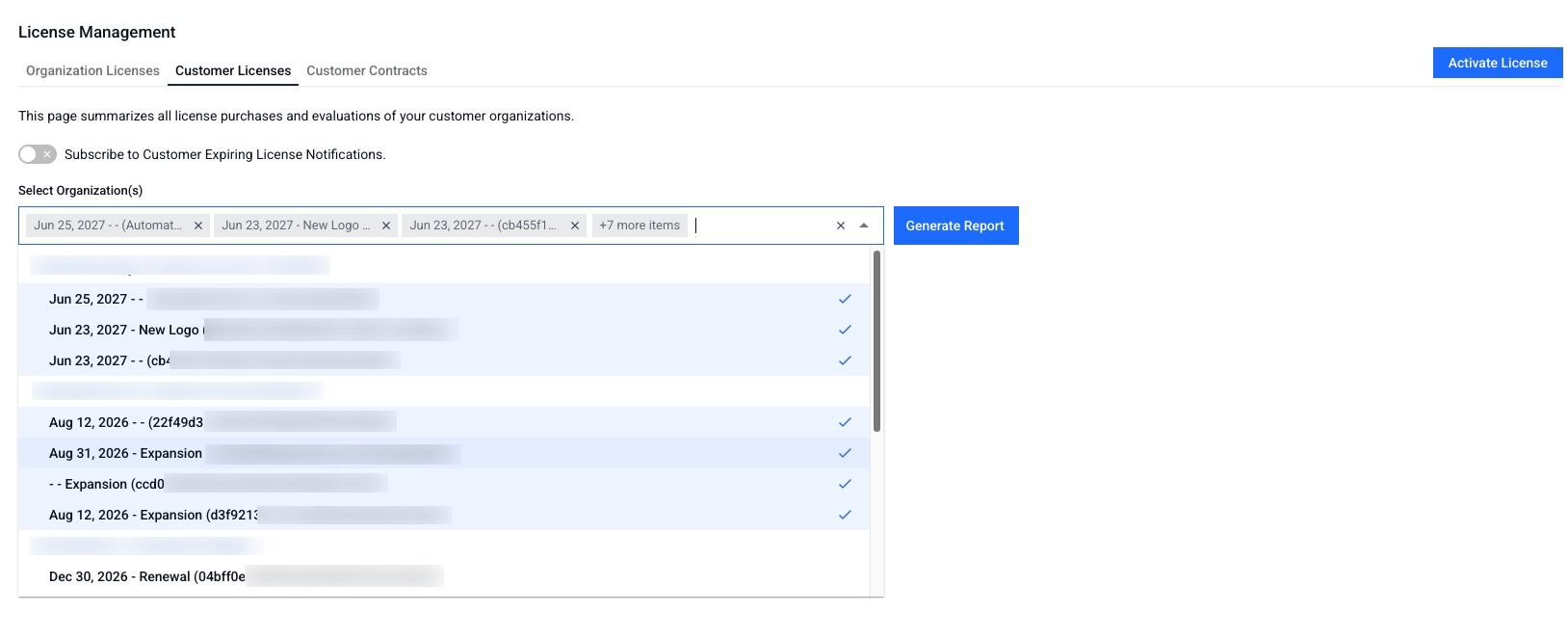
When you open Customer Licenses, the organization selector shows the customer organizations associated with your Partner Organization.
This gives you a quick view of the customers you currently manage in My OPSWAT before you start reviewing individual licenses.
Use Select Organization(s) to choose the customer organizations you want to include in the license report.
You can select:
One customer organization
Multiple customer organizations
This selection controls which customers are included in the generated license report.
Generating License Reports
Select the customer organizations whose licenses you want to review.
The Customer Licenses page then provides a consolidated view of licenses associated with the selected organizations.
License overview: Provides a visual summary of license status, usage, capacity, expiration, and product distribution.
License details: Provides individual license records for the selected customer organizations, including the product, license status, dates, entitlement information, notes, and available actions.
Understand the License Overview
The statistical overview helps you quickly assess license health across the customers included in your report.
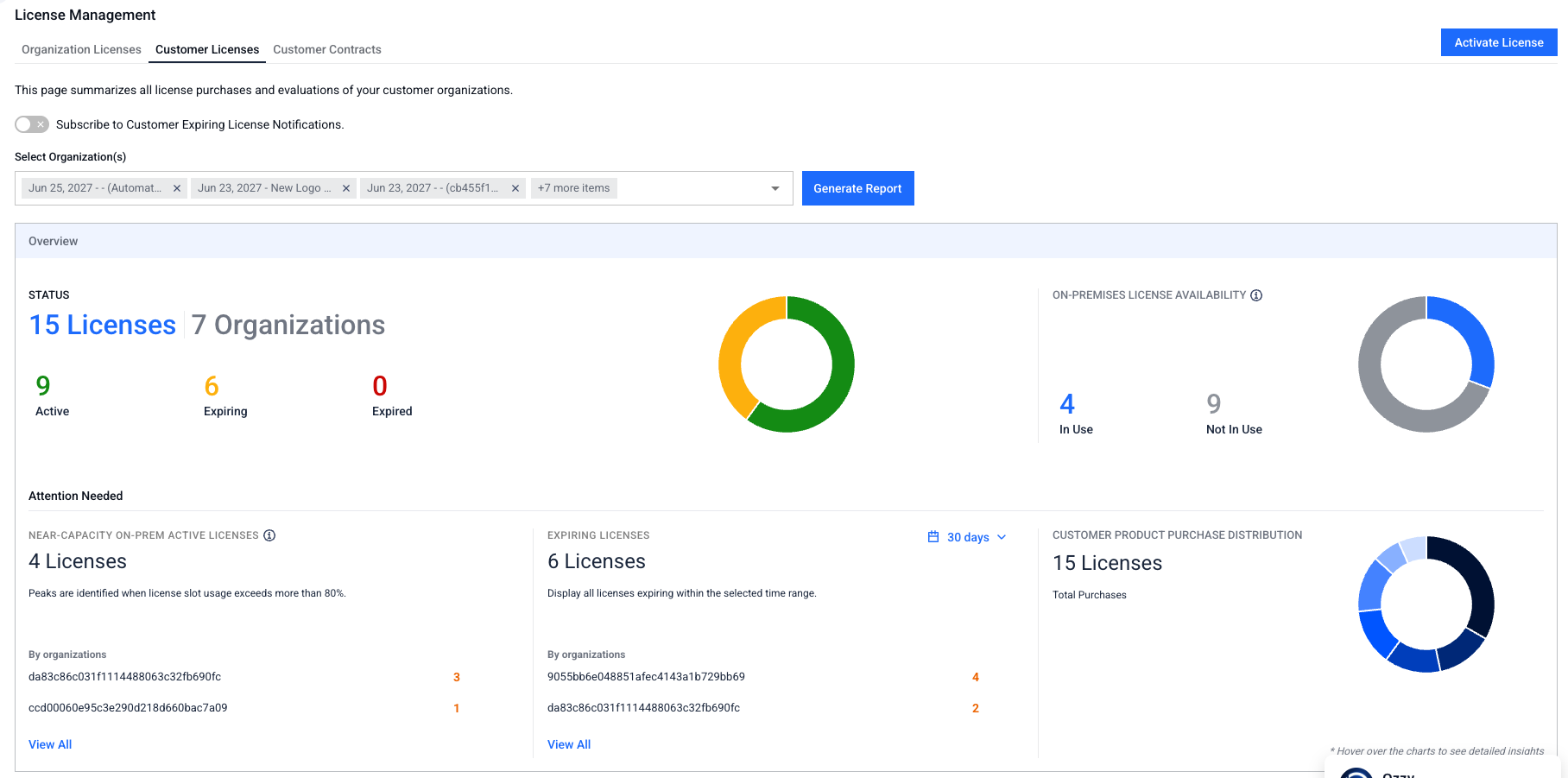
Hover over pie chart for details
Click dashboard numbers or pie sections to filter data
Page scrolls automatically to filtered results in the Details section
View Customer License Details
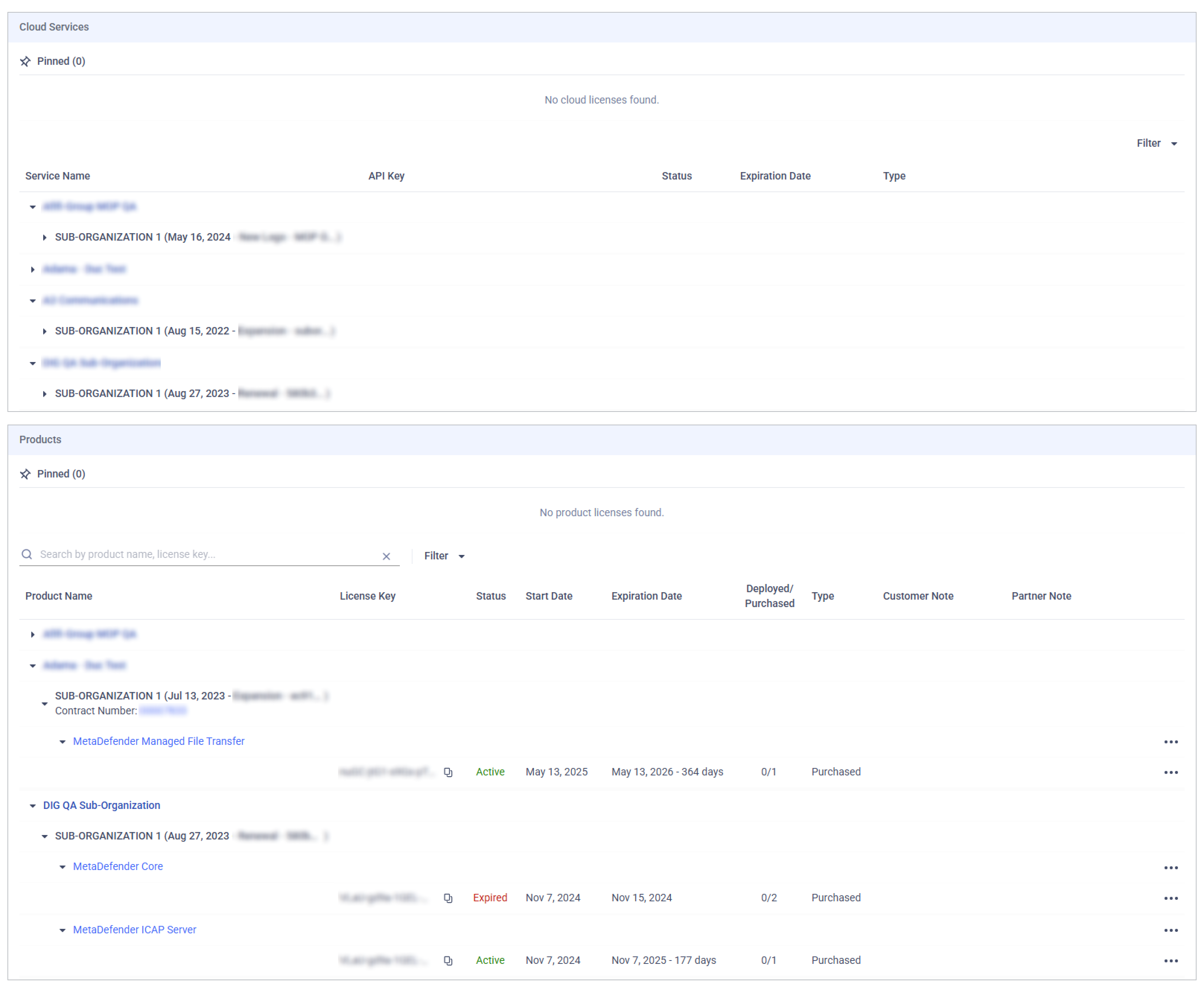
Below the overview, the detailed license list shows the licenses associated with the selected customer organizations. License information can include the following fields.
The list are separated into 2 sections: Cloud Services and On-Premises Products
Cloud Services
MetaDefender Cloud: Shows license expiration and scan limit info
MetaDefender IT Access: Not displayed on this page
On-Premises Products
Each license entry includes:
Field | Description |
|---|---|
Reseller Info | Name of the Reseller tied to that sub‑organization |
Contract number | Contract number(s) tied to sub-organization (Activated/Expired). Click to view details in Customer Contracts tab. |
Product Name | OPSWAT product name |
License Key | Associated license key(s) |
Status | Active, Expiring or Expired. |
Start Date (UTC) | License effective date |
Expiration Date (UTC) | License expiration date Please note License start and expiration dates are shown in UTC (UTC+0) for consistency across all environments and time zones. This may look different from other features of My OPSWAT Portal that use your local time zone. |
NewEntitlement | Maximum licensed instances.
|
Type | Evaluation/Purchased
|
Customer Note | Notes from end customer (read-only) |
Partner Note | Editable field for partner remarks (e.g., contract ID, location) |
Regular license: You purchase a fixed number of product instances, and each instance is activated individually against the OPSWAT Activation Server.
Volume license: A licensing model managed through OLMS (On-Premises License Management Server). Product instances connect to OLMS locally to obtain a license; when an instance stops, its license is automatically released and can be reused by another instance. Main configurations:
Max Instances (maximum concurrent instances that can hold a license),
Time Usage (total licensed usage hours across all instances; -1 means unlimited)
Max Offline Time (maximum minutes an instance can continue using its license while disconnected from OLMS).
Licenses assigned to both main and sub-organizations appear only under the sub-organization (to avoid duplication)
Manage License Actions
Select the three-dot menu associated with a license to see the actions available to you. Depending on your permission level on the License Management – Customer Organizations role object, you have access to different actions:
With View Only permission
Activate License – Activate a license for the selected product. Please refer to Activate License for details.
Pin – Move license to top for quick access
See Full License History – View full history (expired hidden by default)
Filter – By product name, status, type, availability, capacity
Search – By license key, product name, contract number, reseller name
With Full Access permission
Edit partner note: Add custom notes (e.g., location, identifiers, reseller references)
Download Active Deployment Report – Export Excel file with license key info and active deployments (not applicable for Expired licenses)
License Expiration Notifications
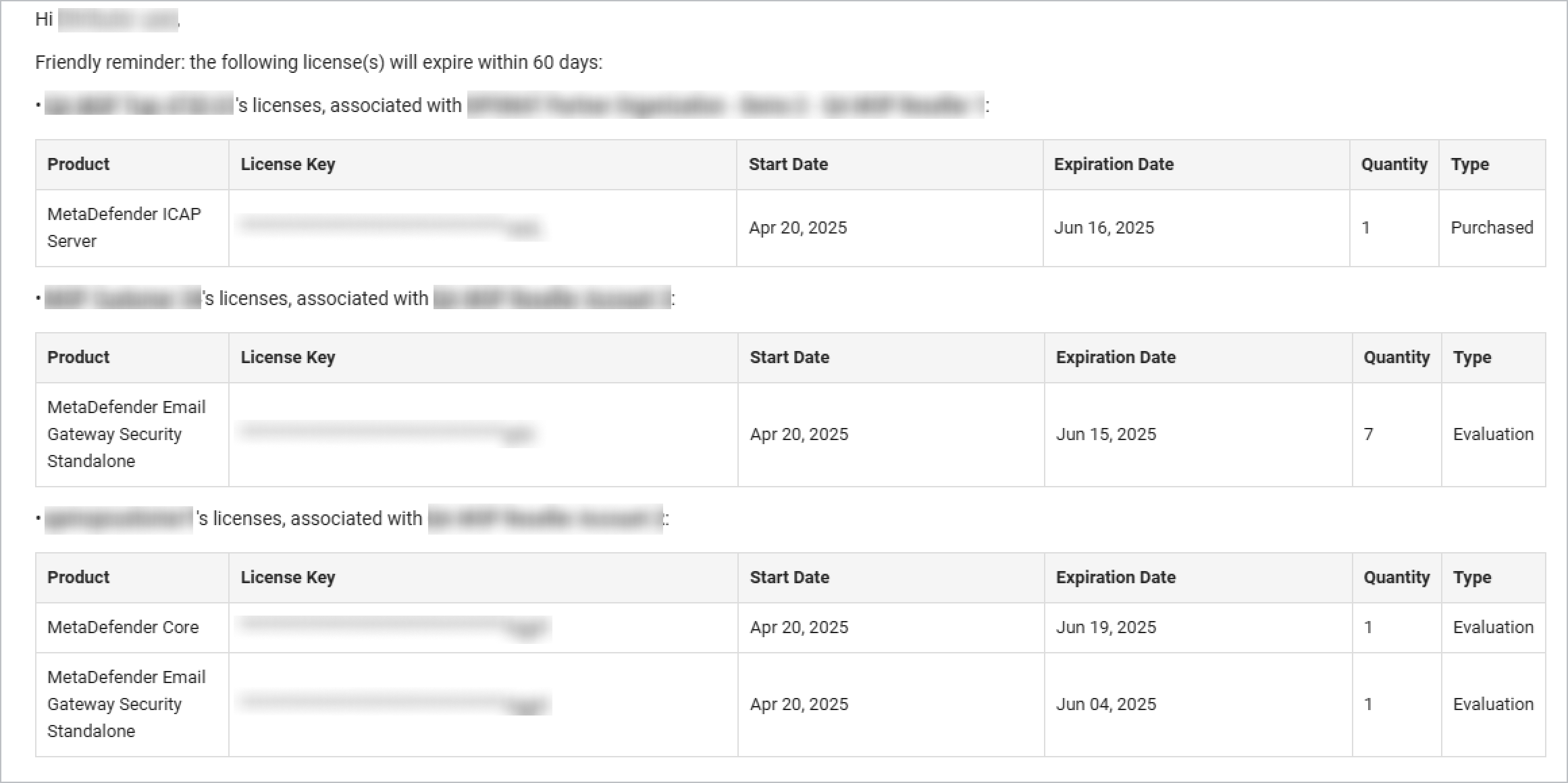
My OPSWAT Portal provides function which Partners can subscribe to receive automatic alerts for upcoming customer license expirations—60 and 30 days in advance, enabling better planning and prioritization.
Settings: Subscription settings available under License Management > Customer Organizations
In the email alert, Distributors will also see Resellers info associated with each customer.
License details are displayed in a clean table format, including product name, license key, start date, expiration date, quantity, and license type (Evaluation or Purchased). Each customer’s licenses are organized into separate tables for easy reference.