
If you are an OPSWAT Channel Partner, complete the steps on this page before using partner capabilities in My OPSWAT Portal.
Once you are connected to your Partner Organization, your available permissions can give you access to capabilities such as Partner Portal, customer licenses and contracts, customer hardware, and support workflows.
Access Requirements
To access partner capabilities in My OPSWAT, you need to:
Have a registered OPSWAT account.
AND Belong to a Partner Organization.
Follow these steps below to get started 👇
Step 1: Create Your My OPSWAT Account
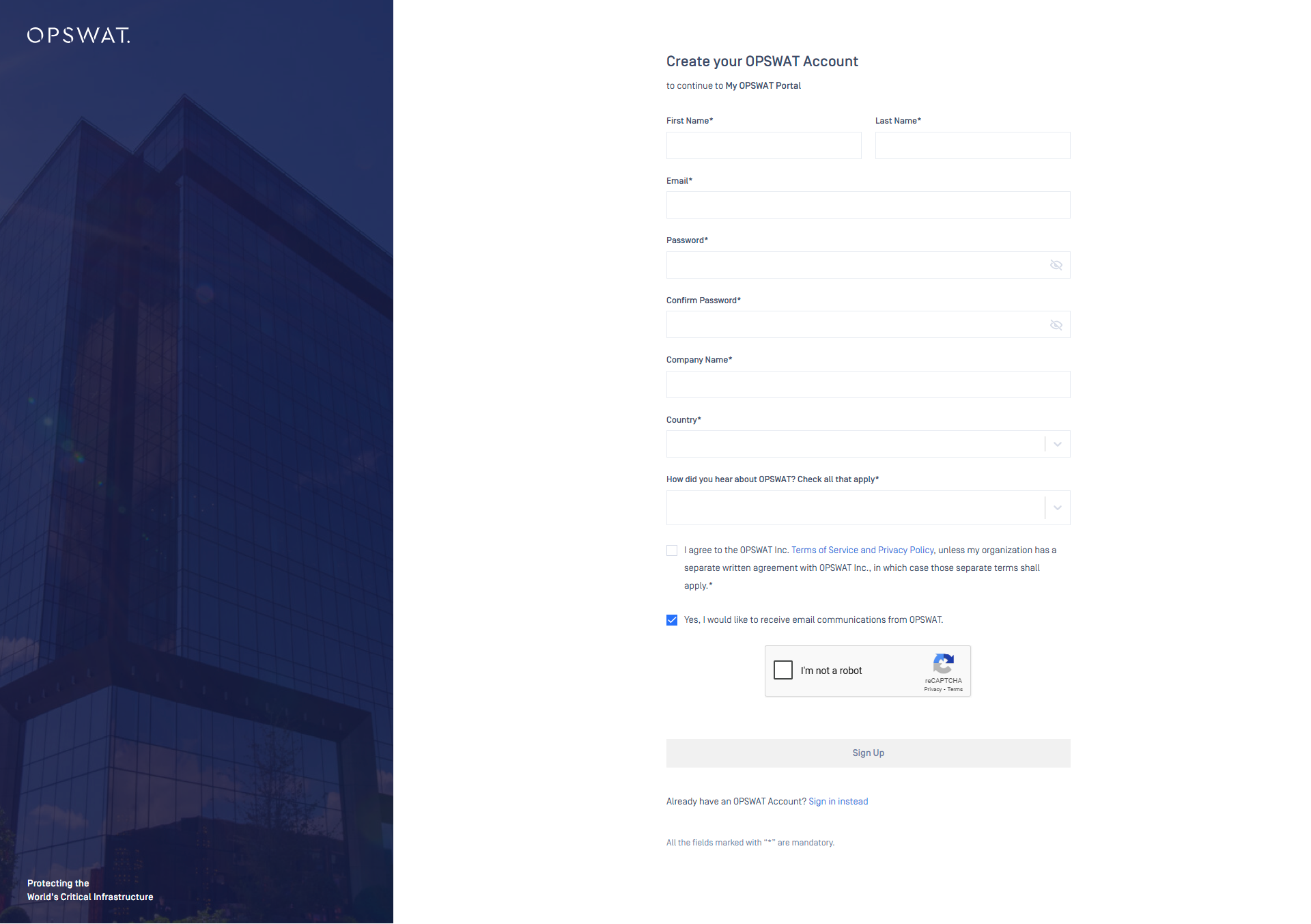
Go to My OPSWAT Portal
Fill in all required fields and click Sign Up
Check your email inbox for the activation email (valid for 24 hours).
Follow the instructions in the email to activate your account.
Step 2: Join Your Partner Organization
After signing in, join the Partner Organization associated with your company.
Your request may require approval from an administrator of that organization. Once approved, the partner capabilities available to your organization will appear based on your assigned role and permissions.
Option 1: Invitation from Your Administrators
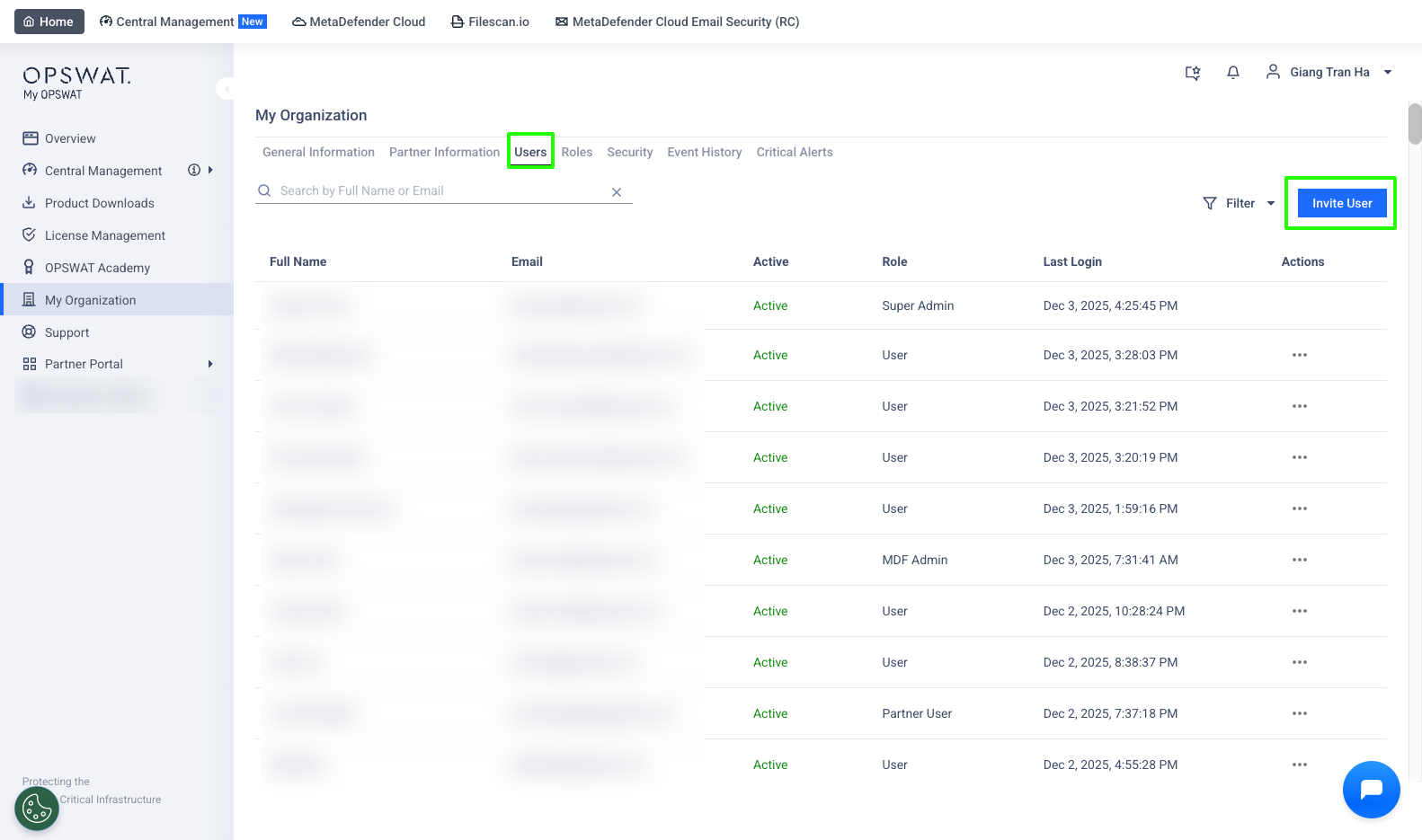
Contact your organization administrators to send you an invitation from My Organization → Users → Invite User.
You receive an email invitation.
Click the link in the email and log in with your My OPSWAT account (or create one if needed).
Once accepted, you are added to the organization and can access partner-only features.
Option 2: Request to Join
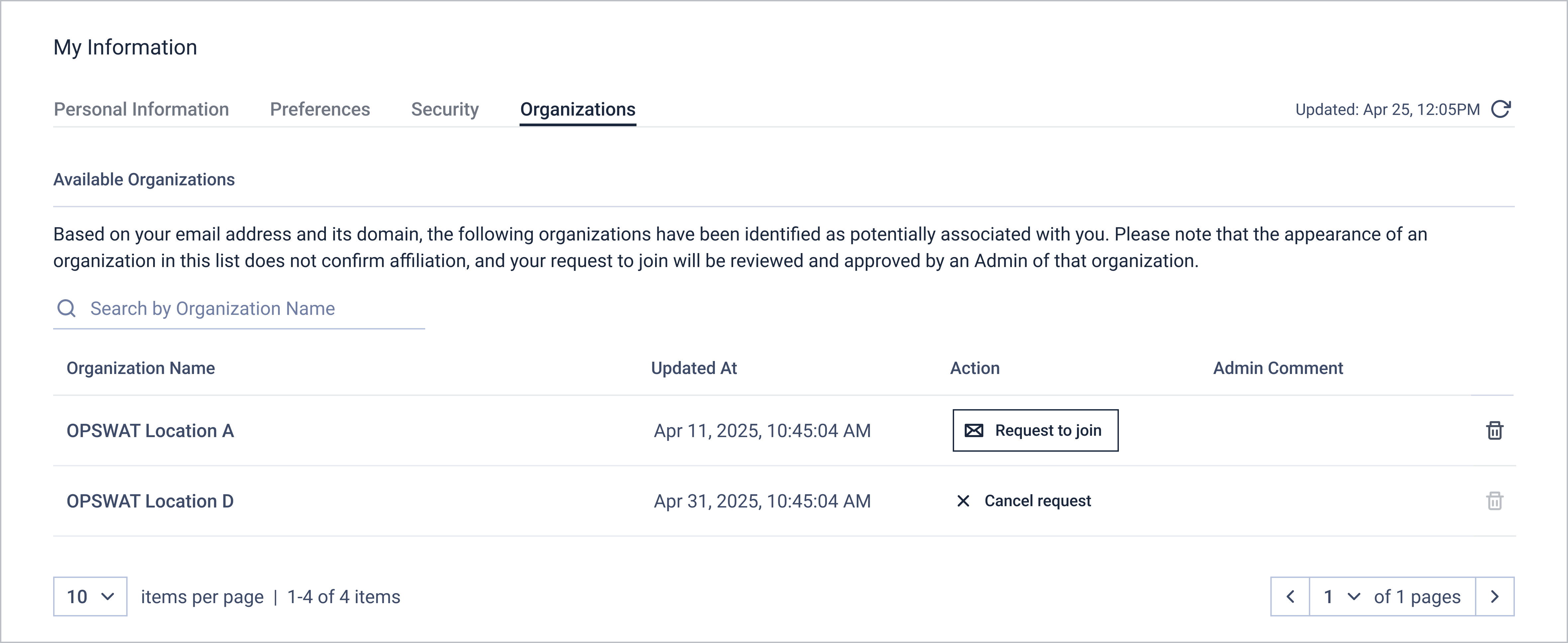
To request to join your Partner organization, follow the steps below:
Log in to My OPSWAT Portal
Click your name in the upper-right corner and select My Information.
Navigate to Organizations > Available Organizations.
Click Request to Join next to the organization you want to join.
Fill in the Comment field and click Submit Request.
Once submitted:
The request status will update to Waiting for Approval.
Organization administrators will be notified.
You will receive a notification when your request is approved or declined.
If you do not see any available organizations, please contact your dedicated Channel Manager
Step 3: Make sure you are in the correct organization
If your account belongs to multiple organizations:
Select your profile in the upper-right corner.
Select Switch Organizations.
Choose your Partner Organization.
You can also set your Partner Organization as your default organization from My Information > My Current Organizations.
Invite Members to Your Organizations (for Administrators)
Administrators can invite additional members to join the organization and access partner-specific features.
To invite members:
Go to My Organization → Users and click Invite User
Enter the email addresses of the users you want to invite and select Role from the dropdown list. For details on roles and permissions, see Roles & Permissions
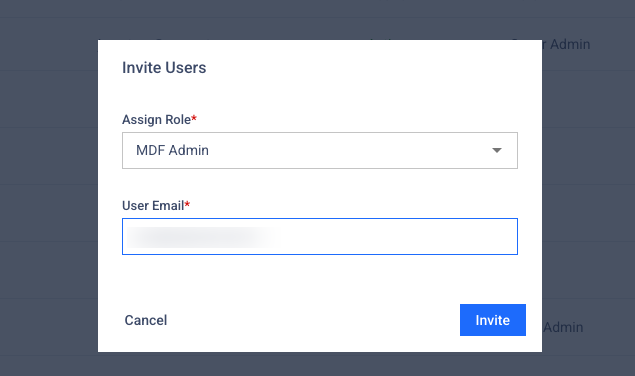
Click Invite.
Invited users will receive an email with instructions to get started with My OPSWAT Portal.
What to Explore Next
Once your organization access is ready:
Roles & Permissions - understand what your team can access
Partner Information - review your OPSWAT partnership profile
Partner Portal - manage deals, MDF and resources
Customer License Management- monitor customer licenses
Support for Partners - submit and manage support cases on behalf of customers