
User type: Organization user
Role:
View Only/Full Access on User Management
View Only/Full Access on Role Management
For organizations without sub-organizations, Users and Roles management is straightforward. The following sections outline how admins can manage users and assign roles within a single entity.
By default, your organization is set to Single Organization mode. If your organization requires managing sub-organizations, refer to the Users and Roles Management for Organizations with Sub-Organizations guide.
User Management in a Single Organization
The Users tab lists all users in your organization. This tab is accessible to users with either View Only or Full Access permissions on the User Management role. (see Roles for further details)
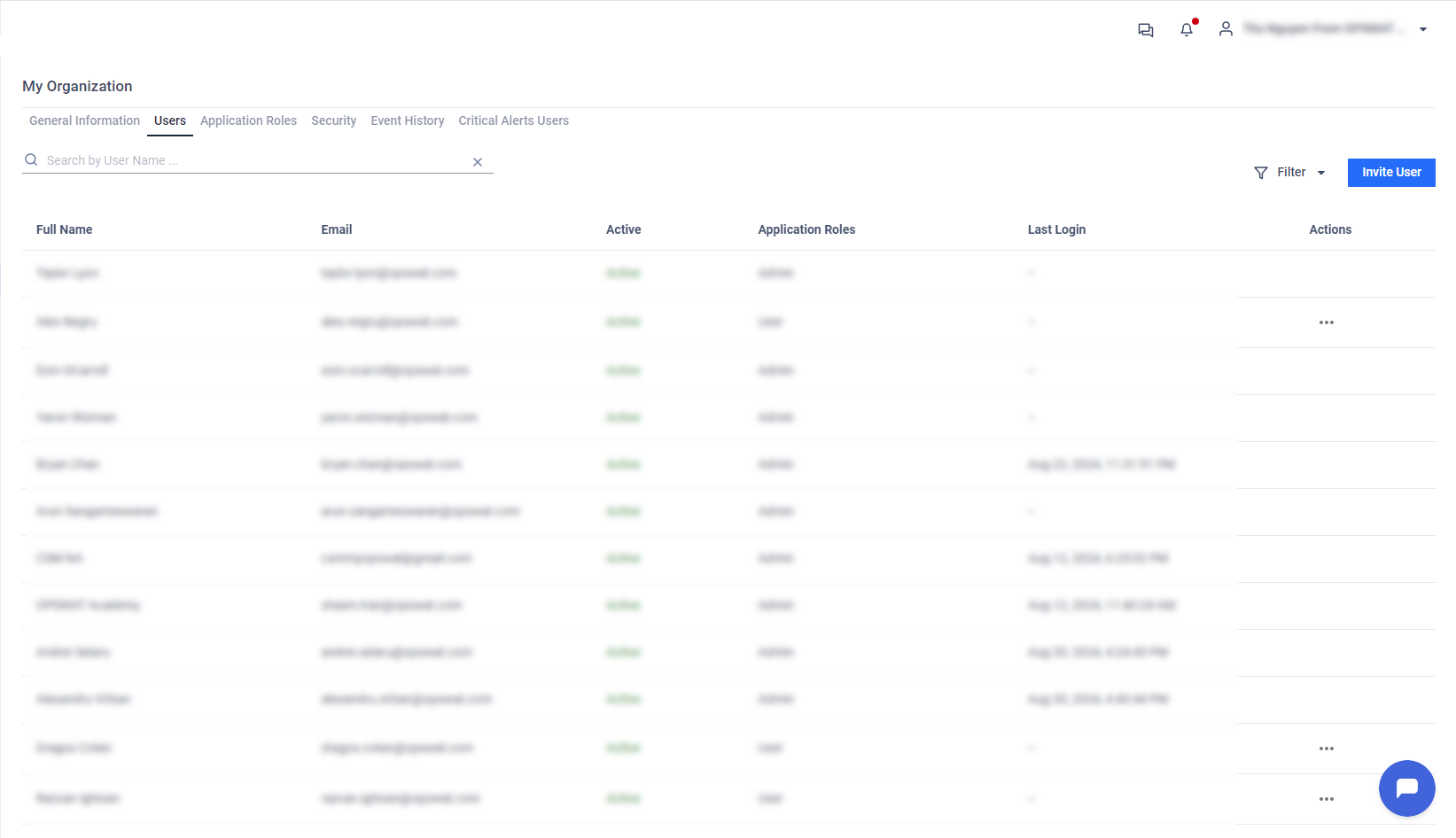
Access the Users tab via My Organization > Users to:
View and manage all users within the current organization.
Invite new users & assigning them roles.
Remove users from the organization.
Update user roles to ensure appropriate access levels.
Transfer the Super Admin role to another Admin (available only to Super Admins).
Deactivate/ Activate users
Invite Users to Your Organization
Organization administrators who have Full Access permissions on the User Management role can invite new members to the current organization by following the below steps.
Prerequisites: Ensure your role allows user invitations (check via My Organization > Roles)
Navigate to My Organization in the left sidebar menu, then click Users tab.
Click the Invite User button in the top-right area
Enter the invitee's email address in the provided field
Select a role from the dropdown: built-in options like Admin, User, or custom roles for specific permissions
Click Invite—the system emails the user a secure invitation link
After the user is invited, the user will get an email invitation from the system.
After Sending the Invite: Monitor user status
Pending: User has been invited but hasn't accepted.
Active: User has accepted the invitation and can access the Portal.
Inactive: User access to this organization has been deactivated. The account is retained for your records and can be set back to Active at any time.
The first Admin is added to the Organization will be automatically set as Super Admin of the Organization.
Each organization has only one Super Admin. Super Admin can:
Update role of other Admins
Remove other Admins from the Organization
Transfer Super Admin role to another Admin
Super Admin role is available on My OPSWAT Portal only. This role is matched with Admin role in IDaaS.
The role of user in My OPSWAT Portal is different from the role of user in My OPSWAT - Central Management Component.
Accept User Request to Join Organization
If you Enable email domain-based join requests for my organization, users who share the same email domain(s) you've set up can find and request to join your organization.
If a user submits a request to join your organization, you and any other Administrators with Full Access to the User Management in your organization will receive
An email informing you of the new join request
AND a notification in the icon in the top-right corner.
To approve or decline a join request:
Navigate to My Organization > Users
Click View requests on the Pending Approvals banner.
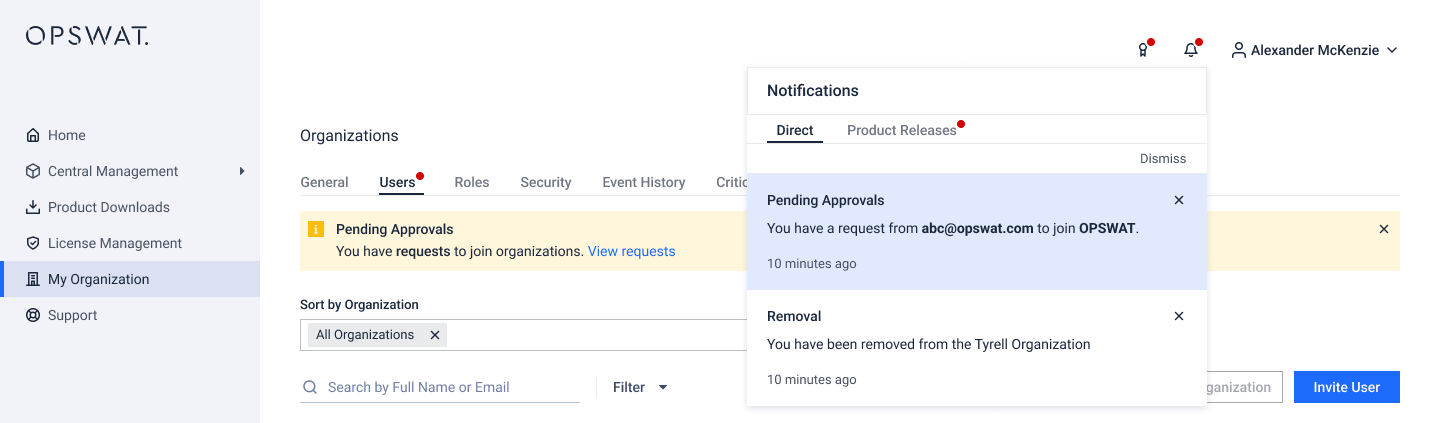
You will then be navigating to full Pending Approvals list
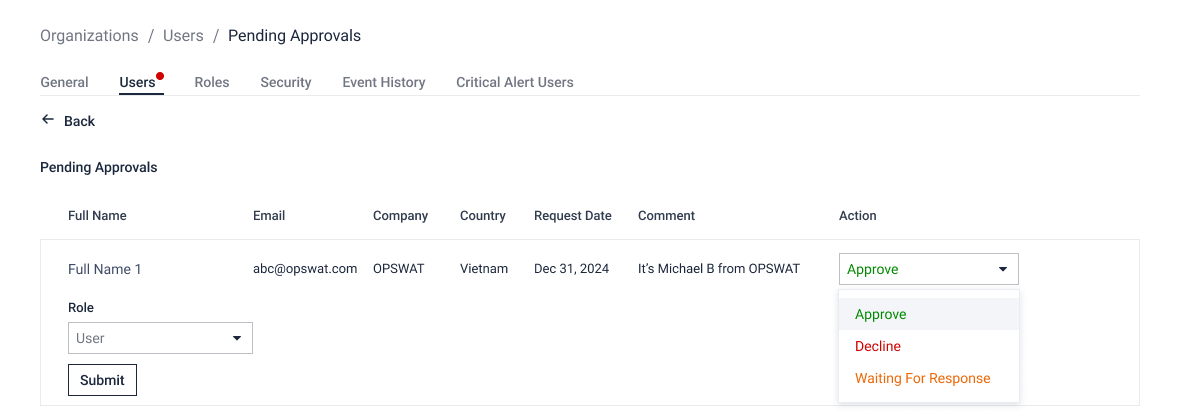
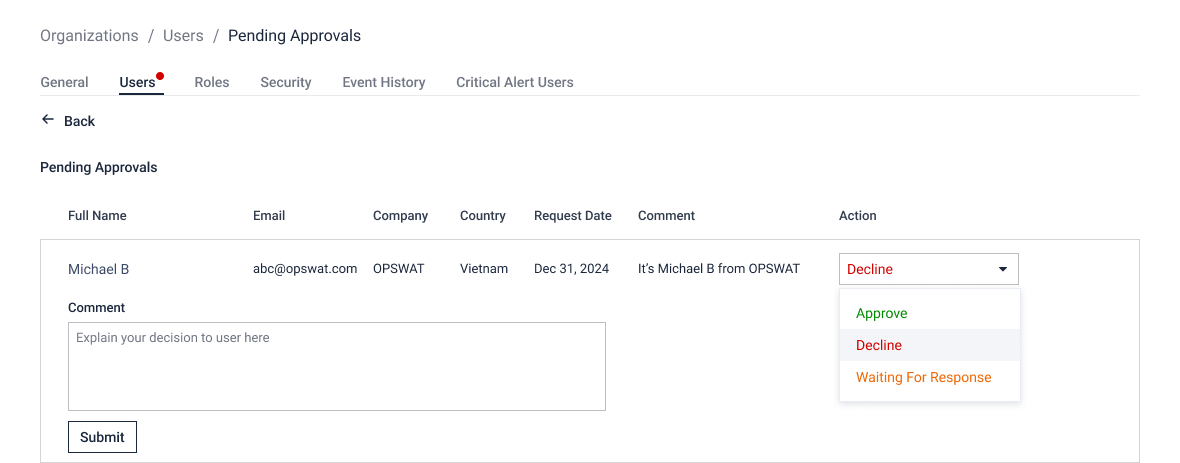
For each request, choose Approve or Decline from the dropdown.
If you decide to Approve a request, select a Role and click Submit.
Please noteThe system will load all roles of your organization, except for Super Admin role.
If you decide to Decline a request, input a Comment and click Submit.
Please note We recommend keeping the following rules in mind when you receive a request to join your organization:
Any user with Full Access to User Management in your organization (authorized users) can act on a request.
The first decision made by an authorized user is final—that is, if another authorized user has already approved or declined a given request, you will no longer be able to take any action on the request.
Users are notified via email and in-portal notification about the decision.
Users can cancel their request at any time.
Until approved, users won't have access to your organization's resources and will see that their request is pending on the Organizations page.
Set a user as Inactive
Instead of removing a member, you can set them to Inactive. This turns off the user's access to your organization right away while keeping their account on record for audit purposes. Use it when a team member leaves or no longer needs access, then set them back to Active if their role changes or they return.
Go to My Organization and select Users.
Find the user in the list.
Select the action button (three dots) on the user's row, then select Deactivate.
Review the confirmation dialog and select Confirm.
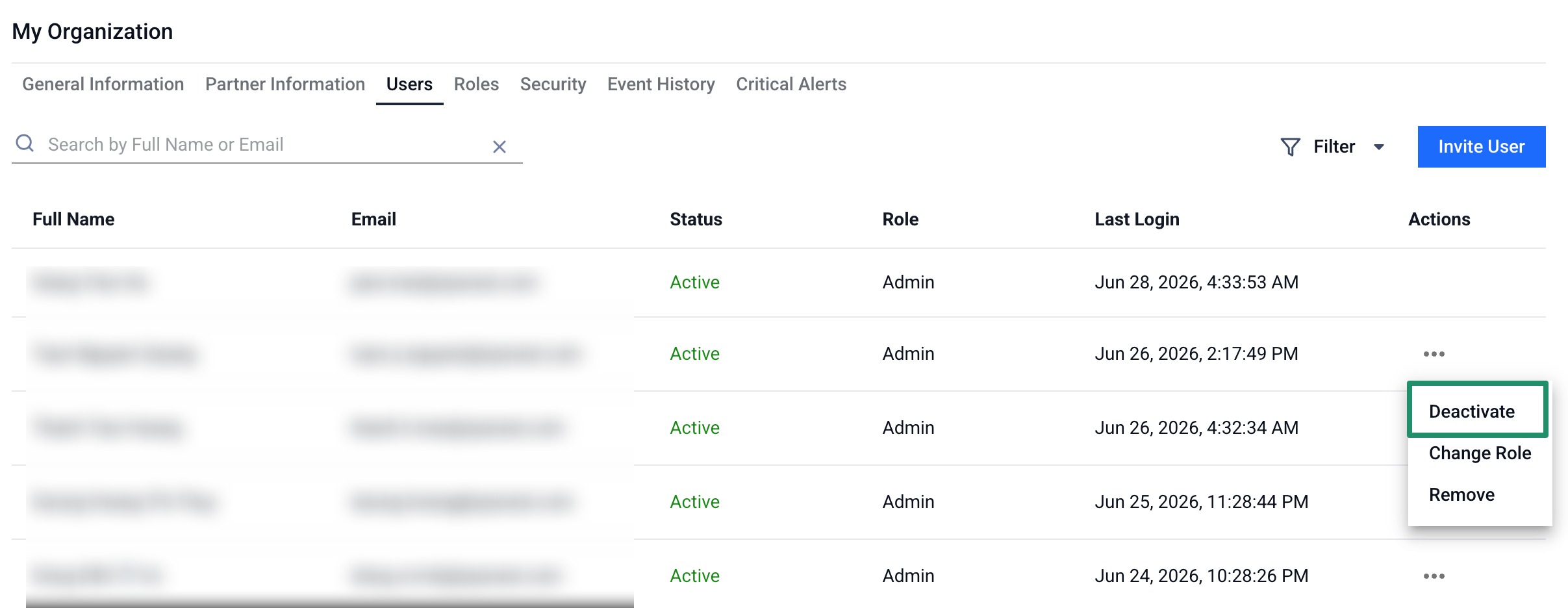
What happens when a user is set to Inactive:
The user's status changes to Inactive in this organization only.
Their role is preserved, so you do not need to reassign it if you re-activate them later.
The user's active session for this organization ends immediately.
The organization is removed from the user's account, so it no longer appears in their organization switcher on next sign-in.
The user receives a notification in their bell and an email letting them know their access has changed.
To restore access, select the action button on the same user's row, choose Activate, and confirm. The user's previous role and access are restored, and they receive an email notification of the change.
You can filter the Users list by the Status column to find active or inactive members.
You need Full Access on User Management to change a user's status. The Deactivate/Activate action is hidden for the organization's Super Admin, for your own account, and if you do not have permission to manage users.
Role Management in a Single Organization
The Roles feature in My OPSWAT Portal leverages Role-Based Access Control (RBAC) to manage user permissions effectively. This enhances security by ensuring users have access only to the resources necessary for their role, minimizing unnecessary access and improving permission management.
The Roles tab is visible to users with View Only or Full Access permissions on the Role Management role. (see Roles for further details)
Navigate to My Organization > Roles to:
Assign built-in Roles (Super Admin, Admin, User).
Create and manage custom roles with specific permissions.
Built-in Roles
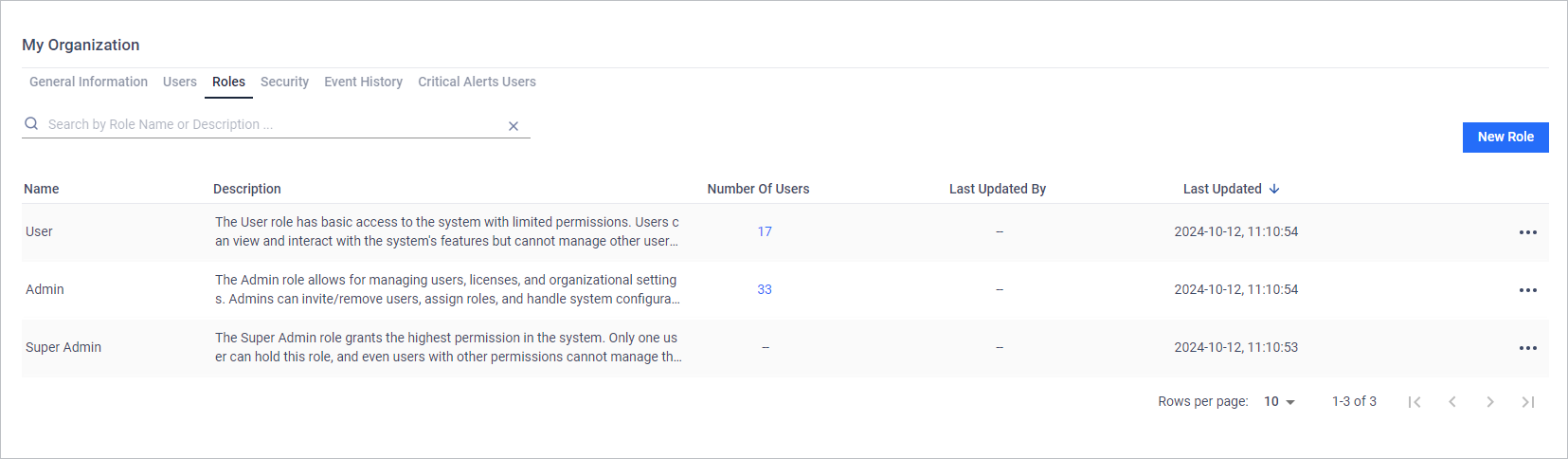
My OPSWAT Portal comes with three built-in roles to cover the most common needs:
Super Admin
Holds the highest level of permissions, with full control over all organizational functions.
Each organization can have only one (1) Super Admin, automatically assigned to the first Admin added.
Super Admins can transfer their role to another Admin.
Admin: Has full control over all organizational functions, except for modifying or removing the Super Admin account.
User: Primarily a viewer role, allowing access to organizational information.
Please see the table below for a detailed permission breakdown.
Super Admin | Admin | User | |
|---|---|---|---|
Number of users | 1 | Multiple | Multiple |
Super Admin ownership | Can transfer to another Admin | None | None |
Role Object | Permissions | ||
New Access Management | Full Access | Full Access | View Only |
Critical Alerts | Full Access | Full Access | View Only |
Event History | View Only | View Only | View Only |
License Management | Full Access | Full Access | View Only |
Hardware Inventory - Organization Hardware | View Only | View Only | View Only |
Organization General Information | Full Access | Full Access | View Only |
OAuth Applications | Full Access | Full Access | None |
Role Management | Full Access | Full Access | View Only |
Security Management | Full Access | Full Access | View Only |
Support Service - Organization Cases | Full Access | Full Access | View Only |
Support Service - Partner Cases | Full Access | Full Access | View Only |
Support Service - RMA Cases | Full Access | Full Access | View Only |
User Management | Full Access | Full Access | View Only |
Custom Roles
If you have Full Access to Role Management, you can create, modify, or delete roles tailored to your organization's needs
Create a Custom Role
Login to My OPSWAT Portal
Navigate to My Organization > Roles
Click on the "Add Role" button to create a new user role.
Give the new role a Name and a Description (optional).
Adjust the None, View Only or Full Access permissions as desired for each role object.
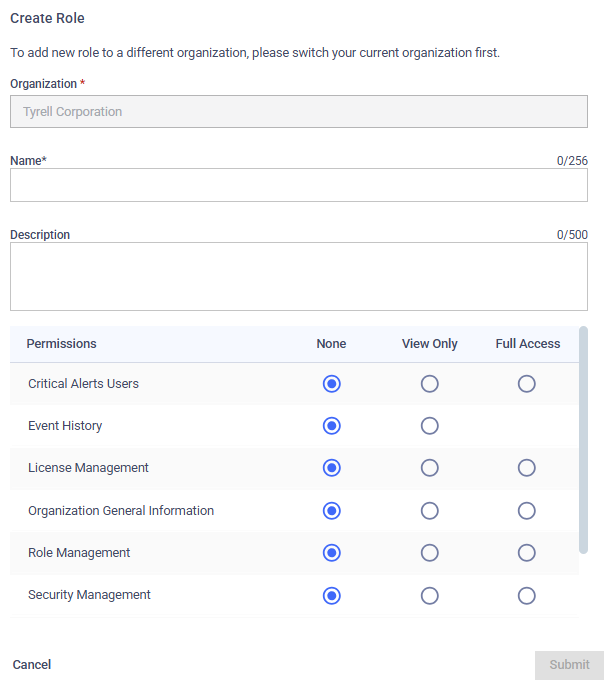
Role Objects and Permissions
Here’s a breakdown of key Role Objects and their permissions:
Role Objects | None | View Only | Full Access |
|---|---|---|---|
Access Management Applies to My Organization > Conditional Access tab | No access | View the list of organization conditional access policies | Add or edit organization conditional access policies |
Critical Alert Users Applies to My Organization > Critical Alert Users tab | No access | View the list of email list subscribed to receive critical alerts. | Add or remove email subscriptions for critical alerts. |
Event History Applies to My Organization > Event History tab | No access | Can access and view all recorded events; cannot make changes. | |
License Management Applies to License Management page. | Can see the License Management tab but cannot view organization's licenses. | View licenses of the current organization, including functions like Active License and See Full License History. | Includes View Only permissions plus the ability to Download Active Deployment Report, Edit license notes and View Organization's MD Cloud License |
Hardware Inventory - Organization Hardware Applies to Hardware Inventory > Organization Hardware tab | No access | view your organization's hardware | |
Organization General Information Applies to My Organization > General Information tab | No access | View organization's general information. | View and update the organization's general information. |
OAuth Applications Applies to OAuth Application function | No access | Create, update and delete organization OAuth applications | |
Role Management Applies to My Organization > Roles tab | No access | View the list of roles in your organization; cannot make changes. | View and modify roles, including adding, editing, or removing them. |
Security Management Applies to My Organization > Security Management tab | No access | View the security settings; cannot make changes. | View and modify security settings |
Support Service - Organization Cases Applies to Support page | Submit support cases and false detection report | View organization cases - cases submitted by other users in the organization | View and update organization cases |
Support Service - Partner Cases Applies to Support page | No access | View partner cases - cases submitted by partners | View and update partner cases |
Support Service - RMA Cases | No access | View RMA cases | Submit and update RMA Cases |
User Management Applies to My Organization > Users tab | No access | View the list of users within your organization; cannot make changes. | Invite or Remove users, change user's role. |
Information Roles with Full Access to User Management and Role Management objects in My OPSWAT will be migrated to the other cloud services (such as OPSWAT SSO) as the Admin role.
Information: The My OPSWAT Portal has removed the rule that "Admins cannot remove other Admins" starting from release 2024.4.1. From this version onward, users who have Full Access permission on User Management can remove all users except the Super Admin.