
This chapter describes what operators encounter the first time they sign in to MetaDefender NDR. It includes the login screen, navigation, role access, and personal settings. This chapter also documents self-service password reset and multi-factor authentication (MFA). Users configure both through their own account rather than through administration.
First login
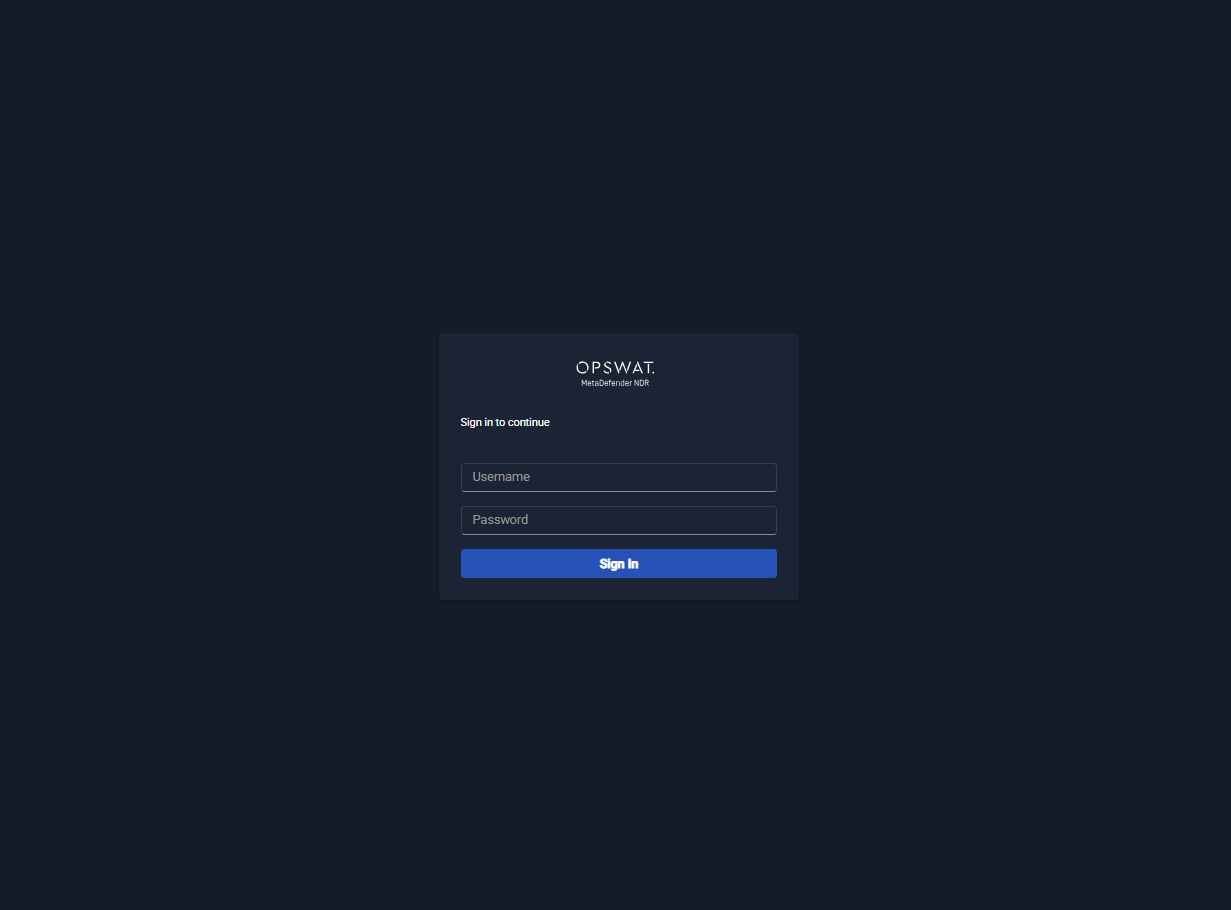
Operators reach MetaDefender NDR through a web browser pointed at the Manager's hostname or IP address. The Manager redirects unauthenticated sessions to the sign-in screen.
Open the Manager URL in a supported browser.
Enter the username and password supplied by an administrator.
Click Sign In.
On success, the Manager issues a session token and redirects to the Dashboard. On failure, the login form displays either Invalid credentials (wrong username or password) or a descriptive error from the authentication service (account disabled, password expired, lockout engaged). Sessions persist across browser restarts until the token expires or the user signs out. The next application programming interface (API) call detects an expired session and returns the user to the sign-in screen.
Administrators who have just completed a fresh installation sign in with the bootstrap account created during installation and are expected to change that password immediately from the account menu (see Resetting a Password, below).
Navigation tour
The authenticated layout has three persistent regions: a left navigation rail, a top header, and the main content area. The navigation rail lists every page that the signed-in user can reach. It hides pages that the user cannot reach instead of disabling them. Thus, the rail is always a truthful view of what is accessible.
MetaDefender NDR exposes six top-level routes. Five appear in the main body of the navigation rail; Development appears in the footer and is only visible when the Manager is running in development mode.
Route | Purpose | Visible To |
|---|---|---|
Dashboard | Landing view; key performance indicators (KPIs), real-time alert stream, widget grid covering traffic, detections, and system health. Drill-downs pivot into Hunt. | All authenticated users |
Hunting | Search, pivot, and drill-down across alerts, sessions, and flows. Primary investigation surface | All authenticated users |
Policy | Create, edit, version, and assign intrusion detection system (IDS) and intrusion prevention system (IPS) policies, and manage the signature catalog. | Administrators and policy-authoring roles |
Administration | Manage users, groups, sensors, manager-level configuration, updates, and integrations. | Administrators and tenant/group administrators |
Support | End User License Agreement (EULA), license information, and log-package collection for support cases. | All authenticated users (log-package generation requires administrator privilege) |
The top header carries two menus that are available from every page:
Theme menu. Toggles between Light, Dark, and System modes (see Personalizing the Interface).
User menu. Displays the signed-in username and provides a Logout action. Logging out clears the session token and returns the user to the sign-in screen.
The user can collapse the left navigation rail to an icon-only strip to free horizontal space. The browser session remembers this preference.
Roles and visible pages
An administrator assigns each user one or more roles. Roles govern which pages appear in the navigation rail and which actions the user can take on each page. MetaDefender NDR ships with seven predefined roles:
Role | Default Visibility |
|---|---|
Administrator | Full system access, including all Dashboard, Hunting, Policy, and Administration surfaces. |
Tenant Administrator | Full access within an assigned tenant: all pages, scoped to that tenant's users, groups, sensors, and data. |
Group Administrator | Full access within an assigned group: user, asset, and policy management for the group; Dashboard and Hunting scoped to group-owned assets. |
SOC Analyst | Dashboard and Hunting for alert triage and investigation; no Policy or Administration pages. |
Security Engineer | Dashboard, Hunting, and Policy for rule authoring and tuning; no user or sensor administration. |
Read-Only Analyst | Read-only Dashboard and Hunting; no create, update, or delete actions on any surface. |
Compliance Auditor | Read access to audit logs and reports (under Administration and Support); no operational actions. |
Role assignments are managed under Administration by users with administrator privileges. Custom roles with organization-specific permission sets are also supported; those are covered in Users, Groups, and RBAC.
Group asset ownership further scopes data visibility within a page. Users see only alerts, flows, files, and protocol events that belong to assets owned by their group. Assets include sensors, subnets (Classless Inter-Domain Routing (CIDR) blocks), and virtual local area networks (VLANs). Ownership enforcement applies to the user interface (UI), API, search, and export paths alike.
Personalize the interface
Personal preferences are managed from the top header and persist per browser profile.
Theme. The theme menu offers Light, Dark, and System. System follows the operating system's current light/dark preference and updates in real time when the operating system switches modes. The selected theme is stored in the browser and reapplied automatically on the next sign-in from the same browser profile.
Navigation rail. Clicking the rail's collapse control switches between the wide (labelled) and narrow (icon-only) presentations. The preference is remembered for the session.
Dashboard widget layout. The Dashboard remembers widget arrangement, sizing, and which widget tabs are open across sessions. See Dashboard for the widget catalog.
Tab state. Pages that use tabs (Hunting, Administration, Support) preserve open-tab state across reloads.
Personalization is local to the browser profile and does not roam between devices.
Reset a password
Users reset their own password without administrator intervention.
From the sign-in screen, click Forgot password?.
Enter the account's username or registered email address.
Retrieve the password-reset link from the registered email inbox and open it.
Enter a new password that satisfies the platform password policy. Confirm the password.
Sign in with the new password.
Reset links are single-use and time-limited. If the link expires before use, the request must be repeated. Accounts that exceed the configured failed-login lockout threshold are temporarily disabled; locked accounts either wait out the lockout window or contact an administrator to unlock them manually. Administrators reset passwords on behalf of other users from Administration → Users.
Enroll in MFA
If the user account, group, or tenant requires multi-factor authentication, MetaDefender NDR prompts for enrollment at the next sign-in after the requirement is applied.
Sign in with username and password as usual.
When prompted, choose an authenticator method (a time-based one-time password (TOTP) application such as Microsoft Authenticator or Google Authenticator).
Scan the displayed quick-response (QR) code with the authenticator application, or enter the provided secret manually.
Enter the six-digit code generated by the authenticator to confirm enrollment.
Store the displayed recovery codes in a secure location. Each code can be used once to regain access if the authenticator is lost.
After enrollment, subsequent sign-ins require both the account password and a fresh one-time code. Users re-enroll a new device from the account menu. First, revoke the existing enrollment. Then repeat the enrollment flow. Recovery codes provide a bypass when the previous device is no longer available. Administrators can reset MFA for a user from Administration → Users when no recovery code is available.