
This article applies to all MetaDefender Kiosk hardware models from Dell.
Method 1: Physical Check on the Device
Location:
For Desktops → Back, top, or side of the chassis.
For All-in-One Desktops → Back panel or the bottom of the stand.
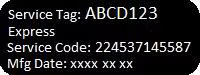
Label: Look for a label marked "Service Tag" or "Serial Number" (7-character alphanumeric).
Method 2: Command Line Method (CMD)
Press
Win + Rto open the Run dialog.Type
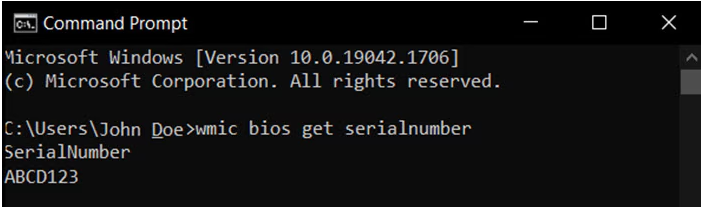
cmdand press Enter.In the Command Prompt window, execute the following command:
The Service Tag will be displayed as the Serial Number.
Method 3: Dell SupportAssist Application
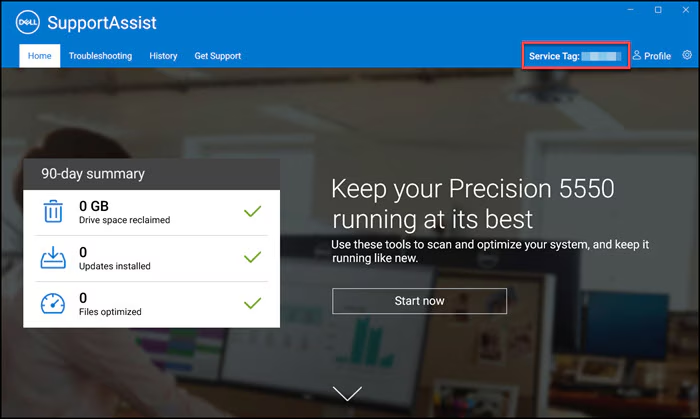
Press the Windows key and type "SupportAssist".
Open SupportAssist.
The Service Tag is displayed at the top of the window.
Method 4: BIOS/UEFI Settings
Restart the desktop.
During boot, press
F2to enter BIOS or UEFI settings.Navigate to System Information → Locate the Service Tag.
Notes:
Ensure the system is powered on and accessible if using CMD or SupportAssist.
For physical checks, make sure to inspect all sides of the chassis.
If the label is missing or unreadable, use Method 2, 3, or 4.
In the unlikely event that you have followed the instructions above but are Unable to allow encrypted Microsoft Purview messages in MetaDefender Email Gateway Security, please proceed to log a support case or chatting with our support engineer.