
Overview
MetaDefender Kiosk 4.8.3 includes an optional telemetry feature that sends a small amount of anonymized, aggregated usage and health information to OPSWAT. This data helps OPSWAT understand how Kiosk is used in the field, improve product quality, and identify potential issues early.
Telemetry does not contain any file names, file contents, user identities, or customer-specific data.
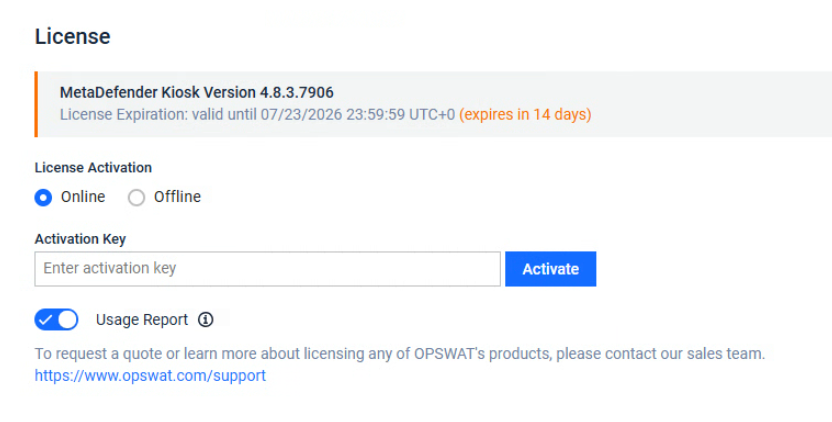
How It Works
When MetaDefender Kiosk telemetry is enabled, the Kiosk device periodically transmits lightweight metrics over a secure connection to a secure OPSWAT collector endpoint.
Scan activity metrics are accumulated locally as running totals and reported after each scan session completes.
Device health metrics (CPU, memory, heartbeat) are measured and sent every 60 seconds.
Is Telemetry Optional?
Yes — telemetry is entirely opt-in and license-controlled. The Usage Report toggle on the License page is always visible, so you can check its status at any time — it never disappears, even when telemetry isn't available to you.
Scenario | Toggle appearance | Behavior |
|---|---|---|
Your license permits usage analytics | Shown, on, editable | Collection and transmission are active. Turning the toggle off stops them immediately — no restart required. |
Your license permits usage analytics, and you've turned it off | Shown, off, editable | Turning the toggle back on resumes collection and transmission immediately. |
Your license does not permit usage analytics (contact OPSWAT Support for details) | Shown, off, greyed out (locked) | The toggle can't be turned on. No data is collected or sent. |
Your Kiosk is activated offline | Shown, off, greyed out (locked) | An offline-activated Kiosk can never send data over the network, so the toggle is always locked off here — this applies regardless of any other license setting. |
A greyed-out toggle means telemetry isn't available for your current license or activation mode — it does not mean the setting is hidden or unknown. If your license changes to permit telemetry, reactivating your license refreshes this status.
Restoring a Kiosk configuration backup always leaves Usage Report greyed out and off, even if it was on before the restore. If your license permits telemetry, you can turn it back on from the License page afterward.
Managing Telemetry from Central Management
If your Kiosk devices are enrolled in Central Management, you don't need to open each device's own Management Console to check or change its Usage Report setting — it can be managed remotely, for one device or for a whole group at once.
This is currently available when devices are managed through Central Management in My OPSWAT. Support for on-premises Central Management is planned for a future release.
Per-device control
Open the enrolled device in Central Management and go to its License section. The Usage Report toggle there mirrors that device's real setting:
If the device's license doesn't permit usage analytics, the device was activated offline, its license is currently deactivated, or it was just restored from a configuration backup, the toggle is shown but locked off — the same state you'd see if you opened the device's own Management Console.
Otherwise, switch the section to Edit mode, change the toggle, and Save. The change takes effect on the device.
If the device is set to automatically sync its settings from a group's policy, its Usage Report toggle is locked and shows the group's value instead. Change the setting at the group level in that case (see below).
Group-level control
If you manage devices in a group, open that group's License section in Central Management. The Usage Report toggle there is always available to set — switch to Edit mode, choose On or Off, and Save. That value is applied to every device in the group that has automatic sync from the group's policy turned on.
What Data Is Collected
Scan Activity Metrics
Metric | Description |
|---|---|
Completed scan sessions | Number of scans that finished normally |
Aborted scan sessions | Number of scans that were interrupted or cancelled |
Total files scanned | Number of files presented for scanning |
Total data scanned | Volume of data scanned (in bytes) |
Files fully processed | Number of files that completed the full scan pipeline |
Files allowed | Number of files permitted through to the user |
Files blocked | Number of files blocked by policy |
Files skipped | Number of files excluded (e.g., by type or policy rule) |
Total scan time | Combined time spent scanning across all sessions |
Device Health Metrics
Metric | Description |
|---|---|
Memory usage | Current memory consumption of the Kiosk software |
CPU usage | Current CPU consumption of the Kiosk software |
Heartbeat signal | Confirms the device is online and operational |
What Is NOT Collected
To be explicit, MetaDefender Kiosk telemetry never collects:
File names or file contents
Usernames, operator identities, or personal information
Physical location or IP addresses of the device
Customer network topology or configuration details
Scan results or threat details for individual files
Frequently Asked Questions
Q: Can I enable telemetry for some Kiosks but not others?
A: Yes. The Usage Report toggle is per-device. You can configure it independently on each Kiosk directly through that device's Management Console, or remotely for enrolled devices through Central Management.
Q: I set a device to sync settings from its group. Why can't I change Usage Report on that device anymore?
A: While a device automatically syncs settings from its group's policy, the Usage Report toggle follows the group's saved value and can't be changed on that device individually — whether from Central Management or from the device's own Management Console. Turn off sync-from-group on that device, or change the setting at the group level instead.
Q: Does disabling telemetry affect Kiosk functionality?
A: No. Disabling telemetry has no impact on scanning, policy enforcement, or any other Kiosk feature.
Q: How quickly does the opt-out take effect?
A: Immediately. Once the toggle is turned off, no further data is collected or transmitted — no restart is needed.
Q: Is the data encrypted in transit?
A: Yes. All telemetry data is transmitted over a secure, encrypted connection.
Q: Can I completely disable telemetry so it can never be turned on?
A: Yes. Contact OPSWAT Support to have the Usage Analytics feature removed from your license. Once disabled at the license level, the Usage Report toggle will be greyed out and turned off — no data will ever be collected or transmitted from the device.
Q: The Usage Report toggle on my License page is greyed out and I can't turn it on. What does that mean?
A: A greyed-out toggle means your current license or activation mode doesn't permit sending telemetry — for example, an offline-activated Kiosk, or a license that doesn't include usage analytics. The toggle stays visible so you can always check this status, but it can't be turned on until the license situation changes. If you believe your license should permit telemetry, contact OPSWAT Support or reactivate your license to refresh its status.