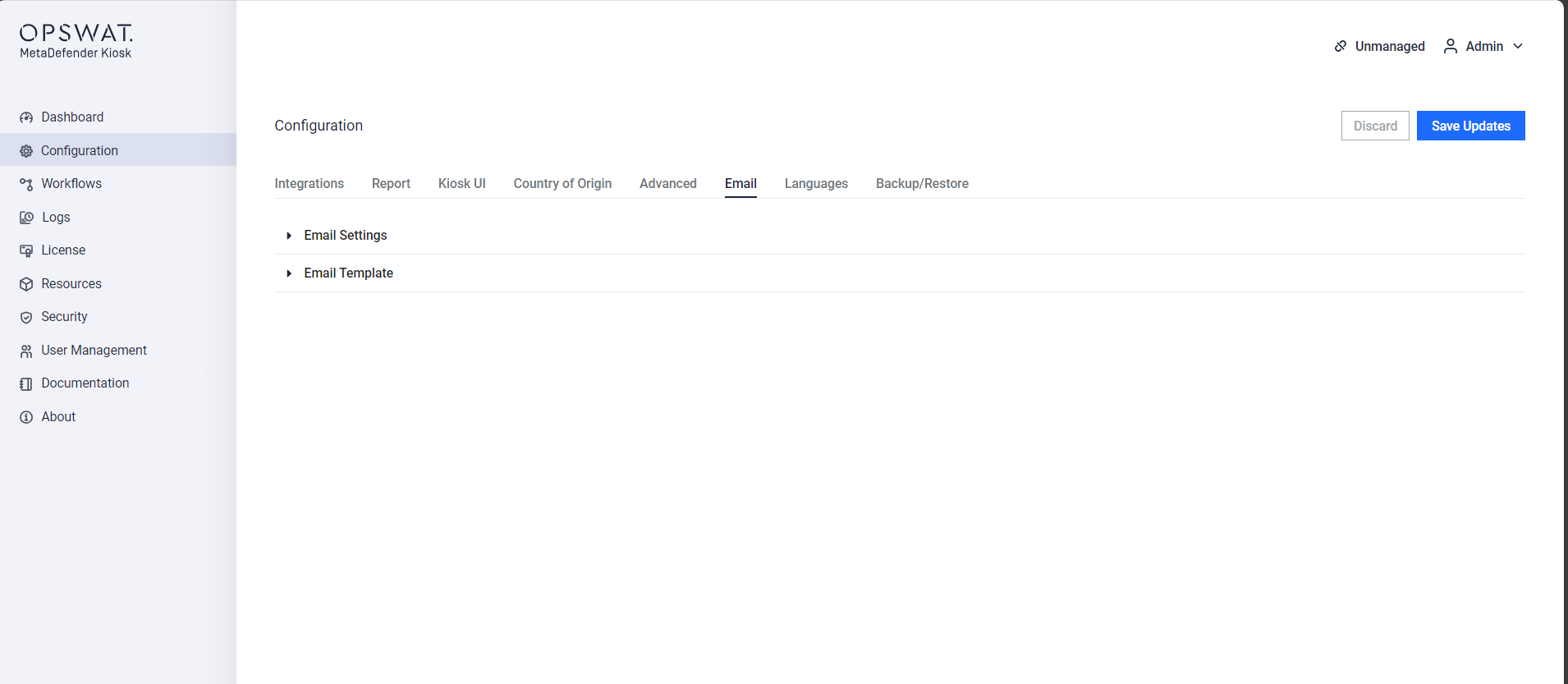
Dashboard
The Dashboard will be the first page that is seen when logging in to the MetaDefender Kiosk Management Console. This page provides a summary of all of the files that have been processed by MetaDefender Kiosk.
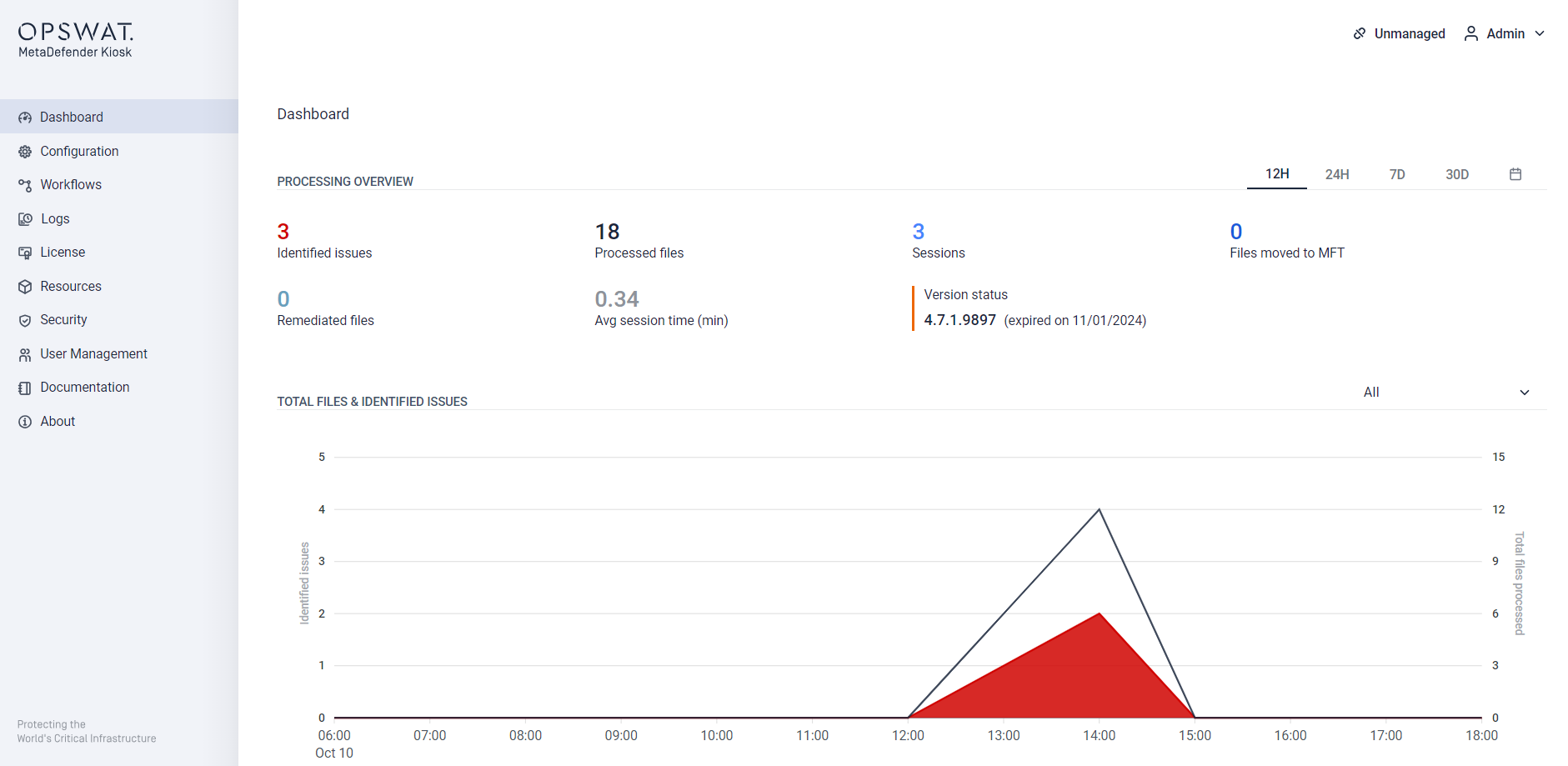
Configuration
The Configuration page allows you to configure all MetaDefender Kiosk settings that apply to all users of MetaDefender Kiosk.
Note:
In case the directory path for session log is not able to created, the default path is used instead.
Session log can be saved in network shared folder with AD user's credentials that is logged into the Kiosk session for saving privileges. An Admin can enable utilizing the OS logged in user's credentials if the saving initially fails with the AD user credentials.
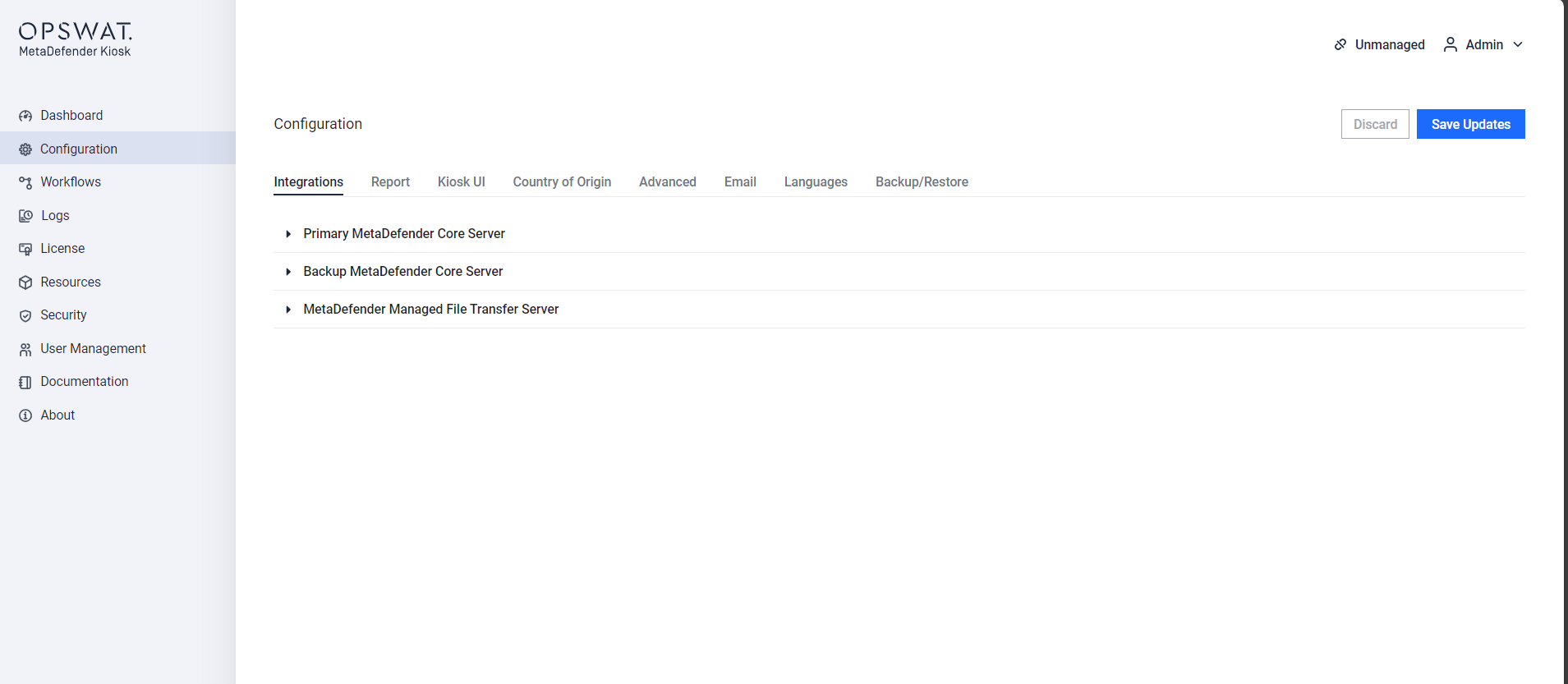
Advanced Configuration
Advanced configuration options can be set by expanding the ‘Advanced Configuration’ section of the Configuration page.
Advanced Configuration for Scanning
Scanning multiple removable media in one session
If a workflow regularly scans several USB drives or CDs back-to-back, you can let users carry their sign-in across scans instead of being asked to sign in again before every device. Available starting in Kiosk 4.8.5.
This does not apply to Guest sessions using visitor check-in, to workflows using Custom Authentication, or to the Simplified workflow — those always end their session after each scan no matter how this setting is configured.
Turning it on
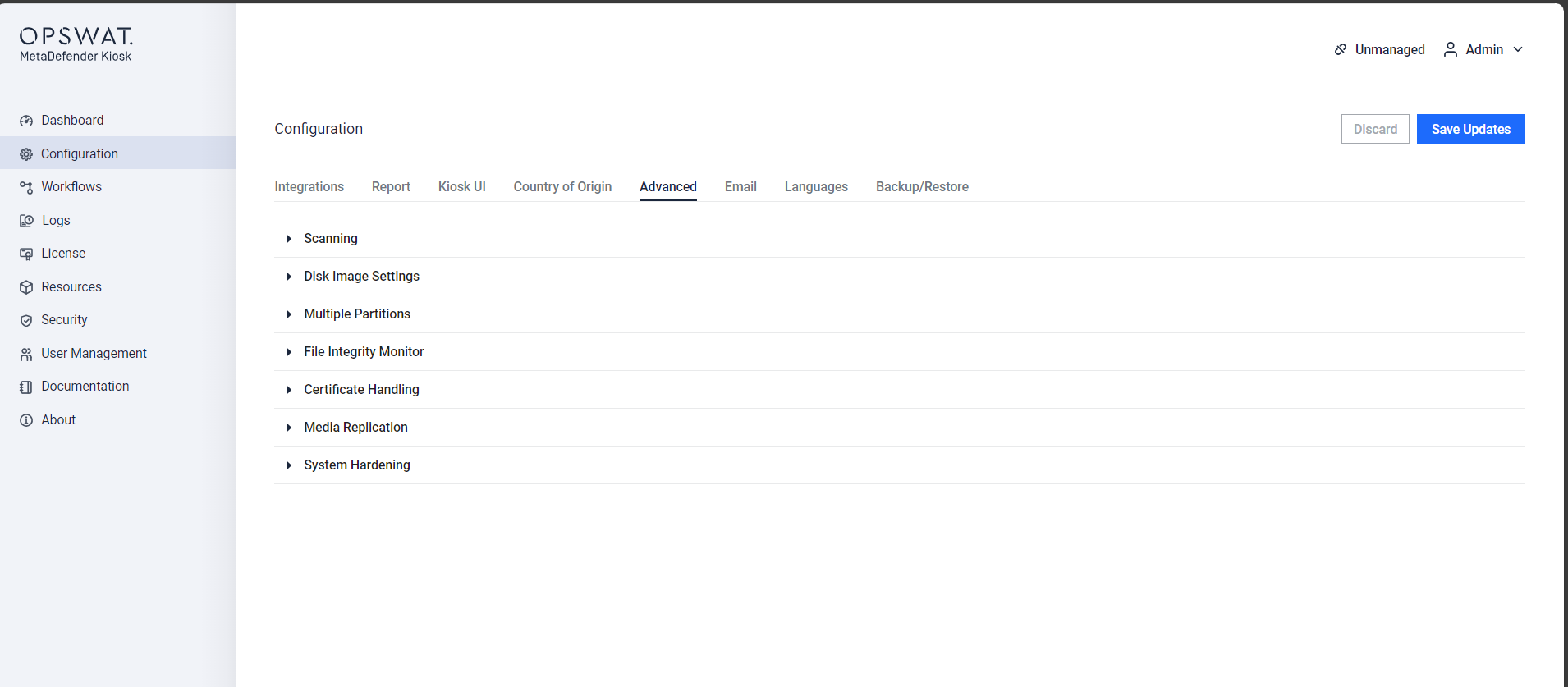
Go to Configuration → Advanced.
Expand the Scanning section.
Select Scan multiple removable media without re-authenticating.
Click Save.
This is a single global toggle — there's no separate switch per workflow. It can also be pushed from Central Management to enrolled kiosks; when set this way, the checkbox on the kiosk shows as checked and read-only.
What carries over between chained scans
Once a user taps Scan Another Device, the next session starts without asking them to repeat any of the following:
Their signed-in identity — however they authenticated (Guest, Employee via Remote AD, Local Kiosk User, Microsoft Entra ID, RFID, Smart Card, or Unauthenticated).
The pre-scan questionnaire answer, if the workflow has one — it's recorded on every chained session's report, not just the first.
The workflow that was selected at sign-in, if the login is assigned to more than one.
Each device's scan is still a fully separate session behind the scenes — its own report, its own log entry, and its own independent file transfer if the workflow uses MetaDefender Managed File Transfer (MFT) or generates a Media Manifest. Only the sign-in step and the questionnaire are skipped; nothing about how an individual device is processed, reported, or transferred changes.
What changes for users
With this option on, once a user finishes scanning a device (after printing or continuing past their results), instead of the session ending automatically they'll see a Scan another device? screen with two choices:
Scan Another Device — ends the current scan's session and starts the next one right away, without asking the user to sign in again or answer any pre-scan questions a second time. They'll land straight on the screen for inserting the next device.
End Session — ends the session the same way it always has.
If the user doesn't insert another device or make a choice before the kiosk's normal session timeout, the session ends automatically, the same as choosing End Session.
Every device scanned still gets its own separate scan report — nothing about the reporting or file handling for an individual device changes; only the sign-in step between devices is skipped.
The Scan another device? screen only appears after a scan has actually completed (past the results/report screen). Removing a device earlier in the flow — for example, before processing has started — ends the session immediately, the same as it always has.
If a user signs in with a smart card, they won't be asked to re-insert or re-verify their card for the next device in the same chain — their identity carries over along with everything else.
If an administrator changes the workflow's settings while a user is between scans, that user's current session ends so the next scan starts fresh under the updated settings — they'll need to sign in again in that case.
For workflows that require guest MFT ID validation or a file classification selection, the next device in the chain may currently ask the user to sign in again rather than carrying over seamlessly — this specific case is still being refined.
Example
An employee workflow is set up with a pre-scan question and this option turned on. An employee signs in, answers the question once, and scans three USB drives one after another — tapping Scan Another Device and inserting the next drive each time, with no further sign-in and no need to answer the question again. All three scans still appear as separate entries in session history, each showing the same user and the same answer to the pre-scan question.
If the workflow uses Copy & Go, the handoff to the next device can happen without tapping anything at all: once the current device's files finish copying, the kiosk automatically advances to the next-device screen, and once the last device finishes, the session ends on its own — no taps are needed anywhere in the chain after the initial sign-in.
Advanced Configuration for Email