
This section provides instructions for developers who intend to build or integrate their own authentication method of their users into MetaDefender Kiosk. We recommend that you have a strong understanding of C/C++ before reading this section.
The bundled code included in this section is a sample of how the authentication module can be implemented. You should modify the contents in each method described in this section to accommodate your integration needs. You can remove any additional methods in the sample code not described in this section if not needed.
Any configuration pertaining to the custom authentication module are not saved if you uninstall and re-install MetaDefender Kiosk. You must keep a copy of your module before uninstalling and then copy it back to the same directory once your installation or upgrade is complete.
System requirements
The system requirements for implementing custom authentication are as follows:
MetaDefender Kiosk 3.2.0 or later
Visual Studio 2017 or later
.NET 4.5 or later for running the sample UI in the
Custom Authentication Sample(optional)
Steps to deploy custom authentication
The steps necessary to deploy custom authentication are as follows:
Obtain a custom authentication template package from the My OPSWAT downloads
Implement the custom authentication interface & build the custom authentication module (
authenticationModule.dll)Deploy the custom authentication module
Configure MetaDefender Kiosk to use the custom authentication
Enabling custom authentication
After successfully building the custom authentication module, you can enable the module.
Place the module (
authenticationModule.dll) in the expected directory (e.g.,<Kiosk Install Directory>\Client\Authentication)Open the MetaDefender Kiosk Management Console and go to the
WorkflowstabWithin the
Employee Workflowssection, click onUser Authentication MethodSelect
Custom Authenticationand click Apply
If Custom Authentication does not appear, the authentication module is either named incorrectly or not in the expected directory.

Custom authentication template
The following section describes the C++ code in the custom authentication template.
Init
This is the first method called when the Kiosk service starts up and loads the authentication module. Any dependencies necessary to initialize for the module should go here.
Arguments | Description |
|---|---|
showUI | Output indicates if the authentication module has a UI to display to the user
|
Return Values | Description |
|---|---|
0 | The module initialized correctly |
Non-zero | Initialization failed and the module cannot be used |
Verify
This method initiates the authentication process to run. The return value is not a result of the user passing authentication. It indicates if the authentication process was successful or not.
Arguments | Description | Notes |
|---|---|---|
verifiedID | The ID associated with the user that successfully authenticated. If a user is denied, then this is empty. | Implementer must allocate the memory required |
desktopName | MetaDefender Kiosk uses a second desktop for security reasons. If your authentication process has a UI to display to the user, this will indicate the desktop in which your authentication process will be launched. | Disregard if your authentication process does not require a UI |
password | The verified user’s credentials which allows Kiosk to handle post processing permissions. If you do not want Kiosk to have the user’s permissions, leave this empty. | Implementer must allocate the memory required |
Return Values | Description |
|---|---|
0 | Verification ran successfully |
Non-zero | Verification failed to run |
Deinit
This method is called when the Kiosk is stopped. Any resources acquired by your module should be released and any unsaved data should be stored.
Arguments | Description |
|---|---|
No arguments are required for this function |
Cancel
This method is called when the user tries to cancel while verification is running.
Arguments | Description |
|---|---|
No arguments are required for this function |
Return Values | Description |
|---|---|
0 | The cancel request was accepted |
Non-zero | The cancel request was denied |
FreeString
This method is called to free allocated memory for wchar_t **. Kiosk calls this function when finished with the values allocated by your functionality.
Arguments | Description | Notes |
|---|---|---|
stringToFree | Double pointer to | This function must be de-allocated in the same way that memory is allocated |
Return Values | Description |
|---|---|
0 | The allocated memory was successfully released |
Non-zero | The allocated memory failed to be released |
Using the Custom Authentication Tester
The custom authentication testing package includes a file called TestCustomAuthentication.exe that lets you test and troubleshoot your authentication module before using it with MetaDefender Kiosk.
TestCustomAuthentication.exe behaves similarly to the component MetaDefender Kiosk uses to load the authentication module. Since MetaDefender Kiosk runs under a SYSTEM context, you should also run the authentication module under SYSTEM. Attempting to run the authentication module as any other user may invalidate the module's results. You must run TestCustomAuthenticationModule.exe under SYSTEM to properly load authenticationModule.dll and test the methods.
You can use Windows Sysinternals to run the tool as SYSTEM.
To run the custom authentication tester:
Download
PsExecOpen a command prompt (as an administrator) to where
PsExecis installed and enterPsExec.exe -s cmd.exe
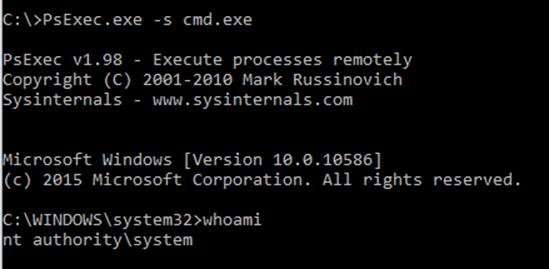
Navigate to the
<Kiosk Install Directory>\Client\AuthenticationdirectoryRun
TestCustomAuthentication.exe. At all points of method testing, the tester pauses and allows you to control when to move on to the next testA
PASSEDorFAILEDresult will be displayed
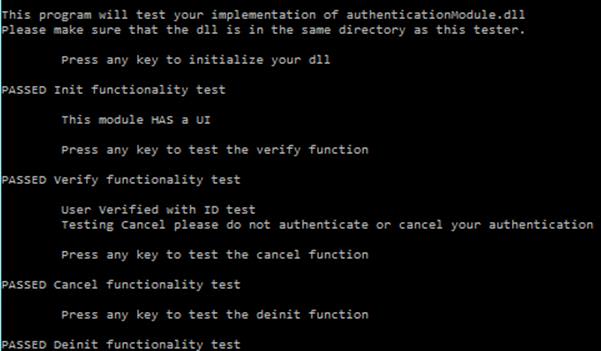
pcProx Plus RFID Reader Custom Authentication Module
Overview of Module
This documentation describes usage of the pcProx Plus RFID Reader custom authentication module. This authentication module can be used to allow RFID cards to be used for MetaDefender Kiosk authentication.
Required Components
Installed MetaDefender Kiosk
pcProx Plus RFID Reader
pcProxConfig reader configuration tool
Download available at https://www.rfideas.com/support/product-support/pcprox-plus
Documentation available at https://www.rfideas.com/files/downloads/manuals/Enroll_Plus_Wiegand_Manual.pdf
pcProx Plus RFID Reader Custom Authentication Module
Compiled binaries and source available on My OPSWAT
Reader Configuration
pcProxConfig Installation
Download the pcProxConfig installer from https://www.rfideas.com/support/product-support/pcprox-plus
Run the installer to install the pcProxConfig configuration tool
Connect the pcProx reader to the Metadefender Kiosk system and wait for the driver to be installed. The LED on the reader will turn red
Launch the pcProxConfig tool, the device should be automatically detected
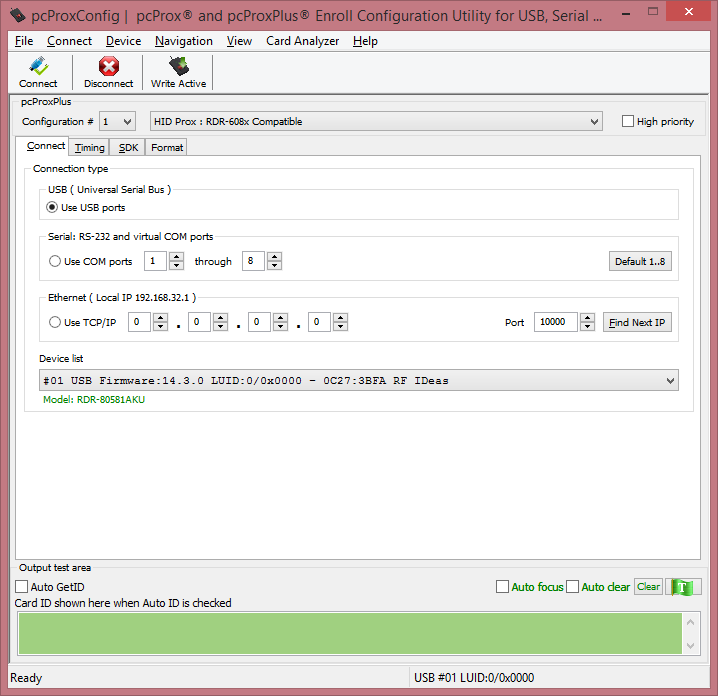
If the reader is not automatically detected you can click on the
Connectbutton to detect the readerThe reader should be shown in the device list
Select
Card Analyzerfrom the menu
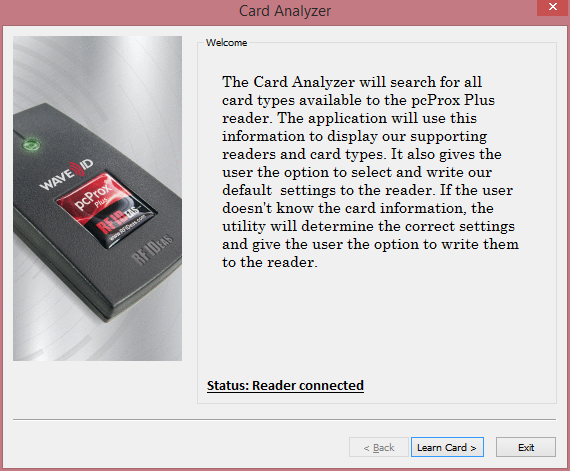
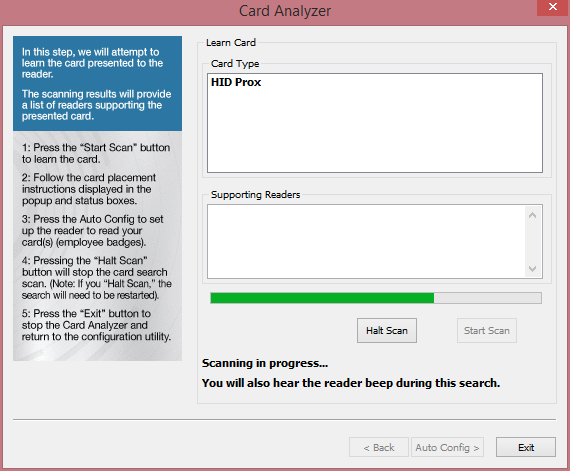
Click 'Learn Card'
Click Start Scan, and when prompted put the RFID card that you want the device to learn on the scanner. The card will need to stay on the reader until the scanning is complete.
3.

Click the 'Auto Config>' button
Select the Configuration # to set and click the 'Write' button
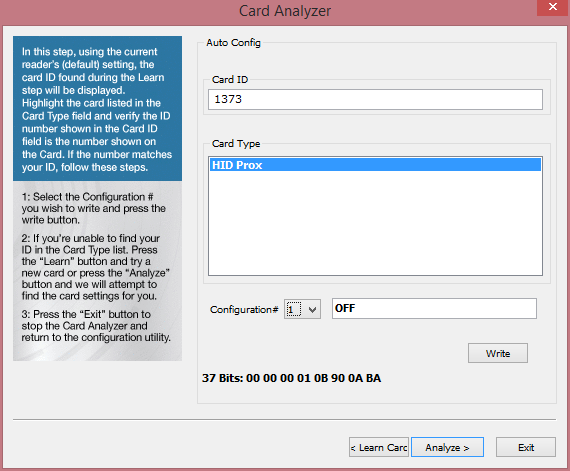
After the configuration has been written click 'Exit' to close the Card Analyzer dialog or click the 'Learn Card' button to learn another card type
Confirm that the configuration has the 'High priority' checkbox selected
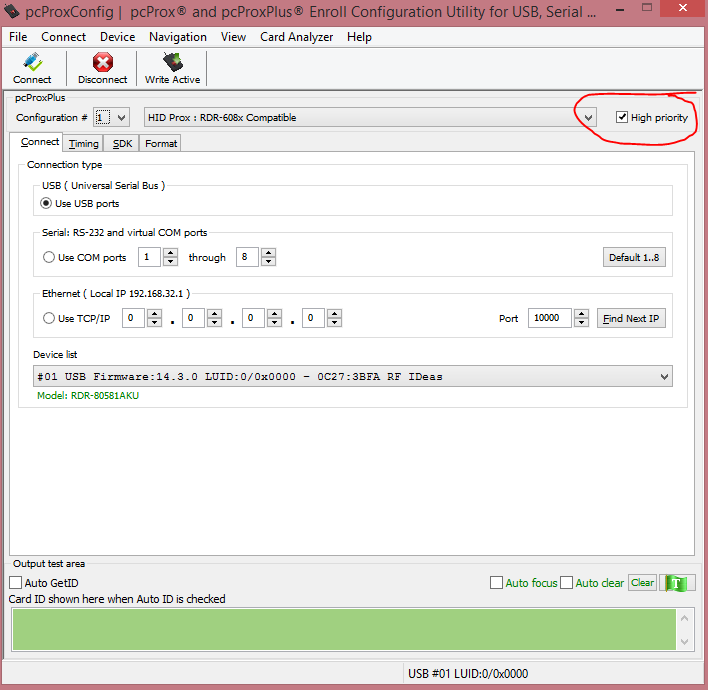
2. If two configurations are saved make sure this is selected for both
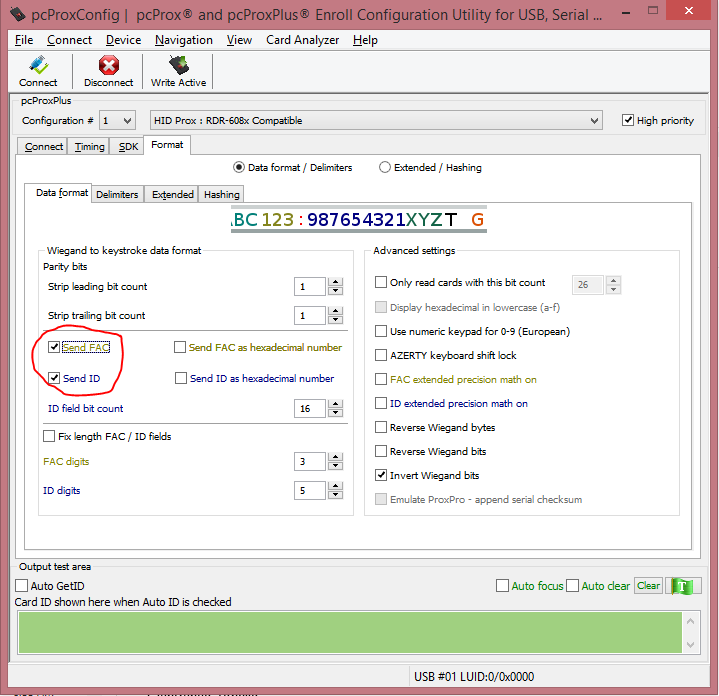
Select the 'Format' tab. On the 'Data Format' subtab do the following.
Confirm the 'Send ID' checkbox is selected
OPSWAT recommends that the 'Send FAC' checkbox is also selected
On the 'Delimiters' subtab, do the following
Confirm the Pre-data delimiter is set to <NONE>
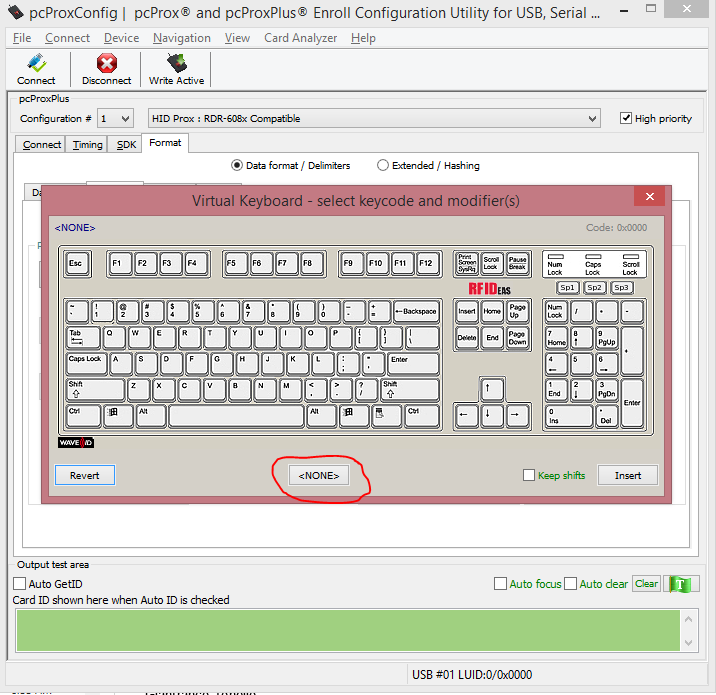
3. Confirm the Post-data delimiter is set to <NONE>
4. Confirm the Termination Keystroke is set to <ENTER>
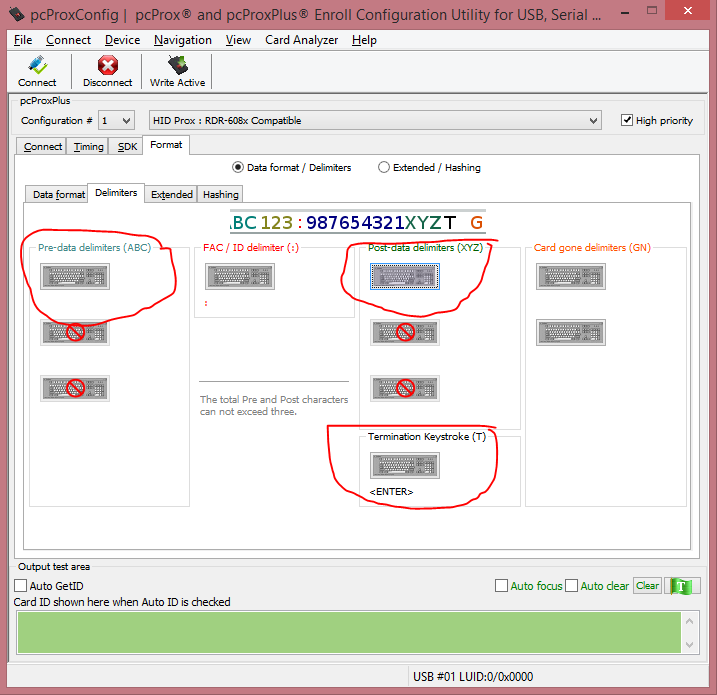
Click the 'Write Active' button to save the configuration. If there are two configurations set this needs to be done for both configurations.
Test the configuration by opening the Notepad application and scanning a card. The card ID should be written into Notepad.
Adding the pcProx Custom Authentication Module to MetaDefender Kiosk
Copy the following files from the custom authentication module download package into your
C:\Program Files (x86)\OPSWAT\Metadefender Kiosk\Client\AuthenticationdirectoryauthenticationModule.dll
CustomAuthExample.exe
omsConfig_CAM.ini
db
If you would like to restrict users to the RFID cards that are listed in the database
Set the property validate_ID=1 in omsConfig_CAM.ini
Open the 'db' file with a text editor, such as Notepad. Update/add the valid card IDs (can be read by pcProxConfig tool, step 14) with the corresponding user names in the format <Card ID>:<Name>. Only card IDs that are listed in this file can be used for authentication.
In the MetaDefender Kiosk Management Console, enable Custom Authentication. Configuration → User Authentication → View and configure user authentication → User Authentication → Custom Authentication
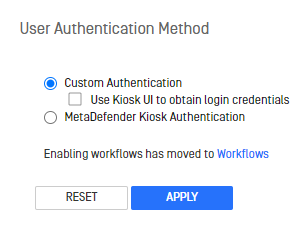
2. Click the 'Apply' button
Using the pcProx Custom Authentication Module
Users will be prompted to scan their RFID badge
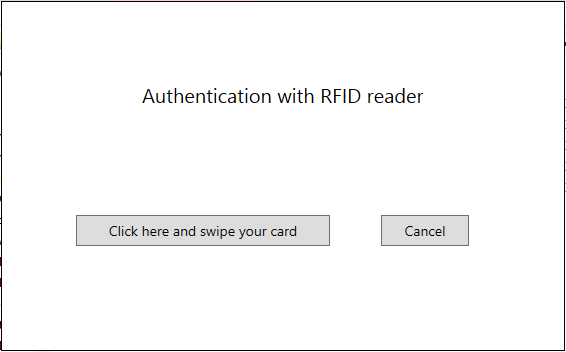
The ID from the card will be saved as the user ID for the session
In the session log viewable through the Management Console
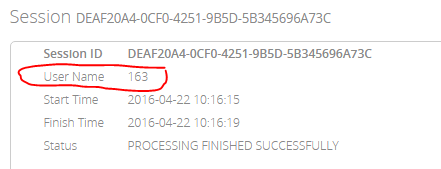
2. On the scan receipt
3. In the saved text log file