
Overview
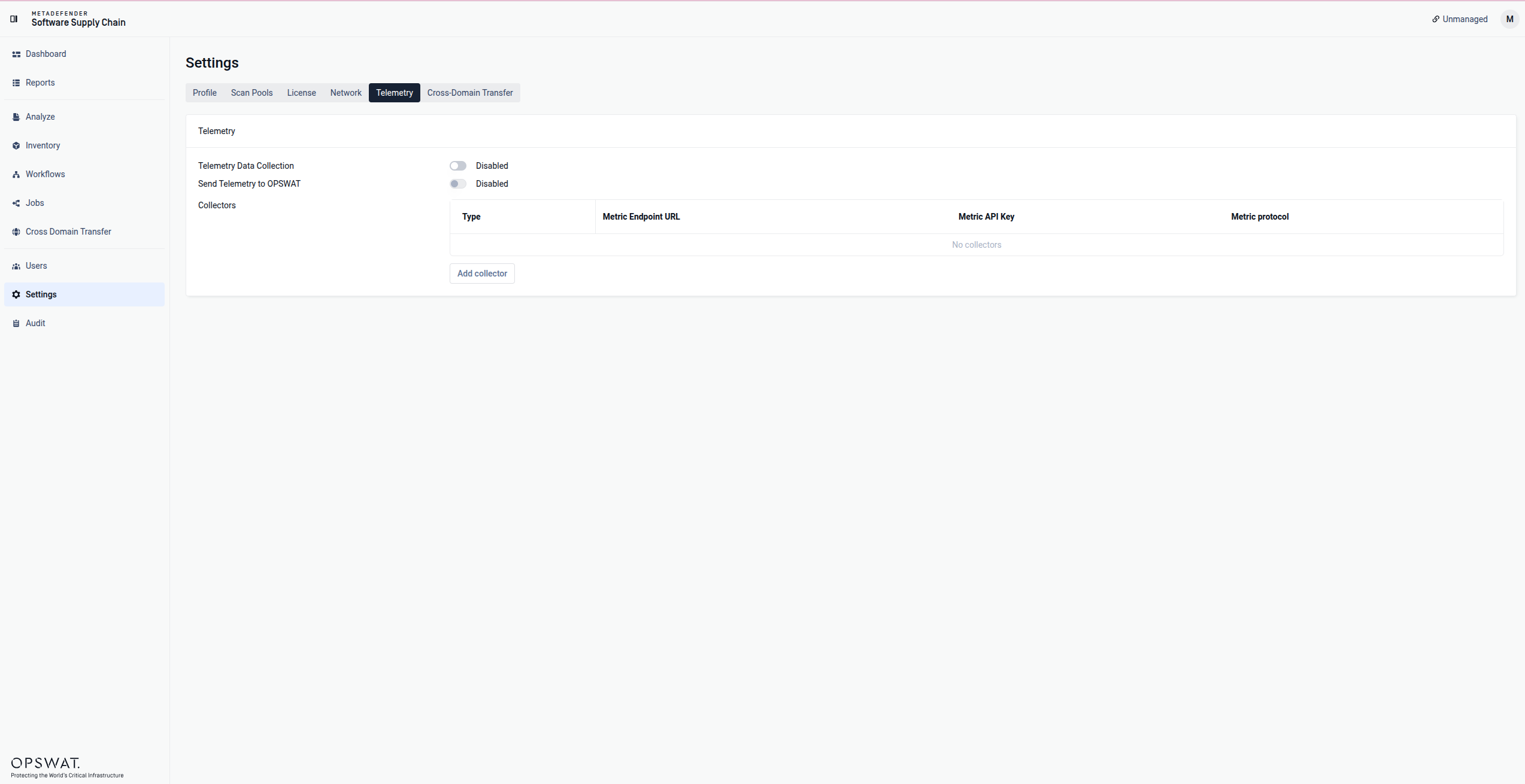
The Telemetry page lets an administrator control whether MetaDefender Software Supply Chain collects operational metrics about the product, and where those metrics are sent. Metrics are exported using the OpenTelemetry (OTel) standard to one or more collectors — external endpoints that receive and store the data.
In the left-hand navigation menu, click Settings. Click the Telemetry tab.
You'll land on the Telemetry page directly at Settings → Telemetry (URL: /settings/telemetry).
Telemetry is an administrative setting, so it appears under Settings alongside other deployment-wide configuration.
This is product/operational telemetry (health and usage metrics of the MDSSC deployment). It is not analytics about individual end-user clicks.
Page controls
1. Telemetry Data Collection
A master on/off switch.
State | Effect |
|---|---|
Enabled | The product collects metrics and exports them to any configured collectors. |
Disabled | Collection stops. The Collectors table is hidden, and both the Send Telemetry to OPSWAT switch and Add collector button are locked. |
Toggling saves immediately; you'll see a confirmation toast. If the save fails, the switch reverts to its previous state.
2. Send Telemetry to OPSWAT
When enabled, metrics are also forwarded to OPSWAT (an OPSWAT-managed collector) to help improve the product.
Only available while Telemetry Data Collection is enabled.
Saves immediately with a confirmation toast; reverts on error.
3. Collectors
A table of the endpoints that receive your telemetry data.
Column | Description |
|---|---|
Type |
|
Metric Endpoint URL | The destination the metrics are pushed to. |
Metric API Key | Shows |
Metric protocol | Transport format: |
OPSWAT-type collectors are read-only — no edit/delete actions.Customcollectors show edit and delete buttons.When collection is disabled, the table shows nothing; with no collectors configured it reads "No collectors."
Managing custom collectors
Add a collector
Click Add collector to open a side drawer:
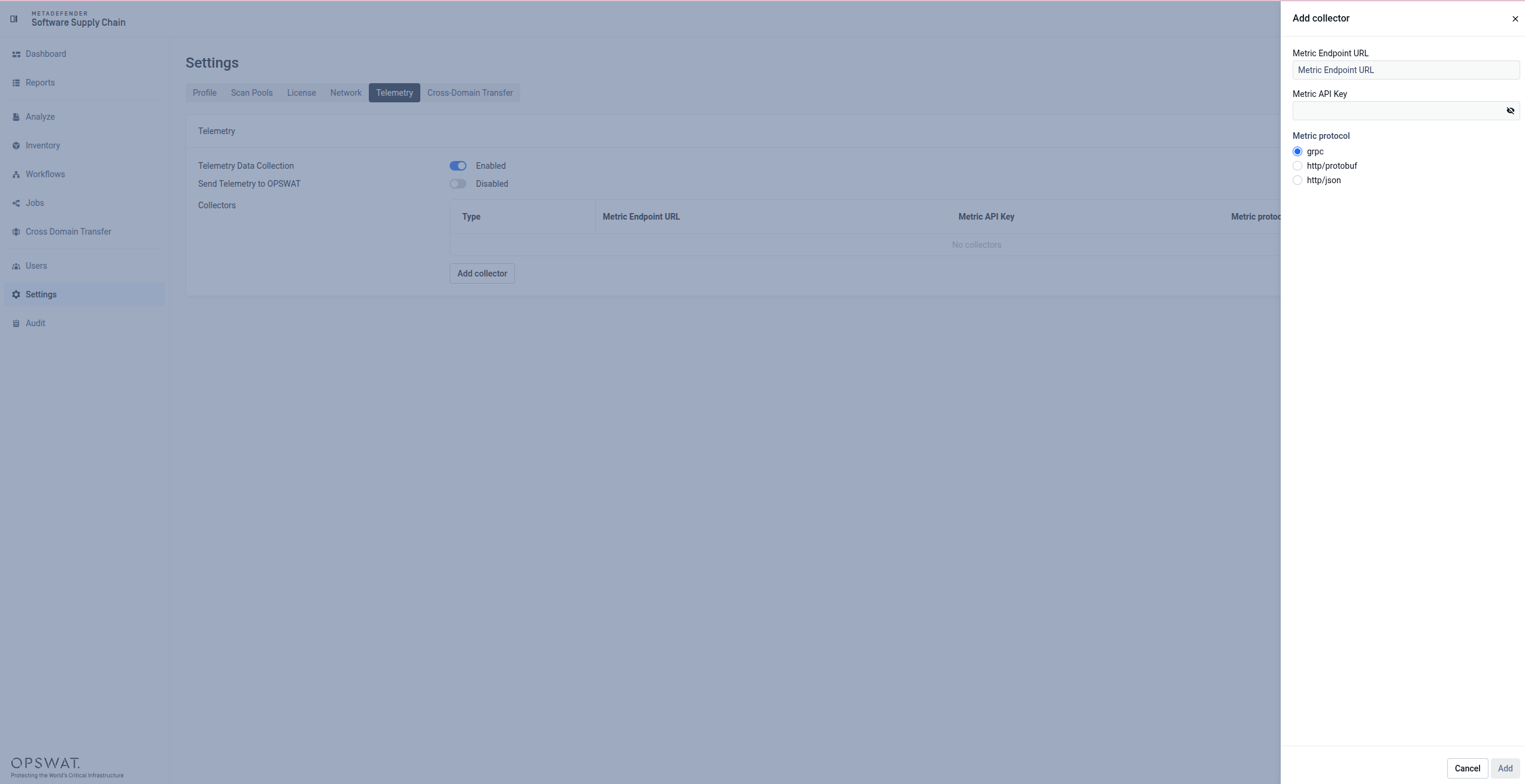
Field | Required | Notes |
|---|---|---|
Metric Endpoint URL | Yes | Must be a valid |
Metric API Key | No | Optional bearer/API key for the endpoint. |
Metric protocol | Yes | Choose |
Click Add to save. Invalid or empty URLs are rejected inline; a success toast confirms the addition.
Edit a collector
Click the edit (✎) icon on a custom row.
The Metric Endpoint URL is fixed (it identifies the collector) and cannot be changed.
Leave Metric API Key blank to keep the existing key; enter a new value to replace it. A stored key is indicated by a
•••placeholder.You can change the metric protocol.
Delete a collector
Click the delete (🗑) icon on a custom row. A confirmation dialog names the endpoint being removed; confirm to delete.
Notes & behavior
All changes save to the server immediately (no separate "Save" for the toggles).
Every action shows a success or error toast; failed toggle changes automatically revert.
API keys are write-only — the UI never reveals a stored key, only whether one exists.