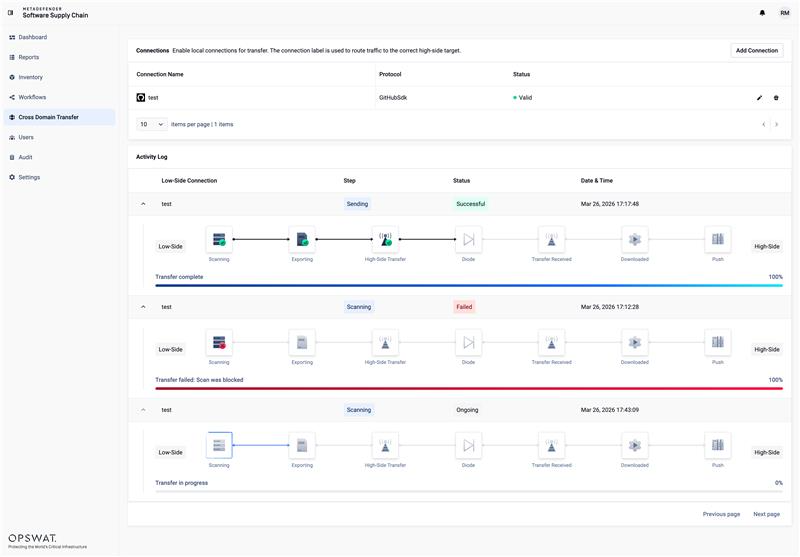
Cross Domain Transfer is a feature that allows users to securely transfer data from a Low Side environment to a High Side environment using MetaDefender Software Supply-Chain and optionally, Data Diodes.

This feature is designed for environments where strict separation between networks is required while still allowing controlled data flow into a secure zone.
High Side Configuration
The High Side environment is the secure destination where scanned source code or data is transferred after passing inspection.
This is typically the production or more restricted environment.
High Side Setup
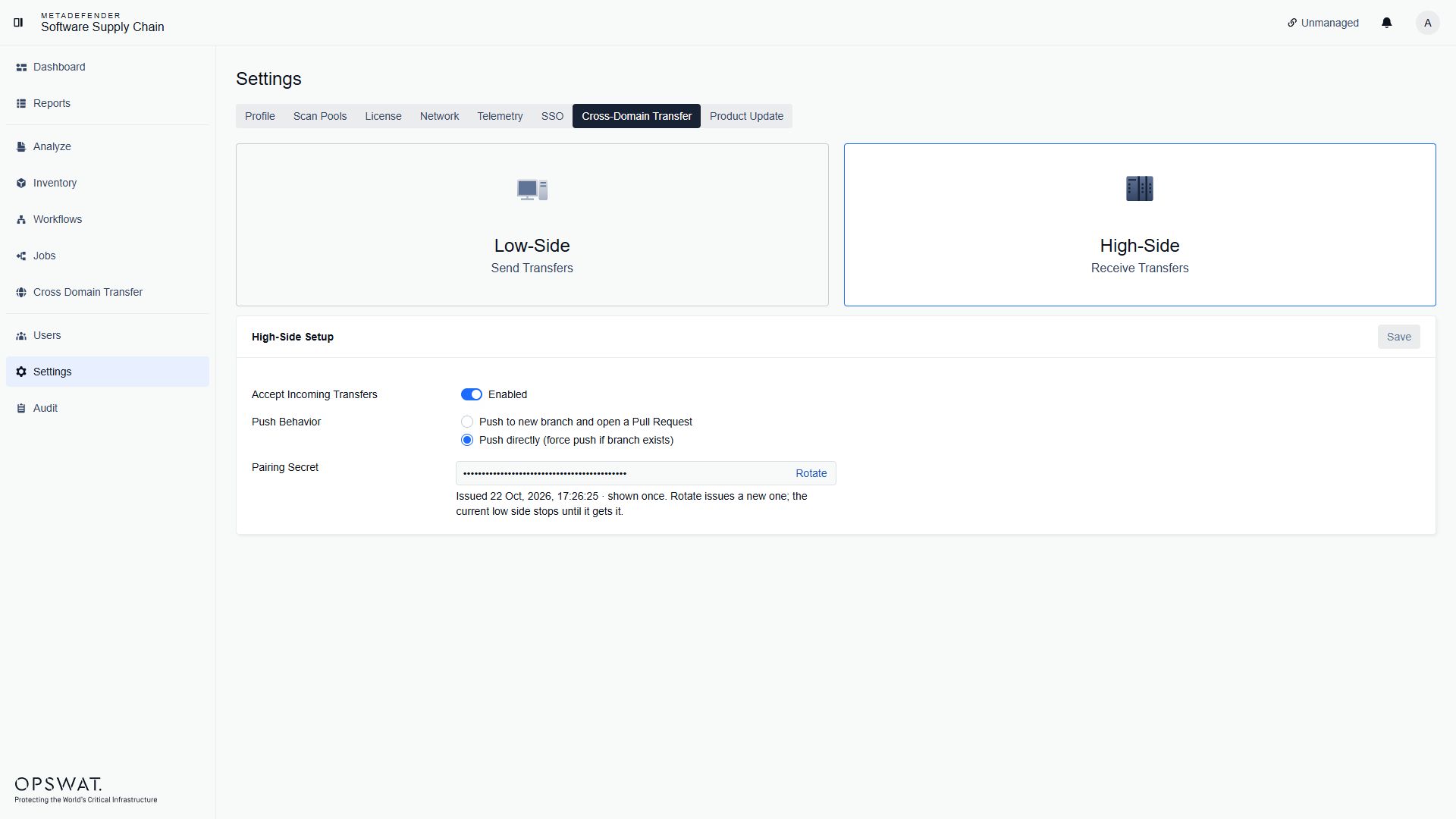
In your High Side MDSSC Instance -> Open Settings.
Navigate to the Cross Domain Transfer tab.
Select "High Side" to configure this as a High Side environment.
Accept incoming transfers using the toggle switch.
Configure your Push Behavior either via pull request or direct push.
Under Pairing Secret, click Generate. The secret is shown only once. Copy it now. You need it for the Low Side Setup.
After the secret is generated, the field shows it masked and the button changes to Rotate.
Warning: Rotating issues a new secret. Transfers from the current low side fail until you enter the new secret on the low side.
Click on the "Save" button.
The import scan settings are set on each connection mapping, not here. See Mapping the Transfer.
To push code to the High Side, ensure your API tokens have write permissions. You may need to regenerate them if they were created with read-only access.
Low Side Configuration
The Low Side environment is where the source code or data resides before being scanned and transferred to the High Side (secure zone).
This is typically the development or less restricted environment.
Low Side Setup
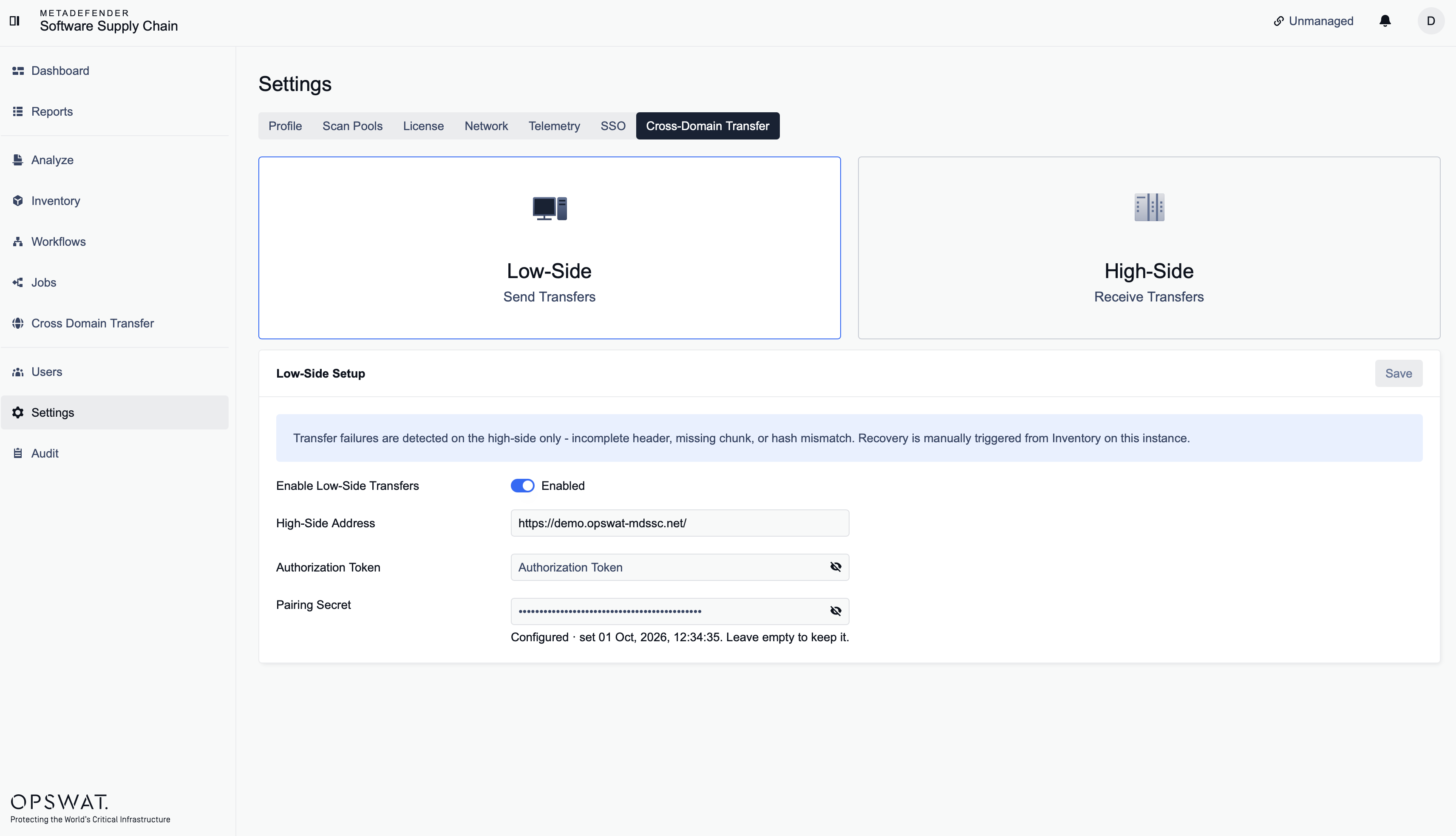
In your Low Side MDSSC Instance -> Open Settings.
Navigate to the Cross Domain Transfer tab.
Select "Low Side" to configure this as a Low Side environment.
Enable transfers using the toggle switch.
In High-Side Address, enter the address of the High Side instance or the Data Diode.
In Authorization Token, enter an API key of a High Side user. To create one, see Configuring an API Key.
Under Pairing Secret, paste the secret you generated on the high side. This field is required.
Click on the "Save" button.
The Authorization Token is the High Side user's API key. If that user saves a new API key, update the Authorization Token on the Low Side. Transfers fail until you do.
Enable the transfer in the workflow
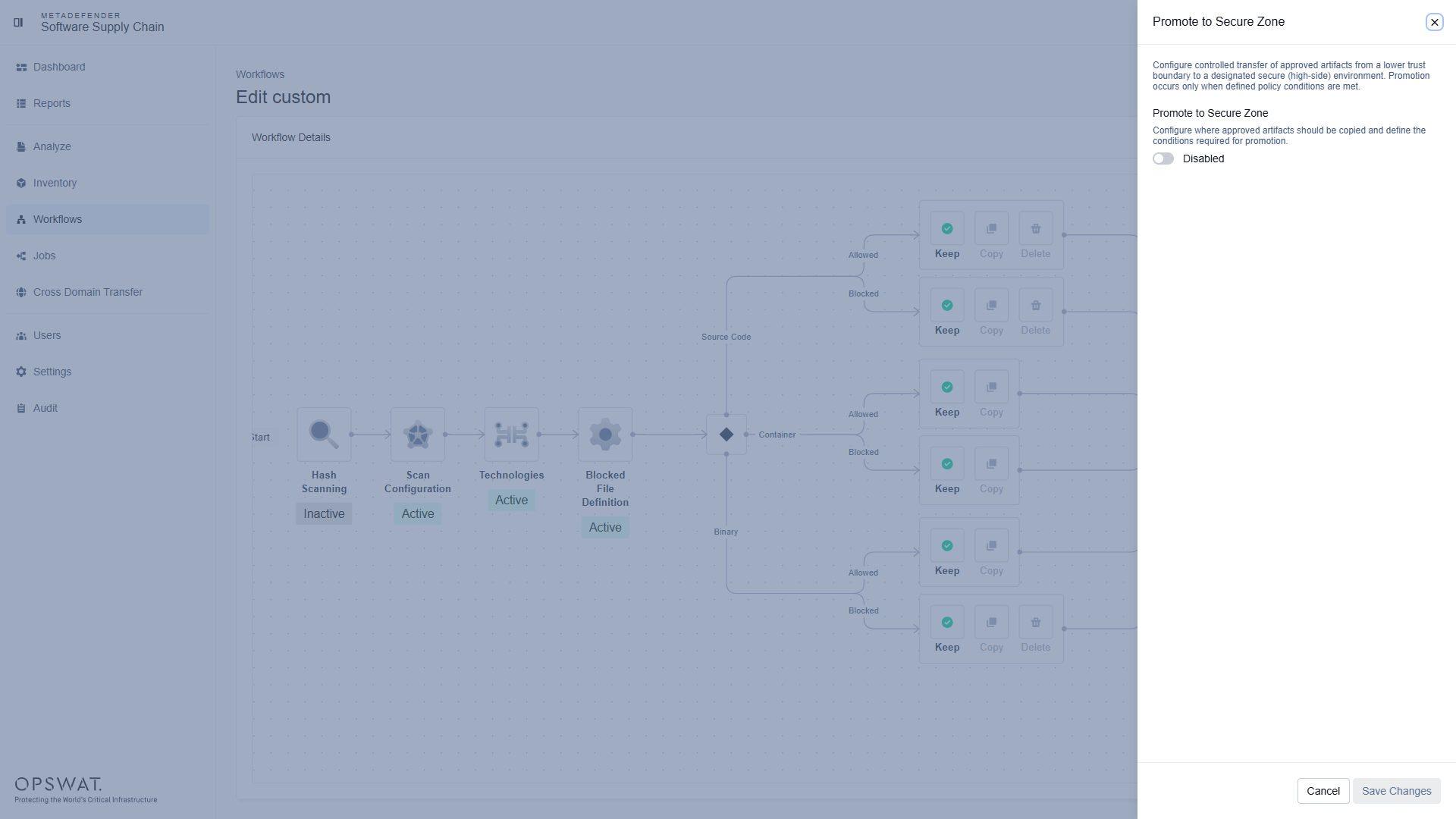
After you configure both sides, enable the transfer in a workflow on the Low Side instance.
Navigate to Workflow in the left sidebar and open or create a custom workflow.
In the workflow diagram, click the Promote to Secure Zone node and turn it on.
Click Save Changes.
The workflow's Blocked File Definition decides which files block the transfer. To change it, click Edit Blocked File Definition. For details, see Workflows.
After the scan completes, the Low Side sends the transfer to the High Side only when all files scan successfully and pass the workflow's Blocked File Definition.
Operating
Once both MDSSC instances are individually set up, you will need to link the connections for which you want cross-domain transfers.
Mapping the Transfer
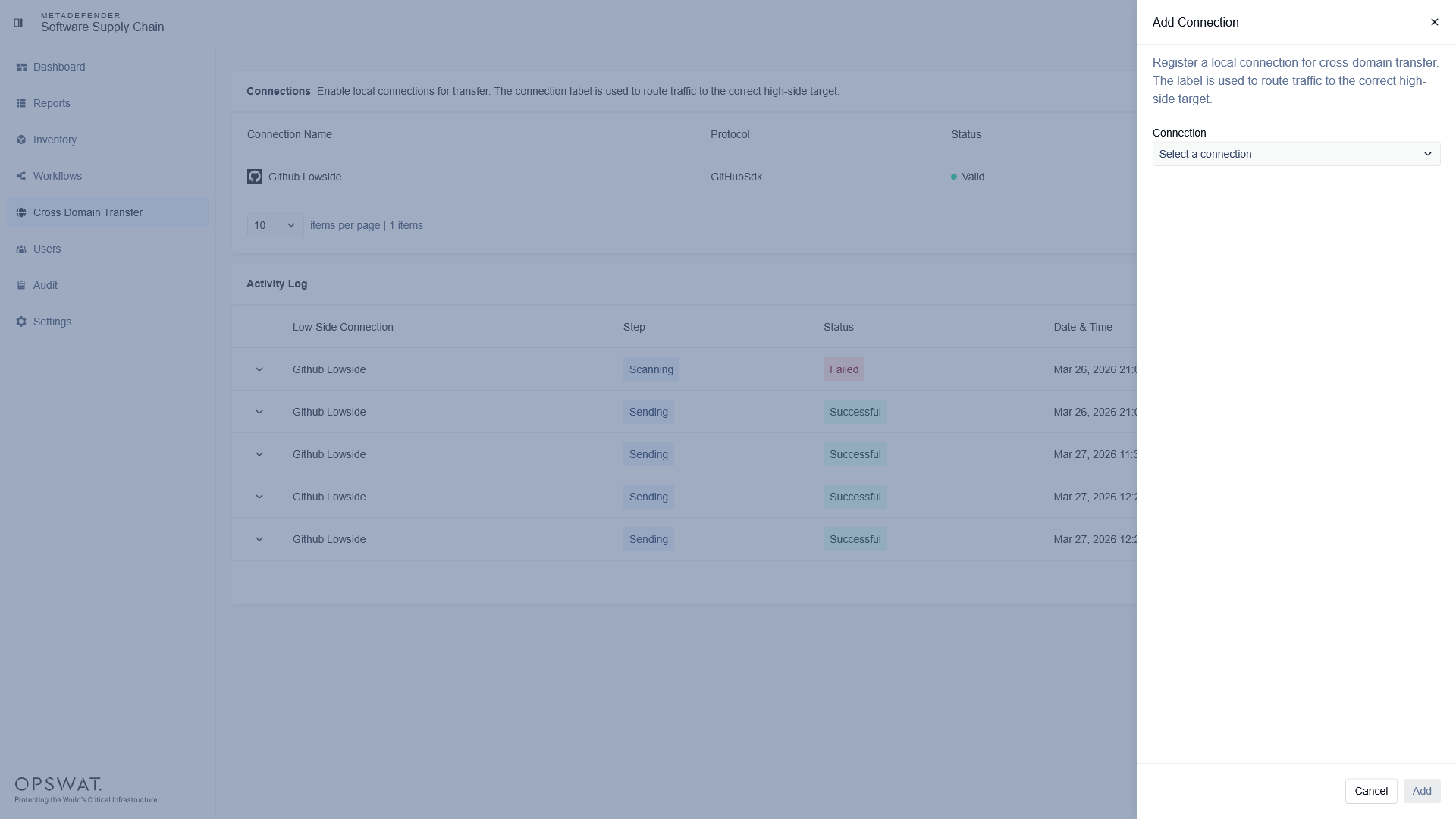
On the Low Side, navigate to Cross Domain Transfer > Connections and add a connection. Give it a label. The label routes the transfer to the correct High Side target.
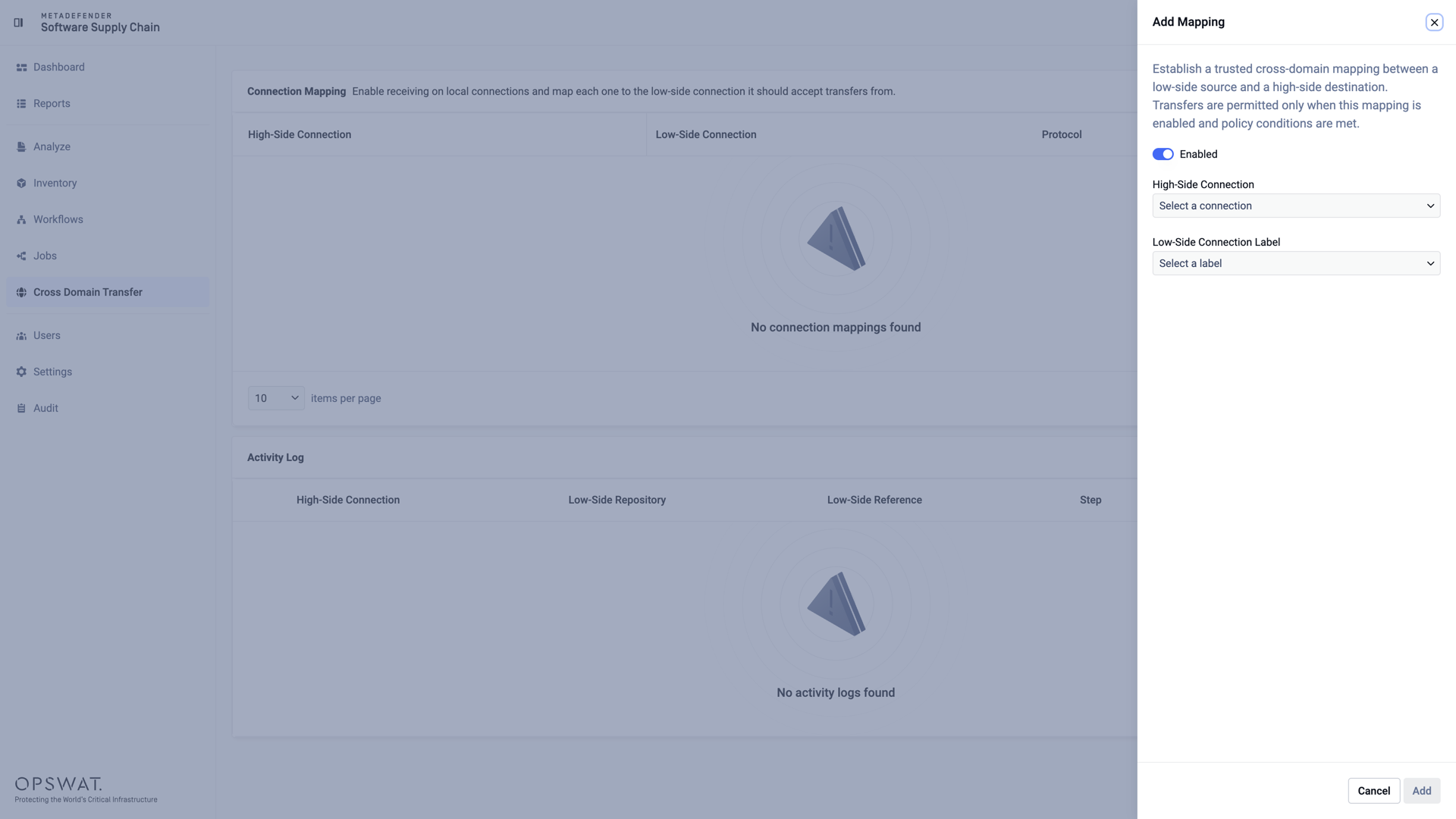
On the High Side, navigate to Cross Domain Transfer > Connection Mapping and click Add Mapping.
Fill in the fields:
High-Side Connection: the local connection that receives the transfer. Required.
Low-Side Connection Label: the label of the Low Side connection. Required. You can set it only when you add the mapping.
Scan Before Import: scans each incoming transfer before it is imported. On by default.
Workflow: the workflow for the import scan. It appears only when Scan Before Import is on. The default is the Default Workflow.
Click Save.
To change the import scan settings later, open the mapping and click Edit Mapping.
Import scan on High Side
When Scan Before Import is on, the High Side scans each transfer with the mapping's workflow before it imports it. The High Side imports the transfer when all files scan successfully and pass the workflow's Blocked File Definition. Infected files always block the import.
If the High Side does not import a transfer, the Activity Log shows that the scan blocked it. Click View Scan to see the file results.
If the workflow has Hash Scanning on, the High Side does not scan again the files it already scanned within Days Before Rescan. This makes repeated imports faster.
Triggering & Monitoring
Once the feature is configured:
Start a scan on the Low Side with the workflow that has Promote to Secure Zone on.
Use the Activity Log on both the Low Side and High Side to monitor the transfer in real time.
If the transfer completes successfully, your code will now be available on the High Side.
The Activity Log uses a real-time connection. Behind a TLS-terminating load balancer, it needs ALLOWED_ORIGINS.