
TA Jira Connection lets MetaDefender Software Supply Chain create bug tickets on a designated board for detected vulnerabilities after a scan. To configure one, navigate to the Settings menu and open the Network tab. Jira connections are managed under the Third-Party Connections → Jira Configuration section.
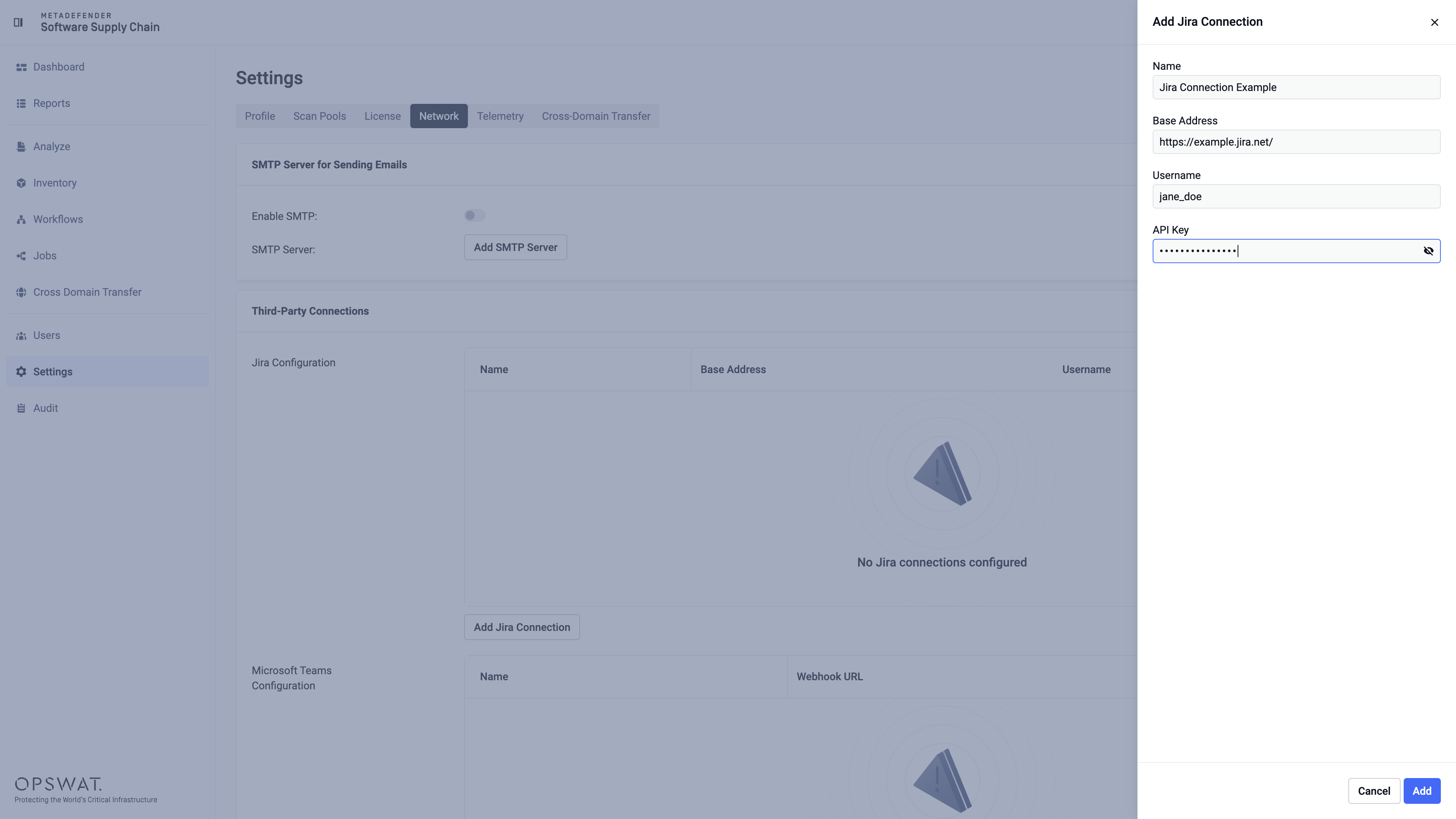
Adding a Jira Connection
Click the "Add Jira Connection" button. A side panel opens where you provide:
Name — a name for the connection.
Base Address — your Jira instance URL (e.g.
https://your-domain.atlassian.net).Username — your Jira username or email (required).
API Key — your Jira API key (required).
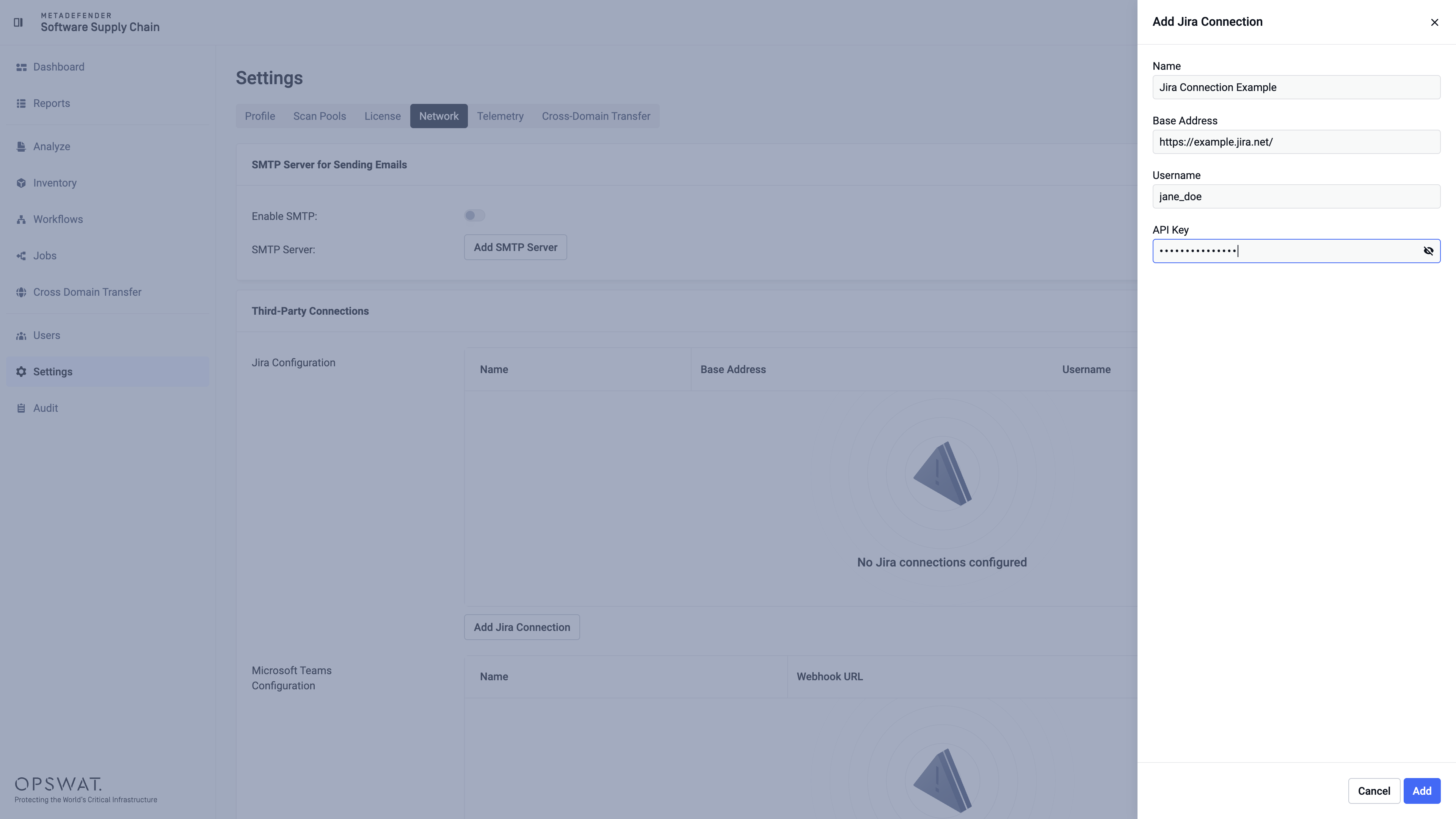
Click "Add" to save. On success, the message "Jira connection was added successfully." is shown and the connection appears in the Jira Configuration table (Name, Base Address, Username).
Multiple Jira Connections can be registered. Only one per workflow can be used to generate tickets.
Editing a Jira Connection
Each connection row has an edit (pencil) icon. Click it to reopen the same form, pre-filled with the current values, and save your changes.
Deleting a Jira Connection
Each connection row also has a delete icon. A Jira Connection can be deleted only if it is not used by a workflow; attempting to delete one that is in use results in an error.