
To configure a Microsoft Teams Connection that can be used to generate notifications on a designated channel for each specified vulnerability after every scan, navigate to 'Settings' menu and go to the 'Network' tab:
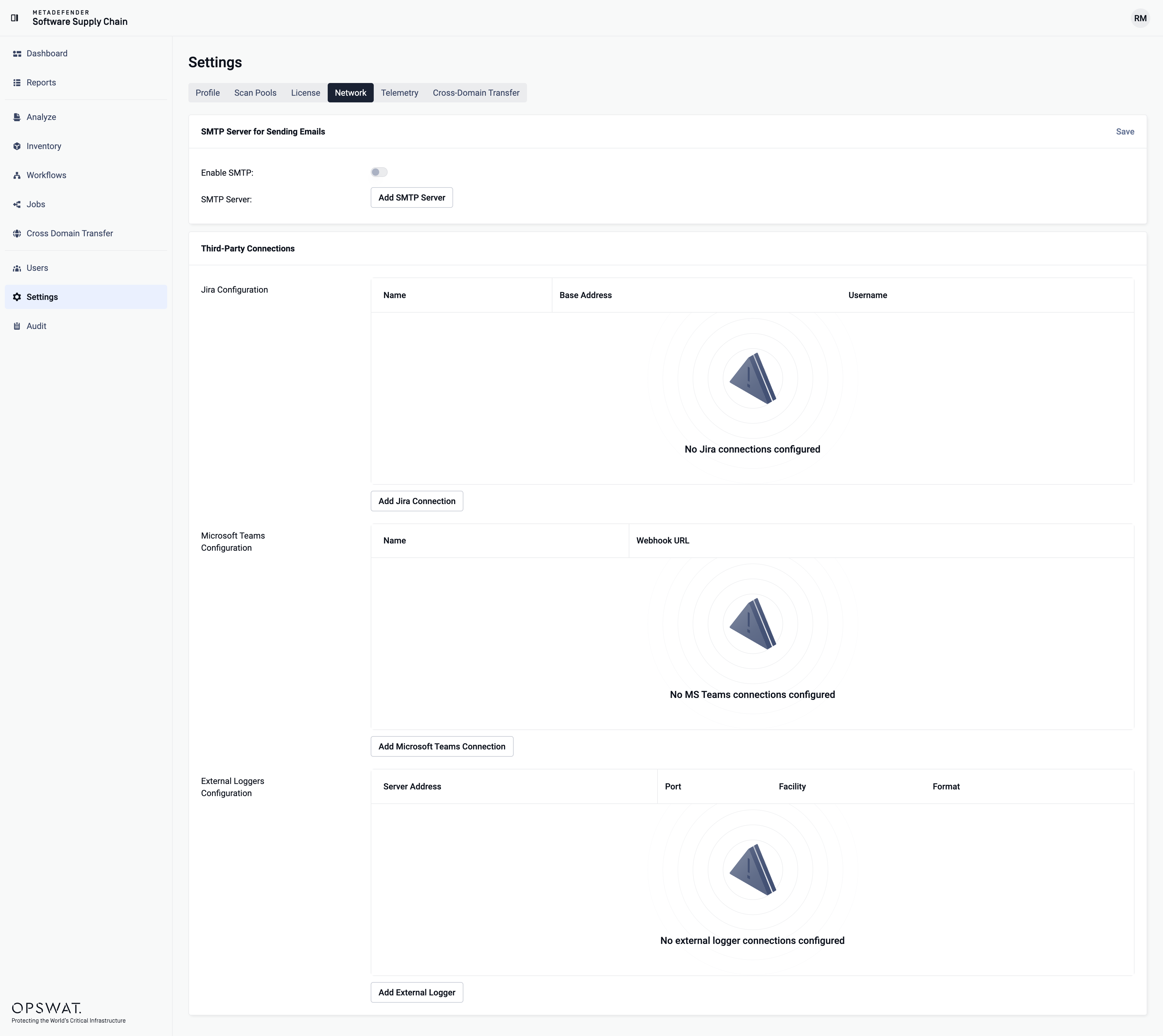
To add a Microsoft Teams Connection**,** click on "Add Microsoft Teams Connection" button:
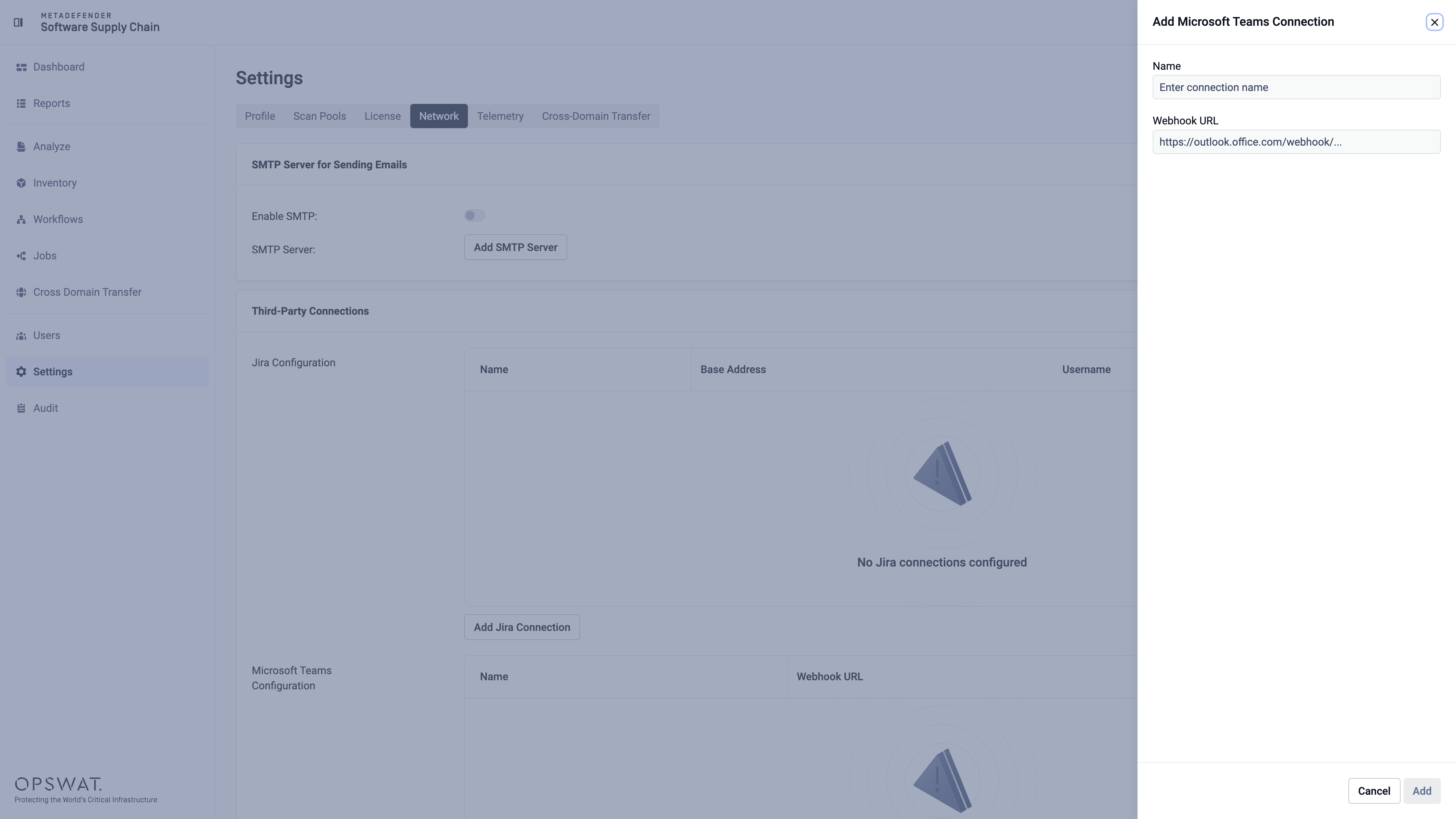
Fill in the required fields: give the connection a name to easily identify it later and add a valid Webhook URL. In order to generate the Webhook URL, there are 2 options:
Externally, using Microsoft Power Automate: Go to Power Automate, create a workflow and configure workflow steps. Example:
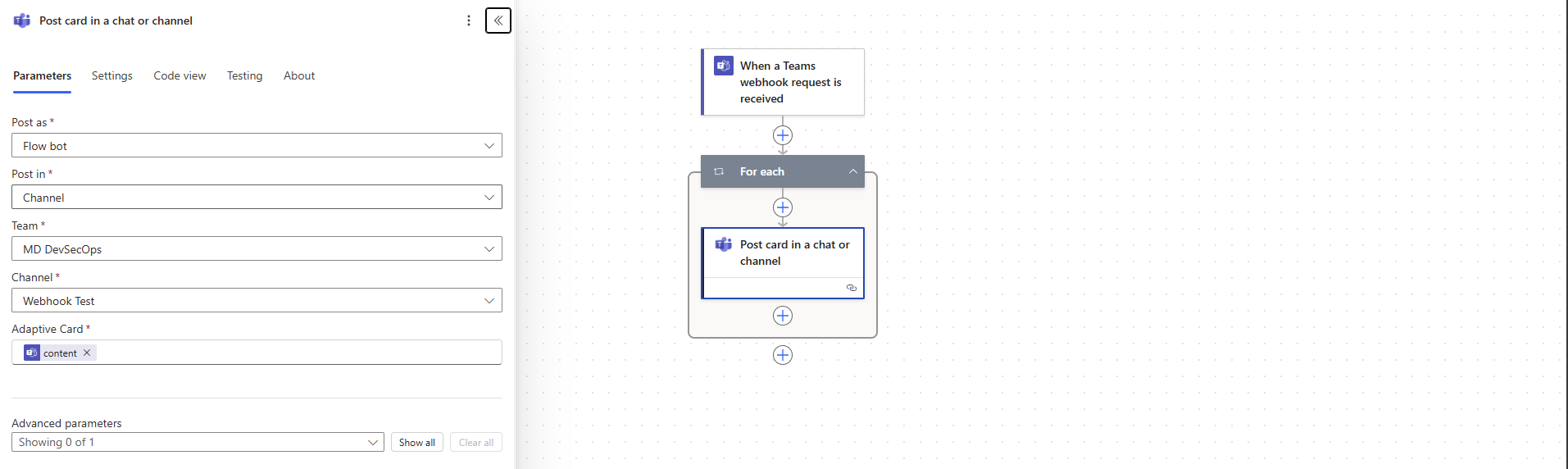
After finished, copy the trigger URL and insert it in MDSSC, in Add Microsoft Teams form.
Inside Microsoft Teams: In Microsoft Teams, right click the designated channel and Select Workflows from the dropdown menu. Configure the webhook as following:
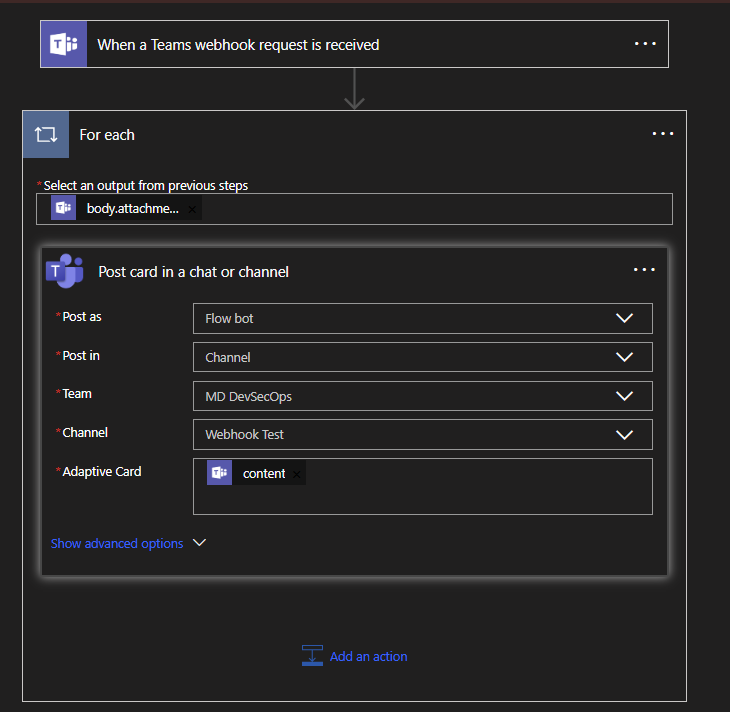
When done, copy the webhook URL and use it in MDSSC.
After filling in the Microsoft Teams form, click on the "Add" button. MetaDefender Software Supply Chain will test if the provided credentials are correct and if they are accessible, the configuration will be saved. After that, the Microsoft Teams Connection will be listed in the 'Network' tab, and a confirmation notification will be sent in the channel:
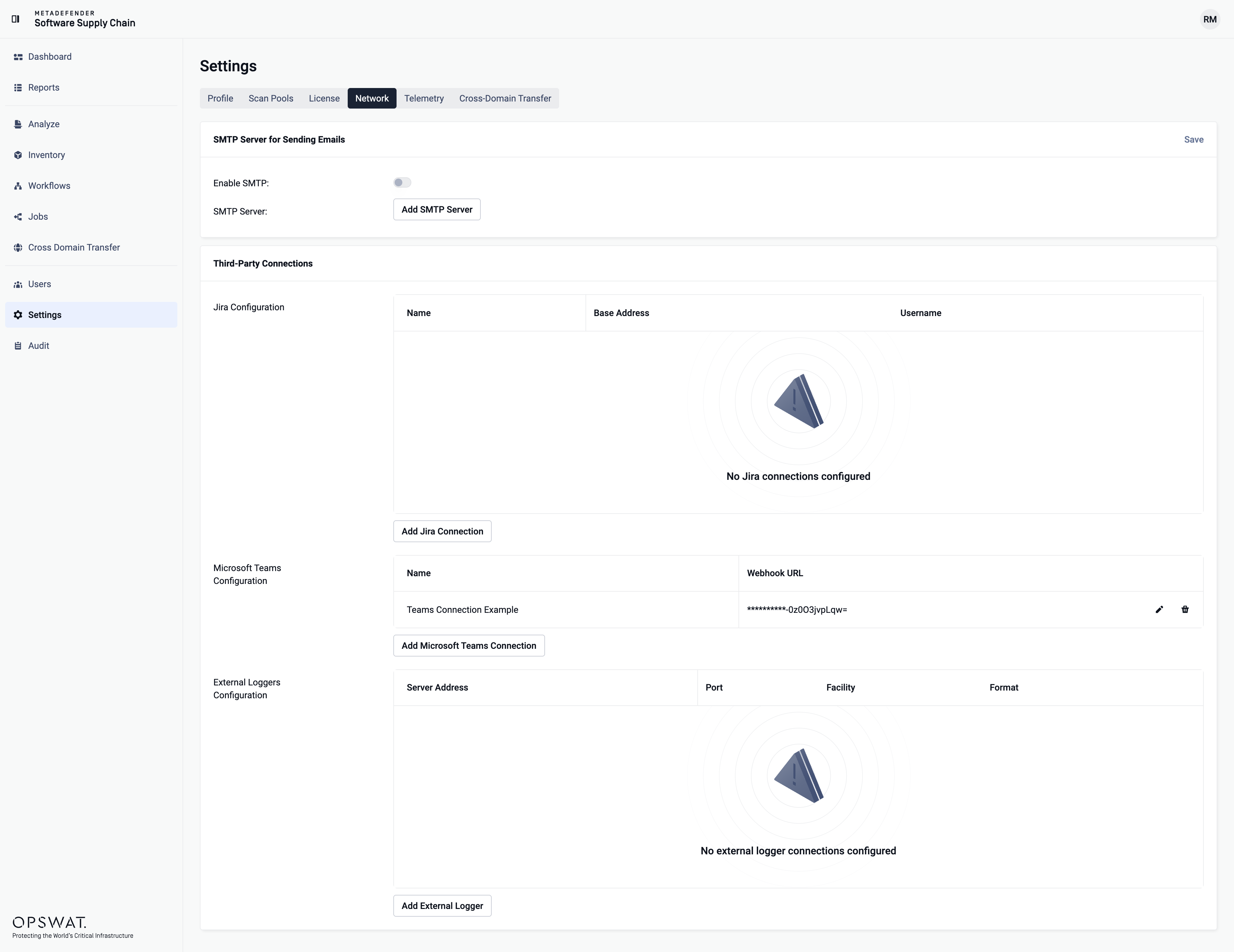
Multiple Microsoft Teams Connections can be registered. Only one per workflow can be used for notifications.
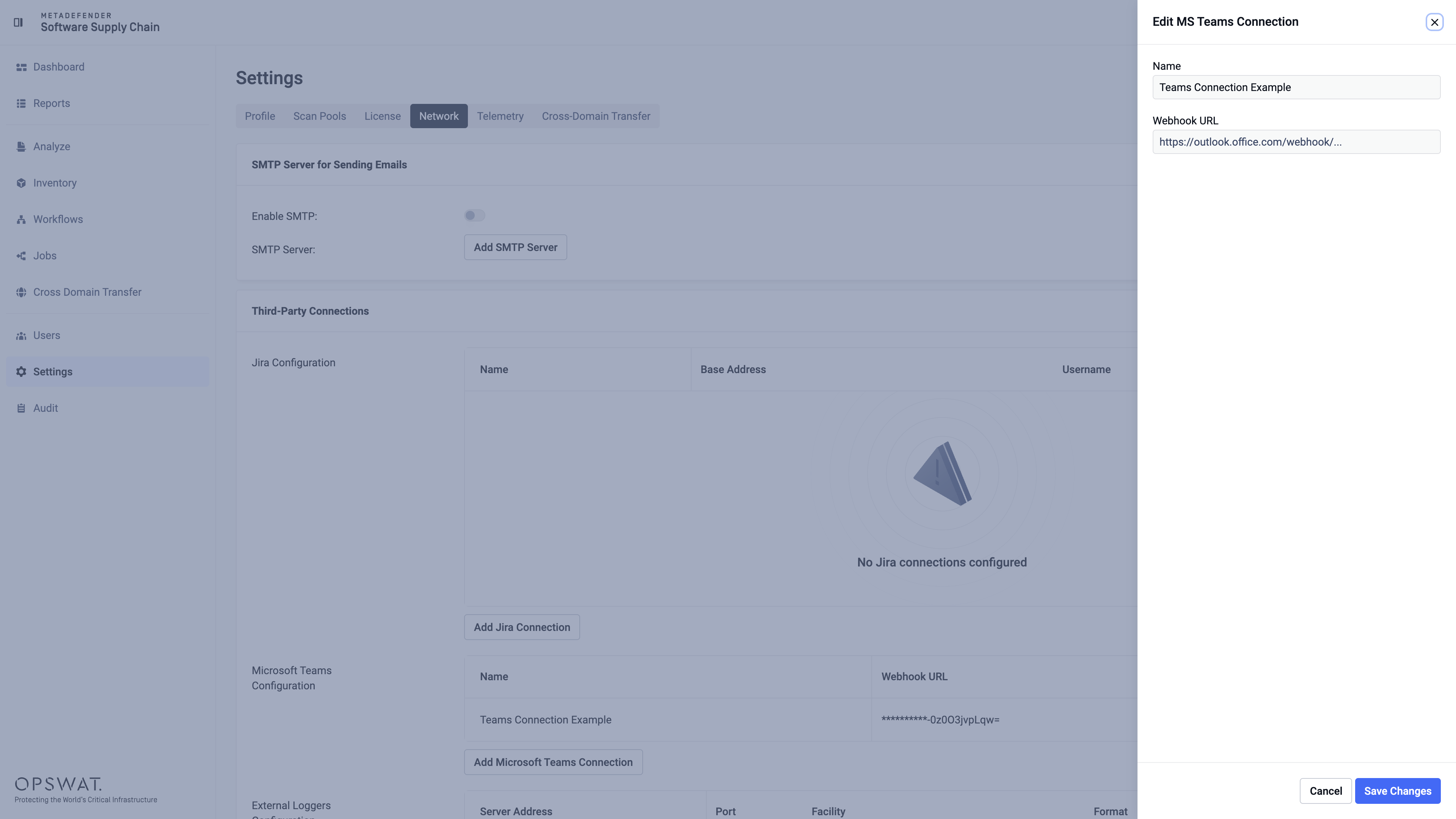
At this point the Microsoft Teams Connection can be edited by clicking the three-dot button and by selecting "Edit" option which will open the same form that was used to add the connection in the previous step.
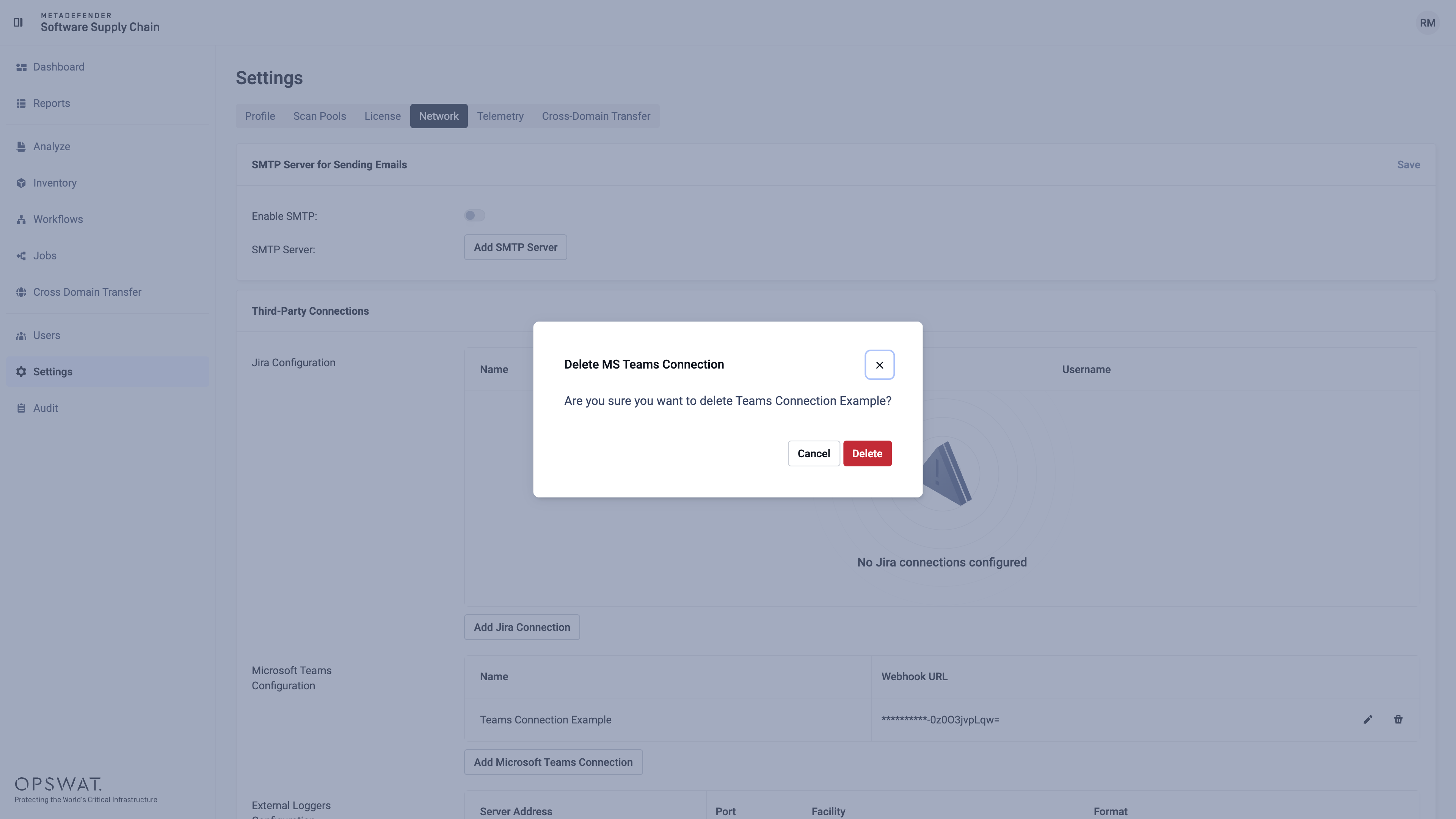
Microsoft Teams Connection can also be deleted if it is not used by a workflow. Otherwise, an error will appear:
After a successful scan, a notification should be received on the selected Microsoft Teams channel, highlighting the scan report findings.