
User type: Organization User
Role: View Only/Full Access on Notifications Management
As an organization admin, or a user with Full Access on the Notifications Management role object, you can keep a list of Default Support Case Watchers for your organization by navigating to My Organization > Notifications. When default watchers are turned on, every contact in the list is added as a watcher on each new support case of your organization that is submitted in My OPSWAT Portal, so your teammates receive case updates without being added to each case one by one.
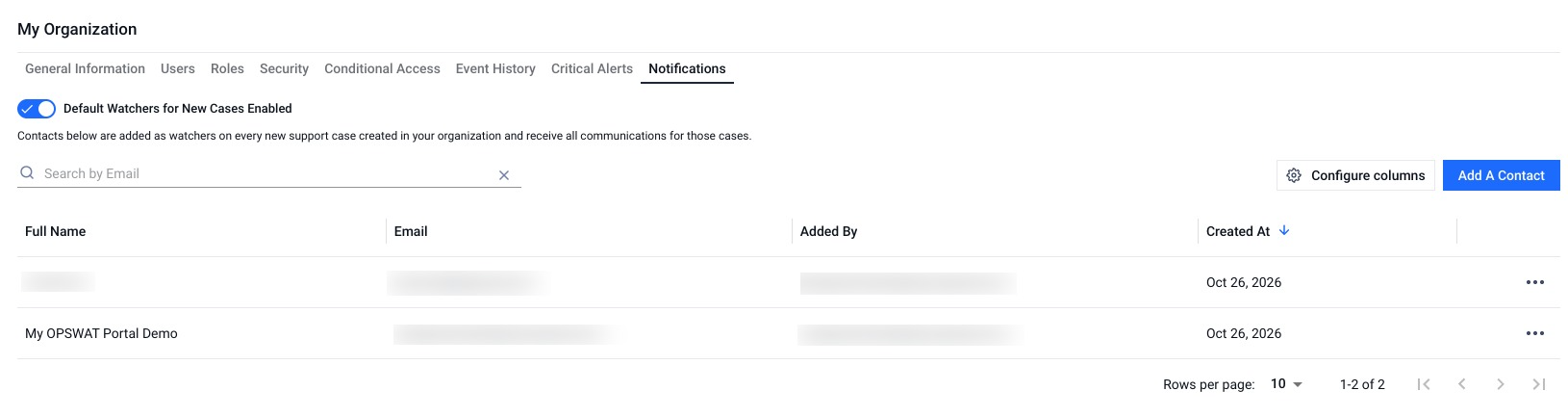
Default watchers are added to new cases only. Turning default watchers on or off, or changing the list, does not change the watchers of existing cases, except when you choose to remove a contact from their open cases (see Remove a default watcher).
Default watchers list
The list shows each contact with the following columns:
Full Name: the name of the user in your organization whose email matches the contact's email. Shows
-if no user in your organization matches.Email: the email address of the contact.
Added By: the email address of the user who added the contact.
Created At: the date the contact was added.
You can search the list by email. By default, the list is sorted by Created At, oldest first.
Turn default watchers on or off
The switch at the top of the Notifications tab controls whether the contacts in the list are added to new cases. The switch is off by default for every organization, so no contact is added to cases until a user with permission turns it on.
Default Watchers for New Cases Enabled: the contacts in the list are added as watchers on every new support case of your organization submitted in My OPSWAT Portal, and receive all communications for those cases.
Default Watchers for New Cases Disabled: paused. The list is kept, but no contact is added to new cases.
To change the setting:
Navigate to My Organization > Notifications.
Turn the switch on or off.
The setting applies to your current organization only.
Add a default watcher
Navigate to My Organization > Notifications.
Add a contact to the list. A dialog opens.
Enter the contact's Email.
Click Add. The button stays disabled until you enter a valid email address.
The contact appears in the list. If the email address is already in the list, a message is shown under the Email field and the contact is not added again.
Remove a default watcher
Navigate to My Organization > Notifications.
Open the menu on the contact's row and select Remove from Default Watchers.
In the confirmation dialog, choose what happens to the open cases the contact is already watching:
Keep them on existing cases (default): the contact stays a watcher of the cases they already watch and keeps receiving updates there. From now on, they are not added to new cases.
Also remove from all [N] open cases: the contact stops receiving updates on those open cases immediately. Closed cases are not changed.
Click Remove.
Which cases get default watchers
When default watchers are turned on, the contacts in your organization's list are added when a new support case of your organization is created in My OPSWAT Portal. This includes:
cases submitted by users of your organization.
cases a partner submits in My OPSWAT Portal on your organization's behalf. The partner is the case creator, so they already receive notifications.
To add a watcher to a single case instead, use Watch a Case (CC) on the case. See Support Case Management.
Permissions
Access to the Notifications tab is controlled by the Notifications Management role object:
View Only: see the Notifications tab, the default watchers list (search, sort and paging), and whether default watchers are turned on.
Full Access: also add and remove default watchers, and turn default watchers on or off.
The built-in Super Admin and Admin roles have Full Access, and the User role has View Only. In partner organizations, MDF Admin has Full Access and Partner User has View Only. See Role Objects and Permissions.
Every change to the list or the switch is recorded in Event History.
Related pages
Support Case Management - view your cases and add watchers to a single case
Critical Alerts Users - choose who receives license expiration and urgent OPSWAT alerts
Event History - review changes made in your organization
For Single Organization - role objects and permissions