
Who can use this feature?
User type: Organization user
Role: Full Access on Access Management
Conditional Access lets an organization administrator control where your organization's users are allowed to access the organization from, based on their network location.
You define policies that allow or block access by IP address, IP range (CIDR), or country, and they apply to two kinds of access:
User access - when a user enters the organization (after sign-in or when switching organizations).
API and integration access - when an OAuth application or integration calls My OPSWAT Portal APIs on behalf of the organization using the organization's client credentials or token.
This adds an organization-level layer of protection on top of Multi-Factor Authentication (MFA) and account lockout.
Prerequisites
You belong to an organization and have Full Access on the Access Management role object. View Only lets you see Conditional Access but not change it.
You know the IP addresses, IP ranges, or countries you want to allow or block.
How Conditional Access works
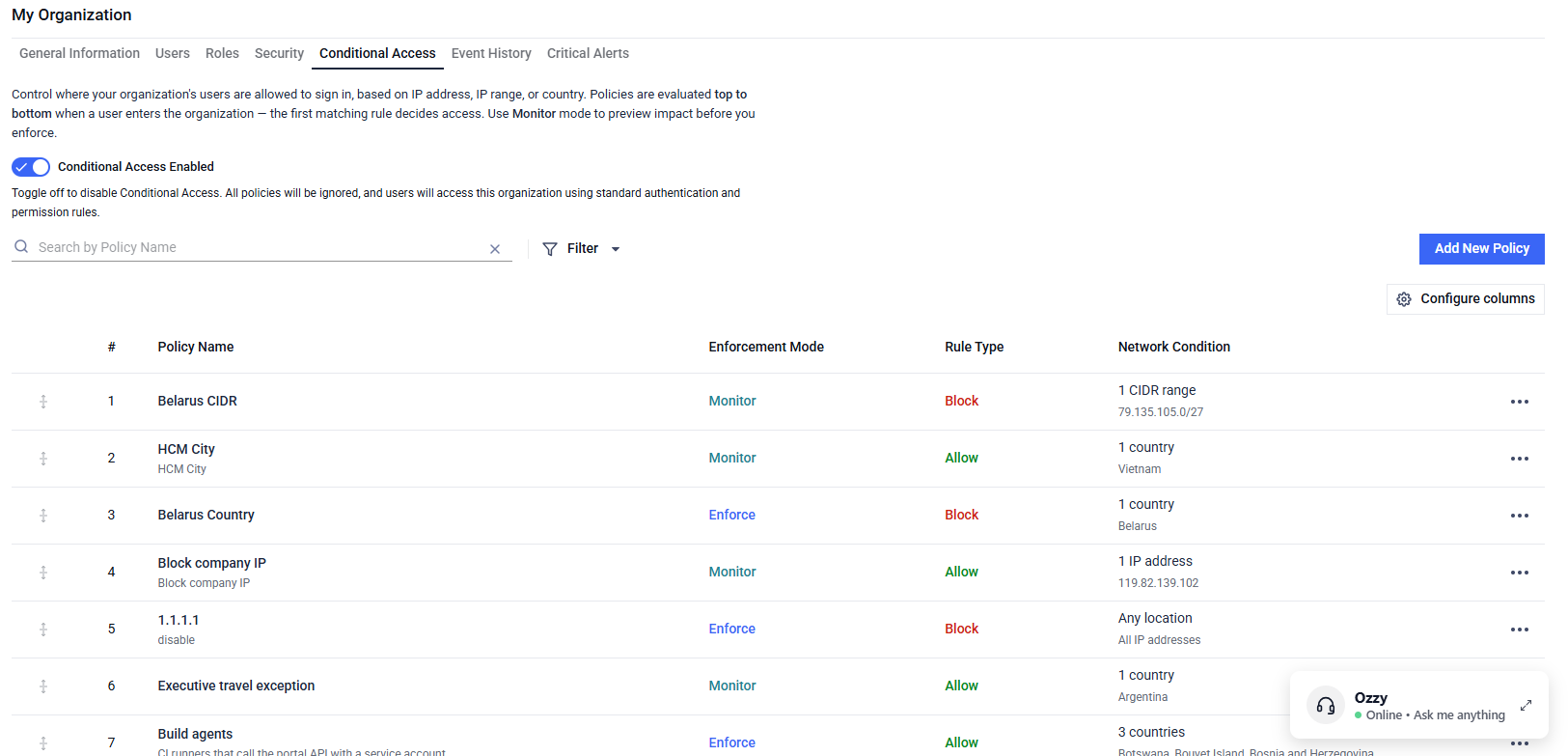
Conditional Access is off by default until you turn on the master switch for your organization. While it is off, all organization access are allowed and event logs are recorded as usual.
Policies are evaluated from top to bottom. My OPSWAT stops at the first policy whose conditions match the user's network location and applies that policy's result:
A policy set to Disable enforcement mode is skipped during evaluation.
A policy set to Monitor mode is never blocked — the system only records an event log (
WOULD BE ALLOWED/WOULD BE BLOCKED) so admins can evaluate impact before enforcing.A policy set to Enforce mode actively allows or blocks access according to its rule type and records an event log (
ALLOWED/BLOCKED).
Changes affect new organization-access attempts only. Already-active organization sessions are not interrupted.
How to turn Conditional Access on or off
Go to My Organization and open the Conditional Access tab.
Find Conditional Access.
Use the master switch to enable or disable Conditional Access for your organization.
When Conditional Access is disabled, all user access is allowed.
How to create a policy
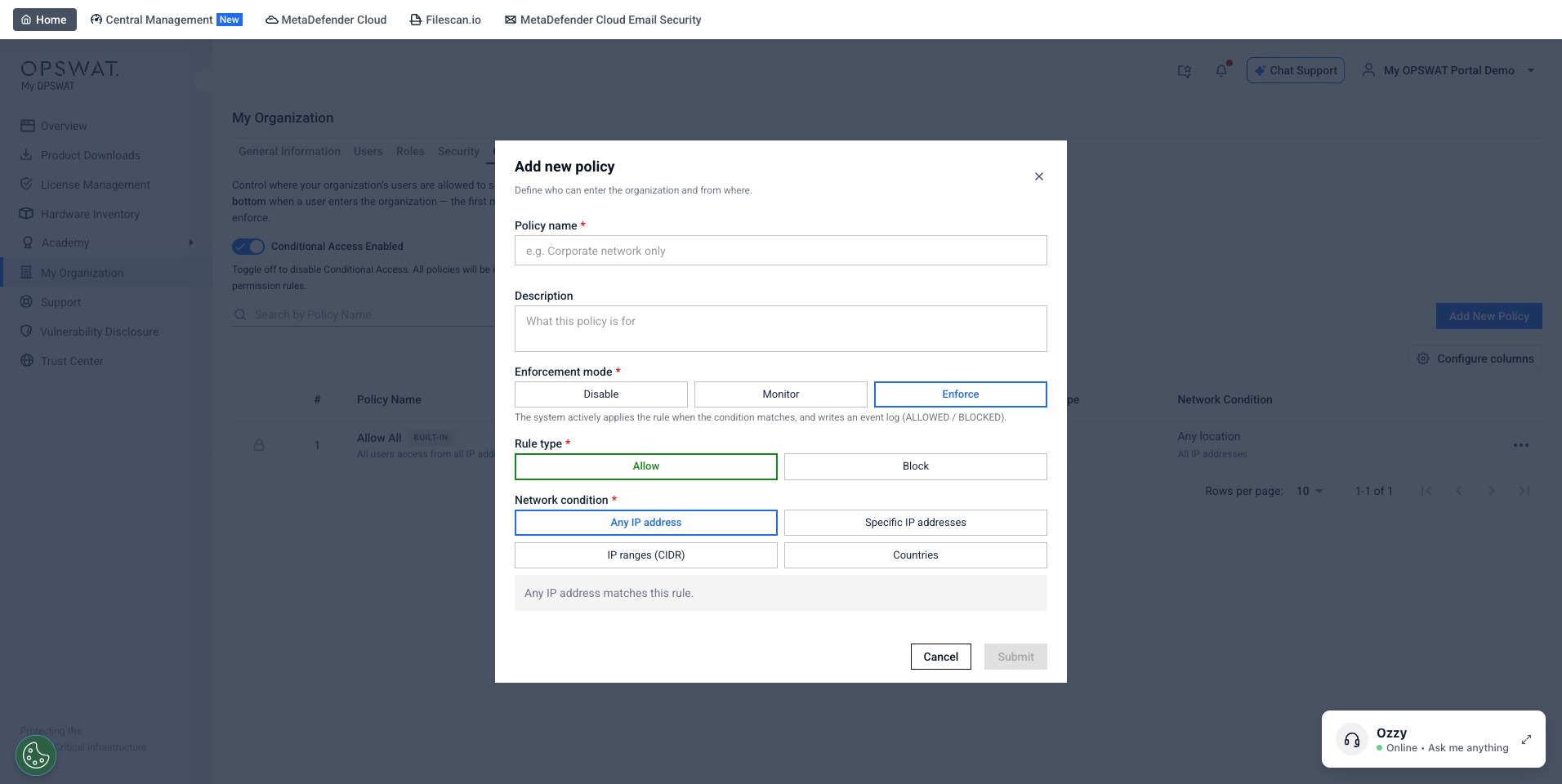
In the Conditional Access section, select Create policy.
Enter a Name (unique within your organization) and an optional Description.
Choose the Enforcement mode:
Disable - the policy is ignored during evaluation.
Monitor - matching access attempts are recorded in the event log but are not blocked.
Enforce - matching access attempts are allowed or blocked according to the rule type.
Choose the Rule type: Allow or Block.
Choose the Network condition:
All - matches any IP address.
Specific IP addresses - for example,
203.0.113.10.IP ranges / CIDR ranges - for example,
203.0.113.0/24.Countries - My OPSWAT uses IP geolocation to determine the country an access attempt comes from.
Save the policy.
A new policy is added to the top of the list. You can then adjust its position by drag-and-drop.
The built-in default rule
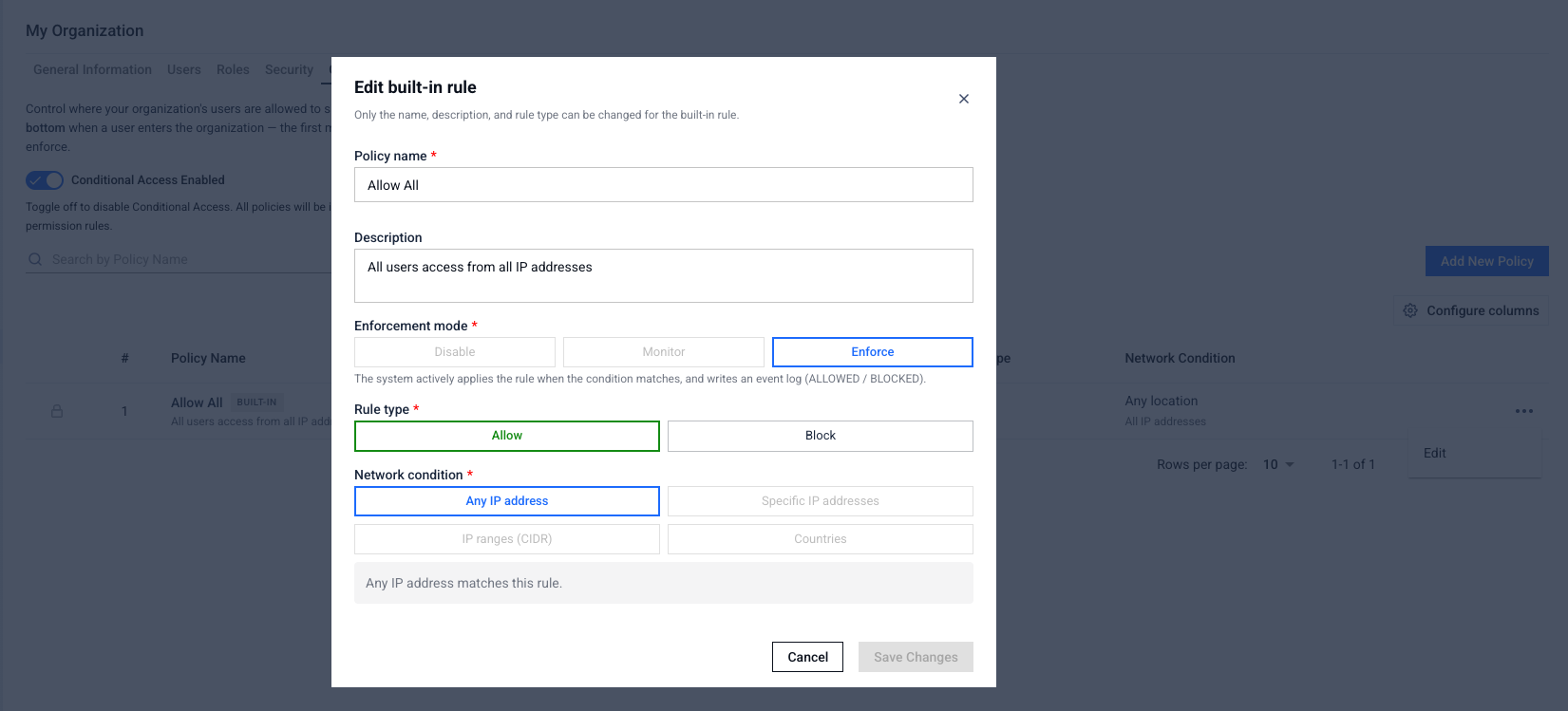
Every organization has a built-in Allow All rule that cannot be deleted. You can update its name, description, and type, but not its network condition. By default it uses:
Name: Allow All
Description: All users access from all IP addresses
Enforcement mode: Enforce
Rule type: Allow
Network condition: All
If you change the built-in rule's type to Block, My OPSWAT shows a confirmation dialog before saving:
All access is restricted
Setting the built-in rule to Block means any user who isn't allowed by a policy above it will be denied access to this organization, including you. You may lock yourself out. Are you sure you want to continue?
The change is saved only after you confirm.
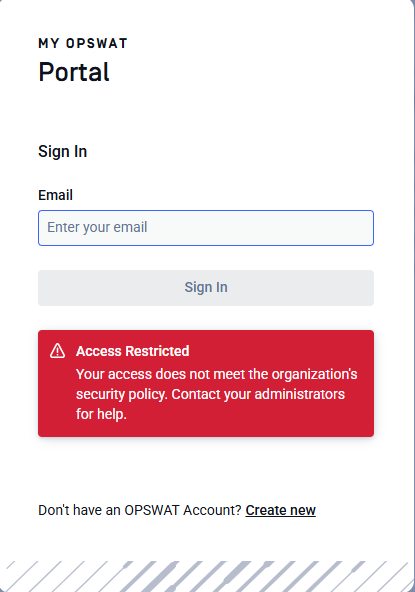
What a blocked user sees
When an access is blocked by a policy, the user sees a message that does not reveal your policy details
API and integration access
Conditional Access is not limited to people signing in through the interface. It also applies to programmatic access to the organization. When an OAuth application or integration calls My OPSWAT Portal APIs on behalf of the organization, using the organization's client credentials or token, the call's source address is evaluated against your policies the same way a user's access is. If the address is blocked, the API call is rejected.
Keep this in mind before enforcing a policy: allow the IP addresses your integrations and automated jobs call from, or they will be blocked along with users.
Reviewing access attempts in event logs
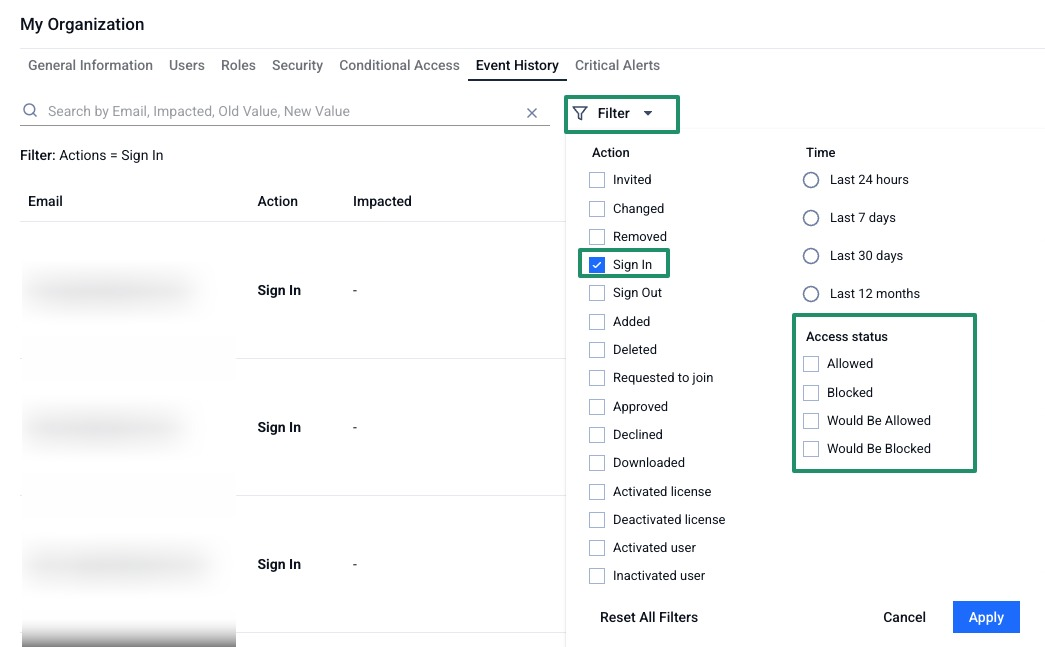
Each access attempt is recorded with its access status, source IP address, and the name of the policy that matched. You can filter event logs by Access status (Sign In should be selected)
Allowed
Blocked
Would Be Allowed (Monitor mode)
Would Be Blocked (Monitor mode)
Related pages
Event History - review the full audit log of organization events
Users and Roles - assign the permissions needed to manage Conditional Access