
How to install Windows language packages in Kiosk Hardened Image
The purpose of this document is to provide simple manual steps to add a Windows display language in Kiosk device with Kiosk Hardened Image.
Step 1. Enable Windows Update
By default, Kiosk Hardened Image disabled Windows Update. Refer to the instruction in Enabling Windows Update - MetaDefender Kiosk Windows to re-enable Windows Update
Step 2. Restart the device
Reboot the device to ensure Windows Update services are active
Step 3. Install designed language
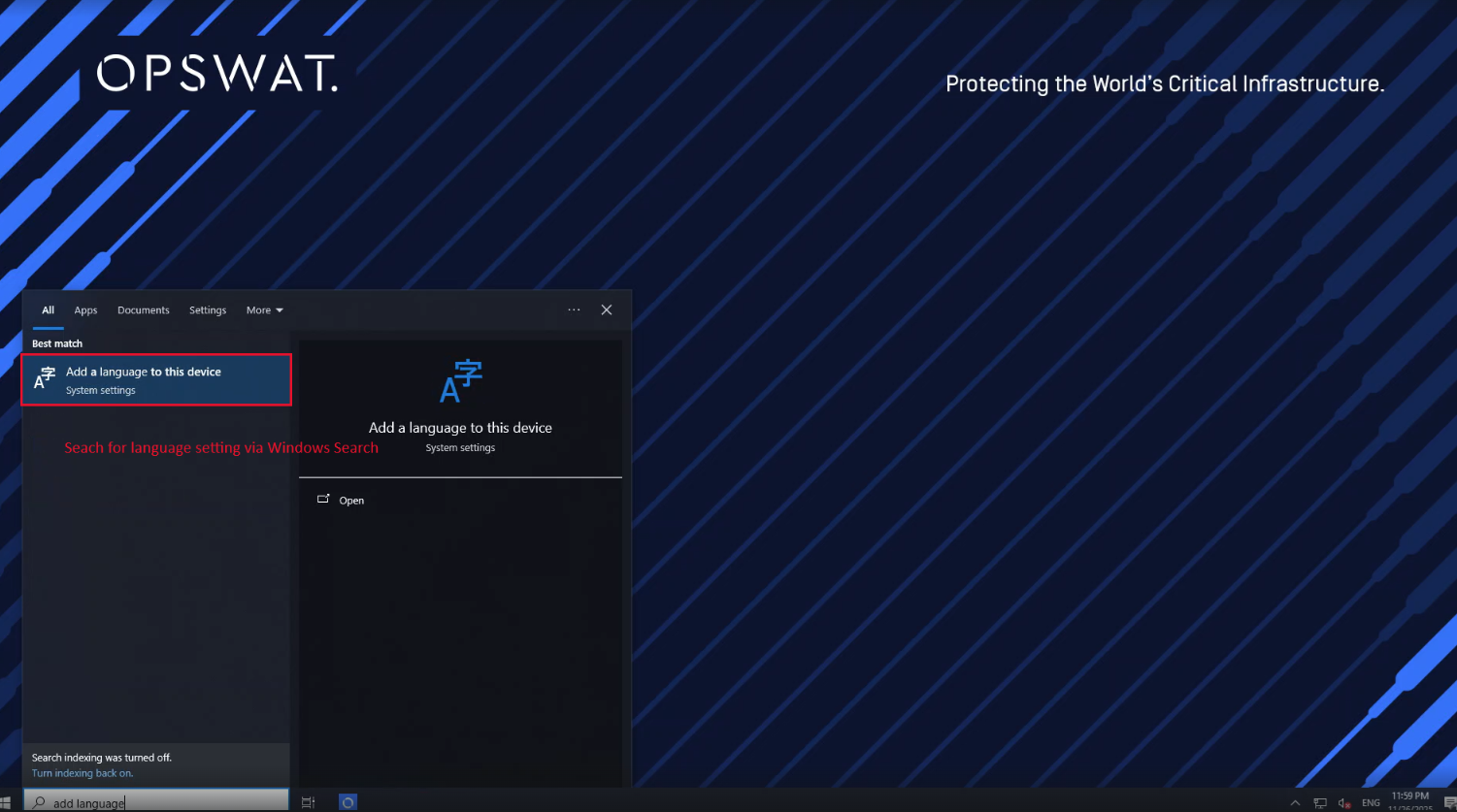
Search for "Add a language" in Windows Search
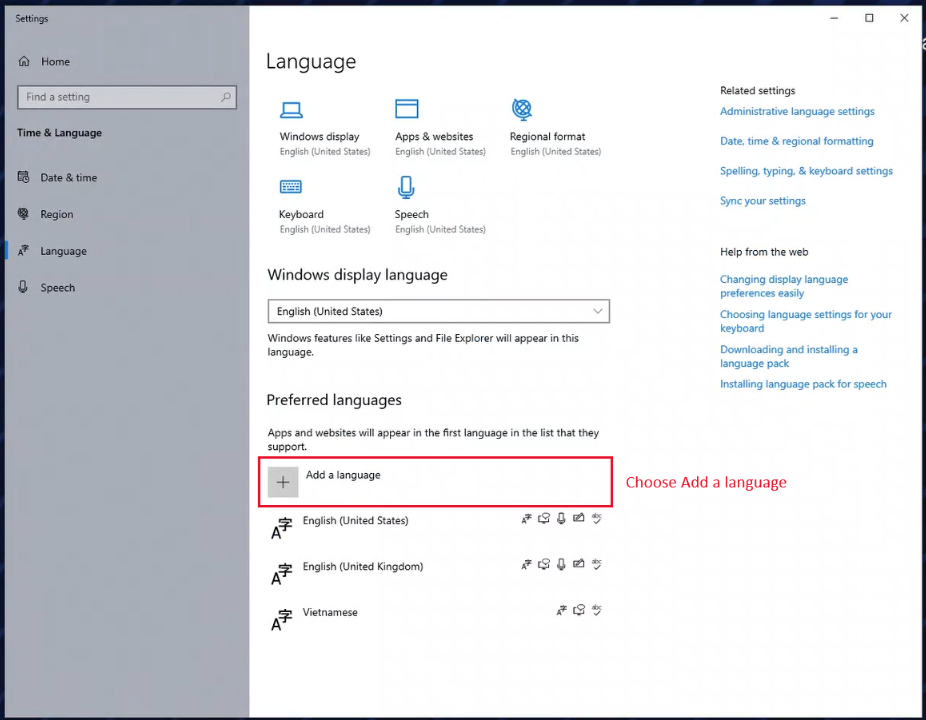
Click the button to add a new language
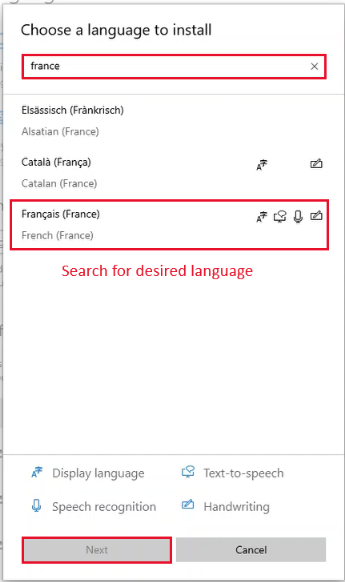
Search for the desired language and click Next
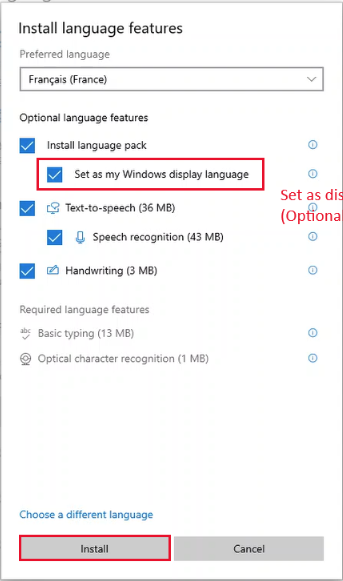
Set as Windows display language [Optional] and click install
Step 4. Disable Windows Update again
Refer the instruction in Disabling Windows Update - MetaDefender Kiosk Windows to disable Windows Update
Step 5. Restart the device
Reboot the device to apply the language system-wide
This guide was created based on Kiosk Hardened Image version 25.10.0. Behavior may differ on other versions.