
In Kiosk Hardened Image, Windows Update is disabled by default. However, if you prefer to re-enable automatic Windows update on the Kiosk, please follow the instruction below.
Re-enable Windows Update Service
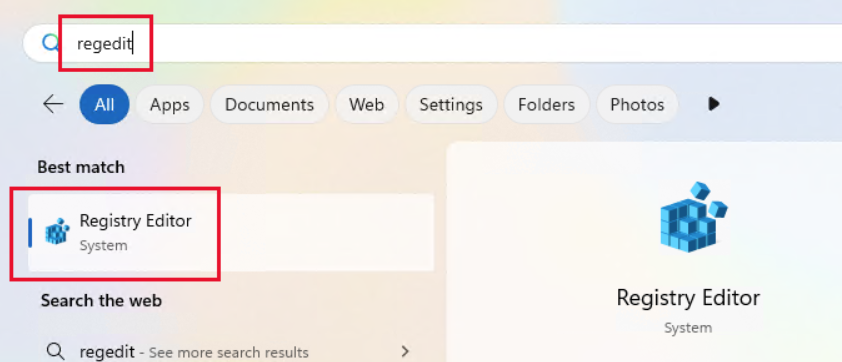
Step 1. Open regedit util
Open Windows + R
Input regedit → OK / Enter
Step 2. Revert default registry for Windows Update Service
Navigate to path HKEY_LOCAL_MACHINE\SYSTEM\CurrentControlSet\Services
Rename key wuauserv_backup to wuauserv
Ensure attribute Start is 3 (Manual)
Step 3. Revert default registry for Update Orchestrator Service
Navigate to path HKEY_LOCAL_MACHINE\SYSTEM\CurrentControlSet\Services
Rename key usosvc_backup to usosvc
Ensure attribute Start is 2 (Automatic)
Revert Windows Update related DCOM registries
Step 1. Open regedit util
Open Windows + R
Input regedit → OK / Enter
Step 2. Revert registry for Windows Update Service
Navigate to path HKEYLOCAL MACHINE\SOFTWARE\Classes\CLSID{B91D5831-B1BD-4608-8198-D72E155020F7}_backup
Change owner of above key
Right click → permission…
Advanced
Owner → Change
Input BUILTIN\Administrators → Check Names → OK
Rename key to HKEYLOCAL MACHINE\SOFTWARE\Classes\CLSID{B91D5831-B1BD-4608-8198-D72E155020F7}
Revert owner of above key
Right click → permission…
Advanced
Owner → Change
Input NT Service\TrustedInstaller → Check Names → OK
Step 3. Revert registry for Update Orchestrator Service
Repeat above process for HKEYLOCAL MACHINE\SOFTWARE\Classes\CLSID{e60687f7-01a1-40aa-86ac-db1cbf673334}_backup
Step 4. Restart the system