
Info:
This article applies to all MD ICAP versions
Overview
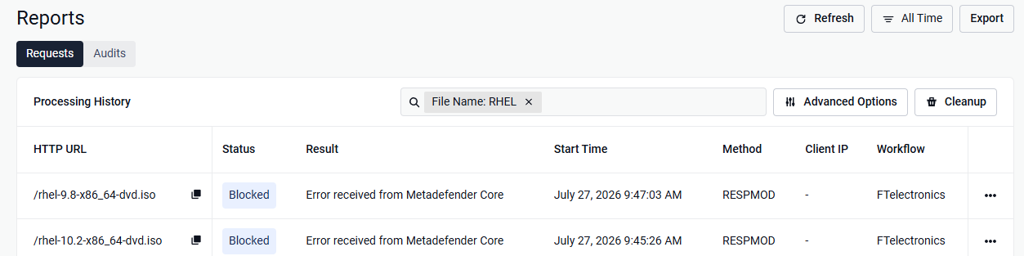
MetaDefender ICAP Server can return the error "Error received from Metadefender Core" with a BLOCKED response while the file scan is still in progress on Core. This occurs when Core is under high resource load processing multiple large files concurrently, such as ISO files exceeding 11 GB.
Root Cause
In polling mode, which is the default behavior, ICAP Server sends a status polling request to Core every 20 milliseconds by default.
When Core is overloaded, it may not respond to polling requests in time. The request times out and polling fails.
By default, a single failed polling attempt is enough for ICAP Server to conclude that Core has an issue and immediately return a BLOCKED result, even though Core is still scanning the file.
Because Core is overloaded, it may also fail to respond to the cancel-scan request from ICAP Server. Core then continues scanning the file in the background, wasting resources.
This creates a self-reinforcing feedback loop: while Core is already overloaded with multiple concurrent scan requests, repeated polling every 20 milliseconds for each request adds further load and can push Core into heavier overload.
Solution
Choose one of the following options to prevent polling-related failures during high-load periods.
Option 1: Increase the polling interval and enable polling retry options so that a single timeout does not immediately trigger a BLOCKED response. See the detailed configuration in Additional Tuning — MetaDefender ICAP Server.
Option 2 (recommended): Enable Webhook callback instead of polling. With webhooks, Core proactively pushes the scan result to ICAP Server as soon as scanning completes. This eliminates repeated status polling and its additional load on Core.
In MetaDefender ICAP Server Web Management Console, navigate to Library > Server profiles > Server Configuration > Server Preference details.
Change the scan-result retrieval mode from Polling to Webhook (callback).
Adjust the webhook timeout value to accommodate expected large-file scan durations (the default is 60 seconds).
Save and restart the ICAP service.
For additional information, please refer to:
Verify the Change
Re-submit the previously affected files to initiate new scan transactions.
Verify that the scan completes successfully without a premature BLOCKED response caused by a polling timeout.
If Webhook (callback) is enabled, verify that Core delivers the scan result to ICAP Server through the configured callback without transport-level errors.
Support:
If you require further assistance, please follow these instructions on How to Create Support Package?, before creating a support case or chatting with our support engineer.