
How to enable debug logging for MetaDefender Core?
This article applies to all MetaDefender Core V4 and V5 releases deployed on Windows and Linux systems.
To assist the OPSWAT Support team in diagnosing issues more effectively, we may require debug logs from your MetaDefender Core for a detailed analysis.
Enabling debug logging level on MetaDefender Core should only be used when necessary and advised by the OPSWAT team.
To enable debug logging for MetaDefender Core, please follow the appropriate guide based on your operating system:
Windows
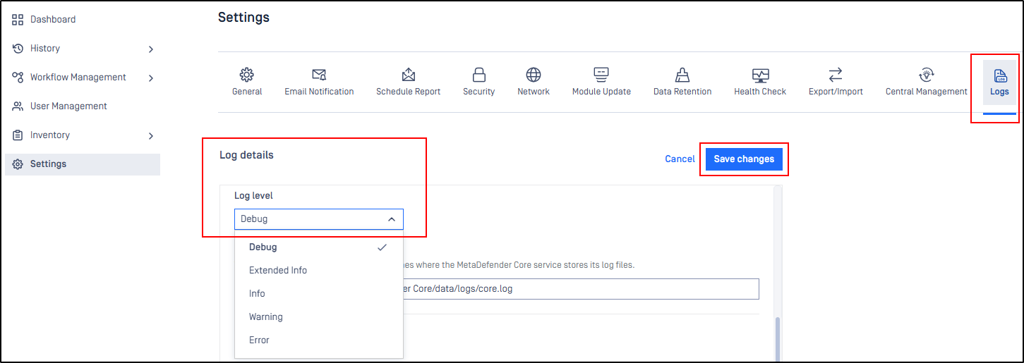
The log level can be updated through the Web UI (available starting with MD Core v5.15.1) or via the Windows Registry.
Web Console:
Navigate to Settings > Logs > Log File section
Click on the Edit button and update the Log level to debug
Save the changes (service restart is NOT required)
Windows Registry:
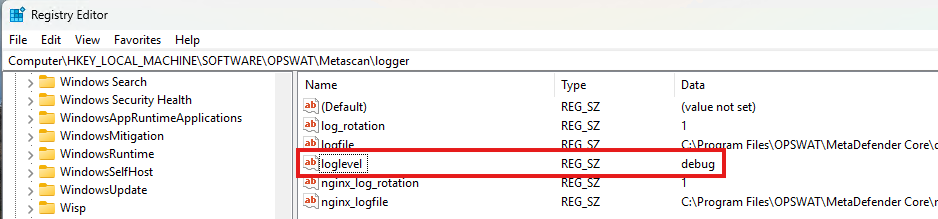
Open the Registry Editor
Navigate to
HKEY_LOCAL_MACHINE\SOFTWARE\OPSWAT\Metascan\loggerChange the value of
logleveltodebugRestart the MetaDefender Core service
Linux
The log level can be updated through the Web UI (available starting with MD Core v5.15.1) or via the ometascan.conf configuration file.
Web Console:
Navigate to Settings > Logs > Log File section
Click on the Edit button and update the Log level to debug
Save the changes (service restart is NOT required)
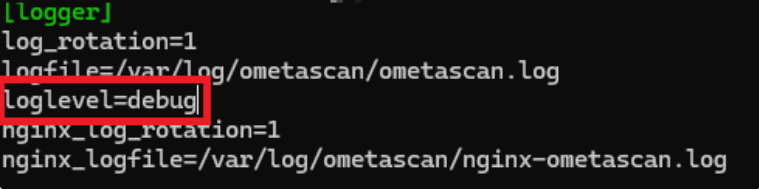
Configuration file:
Open the file at
/etc/ometascan/ometascan.confwith your preferred text editor.In the [logger] section, change the value of
logleveltodebug.Restart the MetaDefender Core service.
After finishing with debug logging mode, the loglevel should be set back to info. Failed to do so, the size of your log files could increase significantly.
Generating a Support Package
Once debug logging is enabled, please attempt to reproduce the issue you are experiencing. Afterward, generate a Support Package and send it to the Support team so we can properly investigate the issue.
For a detailed guide on generating a Support Package, please refer to the following URLs:
If Further Assistance is required, please proceed to log a support case or chat with our support engineer.