
This article applies to all supported versions of the NAC API, the current NAC Enforcer and the Web UI.
API documentation for the latest NAC features will be available via This Webpage.
Additional guidelines are covered below.
Device Enrollment
NAC supports the enrollment of MAC addresses for use in a RADIUS based enforcement (RBE) environment.
This feature supports two use cases, namely:
When administrators configure an initial role to which devices are assigned as soon as they first enter the system, even before NAC enforcement is applied.
This serves as a work around for devices that require special set up or do not respond to RADIUS disconnects or VLAN switching.
When administrators set the RADIUS server to operate in Allowlist mode, where only permitted devices are granted access to the network.
All other devices will be rejected during the RADIUS transaction, before reaching the NAC enforcement system.
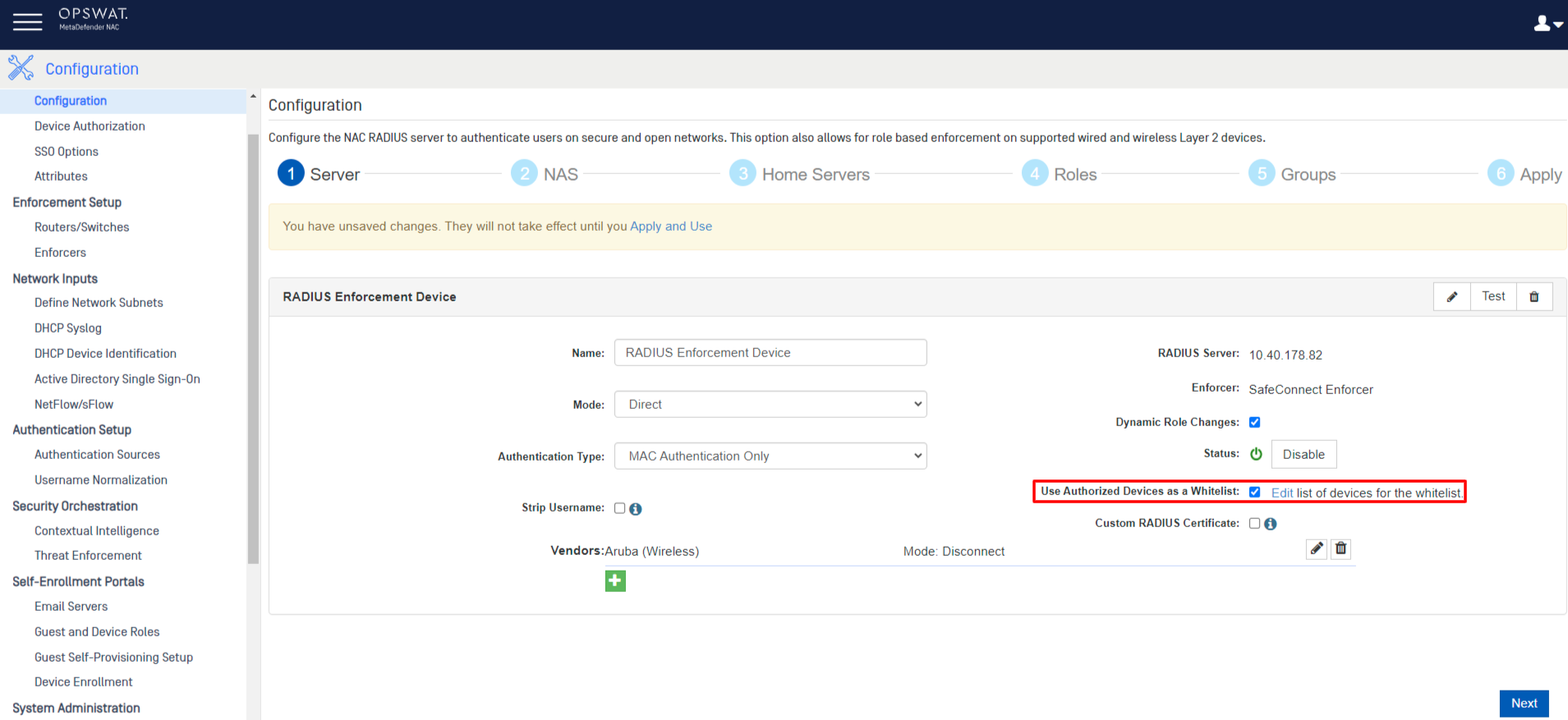
This setting overlaps with RADIUS Configuration, and whether or not an RBE enforcement device uses the MAC address bulk upload as an allowlist is configurable via the NAC
Dashboard>Configuration>Radius>Configuration page, by toggling the Use authorized devices as a whitelist setting, as shown below.
RAML
The following is the RAML document that represents the current state of the API:
XML APIs
Make An Account
Log into the configuration interface with a Username/Password that has privileges to create user accounts. In the example below, we have created a profile called legacy.
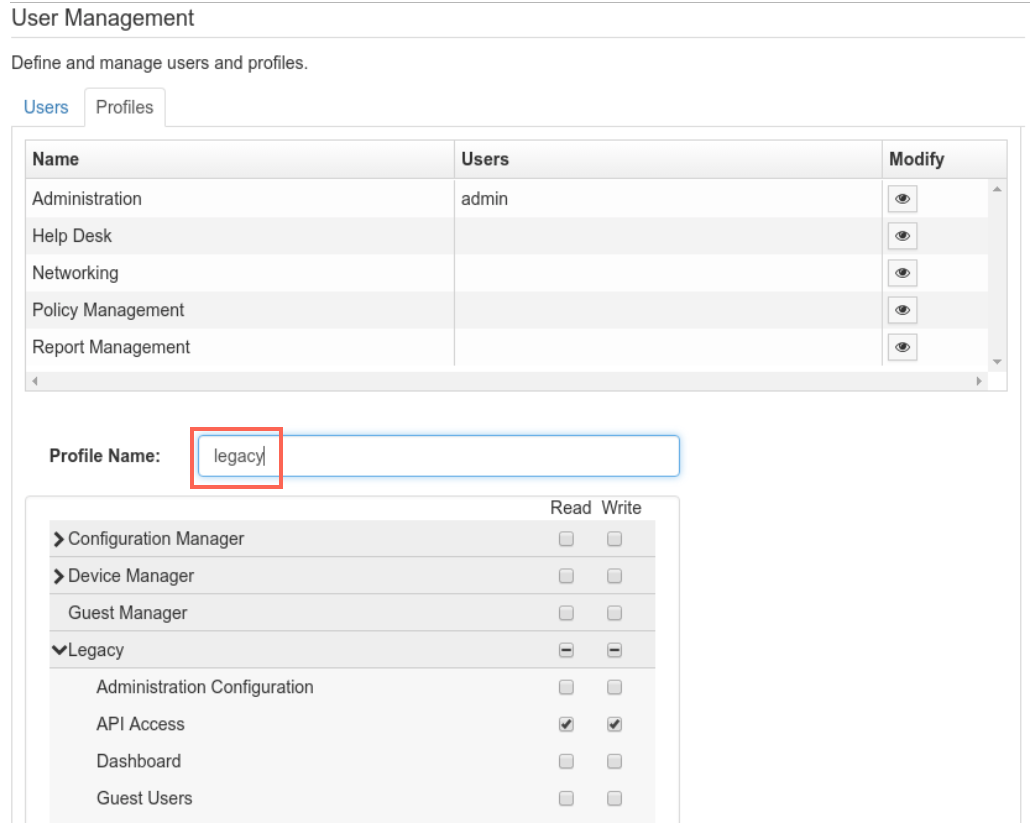
Create a new user profile that includes the legacy API privilege. In the example below, the user details are:
Username: apiuser
Password:A@p!i12#3
Profile: legacy
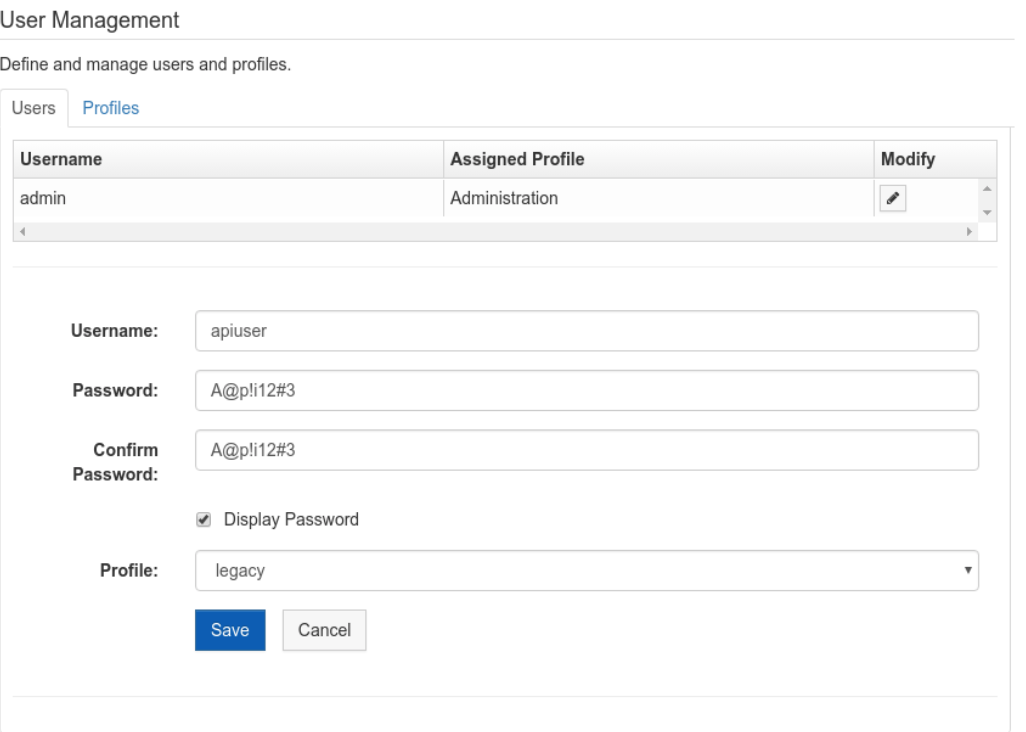
Click Save to apply your changes and create the user.
At this point, the new user can make requests against the XML APIs. These requests are sent as HTTP POSTs to This API.
Policy group update
This API should be used to add or remove Qualifiers to/from Policy Groups in the system.
This feature may be used to temporarily block or allow access to individual Clients.
For example, another system may make automated requests to block a client for a violation of security practices.
XML structure
Credentials:
<username>[username]</username>
The username for the user created in the previous step. Do not include the [].
<password>[password]</password>
The password for the user created in the previous step. Do not include the [].
<groupName>[Group Name]</groupName>
The target group that you want the user added to or removed from.
Valid groups include:
Block Access
Open Access
Define only one of the following blocking criteria (leave the other criteria defined, with blank values):
<ip>[IP address]</ip>
Enter the IP address of the desired target host.
<username>[Username]</username>
Enter the username of the desired target host.
<macAddress>[MAC Address]</macAddress>
Enter the MAC address of the desired target host.
Optional:
<note>[Enter user note]</note>
The REMARK keyword followed by any text in the Block Access list will display whatever text is after the REMARK keyword to the user.
REMARK DMCA Violation #123
Will show "DMCA Violation #123" to the client.
<expiresInSeconds>[Expiration time]</expiresInSeconds>
Enter the time for which a user will remain in the respective group. When the time is expired, the user is automatically removed from the group, and returned to their normal policy group.
Enter "86400" to expire in one day.
If no time is entered, the user will be in the desired group until removed manually.
<automaticallyManage>[true|false]</automaticallyManage>
If omitted, it defaults to false.
Only used when adding qualifiers.
True
Any IP or MAC address qualifiers will be updated as network interfaces change. For example, if a device gets a new IP address through DHCP, the qualifier will update to match. This only applies to the groups “Block Access” and “Open Access”. If another group is used, this behaves the same as “false”.
False
Any IP or MAC address qualifiers will be constant, and will not change to reflect new host data. This is the default if the automatically Manage tag is omitted.
Deprecated:
<standardOutput>true</standardOutput>
If present, this should be set to "true".
If false, formats the output for use in the XML API user interface. This user interface is deprecated.
Examples
To add a user with an IP address of 169.0.0.1 to the Block Access group:
To remove a user with an IP address of 169.0.0.1 from the Block Access group:
Return Values
Successful submissions return the Success keyword in the result tag. A successful addition to a group will return:
A successful removal from a group will return:
Errors return the Failure keyword in the result tag. A failure due to bad credentials will return:
A failure to create a duplicate will return:
Qualifier inquiry
As of the MetaDefender IT Access 6.1 release, we have a new API to query.
If a specific IP, Username or MAC address is set up in one of the Policy Groups in the system, this API will return the group it belongs to.
This is useful for allowing other systems to determine which group a Client is in.
Define only one of the following inquiry criteria (leave the other criteria defined, with blank values):
<ip>[IP address]</ip>
Enter the IP address of the desired target host.
<username>[Username]</username>
Enter the username of the desired target host.
<macAddress>[MAC Address]</macAddress>
Enter the MAC Address of the desired target host.
Request
Response
A search result matching the input will return the following fields:
A search result with no matches will return the following:
Guest profile API
As of NAC version 6.5.16, the Guest Profile API provides access to retrieve a list of all guest profiles, as well as the ability to enable/disable guest profiles by ID.
This functionality allows guest profiles to be temporarily disabled, and then enabled again later on.
For example, a NAC administrator might disable guest profiles over a weekend, and then enable them again on Monday.
There is no means to disable all guest profiles with a single call, so to disable multiple guest profiles, administrators will need to make separate calls for each profile.
Enabling and disabling guest profiles
The following two cURL commands allow administrators with read/write privileges to enable/disable guest profiles by ID.
Get a list of all guest profiles using an endpoint Here.
Use the following command to obtain the guest profile ID that is necessary to disable/enable a guest profile.
Replace username and password with the administrative user’s information in the corresponding fields.
portal.myweblogon.com can be replaced with the IP address of the NAC appliance or the custom hostname of the appliance, if applicable.
Enable/disable a guest profile by ID, with the following cURL command.
To disable, change the portion of the URL that reads true to false.
Replace the guest ID in the code block with the ID obtained from the cURL command, to be disabled/enabled.
Replace username and password with the NAC administrator’s information in the corresponding fields.
portal.myweblogon.com can be replaced with the IP address of the appliance or the custom hostname of the appliance, if applicable.
To enable or disable additional guest profiles, repeat the above process until all guest ID statuses are in their desired states.
If you have further inquiries, concerns or issues regarding API Documentation And Guidelines, please open a Support Case with the OPSWAT team via phone, online chat or form, or feel free to ask the community on our OPSWAT Expert Forum.