
My OPSWAT Central Management can be easily integrated with an existing Salesforce Dropbox integration to ensure that a device is compliant with the organization's security policy before it is granted access to Dropbox. This ensures that the device is not only authenticated by the IdP, but also tested for risks and vulnerabilities such as infections or unpatched versions of operating systems, BEFORE it access an organization's cloud services.
To get started with implementing My OPSWAT Central Management integration to enforce device posture check before granting a device to access Dropbox with Salesforce Single Sign On (SSO) service, you set up SSO between Salesforce and Dropbox. If you haven't already done so, please follow the instruction here to set it up.
You can learn more details for each step here at Configuration.
Step 1. Enable Secure Access on your My OPSWAT Central Management account
Login to the My OPSWAT Central Management console.
Navigate to Access Control and then Configurations.
Check on the box "Enable Secure Access".
Click SAVE.
Navigate to Integrations and then Device Identity, and enable Enable cross-domain API integration at port xxxx
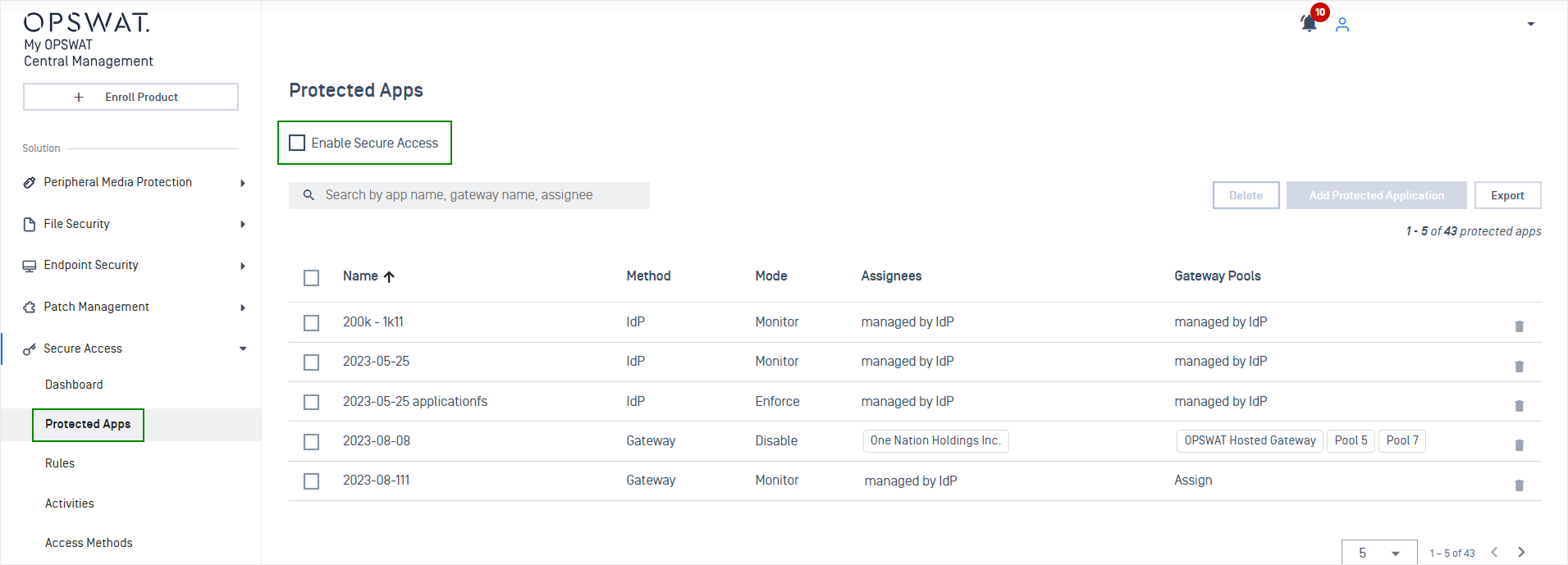
Step 2. Add protected applications with IdP Method
Download Salesforce IdP certificate: the next step is importing an Salesforce X.509 certificate to My OPSWAT Central Management. This allows My OPSWAT Central Management to verify users signing though a trusted IdP, Salesforce. Each identity provider has a unique X.509 certificate. Download the Salesforce X509 certificate by following these steps:
Login to Salesforce as Administrator
Navigate to Setup > Manage Apps > Connected Apps
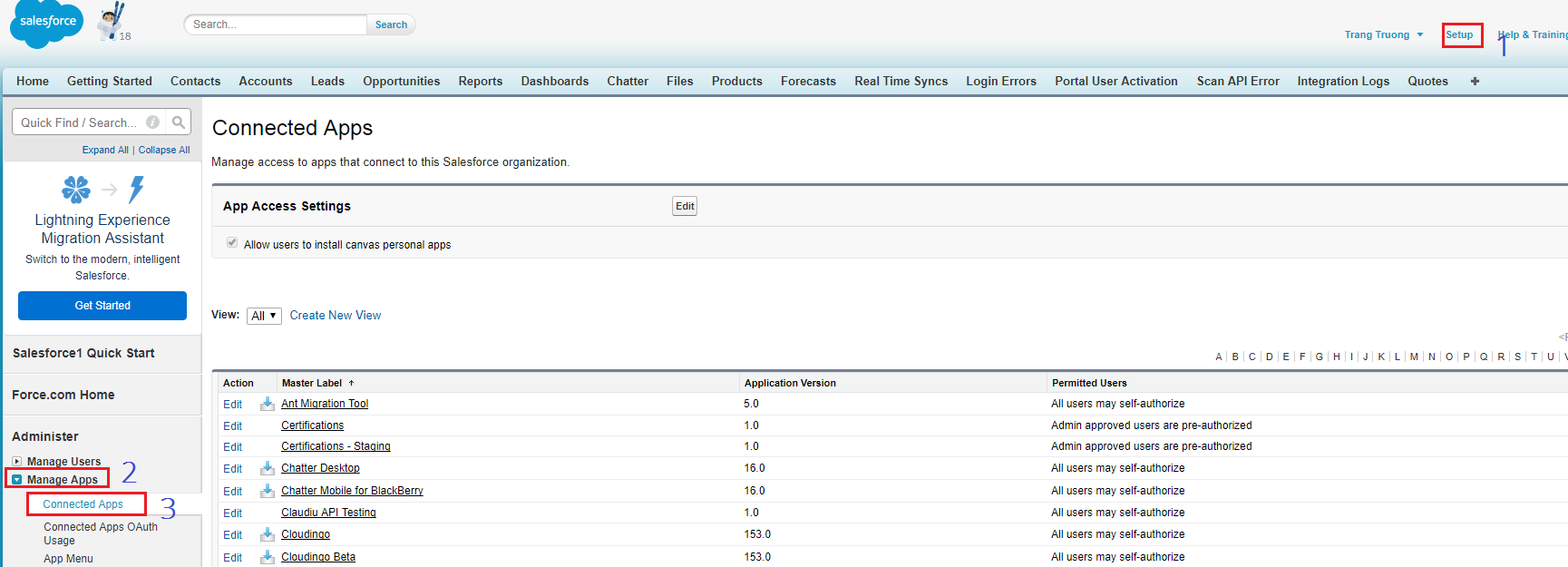
3. Select the Dropbox application to view the application details
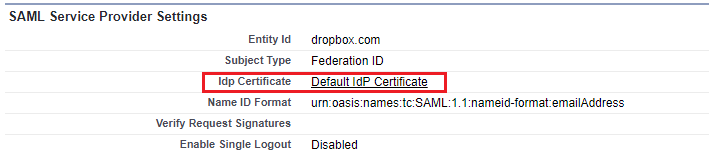
4. On SAML Service Provider Settings section, click on Idp Certificate
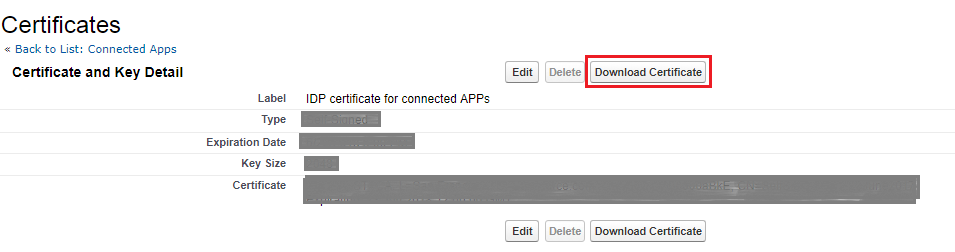
5. Click on Download Certificate to download the Salesforce certificate
Collect Dropbox LoginURL: is a Dropbox single sign-on post back URL of your organization's Dropbox, for example https://www.dropbox.com/saml_login
Collect Dropbox Logout URL: you can find this URL inside of Dropbox
Log into your organization's Dropbox account
Click on your avatar, right click on Sign out and choose Copy link address to get log out URL
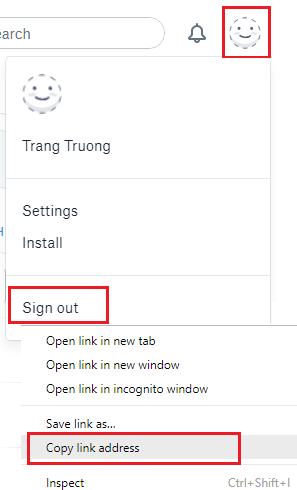
3. Store the log out URL in somewhere for later use
Add the Salesforce Identity Provider. If you already have Salesforce IdP settings on your My OPSWAT Central Management account, go to 5 to add Dropbox application.
Login to the My OPSWAT Central Management console.
Navigate to Secure Access and then Access Methods > IdP
On the Identity Providers tab, click "Add New Identity Provider" to add your IdP
Fill in required fields for the Identity Provider
Identity Provider: Salesforce
IdP Name: an IdP name, for example: Salesforce
IdP Certificate: upload Salesforce certificate you downloaded in Step 2.1
Click Add IDP
Click SAVE
Navigate to Secure Access and then Protected Apps.
Add Dropbox application:
Expand the Salesforce IdP settings you have just added in Step 2.4 above.
Click Add New Application
Enter required field
Application: application name, for example: Dropbox
Login URL: application login URL which you have from Step 2.2
Logout URL: application logout URL which you have from Step 2.3
Access Mode: pick an access mode you prefer. See details on the access modes at Add Protected Applications with IdP Method.
Click SAVE
After saving your changes successfully, click the Setup Instructions button of the Dropbox application you have just added and then copy the URL My OPSWAT Central Management generated there. This URL is used to replace Dropbox login URL on Salesforce in Step 4.
Note: you can add Dropbox application (step 2.5) when you add Salesforce IdP settings in step 2.4.
Step 3. Configure Access Rules
On My OPSWAT Central Management console, navigate to Secure Access and then Rules
On Rules tab, click "ADD NEW RULE" to add a new rule for this application OR you can update existing access rules to add this application
With a new access rule, you need to specify how you would like to block/allow access a device from the application
Rule name: a rule name, for example Block non-compliant devices
Action: Block or Allow
Configure conditions to do the action. Details at Configure Access Rules
Click ADD RULE
Step 4. Update Applications settings on Identity Provider
Login to Salesforce as administrator
Navigate to Setup > Manage Apps > Connected Apps
Select Dropbox application
Click Edit
Replace Start URL and ACS URL with the My OPSWAT Central Management URL which you got from Step 2.6
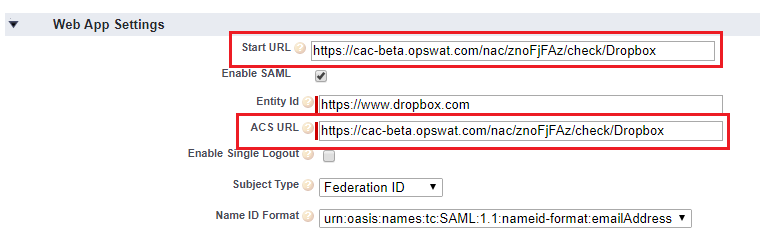
Click Save
Step 5. Configure SSO settings on applications
On My OPSWAT Central Management console, navigate to Secure Access > Access Methods > IdP
Download OPSWAT certificate
Login to Dropbox as an administrator
Navigate to Admin Console > Settings, click Single sign-on
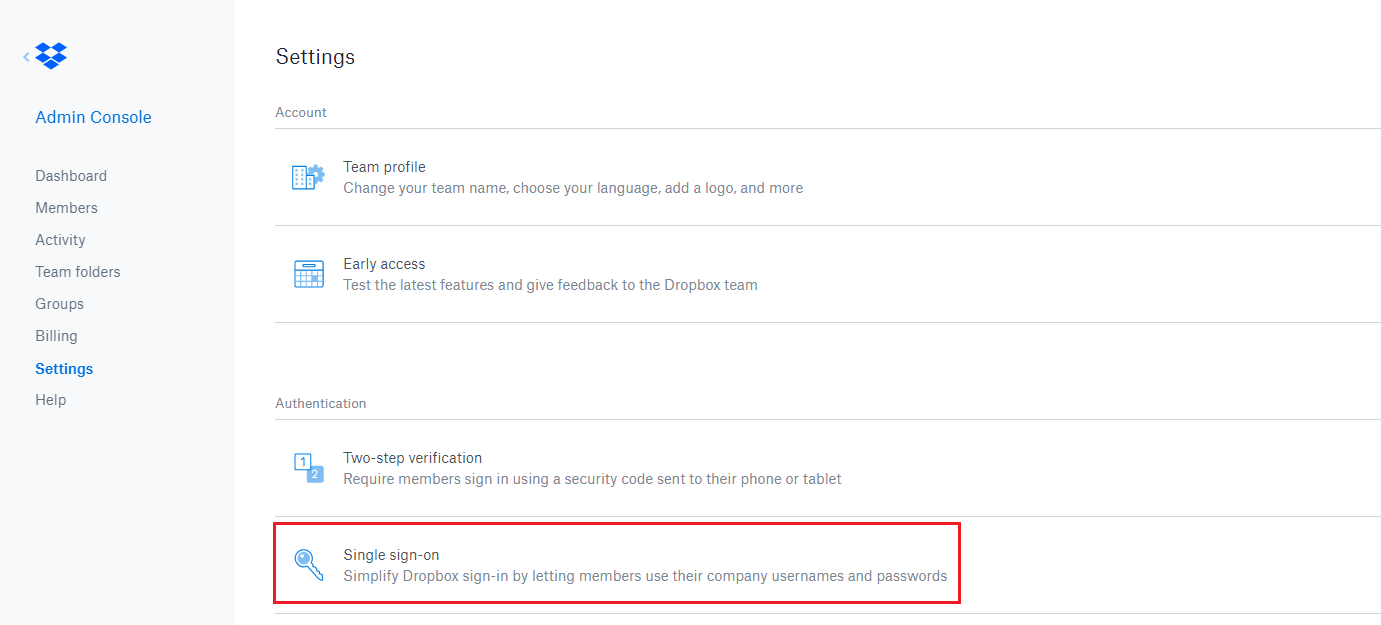
Click on Certificate link and upload the OPSWAT certificate OPSWAT generated for your account (you downloaded in step 5.1)
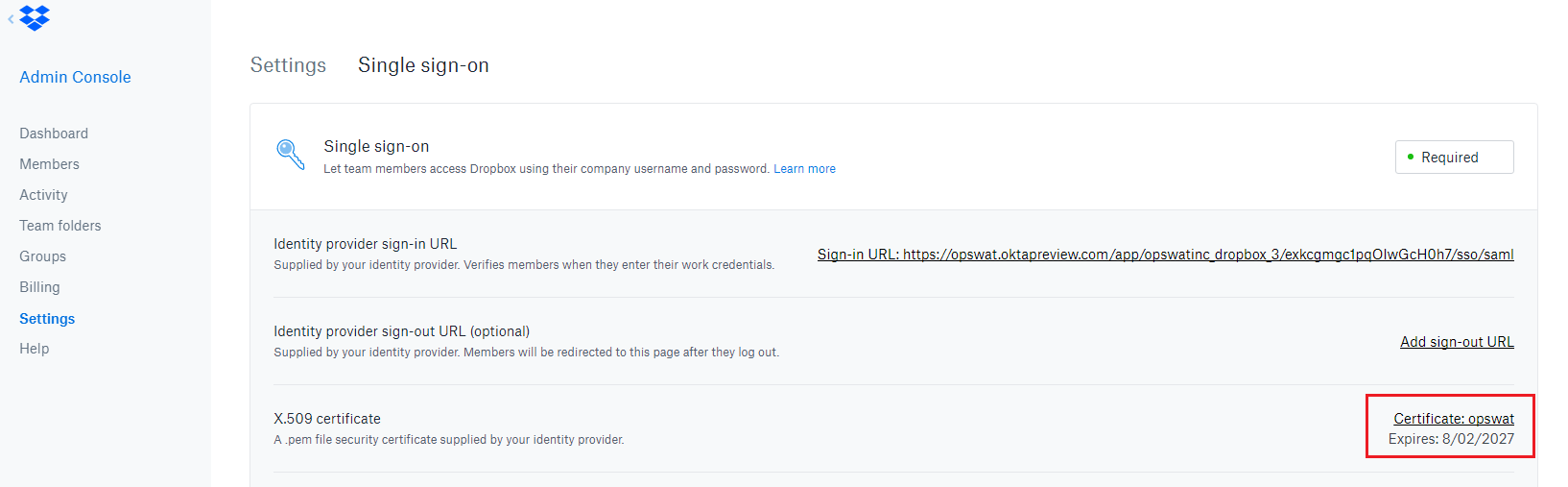
Click Apply Changes
Step 6: Test your integration
Follow guideline at Test Your Integration to verify if it works as your expectation.