This only applies to IdP MFA, SAML Single Sign On Based and Next Generation Methods
My OPSWAT Central Management supports you configure conditions to block/allow a device from accessing specific applications or any applications based on device posture status and groups. You can configure multiple access rules like you do with access control list on Firewall. My OPSWAT Central Management processes access rules in order to make decision on granting an access.
Managing access rules
Log into the My OPSWAT Central Management console
Navigate to Secure Access and then Rules
To re-order rules:
drag and drop a rule
click the arrow icon to move rules up and down
To delete a rule: click the trash icon on the rule
To view details of a rule: click on the rule or the expand icon at the end
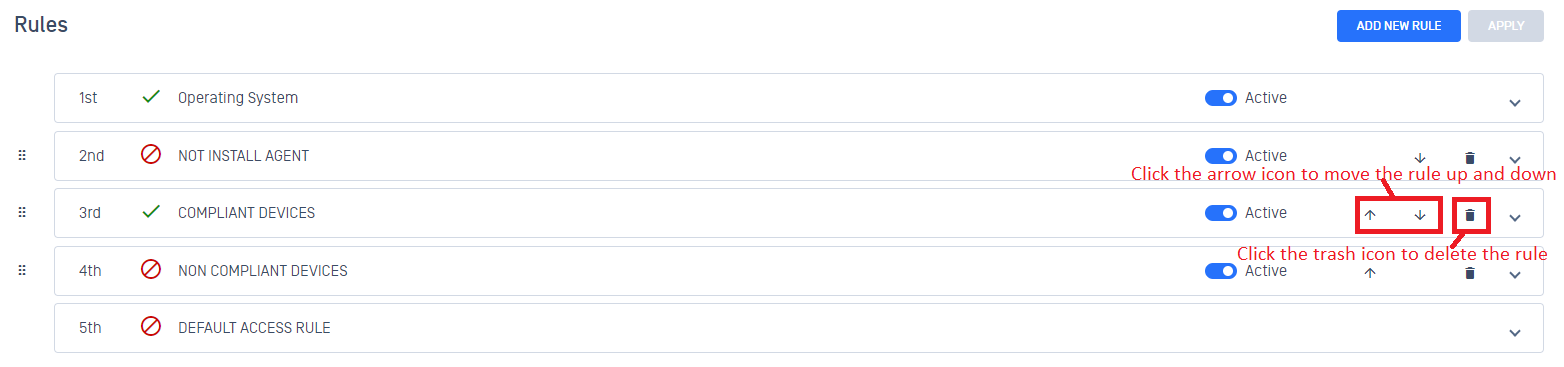
Click APPLY and enter your PIN to confirm changes. All changes will not be applied until you complete this step.
Add a new access rule
Log into the My OPSWAT Central Management console
Navigate to Secure Access and then Rules
Click "ADD NEW RULE"
With a new access rule, you need to specify how you would like to block/allow a device from accessing your applications
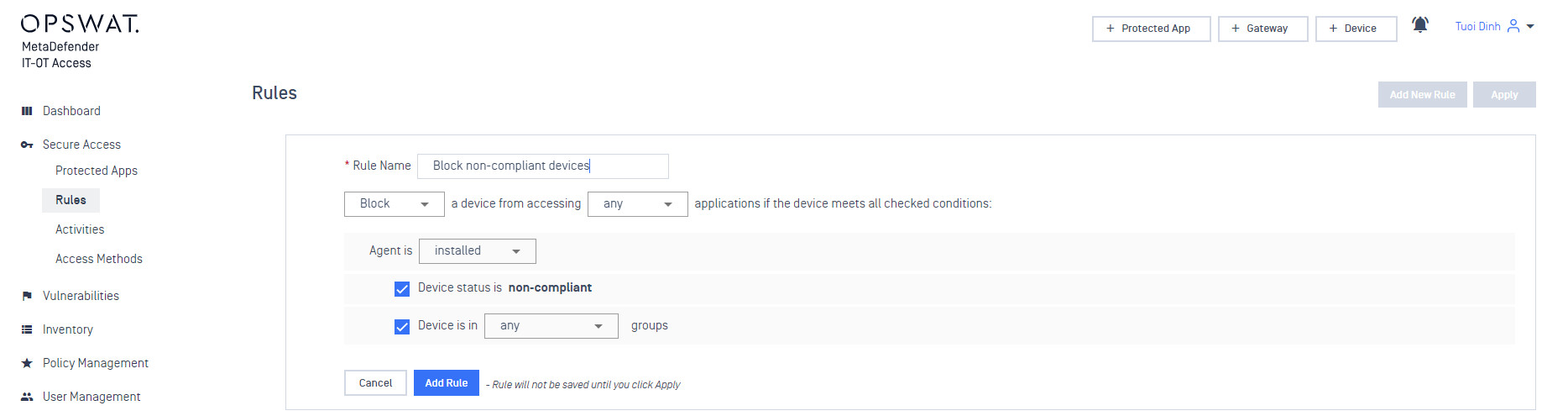
Rule name: a rule name, for example Block non-compliant devices
Action: Block or Allow a device from accessing applications.
Applications will be applied: select available options in the selection dropdown
Any: to apply the rule to all applications
Specific: to apply the rule to specific applications. You need to specify what applications you would like to apply this rule by selecting applications in the "Select Applications" list.

Notes:
If you add a new application, you need to update this rule if you would like to apply to the application.
If you delete applications, they will be removed from the list automatically. In case, there is no applications in the list, the rule is considered as in-valid and never been processed. This situation can be happened when you delete all applications you configured.
Rule Conditions: all conditions need to be met to pass the rule.
Agent status:
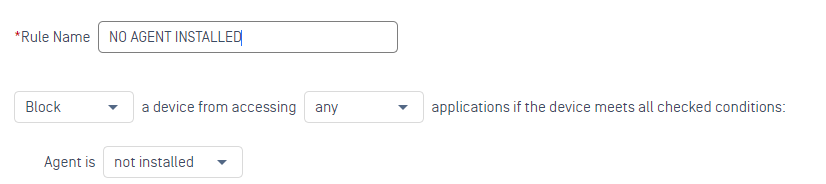
Agent is not installed: this condition is met if a device has not installed MetaDefender Endpoint.
Agent is installed: this condition is met if you require MetaDefender Endpoint is installed and the device status
Device status: if this condition is checked. My OPSWAT Central Management checks device status for this rule.
Device is in groups: if this condition is checked, My OPSWAT Central Management will check if a device is in groups specified in the rule. Otherwise, My OPSWAT Central Management doesn't consider what group a device is assigned to.
any: no matter what group a device is assigned to, this condition is always met.
specific: this condition is met if the device is in the specified groups. You need to select groups you would like to apply to the rule.
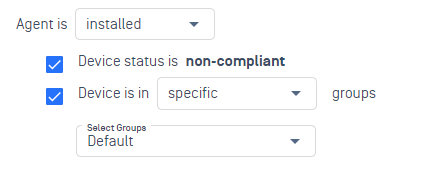
Notes:
- if you add a new group to your account, you need to update this rule if you would like to apply to the group.
- if you delete a group which configured in the rule, the group will be auto-removed from the specified groups.
Click ADD RULE
Click APPLY and enter your PIN to confirm the change
Example rules
Allow mobile devices to access all applications

Block all unknown devices, that have not installed MetaDefender Endpoint, from accessing any applications
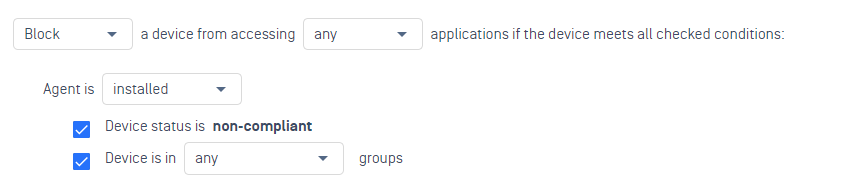
Block all non-compliant devices from accessing any applications
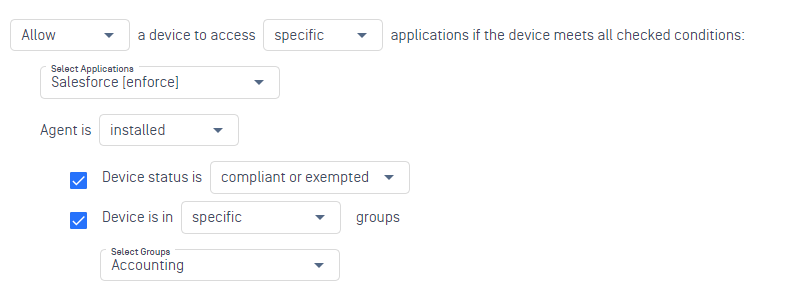
Allow only compliant/exempted devices in group Accounting to access Salesforce application
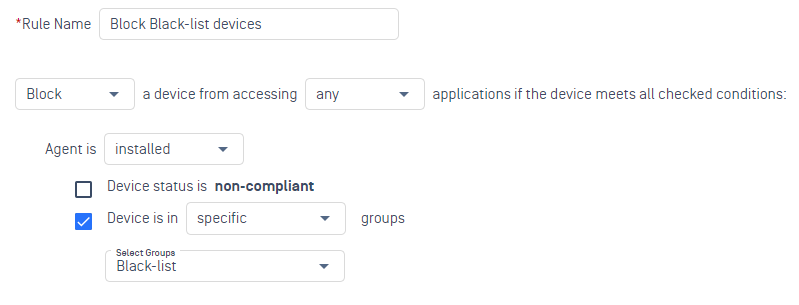
Block all devices in the group block-list to access to all applications