
The Upload Questions feature allows Administrators to design custom questionnaires that users must complete when uploading files. These questionnaires help collect important metadata that can later be used for routing, compliance, security workflows, and supervisor approvals. This guide walks through how the feature works end-to-end.
1. Typical Workflow
- Admin defines questionnaire under Settings > File Settings > Upload Questions and publishes it.
- (Optional) Admin defines transfer policies that may refer to destination selections (single or multiple choice options) to drive routing and filtering.
- User starts a file upload; if questionnaire was published by Admin, the questionnaire step appears and must be completed by the User (required questions are enforced).
- Supervisor (if supervision is enabled) opens approval modal and sees the captured answers before making a decision on the approval.
- If MFT-to-MFT is configured and policies match, each file plus its questionnaire data is forwarded; destination MFT persists the data and uses it for its own workflows (including supervision and transfer policies).
2. Roles At A Glance
- Administrator: Creates, edits, publishes, deletes questionnaire; defines transfer policies (MFT-to-MFT routing).
- User (Uploader): Answers visible questions during file upload.
- Supervisor: Reviews submitted questionnaire answers in the approval modal to make informed approval decisions.
3. Designing the Questionnaire
Navigating to Settings > File Settings > Upload Questions opens the upload questions builder interface. If no questionnaire is published, you see an empty builder ready for creation. If a questionnaire exists, you can view or modify it.
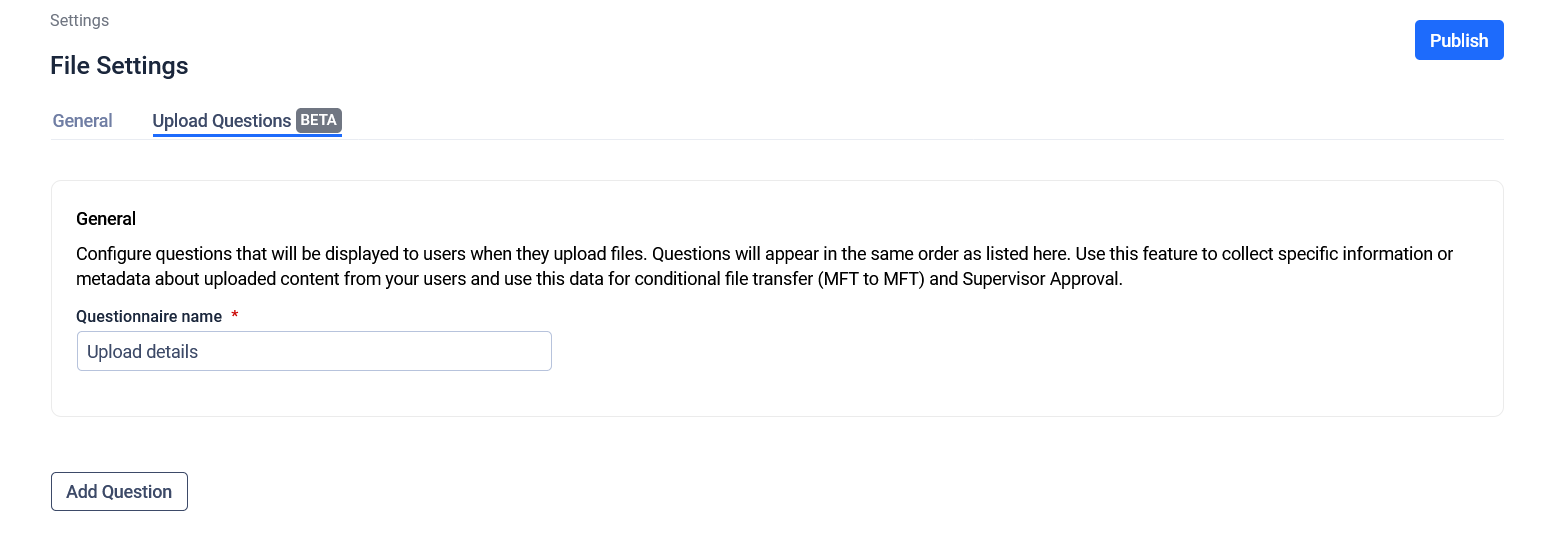
Questionnaire builder (empty)
To create a new questionnaire, fill in the questionnaire name and add questions as described below.
3.1 Adding Questions
Click Add Question to create a new question then configure its attributes:
- Question: Full text shown to users.
- Question Type: Text, Single choice, Multiple choice.
- Question ID: Uniquely identifies the question within the questionnaire. Can be referenced by transfer policies for routing.
- Column Title: Short label used where space is limited.
- Answer Required: If true, user must answer to proceed.
- Show Question (hide or make it visible): Controls whether question appears or not. Hidden questions are never shown, even if 'required' (useful for drafting questions without publishing or simply hiding them temporarily).

Question attributes
3.2 Selecting the question type
3.2.1 Text Questions
Choose Text as the Question Type to create a free-form text or integer input question. Specify Required Format: Text or Integer.
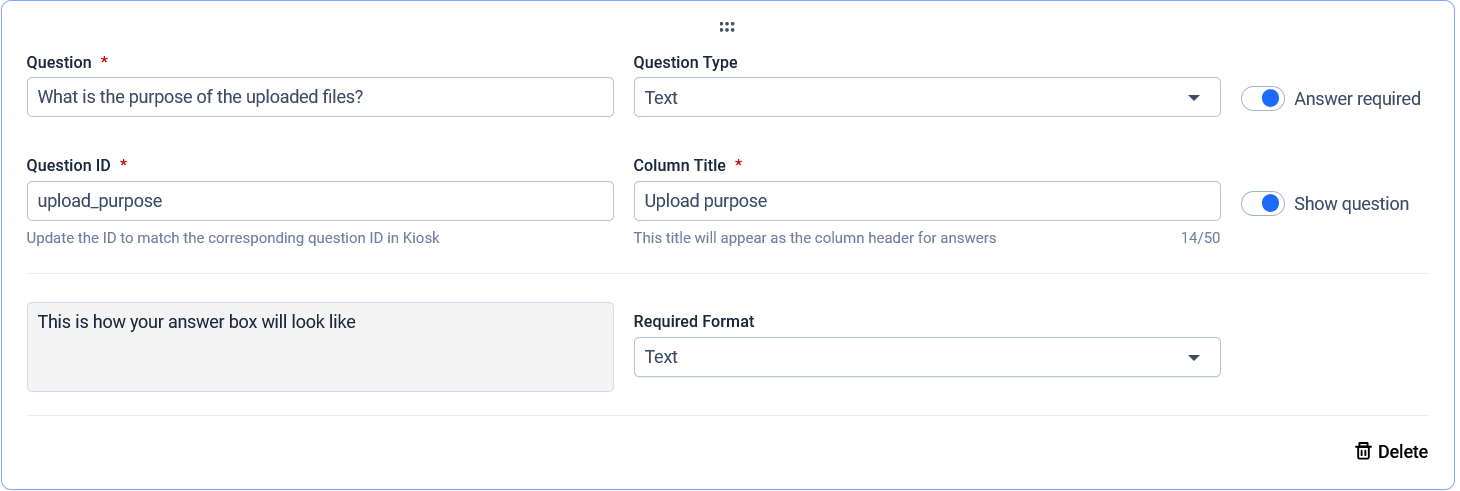
Text question
3.2.2 Single and Multiple Choice Questions
Choose Single Choice or Multiple Choice as the Question Type to create selection-based questions. Define a list of answers, each with:
- Answer: Full text shown to users.
- Answer ID: Unique identifier for the answer within the question. These identifiers can be used to define transfer policies (these are attributes that can be filtered for). See more details in 6.1 Transfer Policies & Routing.
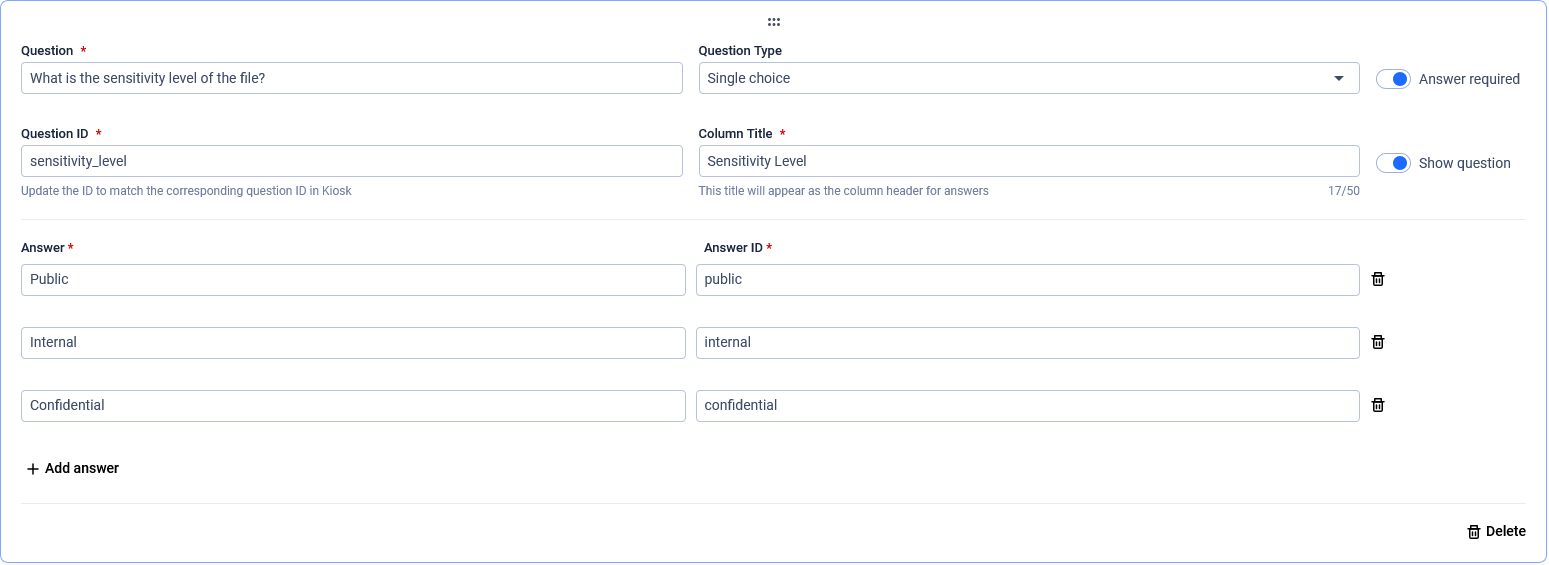
Single choice question
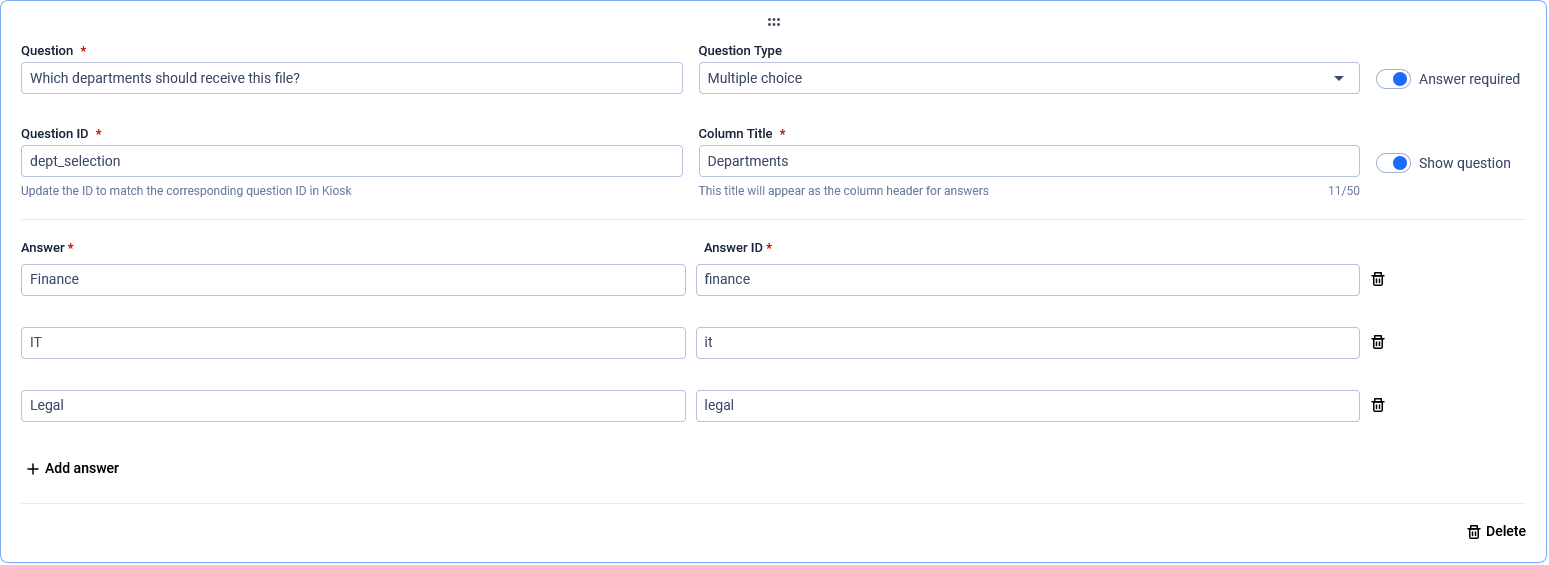
Multiple choice question
3.3 Publishing & Validation
Once complete, click Publish to make the questionnaire active.
- Publishing fails when required conditions (title, answer requirements, IDs) aren’t met.
- Successful publishing instantly makes questionnaire available for Users.
- Editing requires republishing for changes to take effect.
3.4 Editing, reordering and deleting questions
To open a question for editing, click on the top bar of the question card.
To reorder questions, use the drag handle on the top of the question card.
To delete a question, open it for editing and click the Delete button at the bottom-right.
To apply any of the changes, click Update in the top-right, which will also republish the questionnaire with the changes.
4. Answering the Questionnaire (User Upload Step)
If a published questionnaire with visible questions exists, users see the questionnaire step during file upload.
Check out Uploading files on how it works in the upload process.
5. Supervisor approval
When supervisor approval is set up, the approval modal displays all captured answers exactly as submitted.
Purpose: User to provide context and/or reasoning for uploading the file(s). Supervisor to use additional information for approval decision.
Check out Supervisor Approval for more information.
6. MFT-to-MFT
If the source MFT instance forwards files to destination MFT(s):
- Each forwarded file carries its questionnaire data.
- Destination MFT persists the received questionnaire alongside the file record.
- If supervision active on destination, the same approval interface (with answers) applies.
6.1 Transfer Policies & Routing
Policies can filter based on questionnaire answers. Check out Transfer Policies for more information on how to set them up.
7. Primary use cases
7.1 Destination Selection
To allow users to choose where their files will be forwarded:
- Add a single (for single destination) or multiple choice (for multiple destinations) question labeled clearly (e.g., "Select Destination" or "Forward To location").
- Populate answers with each MFT destination you support. Display text should be meaningful to users; answer IDs can be technical (used internally for mapping).
- Link transfer policies and destination mappings to these answer IDs (see Transfer Policies section).
- Publish the questionnaire.
Expected outcome:
- Users can define where their file should be routed to at the time of upload.
- File will be automatically routed based on the transfer policy settings.
7.2 Compliance & Classification Metadata Collection
Many organizations require users to classify files before sharing or transferring them. Upload Questions enable Admins to enforce this consistently.
Example questions:
- “What is the data classification level?” (Public / Internal / Confidential / Restricted)
- “Does this file contain personal data?” (Yes / No)
- “Business justification for uploading this file” (Text)
How it helps:
- Ensures every upload includes required compliance metadata.
- Supports automated policies (e.g., block or route differently based on sensitivity).
- Gives Supervisors more context during approval.
- Creates an auditable trail of reasoning and classification.
Expected outcome: organizations gain tighter governance, consistent classification, and better auditability for file uploads.