
Multi-Factor Authentication
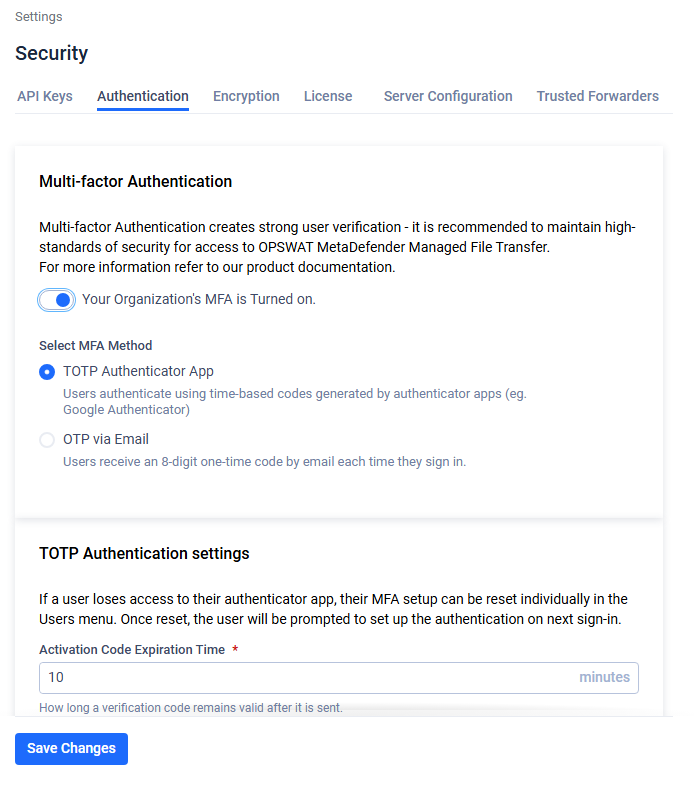
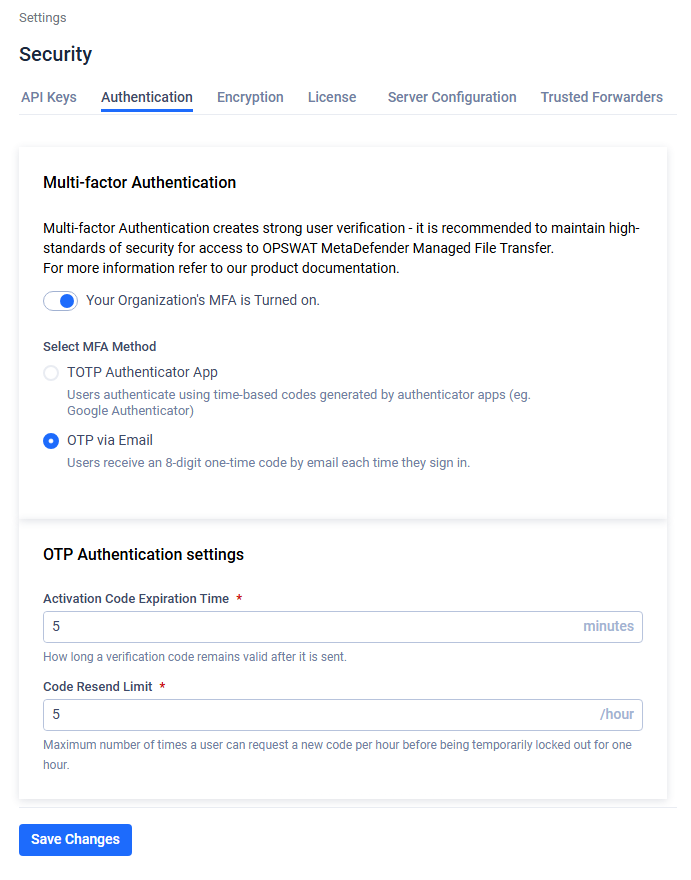
To enable Multi-Factor Authentication (MFA), go to "Settings" -> "Security" --> "Authentication".
Supported MFA methods
MFA supports two methods. Only one method is active at a time, organization-wide:
Method | Description | Requirement |
|---|---|---|
TOTP Authenticator App (default) | Users authenticate using time-based codes generated by an authenticator app (e.g. Microsoft Authenticator, Google Authenticator). | A TOTP client app installed on the user's device. |
OTP via Email | Users receive an 8-digit one-time code by email each time they sign in. | SMTP or Microsoft Graph email server must be configured. The user account must have a valid email address. |
If SMTP / Microsoft Graph is not configured, the OTP via Email option is disabled in the settings page and an inline warning is shown with a link to the email server settings.
Method-specific settings
TOTP Authentication settings
Setting | Range | Default | Description |
|---|---|---|---|
Activation Code Expiration Time | 1 – 10 minutes | 10 minutes | How long a verification code remains valid after it is generated. |
OTP Authentication settings (Email OTP)
Setting | Range | Default | Description |
|---|---|---|---|
Activation Code Expiration Time | 1 – 30 minutes | 5 minutes | Validity period (in minutes) for the email OTP code. |
Code Resend Limit | 1 – 10 / hour | 5 / hour | Maximum number of times a user can request a new code per hour. Exceeding the limit temporarily locks the user out for one hour. |
When Multi-Factor Authentication (MFA) is enabled, the following user types must be set up MFA during their next login:
Local users
Guest users
Active Directory users
External users
Email OTP fallback to TOTP (administrator safety net)
When the active MFA method is OTP via Email but the email server is temporarily unavailable (SMTP / Microsoft Graph down, network issue, etc.), the system applies a role-based fallback to avoid locking administrators out of the organization:
User role | Behavior when Email OTP delivery fails |
|---|---|
Administrator or Restricted Administrator | Automatically fall back to TOTP authentication. If the admin already has TOTP configured, they are prompted for a TOTP code from their authenticator app. If the admin has not configured TOTP yet, they are guided through one-time TOTP setup using the activation code flow. |
All other users (local / guest / AD / external) | Sign-in is rejected with the error Email service unavailable. They must wait until email delivery is restored. |
Accounts without an email address
When enabling OTP via Email, the system checks for accounts that do not have an email address configured. These users cannot sign in with Email OTP. A warning is displayed with the first few usernames and an Export User List action to download the full list as a CSV file so administrators can update those accounts.
Administrators can reset users' MFA when needed. Users must then reset their MFA during their next login.
For more information on resetting user MFA, click here.