
The "ConfigureProxy" tool, found in the "Tools" directory of your MetaDefender Managed File Transfer™ installation (typically located at C:\Program Files\OPSWAT\MetaDefender Managed File Transfer\Tools), enables configuring web proxy to utilize for MetaDefender Managed File Transfer™.
Only web proxies communicating through http are supported by the product. Web proxies configured using an address that utilizes https will not work with MetaDefender Managed File Transfer™.
Run this tool on the same machine where MetaDefender Managed File Transfer™ is installed.
Previously configured inetcpl.cpl based proxy configurations will still work with MetaDefender Managed File Transfer™ the same way they used to work, but from now that configuration method is deprecated.
How to Use
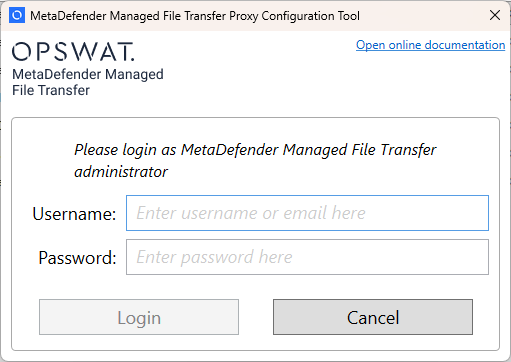
Run the tool and log in with the administrator account credentials you want to change.
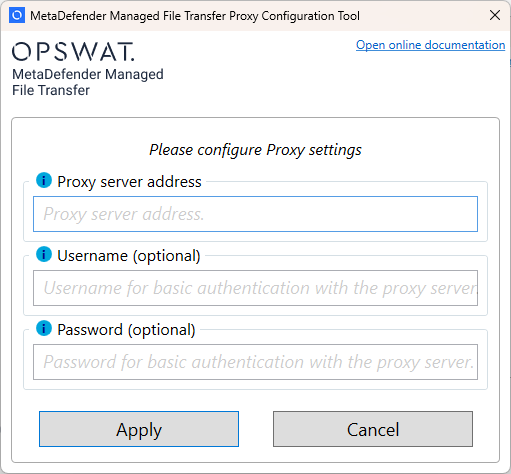
If the password is correct, the proxy configuration window is presented.
Provide details of the web proxy to configure:
If address is left empty, no web proxy will be utilized by MetaDefender Managed File Transfer™.
Provide credentials if configured web proxy utilizes basic username / password authentication. If the configured proxy does not utilize authentication leave the username and password fields empty.
Click "Update Proxy". MetaDefender Managed File Transfer™ services will be restarted by the tool in order to apply proxy configuration.
Close the tool.