
This article applies to Windows BitLocker, the current MetaDefender IT-OT Access Console and API, and all MetaDefender Endpoint releases deployed on Windows Professional systems.
Users running MetaDefender Endpoint on one or more Windows Professional devices may occasionally see one of the following two MetaDefender IT-OT Access device compliance warnings/flags related to BitLocker drive encryption.
These warnings/flags are triggered by device issues, and will appear under MetaDefender IT-OT Access Console>Inventory>Devices>Relevant Device>Detailed Device Information>Deep Compliance>Encryption.
The following remediation steps are applicable to Windows Professional systems only.
If none of the steps outlined resolve your issue, please follow the instructions at the end of this article to contact OPSWAT Support.
Please follow the relevant steps below to remediate your BitLocker-related compliance issue.
MetaDefender IT-OT Access Compliance Warning: Bitlocker Drive Encryption - Encryption State Is Not Enabled
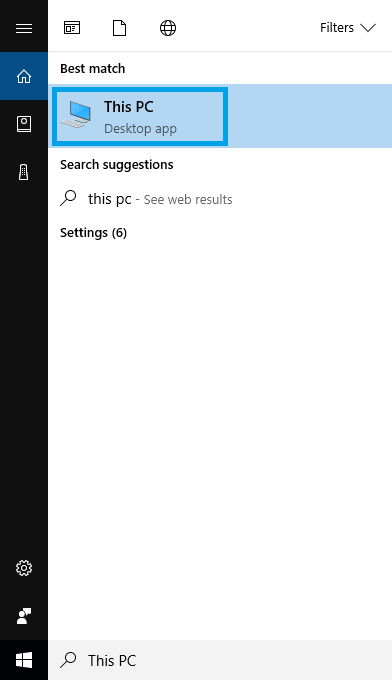
Open the Windows Start menu and search for This PC app, then launch it.
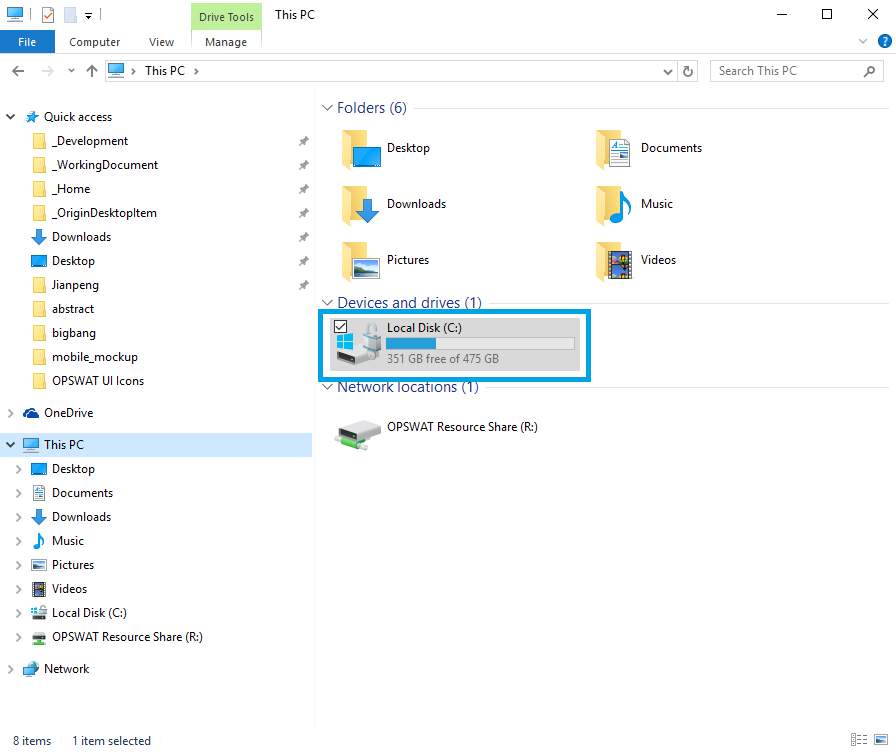
In the Windows Explorer window, as illustrated below, select the System Drive.
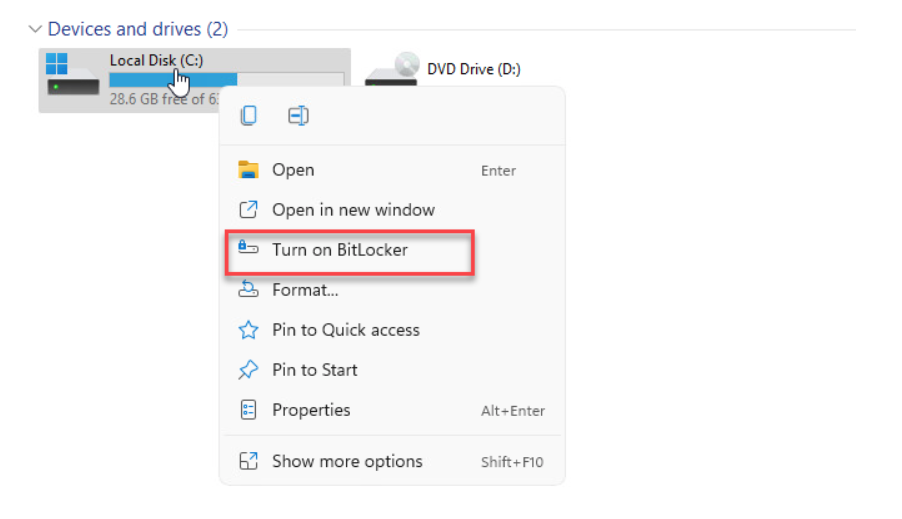
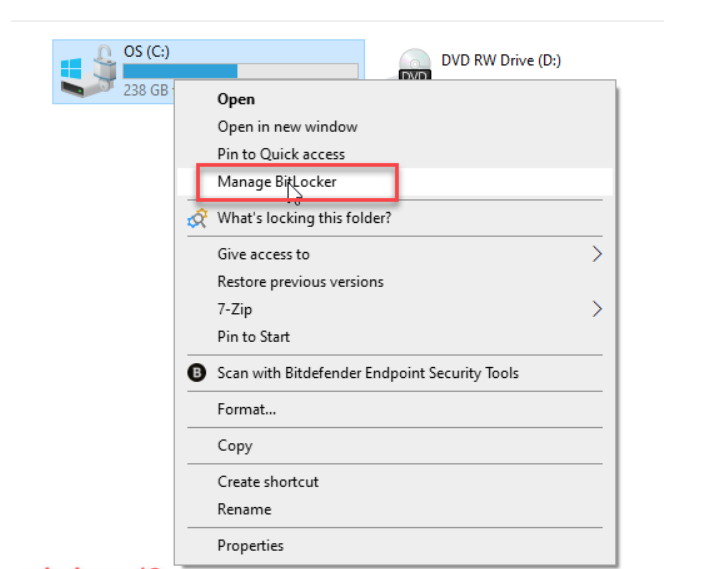
Right-click on the System Drive then, from the pop-up menu, select the Turn on BitLocker option (Windows 11, Screenshot A); or right-click on the System Drive then, from the pop-up menu, select Manage BitLocker (Windows 10, Screenshot B).
(A)
(B)
From the expanded window, click the Turn BitLocker on option, then enable BitLocker encryption by following the product’s built-in Wizard.

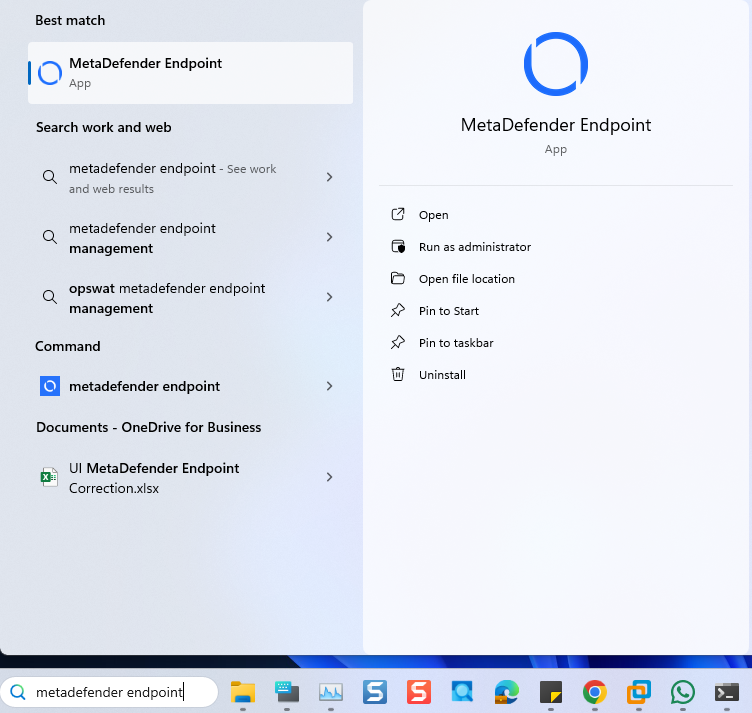
Open the Windows Start menu, search for the MetaDefender Endpoint or MetaDefender IT-OT Access then select the Run as administrator option.
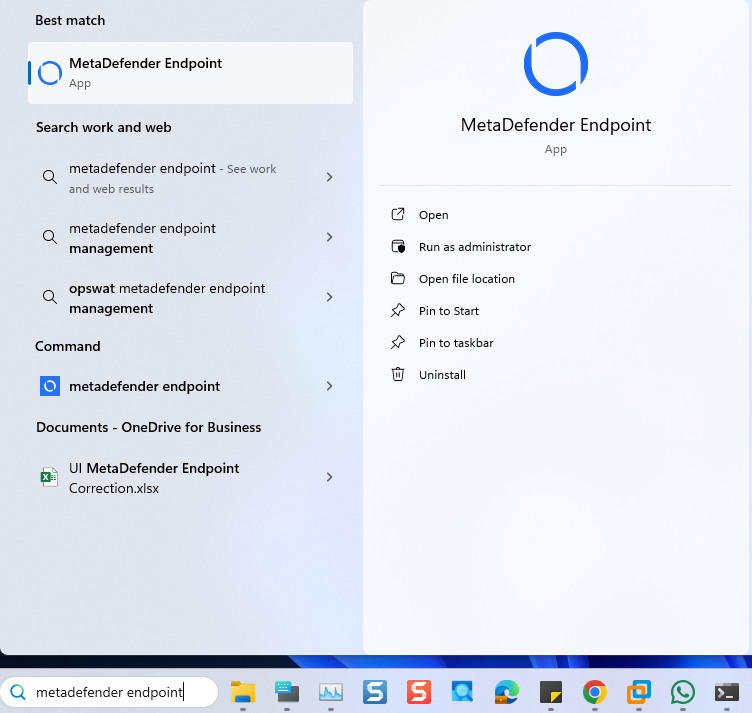
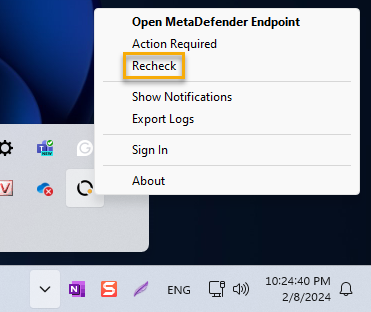
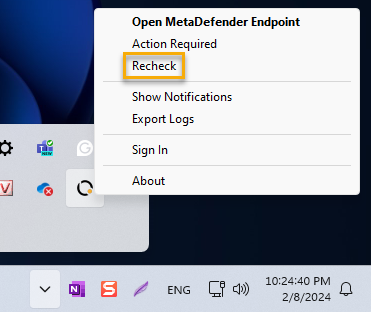
Once the app is running, right-click on the MetaDefender Endpoint tray Icon and, from the pop-up menu, click Recheck.
This will trigger the MetaDefender Endpoint to scan all device compliance data and report to the MetaDefender IT-OT Access servers again.
MetaDefender IT-OT Access Compliance Warning: Bitlocker Drive Encryption - Encryption State Is Suspended
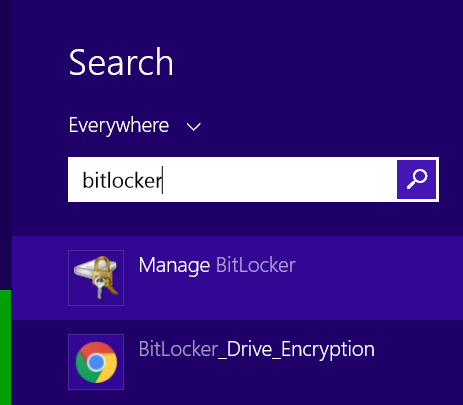
Open the Windows Start menu, search for BitLocker, then select the Manage BitLocker option.
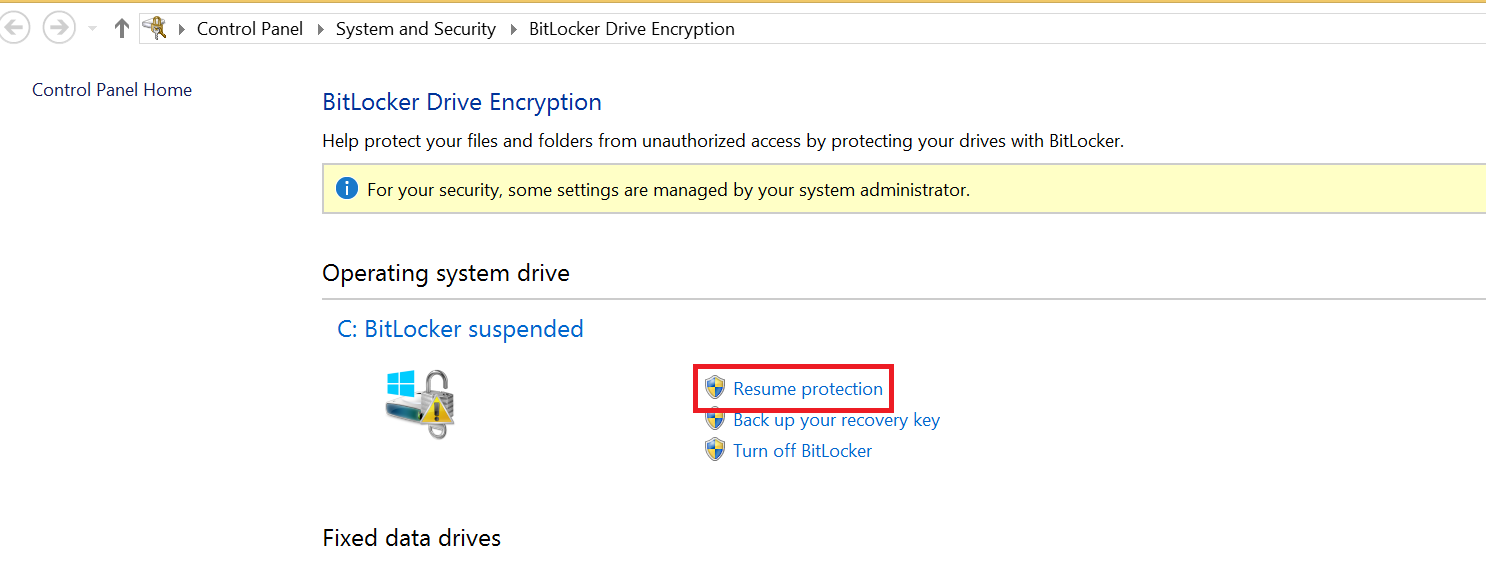
On the Bitlocker Drive Encryption screen, select the Resume protection option.
If your BitLocker protection was affected by an update to Windows, you may need to restart your machine in order to complete this process.
Open the Windows Start menu, search for the MetaDefender Endpoint or MetaDefender IT-OT Access, then select the Run as administrator option.
Once the app is running, right-click on the Client tray Icon and, from the pop-up menu, click Recheck.
If you have followed the instructions above but Continue To Experience BitLocker Drive Encryption Issues On Your MetaDefender Endpoint/MetaDefender IT-OT Access Devices, please open a Support Case with the OPSWAT team via phone, online chat or form, or feel free to ask the community on our OPSWAT Expert Forum.