
You can change your PIN to confirm your action when you make changes or push commands to devices on your User Information page as follows:
Go to the User Information page by clicking your account name at the top-right corner.
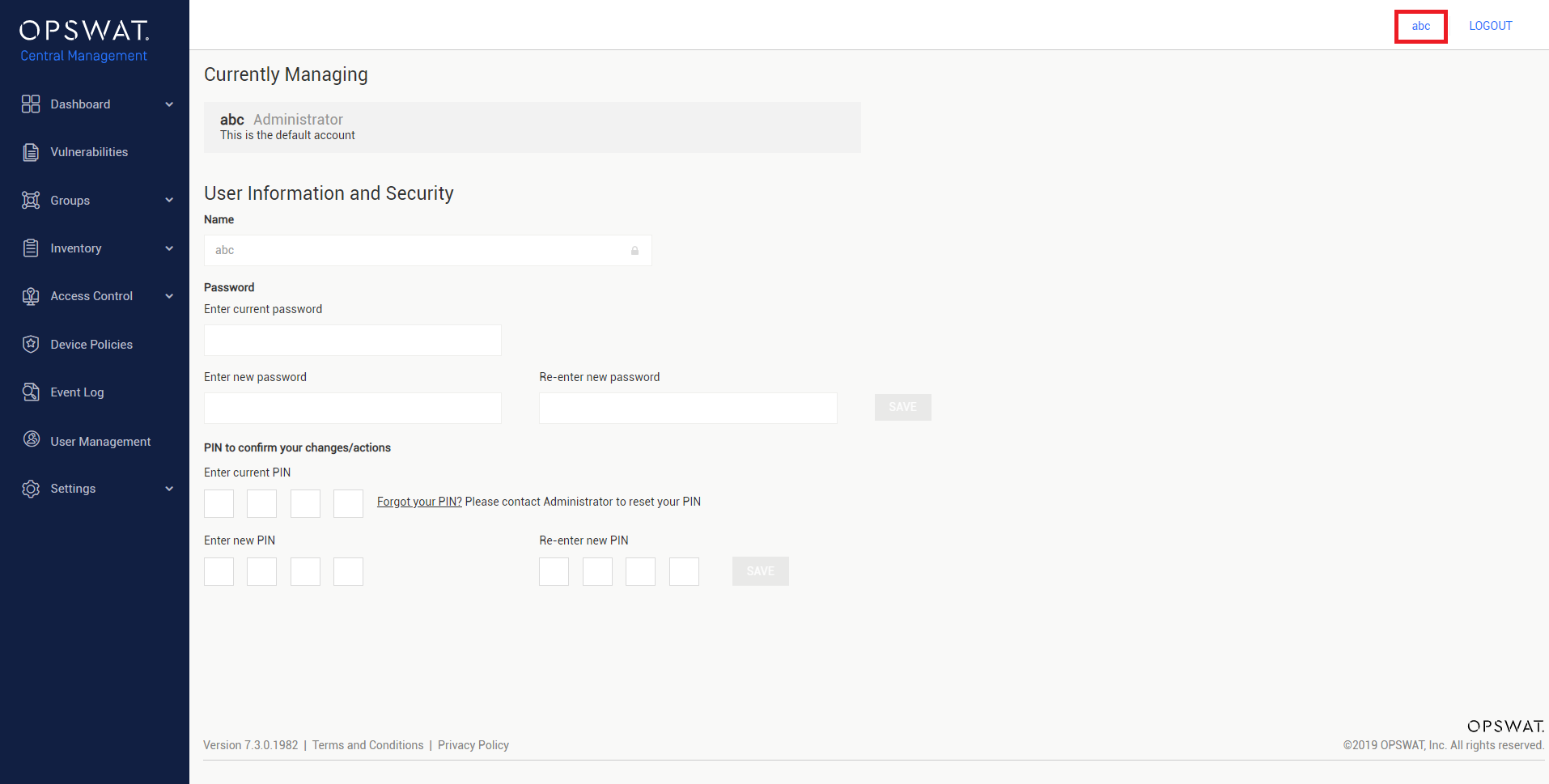
Enter your current PIN and new PIN.
Click SAVE.
If you forget your PIN at any time, you can request a new temporary PIN which will be created and sent to you. To do this:
Go to the User Information page by clicking your account name at the top right corner.
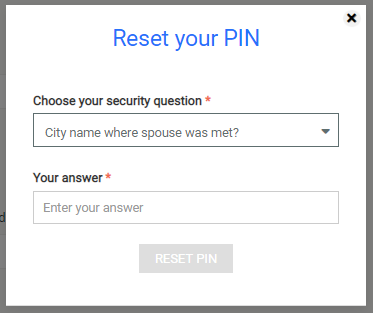
Click Forgot your PIN? to reset your PIN.
Enter the correct set of question and answer and select RESET PIN.
Enter your new PIN and select CREATE PIN to confirm your choice.

Your new PIN will take effect immediately.
Only new administrator accounts created from version 7.3.0+ can have their PIN reset.