
When installing MD Managed File Transfer using SQL Server with Windows Authentication, follow these steps for configuration:
In the installer, select "SQL Server with Windows Authentication." The following form will pop up:
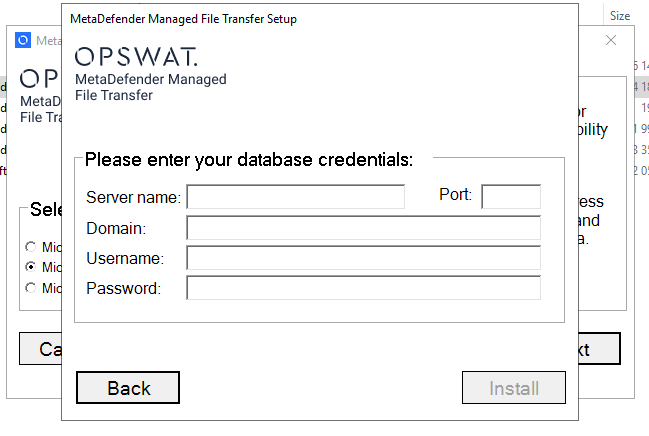
Fill out the following fields:
Server Name: Required: Yes
The server address (domain name or IP) and the SQL Server instance name. This MSSQL server instance can be a local or a remote server.
Example #1: Server address with default instance name:
mft.example.comExample #2: Server address with named instance:
mft.example.com\dbinstancename
Port: Required: No
The port number on which the SQL Server instance is listening. This field has specific behaviors based on its value:
If empty, the application will use the Shared Memory protocol if the database server is on the same computer.
If empty, and the database server is on a different computer, the setup is not possible.
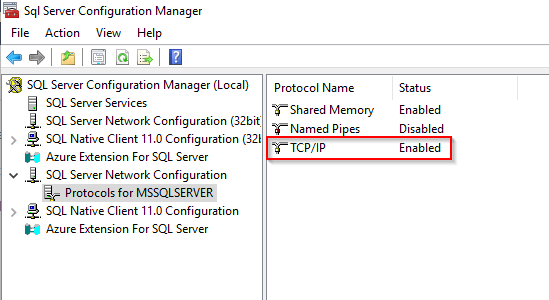
If filled, and the database server is on the same computer, TCP/IP must be enabled, even if the port is the default 1433.
Domain: Required: Yes
The domain of the user account used for Windows Authentication.
Username: Required: Yes
The username of the account used for Windows Authentication.
Password: Required: Yes
The password for the specified account.
Notes
Ensure that the SQL Server is configured to accept Windows Authentication.
Verify that the user account has permission to access the SQL Server instance.